


- Home
- Photoshop ecosystem
- Discussions
- Re: Smart Object with transform resizing problem
- Re: Smart Object with transform resizing problem
Smart Object with transform resizing problem

Copy link to clipboard
Copied
An embeded smart object with a perspective transform get jaggy line after a resize compared to a rasterize layer but the resize preview is actually OK
(the smart object is from a PNG file)




Explore related tutorials & articles
 46
Replies
46
46
Replies
46


Copy link to clipboard
Copied


Copy link to clipboard
Copied
Your content is changing so it not Image size doing it. Try resetting your Photoshop preferences and tools. Photoshop is not working correctly in an area that has always work for me. I do not believe its a bug I believe something is corrupt on your machine. What version of Photoshop do you use? I can only test on Windows I mat be able to test the Photoshop version you are using but on windows.
Image size should transform the document canvas size and all layers in the document including the smart object associated transform the Smart Ojject Pixels will not be changed just its associated transform should change to reflect the change in canvas size.
Copy link to clipboard
Copied
Mac os latest version of photoshop CC 2017 up to date. last update really recently
It's the first time i see that... maybe it's a bug introduced in the last version
I can be reproduce really easylly
- Create an image 2500 px high
- Write some text/ rasterize (it easier to spot on text)
- create a smart obect with the rasterized text layer
- ( Transform optionally the smart object as it is more obvious when transform )
- duplicate the smart object and rasterized the duplicate
- You have to identical layer one smart object the othe rasterize
THEN resize 33% both in one step and compare ... you should have the same result and it is not the case...

Copy link to clipboard
Copied
- Create an image 2500 px high
- Write some text/ rasterize (it easier to spot on text)
- create a smart obect with the rasterized text layer
- ( Transform optionally the smart object as it is more obvious when transform )
- duplicate the smart object and rasterized the duplicate
- You have to identical layer one smart object the othe rasterize
THEN resize 33% both in one step and compare ... you should have the same result and it is not the case...
You say that but you do not provide screenshots to illustrate your claim.
Please see how different the results are for me for a Perspectival Transformation and downscaling:


Copy link to clipboard
Copied
Can you post the layered psd. Upload it to a file sharing site and post a link to it. Canvas, layers, layer mask, transforms etc. should all be resized by Image size.
Reset all Photoshop Tool and you user ID Preferences.

Text that has been rasterize will not interpolate well. Smart Object layers rendered pixels are not change however they are interpolated via the associated transform to render the layer for Photoshop composite.
Copy link to clipboard
Copied
Here is the file i used
Can you please resize it to 33 % and compare the result of both layer on your computer
Copy link to clipboard
Copied
Here is the result on my computer (both the general resize parameter and the resize windows set to bicubic (smooth) the simple one)
Copy link to clipboard
Copied
olh21 wrote
- Create an image 2500 px high
- Write some text/ rasterize (it easier to spot on text)
- create a smart obect with the rasterized text layer
- ( Transform optionally the smart object as it is more obvious when transform )
- duplicate the smart object and rasterized the duplicate
- You have to identical layer one smart object the othe rasterize
THEN resize 33% both in one step and compare ... you should have the same result and it is not the case...
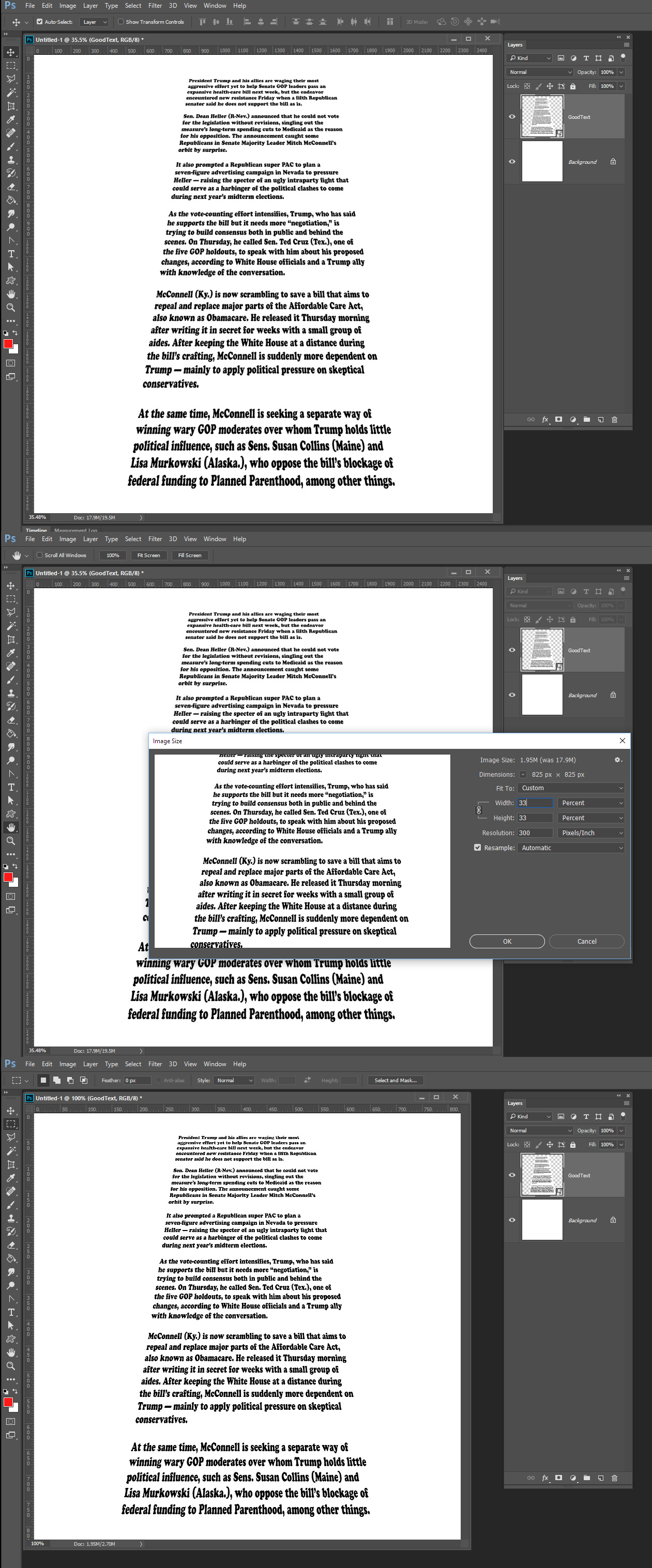
Again If you know something will not work well why do it. I will create your 2500 PX high Doc I'll make it 2500px by 2500 PX and add a smart Object Layer with good raster text perspective transform then resize 33% To see what I see and how I feel about it. 33% of 2500 is 825PX how distorted text can look good with that many pixel? I feel the result are acceptable from what I see.
 .
.

Copy link to clipboard
Copied
Just found this thread, here is what i want to say.
To us it is a very big deal as this basically makes use of smart objects in artboards impossible if you need to export those in different sizes. I wonder how Adobe can ignore this issue.
This like screws the whole Export feature to be obsolete for MANY people.
Copy link to clipboard
Copied
Same test done with the file TestResize.tif - Google Drive with Photoshop CC 2015,5 on another Mac computer leads to the same result.
Cris Cox admited here Photoshop: EPS or PDF Smart objects render badly (with jags) when being scaled or transformed. | Pho... that a bug like this occured with PDF and EPS 4 years ago.
They say they corrected this but never investigated the general case. And M Cox is unfortunatly not part of Adobe anymore.
Is there someone from support that can help ?
Copy link to clipboard
Copied
The problem I have with all you write. If you know there is a bug and that rasterized text does not interpolate well. Why do you want the Bug to bite and why do you rasterize text and then distort and resize the text through transforms interpolation. Who knows if Adobe will ever fix the bug you let bit you, Why convert editable vector text to a raster image. Why not convert it to a shape if you want to make it hard to edit.
Your post show that Image size was cropping your image on three sides. That does not happen on my machine there may be something corrupted on yours.

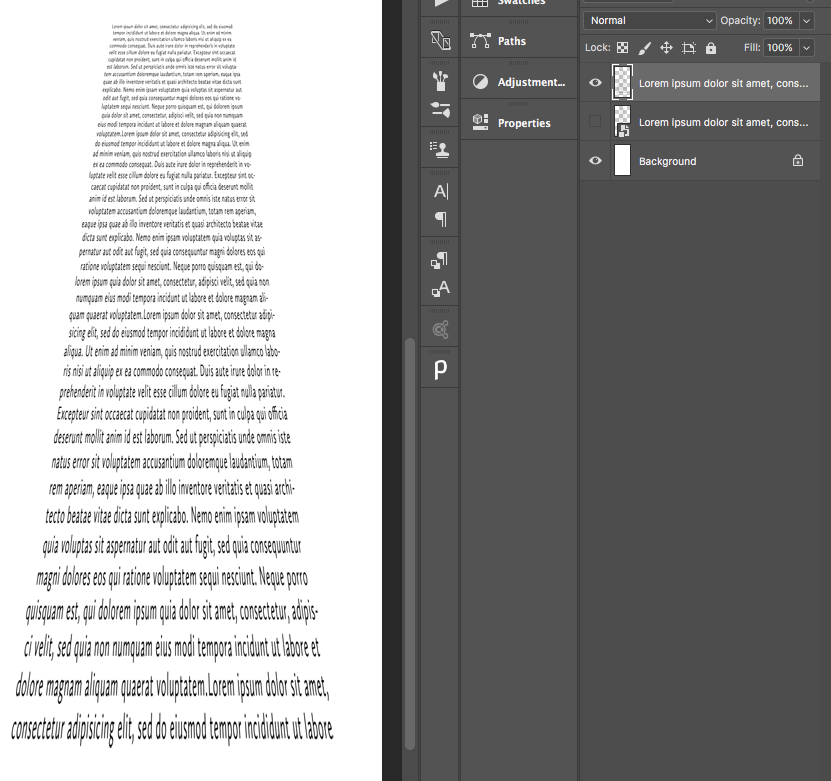
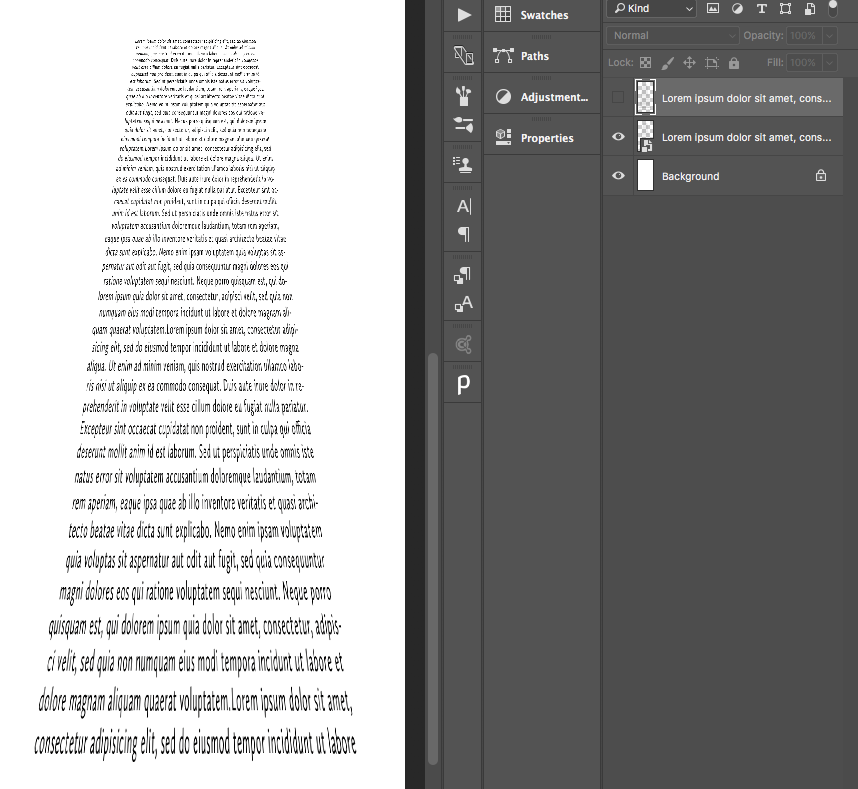
These do not show cropping just show that the rasterizing text then distorting and resizing it does not work well and should be avoided. The smart obJect text may also be much larger then there other raster layer depends on the size of the actual object.
Copy link to clipboard
Copied
The first post is a manual screen capture on wich I croped myself not to post the whole screen to show the problem
there is NO crop problem. it's just an extract of the actual picture
Second i do show the problem on text because it's more obvious but it happens on EVERY raster smart object you transform then resize
Typically if you are working with mockup or web interface an "export as" with resize you will have this problem.
Here for exemple i don't have the original image non raster images and this is all part part of a complex workflow where i NEED smart object to be resized on a large batch of images.
It's basic use of photoshop for web design or mockup design to use smart object - if this does not work the complete workflow is just not usable.
Some people can be just confident in photoshop and get very bad result using this common workflow
Third the purpose of a forum is to post problem so that people facing the same problem can quickly stop loosing time trying to solve something wich is obviously not working. I am not posting that here for me or for you expecting to solve it. I am posting so that ADOBE get aware of the problem, so that other people gets informed of the problem and be carefull in their web design workflow involving smartobject.
I you want to help please run the test from my file on a window computer and tell me if you got the same result.
Copy link to clipboard
Copied
Your post stated actual result which was less than what was in the preview was you showed a crop not actual result How were we to know you cropped the actual results? The what you labeled actual results was not the actual result.
If you want to get Adobe Aware use the correct Adobe Feedback web site report what you feel is a bad bug that Photoshop does not work well there: Photoshop Family Customer Community . Do not show crops labeled actual results.
Smart Object layers Pixels can not be change the layer's pixels are interpolated to change its size. All smart Object layers have an associated transform. If the size change is great Like raster layers the results will not be grate too much detail must either be discarded or created. You can make a mountain out of an ant hill or place a mountain forest on an ant hill.
Size requirement may require you to have images files that have different image quality. Good quality text require high resolution. A phonebook page will not be readable in a icon size image. That detail can not be stored in a 2,000 px image.
You should not expect Photoshop to do the impossible
Copy link to clipboard
Copied
I just want photoshop to do what it is supposed to do
I DONT WANT to be able to read the text... it's just a preview... an example for details not an actual final result . I don't care if the text is readable I know that it is to small to be read this is not the problem, small text is a way of showing fine details.
I perfecly know what photoshop can do and what it can't .
Can we focus on the real problem. if the text is readable or not i dont care.
I WANT photoshop to resize properly the way it is suppose to resize hence using a correct bicubic algorithme
when resizing smart object like it does when resizing raster.
Both should result in the SAME result and it is not the case.
A bug report has been done 4 years ago apparently and ADOBE acknowledge the problem but they claim that the problem was solve for EPS and PDF but it is not for raster.
Have you done the test yourself?
Copy link to clipboard
Copied
If its a known problem what is there to test. All I could do is confirm there is a problem. If it is an Adobe Problem there is nothing I can do. I do not work for Adobe, Myself I work around Adobe problems till they get fixed. Some bugs are never fixed. That is my life. I do not hold my breath waiting for Adobe to Fix Problem I've reported and Adobe acknowledged. I would have been dead years ago. CS2 bugs, CS4 bugs etc are still in CC 2017 and CC 2017 has new bugs. Such is Photoshop. You need to work around Adobe bugs that bite you. Many of the bugs you will never encounter, others will.
We all would like Photoshop to work well and be bug free I will not see that Photoshop in my lifetime. Bugs I have reported 7 years ago have not been fixed. Four yours is not a record.
Copy link to clipboard
Copied
Cris Cox admited here Photoshop: EPS or PDF Smart objects render badly (with jags) when being scaled or transformed. | Pho... that a bug like this occured with PDF and EPS 4 years ago.
Mc.Cox also stated the issue has been resolved.
And he stated
The problem being discussed here ONLY applies to raster content in a PDF, AI, or EPS file.
so it would not apply to Photoshop SO (edit: ones created in Photoshop by converting Layer/s to an SO) anyway (psb).
I WANT photoshop to resize properly the way it is suppose to resize hence using a correct bicubic algorithme
when resizing smart object like it does when resizing raster.
Both should result in the SAME result and it is not the case.
The text used in your file »TestResize.tif« from post 27 yields indistinguishable results for one transformation whether transformed as Smart Object or pixel Layer for me.
In »TestResize_33p_BicubicSmooth.tif« you apparently applied two separate resampling operations – is that correct?
I will lost hundred of hour of work because i was not aware of the bug.
If you thought that the difference in result of two resampling operations as opposed to one resampling operations is a bug you would be mistaken.
But maybe I missed your point.
Copy link to clipboard
Copied

Copy link to clipboard
Copied
If you are being bitten by an Adobe bug there is noting you can do but report it and hope that Adobe will address the bug.
If you know doing something is going to have problems and produce an unacceptable result. Why do it?
It is one thing to be bitten by a bug you do did not ask to be bitten. Asking to be bitten is a different story. If you know there is a bug there avoid it work around it. The bug may still be there when your dead.
I have been using Photoshop Many years20+ I have invested a lot in Photoshop. There is no alternative for me no one product can replace Photoshop and use what I have developed for Photoshop. Heck I can now really state I use CC 2017 I don't CC 2017 bite what I have developed. I use CC 2014...
Copy link to clipboard
Copied
I will lost hundred of hour of work because i was not aware of the bug.
Had i knew it before i wouldn't of course have made it that way
Now i will have to restart without the smart object
Now that i am aware that it is a bug i will act in consequence
I am just here to help OTHERS not to do the same mistake
For that i had to be sure that it is really a bug so some other people had to be able to reproduce easilly
And confirm the pb.
Copy link to clipboard
Copied
One more thing how well a smart object layer resize has a lot to do with the quality of the object. I do not find resizing a quality smart object layer to be a problem. To big it will get soft to small you will not be able to read it. Just like a raster layer How good and how many pixel do you have for the object?


Copy link to clipboard
Copied
A Smart Object layer has some overhead. They resize like a Raster layer however, if you may be resizing a raster layer more than once you should convert the raster layer to a smart Object before any resizing because they resize better than raster layer. Every time you resize a raster layer the layer looses some image quality the layer's quality degenerates some. Though smart Object layers resize like raster layer via interpolation the smart object layer overhead preserves the layer quality. The Layer pixels are not changed at all. just the rendering for the layers composite rendering is. This transformation is always done from the layers pixels that where rendered by Photoshop for the object and these pixel are set in concrete they can not be changed. The layers image quality does not degrade the current layer transform for the document composite may be poor if the transform size change is large. For example if object is text and when Photoshop rendered pixels for the object text and shapes become pixels its a raster layer. If the text characters are rendered with a black line width of one or two pixels resizing the layer to 33% would mean the text line width would be 1/3 or 2/3 of a pixel the transform will be awful you do not the pixels needed to do a good transform. Do not crate object that you will transform too small or too big. There is a range of size transformation that will work work well with an object. resizing outside that range will produce unacceptable results.
The example 2500x2500 document where I perspective transformed a smart object layer that contained text then resized then 2500x2500px document to 33% of that. Resized the smart object not to 33% of the object size it resized it to 15% of its size. For in the 2500x2500PX document the object was transformed to 47% in the document composite view.
If you have a high quality object it can tolerate quit a large change in size. If an image has a large about of detail like text does you need a lot of pixels to record all the fine detail. If you are constrain to some number of pixels you can record just so much detail. The image quality is not as good as it could have been had you more pixels the to store more detail. A digital image is stored in pixels.
When you change an image size via interpolation you not changing it size by just changing its DPI resolution your doing it for displays they can not change their DIP their Pixel size is fixed. Your changing the number of pixels you render the image with. Pixel is where the image details is. If you reduce the number of Pixels you have to discard details you now have. If you increase the number of pixels you have to create detail you do not have for the image. When you change an image size by changing the number of pixels you loose some image quality.
If you loose too much quality the image rendered will be unacceptable. If you have a high quality Image it will have a lot of pixels finely recording all the image's detail. A high quality image can withstand a large range of size changes. UP or down in size the quality lost will not too much. On the other hand if you have a lower quality image it will not be able to withstand a large change in size you be discarding too much of the little detail you now have. If you enlarged you will not be able to create good details for you have too little detail to go on.
IMO you problem is you create low quality objects.

Copy link to clipboard
Copied
I work in Photoshop for web production all day long and what you are describing sounds very familiar. It is an issue that manifest when a screen is skewed. Photoshop tries to remember every original detail and what ends up in the end is something with too much information and looks jagged. We apply a technique to solve the resolution issue.
"An embeded smart object with a perspective transform get jaggy line after a resize compared to a rasterize layer"
Try doing the following:
• After you do your smart object resize, make is a smart object again. Essentially you are wrapping it inside another smart object.
• Then go inside the new smart object. Inside is where you will adjust the image resolution.
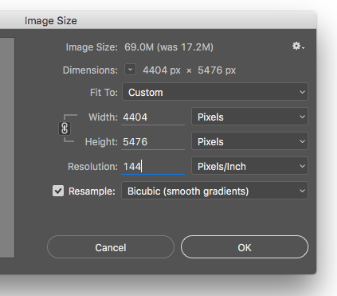
• Using the "Image Size", increase the current resolution by multiplying it by 2. Example, if your image is 72ppi, increase it to 144ppi. (If you are dealing with something thats extremely angled then do this step twice. Example, 72ppi increases to 288ppi.)
• Then save and close the smart object so you are back to the main level of your Photoshop file.

-
- 1
- 2

Get ready! An upgraded Adobe Community experience is coming in January.
Learn more
 AdChoices