jgatta
Participant
December 24, 2018
Answered

Straight edge stroke on vector

  • December 24, 2018
  • 2 replies
  • 3470 views

Hey everyone,

I'm making a logo for my fantasy league. I'm nearly done, but I've run into a issue. I'm attempting to stroke the logo with a straight edge stroke. I managed to achieve this on the text using Type > Convert to Shape > Path Selection Tool > Stroke. However, when trying to do this to a rasterized image, I don't have this option. Is there any way to turn achieve this on anything besides a shape/text in Photoshop? or possible using Illustrator (I'm terrible in Illustrator, so that would be my last resort).

Here's a video for reference

Thanks guys!

    This topic has been closed for replies.
    Correct answer Trevor.Dennis

    You are right. The only stroke options in  Photoshop are for Shape layers.  Using layer styles > Stroke, or Edit > Stroke (selection)  will produced bevelled corners.

    So you were right to convert the Type layer to a Shape layer, but you went off at a tangent by using stroke path.

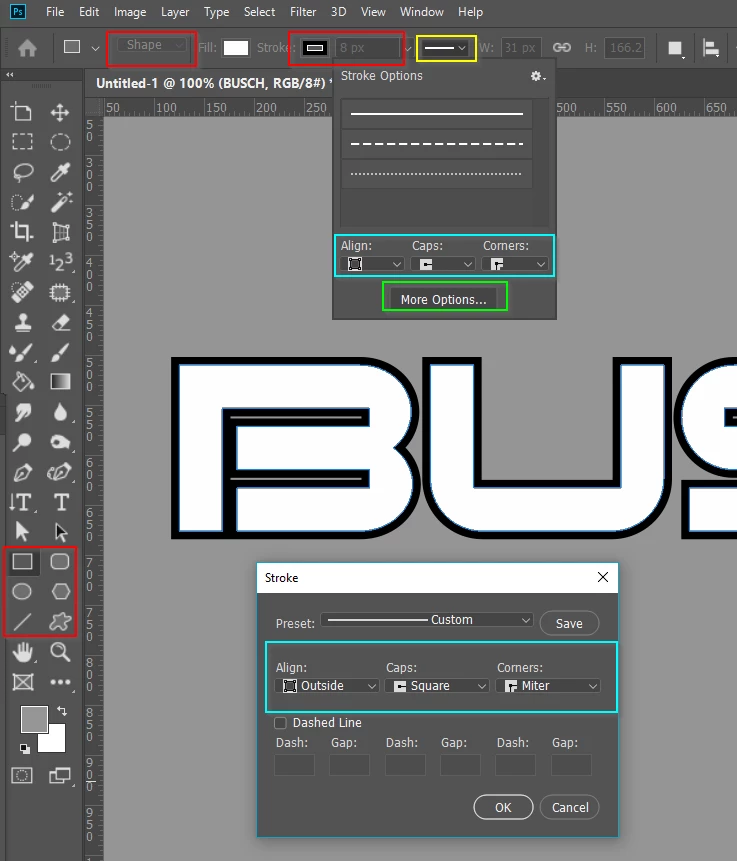
    With the type as a Shape, select any of the Shape tools, and the Stroke options will appear in the Options bar (red highlight)

    You do need to make sure that Shape is selected on the left of the Options par, and not Path or Pixels

    Se the stroke width and colour (also red highlight)

    Then use the Line drop down (yellow highlight) to open the Stroke Options panel

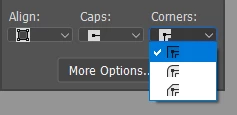
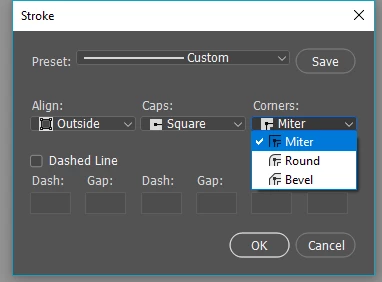
    In the Align Options you can choose Inside outside or Centre, and you need to set corners to Mitre

    2 replies

    Trevor.Dennis
    Community Expert
    Trevor.DennisCommunity ExpertCorrect answer
    Community Expert
    December 24, 2018

    You are right. The only stroke options in  Photoshop are for Shape layers.  Using layer styles > Stroke, or Edit > Stroke (selection)  will produced bevelled corners.

    So you were right to convert the Type layer to a Shape layer, but you went off at a tangent by using stroke path.

    With the type as a Shape, select any of the Shape tools, and the Stroke options will appear in the Options bar (red highlight)

    You do need to make sure that Shape is selected on the left of the Options par, and not Path or Pixels

    Se the stroke width and colour (also red highlight)

    Then use the Line drop down (yellow highlight) to open the Stroke Options panel

    In the Align Options you can choose Inside outside or Centre, and you need to set corners to Mitre

    michelew83603738
    Community Expert
    Community Expert
    December 24, 2018

    It isn't type, so you are not going to be able to convert it. .But you can select everything on the layer (click on layer and Cmd click) and then go to Edit>Stroke. This will give you the ability to set a pixel based stroke around your logo at a certain width. If I understand you correctly, this is what you are trying to accomplish. Another way to do this is to select and then go to SWelect>Modify and you can create a border of a specific width. Perhaps one of these will give you what you are looking for.

    jgatta
    jgattaAuthor
    Participant
    December 24, 2018

    No, not exactly what im looking to do. I want sharp edged on the stroke. These methods dont do that, unfortunately.

    davescm
    Community Expert
    Community Expert
    December 24, 2018

    Hi

    If your rasterised layer is against surrounded by transparency you could right click on the layer in the layers panel, choose blending options, and in layer styles add a stroke.

    Dave