Inspiring
February 21, 2017
Answered

Strange floating menu bar won't go away

  • February 21, 2017
  • 2 replies
  • 3715 views

This strange floating menu bar has been haunting me for a few years - ever since i updated to cloud. I can't open it or make it go away. I can make it shorter - that's all. I don't know what it's from and it's followed me onto a new laptop. I generally just try to hide it somewhere it's not in the way but it's really annoying. Almost like trying to contact Adobe - I'm sure it's possible but the answer is hidden away and near impossible to find.

What is it? How do I get rid of it?

I've had a few very savvy digital techs that couldn't make sense of it. I've given up.

Thanks,


Gregor

    This topic has been closed for replies.
    Correct answer sakurama

    I'm very curious to hear what they have to say.


    So they helped fix it but it had nothing to do with them or their plug in.

    Gregor,

    Our plugins don't even exist in memory while Photoshop is in an active state.

    Our plugins have to be called by Photoshop and we don't generate any type of floating menus or toolbars as our plugins are windowed apps.

    I'd suggest you delete your Photoshop preferences on your next Photoshop load and/or update your video drivers.

    Also, if your mac has a discrete/integrated video card combo this has been known to cause graphics issues like yours.

    This Apple KB goes into how it works:

    https://support.apple.com/en-us/HT202053

    I use this small app on my MBP's from time to time to manually switch from integrated to discrete:

    https://gfx.io/

    Regards,

    George

    It was the deleting photoshop's preferences that seems to have done the trick. It had the fringe benefit of resetting the palettes to a nice dark gray which I must have forgotten was possible.

    So there you go - a mystery for the ages solved.

    Gregor

    PS: In case this ever comes up again...

    Resetting Photoshop's Preferences (All Versions)

    To reset Photoshop's preferences using the first method (which works with all versions of Photoshop), the first thing we need to do is quit Photoshop. To do that, on a Windows PC, go up to the File menu in the Menu Bar along the top of the screen and choose Exit. On a Mac, go up to the Photoshop menu in the Menu Bar and choose Quit Photoshop:
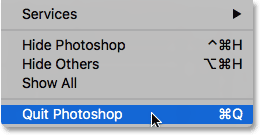
    Quitting Photoshop. Image © 2016 Photoshop Essentials.com

    Go to File > Exit (Win) / Photoshop > Quit Photoshop (Mac).

    Then, with Photoshop closed, press and hold Shift+Ctrl+Alt (Win) / Shift+Command+Option (Mac) on your keyboard and relaunch Photoshop the way you normally would. Just before Photoshop opens, a message will pop up asking if you want to delete the Adobe Photoshop Settings file (which is your Preferences file). Choose Yes. Photoshop will then open with all of your preferences restored to their default settings:
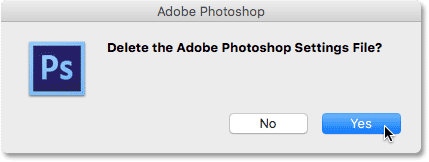
    Choose Yes when asked if you want to delete the Photoshop Settings file. Image © 2016 Photoshop Essentials.com

    Choose Yes when asked if you want to delete the Settings file.

    2 replies

    Trevor.Dennis
    Community Expert
    Community Expert
    February 21, 2017

    It looks like the bottom of a window from another app showing from behind Photoshop, or a collapsed panel hidden behind the Layers panel. Maximising the Photoshop window would fix the first, and resetting the workspace the second.  Most panels will not collapse as flat as that, so possibly a third party add-on or Extension.

    If those ideas don't help, then I am stuck for the moment.  What hardware is this? 

    Barb Binder
    Community Expert
    Community Expert
    February 21, 2017

    I can make it shorter - that's all.

    Can you make it taller so that we can see what it is?

    ~Barb at Rocky Mountain Training
    sakuramaAuthor
    Inspiring
    February 24, 2017

    Sorry, work slammed me.

    No, I can't make it taller - if I could I could read it and perhaps access the button to close it. It's certainly part of Photoshop as it disappears with the pallets when you click on the desktop and it reappears when you click on photoshop. I have reset the workspace and created new workspaces. It's in all of them. If I go down the drop down from the Window and turn off every single palette it's still there. It was there in CS5, there in CS6 and there in CC15 and CC16. It's been there when I had a tower and through three laptops.

    It's persistence is creepy. You can see how I've dealt with it over the years by the multiple workspaces I've created. It's usually there, minimized and off in the corner so I it won't bug me. I've asked a dozen assistants and digital techs and they can't figure it out. The fact that it persists through multiple upgrades is strange.

    Gregor

    Barb Binder
    Community Expert
    Community Expert
    February 24, 2017

    So strange. Is there an extension running, or some sort of plug-in?

    ~Barb at Rocky Mountain Training