Participating Frequently
May 20, 2018
Answered

swirling lines

  • May 20, 2018
  • 4 replies
  • 3072 views

How do you create swirling lines like this? 

I tried creating 5 straight lines and then using "warp" from the transform menu.  It worked a bit, but I couldn't get large curves.

I tried using the "curvature pen" tool.  I was having trouble getting the lines smooth and flowing and evenly spaced.

I just got a wacom tablet as a gift... it's still in the box...   Would it help?

Any help would be appreciated.

Thanks
This topic has been closed for replies.
Correct answer c.pfaffenbichler

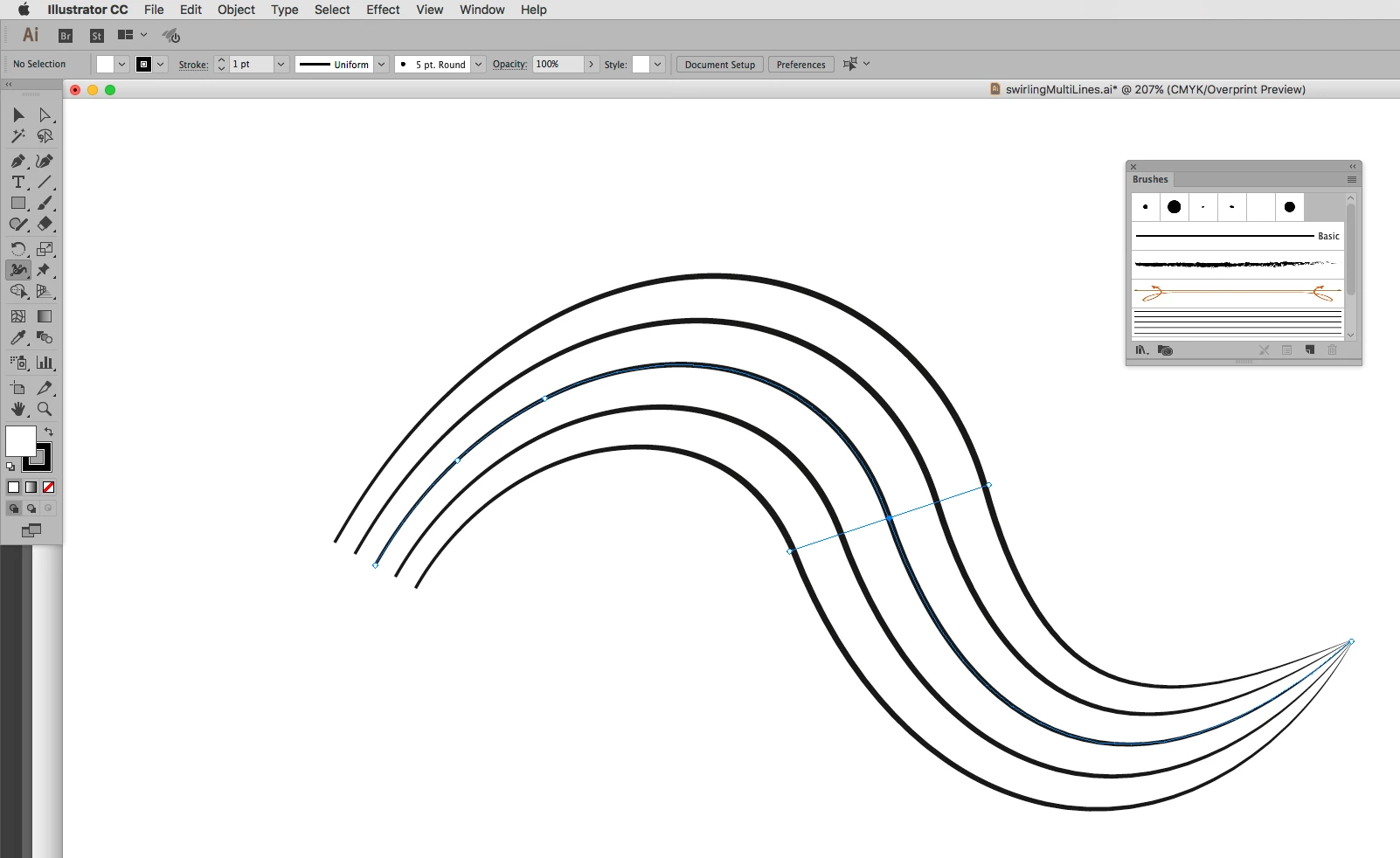
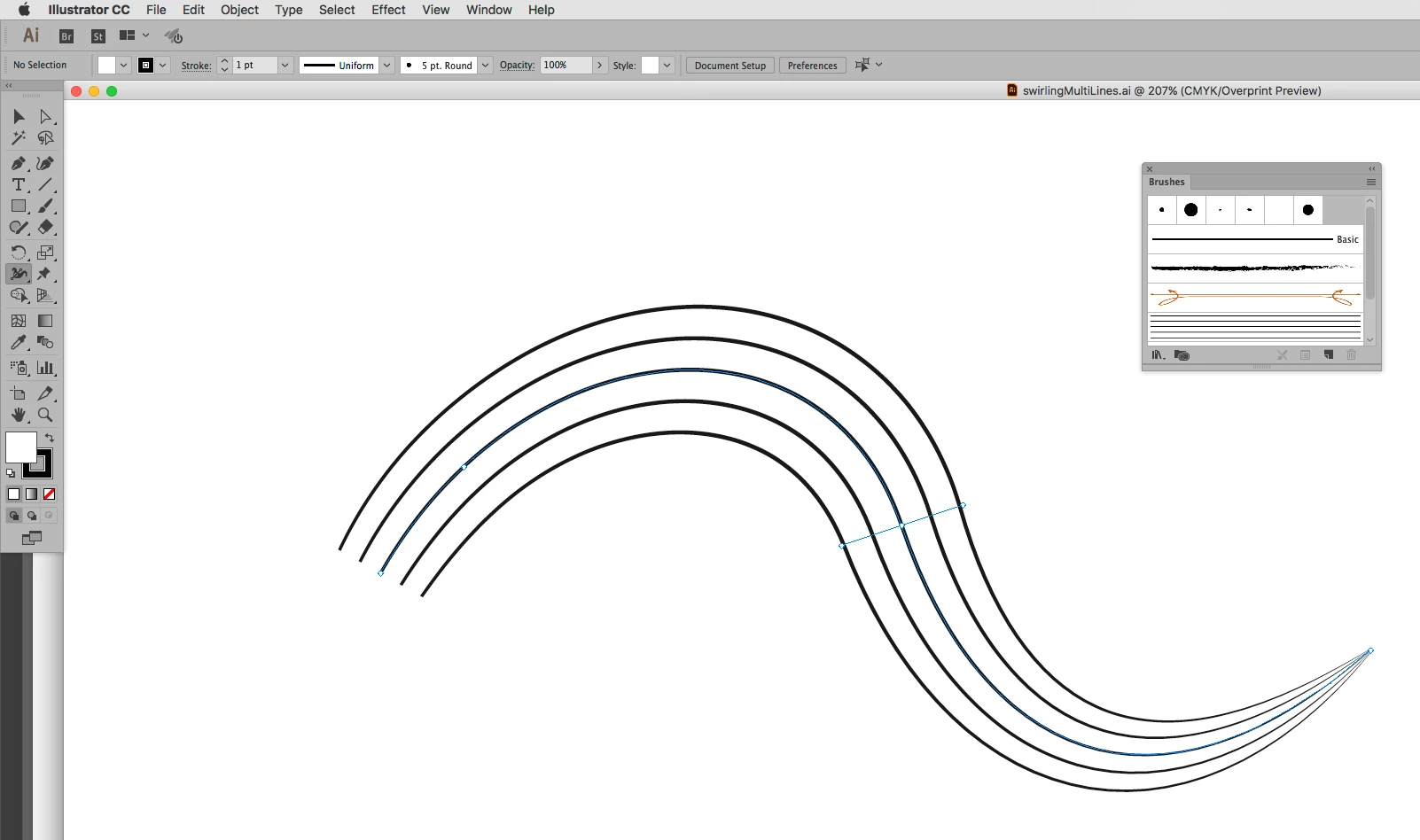
I think Illustrator’s Width Tool offers better edibility after the fact.

If that’s even necessary her is another question of course.

4 replies

c.pfaffenbichler
Community Expert
c.pfaffenbichlerCommunity ExpertCorrect answer
Community Expert
May 20, 2018

I think Illustrator’s Width Tool offers better edibility after the fact.

If that’s even necessary her is another question of course.

Trevor.Dennis
Community Expert
Community Expert
May 20, 2018

Illustrator would produce much cleaner lines for sure, and as you say, its Width tool would provide useful options like the appearance of depth.  Instead of the line size gradually reducing in a linear fashion, you could the line swoop back, and then increase in size as it looped back and crossed itself appearing to be closer to your viewpoint.  So if you have Illustrator, that would be the way to go.

How To Use The Width Tool in Illustrator

Trevor.Dennis
Community Expert
Community Expert
May 20, 2018

It's doable with CC2018, and with all versions if you are using Windows.

Make four dots and define as a brush:

Turn on Smoothing in the Brush presets panel, and give it a high value and select Pulled string from the Options bar.

Set Size Jitter to Fade, and give that a high value.

Now draw your lines.  It takes practice, so adjust Smoothing value for best effect.

I ended up increasing the Fade value to 2000, and set Angle Jitter to Direction for the stroke below.  I also reduced Smoothing value because it was not reacting fast enough for sharp corners.  It's very much a trial and error thing.

Another option is to stroke a path with your brush.  This lets you fine tune the shape and smooth out the bends

I have probably made the lines too thick, and there are signs that brush spacing was too loose on the outside of the curves, but I think this will get you started.

Trevor.Dennis
Community Expert
Community Expert
May 20, 2018

I mentioned older versions of Photoshop if you use Windows.  This is because of Lazy Nezumi Pro which only works with Windows PCs, but if you use the Stroked Path option, you do not need brush smoothing.

https://lazynezumi.com/

c.pfaffenbichler
Community Expert
Community Expert
May 20, 2018

As Mylenium said Illustrator would seem a better choice of tool for this task.

An Art Brush (of a five line element) and the Width Tool in Illustrator should be helpful here.

Mylenium
Legend
May 20, 2018

This is stuff you would typically draw vector-based in Illustrator. There's your answer. You can of course kinda hack it together by using paths in Photoshop as well and applying a stroke to them, but it's never going to be perfectly controllable.

Mylenium