Exit
  • Global community
    • Language:
      • Deutsch
      • English
      • Español
      • Français
      • Português
  • 日本語コミュニティ
  • 한국 커뮤니티
Locked
0

Transform Image not Working

Explorer ,
Mar 28, 2021 Mar 28, 2021

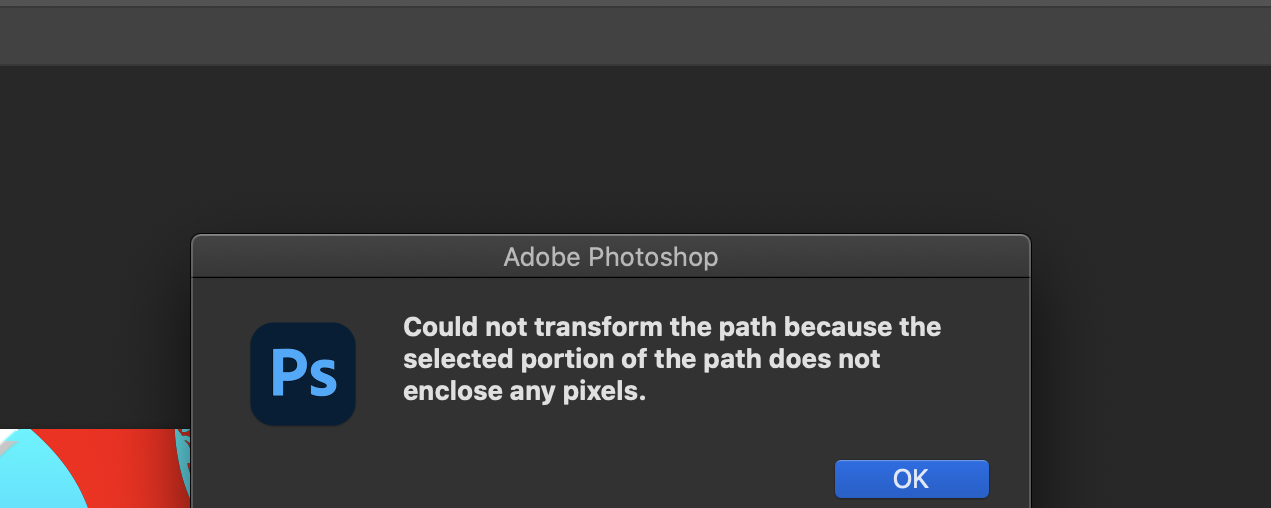
When I try to transform an image it shows this. A pop up shows up saying this

"Could not transform the path because the selected portion of the path does not enclose any pixels."

I am pretty sure there is no path because I didn't even use the tool for the project I was working on all I wanted to do was put perspective on an image. Plz help.

Using Macbook Pro

Processor: 1.4 GHz Quad-Core Intel Core i5

7.0K
Translate
Report
Community guidelines
Be kind and respectful, give credit to the original source of content, and search for duplicates before posting. Learn more
community guidelines

correct answers 2 Correct answers

Community Expert , Mar 28, 2021 Mar 28, 2021

Hi @OC_Skeptical 

Some people have solved this alert message by going to the Paths panel and deselecting or deleting all paths. Others have selected all of their layers and copied them into a new document with the same specs. See if one of these works for you.


~ Jane

Translate
Community Expert , Mar 28, 2021 Mar 28, 2021

If the options bar is off, turn it on from the Window menu where you will find all the panels. It is context sensitive and will give you the options that can be set for the current tool.

~ Jane

Translate
Adobe
Community Expert ,
Mar 28, 2021 Mar 28, 2021

Hi @OC_Skeptical 

Some people have solved this alert message by going to the Paths panel and deselecting or deleting all paths. Others have selected all of their layers and copied them into a new document with the same specs. See if one of these works for you.


~ Jane

Translate
Report
Community guidelines
Be kind and respectful, give credit to the original source of content, and search for duplicates before posting. Learn more
community guidelines
Explorer ,
Mar 28, 2021 Mar 28, 2021

Thanks, Jane. I accidentally had a work path in there.

Translate
Report
Community guidelines
Be kind and respectful, give credit to the original source of content, and search for duplicates before posting. Learn more
community guidelines
Community Expert ,
Mar 28, 2021 Mar 28, 2021
LATEST

You're welcome, @OC_Skeptical, I'm glad that fixed it for you. 😊

~ Jane

Translate
Report
Community guidelines
Be kind and respectful, give credit to the original source of content, and search for duplicates before posting. Learn more
community guidelines
Community Expert ,
Mar 28, 2021 Mar 28, 2021

Hi!

What version of Photoshop are you using? And, what option to you have selected in the Options panel when you are using the Pen tool - Shape, Path, or Pixels?

Michelle

Translate
Report
Community guidelines
Be kind and respectful, give credit to the original source of content, and search for duplicates before posting. Learn more
community guidelines
Explorer ,
Mar 28, 2021 Mar 28, 2021

Photoshop CC 2021

Translate
Report
Community guidelines
Be kind and respectful, give credit to the original source of content, and search for duplicates before posting. Learn more
community guidelines
Explorer ,
Mar 28, 2021 Mar 28, 2021

How do I get to the options panel?

Translate
Report
Community guidelines
Be kind and respectful, give credit to the original source of content, and search for duplicates before posting. Learn more
community guidelines
Community Expert ,
Mar 28, 2021 Mar 28, 2021

If the options bar is off, turn it on from the Window menu where you will find all the panels. It is context sensitive and will give you the options that can be set for the current tool.

~ Jane

Translate
Report
Community guidelines
Be kind and respectful, give credit to the original source of content, and search for duplicates before posting. Learn more
community guidelines