
Participant
March 26, 2019
Answered

Transparent Background Issues

  • March 26, 2019
  • 6 replies
  • 1907 views

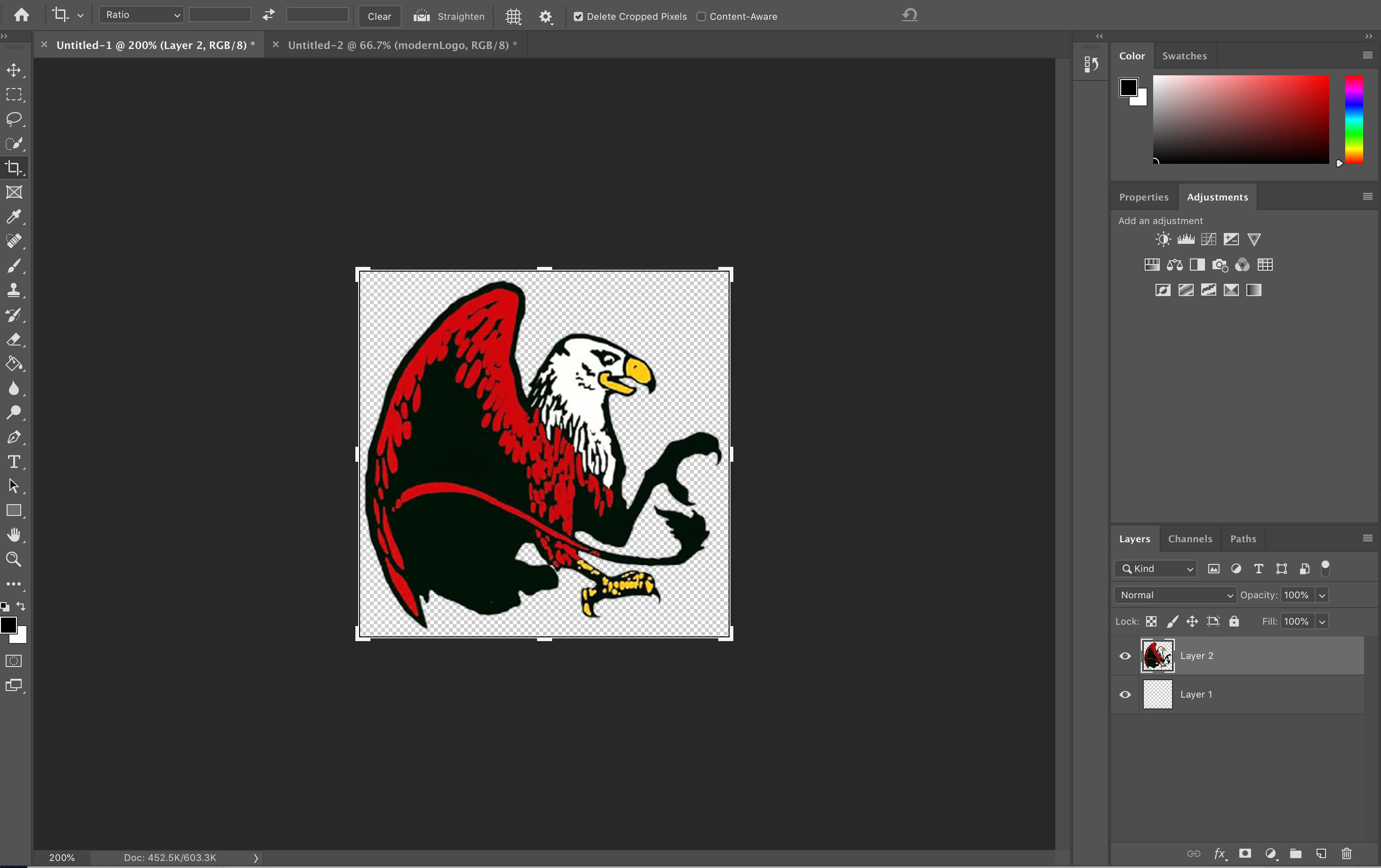
I have a logo that I created in PS CC with a transparent background. I saved it as a png but when I try to use it, it has a faint outline on the left side. It shows in the file on my computer and on the website I'm trying to use it on. It does this with every png I try to save with a transparent background. Second photo shows outline.

    This topic has been closed for replies.
    Correct answer Daniel E Lane

    Is that lower layer needed? If not, get rid of it just in case it is having some effect on the image.

    What size is the graphic? Is it very small pixel wise? I have seen this happen at times when the graphic is quite tiny and saved as a PNG, especially if you save it at a lower resolution.

    Is it something you cut out and blew up? Did you cut it out and use a slightly feathered edge with the tools you cut it out with?

    6 replies

    melissapiccone
    Community Expert
    Community Expert
    March 26, 2019

    Those pixels look like they exist, maybe you cut this out of a background? Easy old school way to get rid of them:

    Hold command/control and click on your layer to select the image

    Go to the Select menu, modify, contract, use 1 or 2 pixels, inverse your selection (cmd/cnt + shift + i) and delete the pixels. Try saving again...

    Melissa Piccone | Adobe Trainer | Online Courses Author | Fine Artist
    Norman Sanders
    Legend
    March 26, 2019

    If your image Mode was changed to Lab Color where neutral maximum black is 0 (on a scale of 0=black, 100=white} and the  a. and b channels would also be zero, you would find that:

    Patch 1 is not completely black and slightly blue

    Patch 2 is a lighter black and also slightly blue

    Patch 3 is a much lighter black and a greenish yellow

    Patch 4 is the darkest black of the samples but not completely black and a yellow/green

    To repeat: the criterion, I assume, is zero, zero, zero

    It would help if we could see the layers that created the logo. I assume there were several.

    I suggest that, if you have Illustrator, the logo would be more successful if it was prepared in that vector app. It produces a crisper image and its quality is unaffected by size change.

    Community Expert
    March 26, 2019

    May be you are exporting to PNG-8 with white as matt colour. If so try PNG-24 with transparency.

    Participant
    March 26, 2019

    I think your background isn't a transparent as it seems - select the space around the logo and hard delete it. Also as an extra tip - if you don't want that thin white outline around the eagle - use an inner stroke or inner glow that matches the dark shade of the logo - adjust it so it doesn't creep into the inner details.

    Bojan Živković11378569
    Community Expert
    Community Expert
    March 26, 2019

    Is this graphic extracted from white background? If yes then you need to work harder to remove ghost outline. There are a couple of ways or techniques including new Select and Mask workspace.

    Daniel E Lane
    Daniel E LaneCorrect answer
    Inspiring
    March 26, 2019

    Is that lower layer needed? If not, get rid of it just in case it is having some effect on the image.

    What size is the graphic? Is it very small pixel wise? I have seen this happen at times when the graphic is quite tiny and saved as a PNG, especially if you save it at a lower resolution.

    Is it something you cut out and blew up? Did you cut it out and use a slightly feathered edge with the tools you cut it out with?

    Participant
    March 26, 2019

    Daniel, it was the size. I don't know why that happens, but when I made it bigger and then saved it, no weird shadow. I didn't have to change anything except the size. Thank you so much!

    Daniel E Lane
    Inspiring
    March 27, 2019

    glad we could help!