May 8, 2018
Answered

Two questions about Lens Flare.

  • May 8, 2018
  • 4 replies
  • 1984 views

Hi. I want to know a little more about Len Flare. I use Adobe Photoshop CS5 Extended. Is it possible to color a Len Flare and why do we have to add something to a layer to use it?

This topic has been closed for replies.
Correct answer Terri Stevens

I would do this in a slightly different way, but Bettina's method is perfectly sound so this is just an alternative.

1) Duplicate your image (ctrl-j or cmd-j)
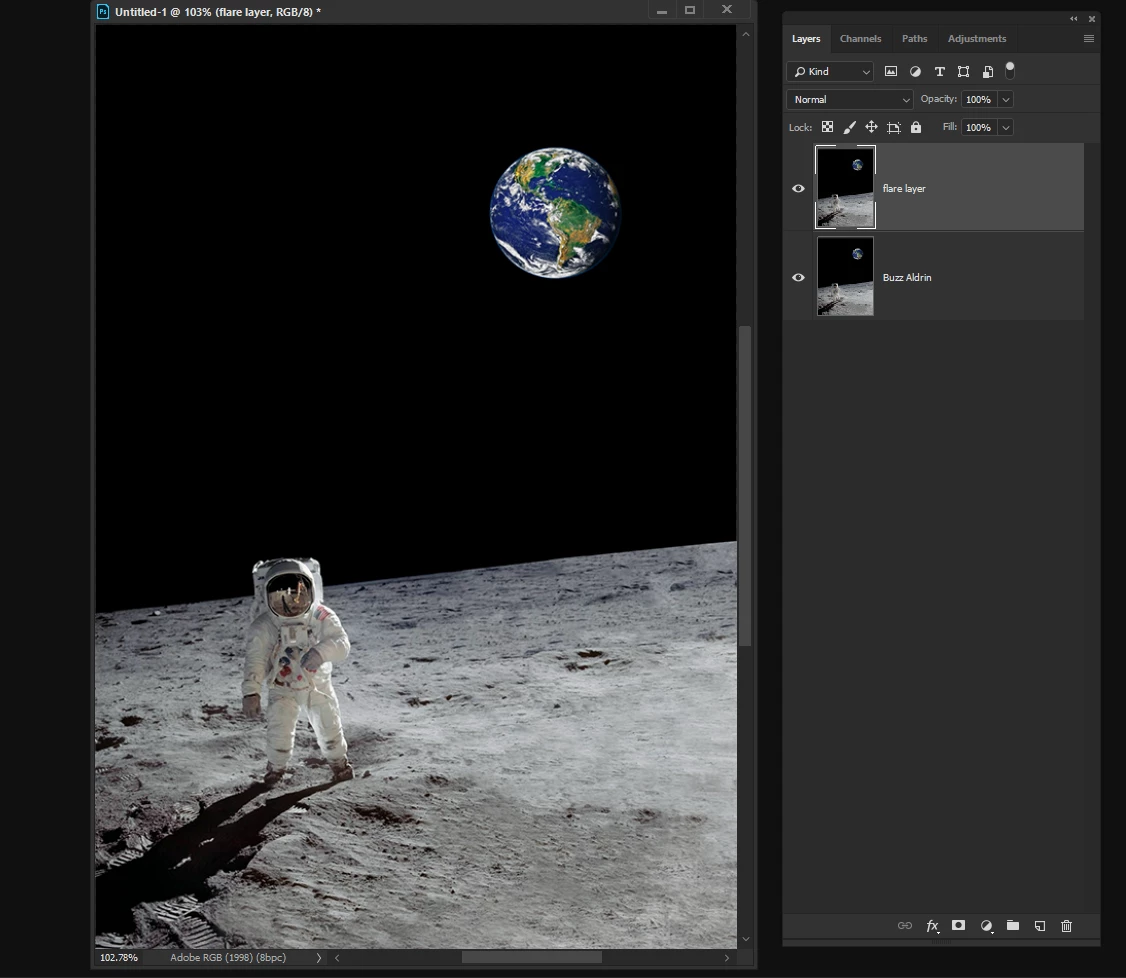
2) Call up the Lens flare filter and position the flare
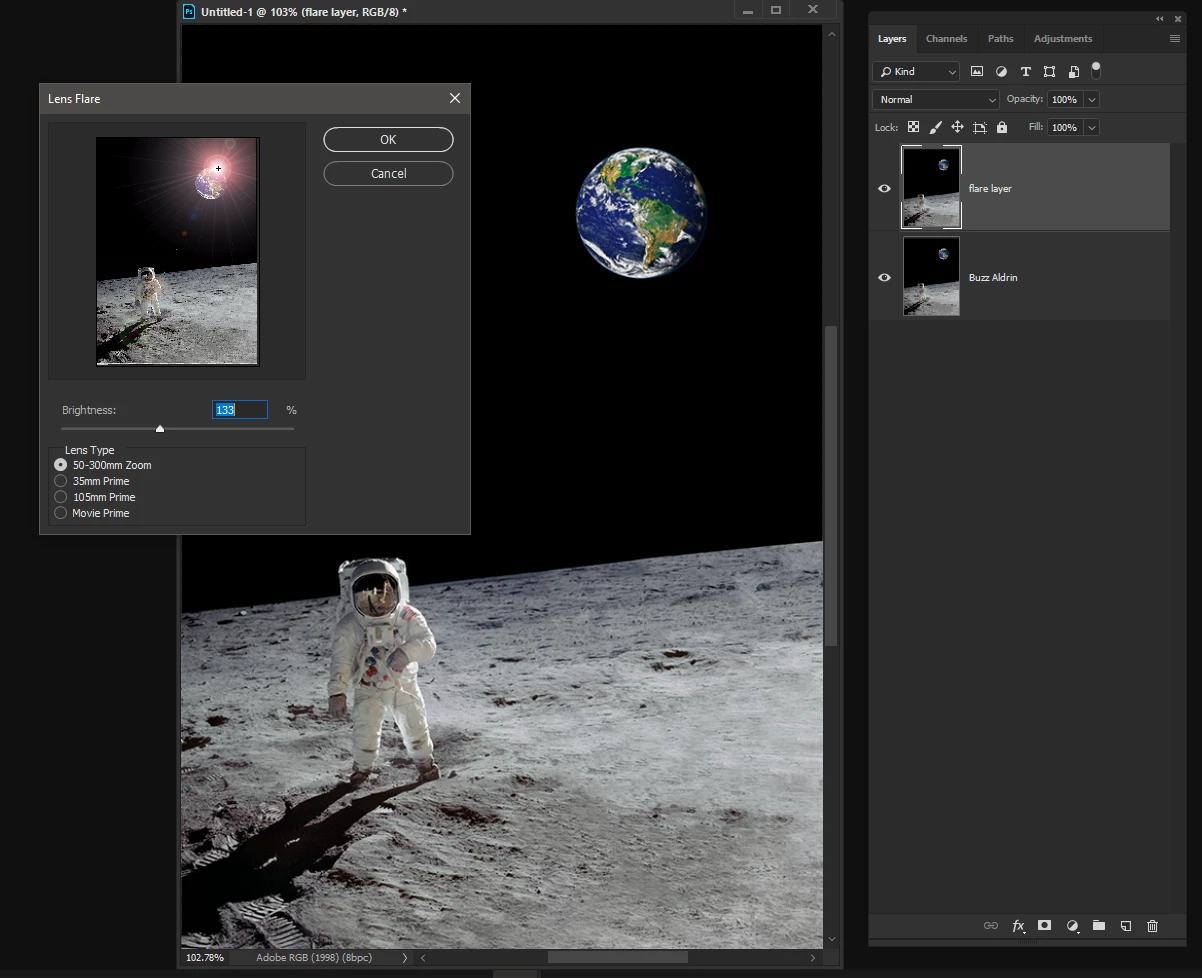
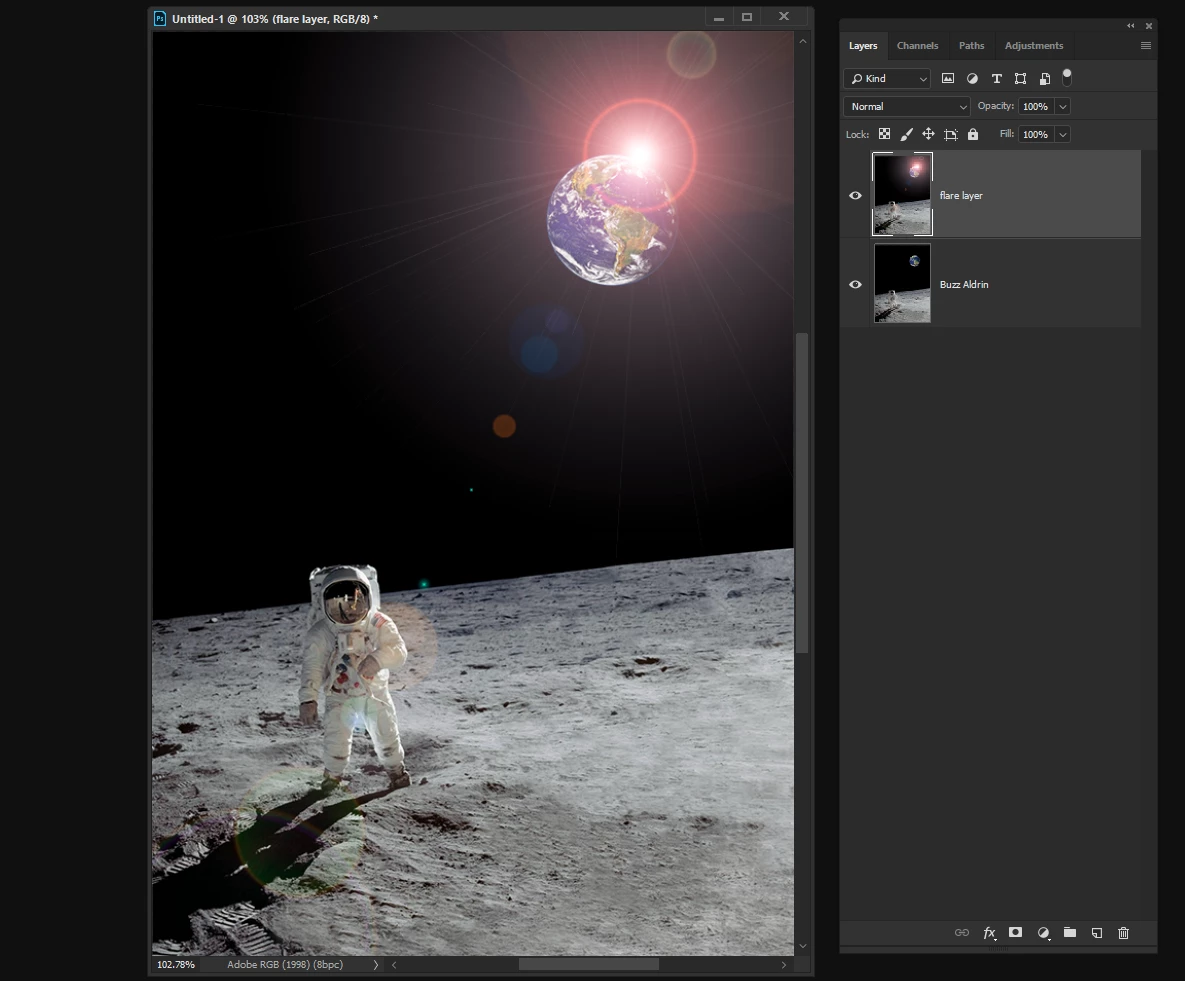
3) Fill the flare layer with Black which destroys the flare effect
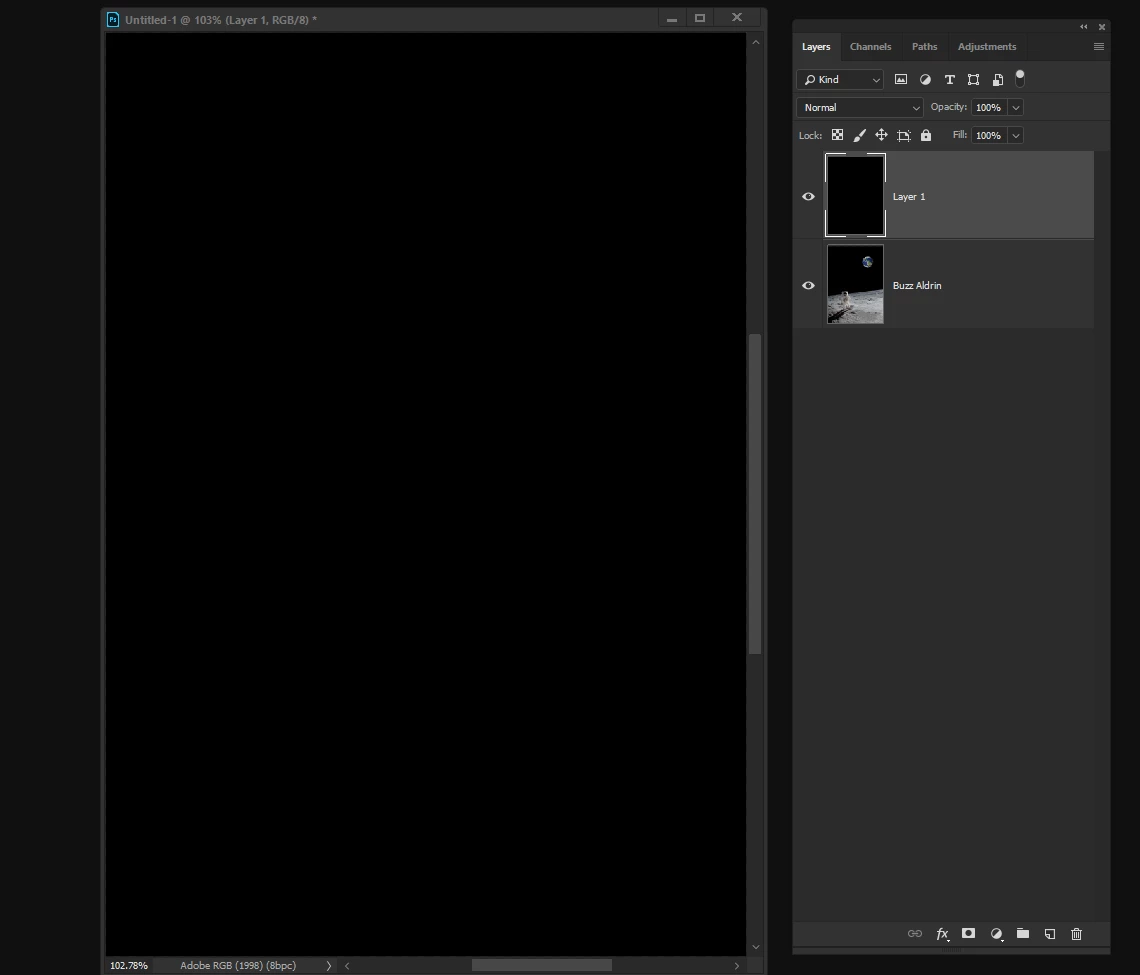
4) With the black filled layer still selected go to 'Filter--Lens Flare' note: not the one under 'render'
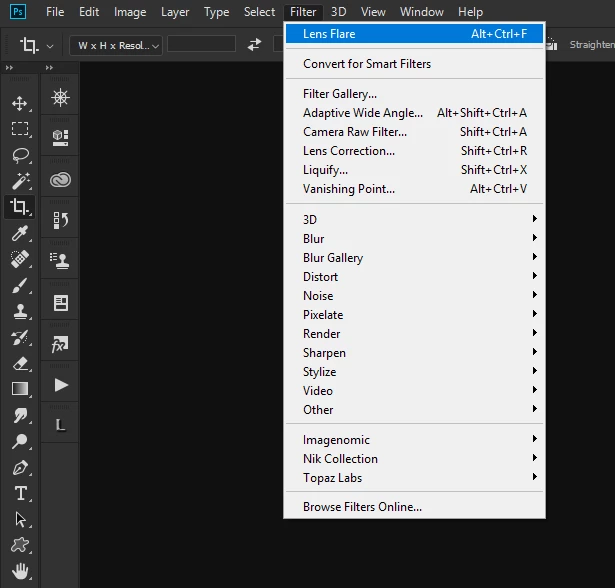
This will recreate the flare exactly as it was before, but this time it is on an independent layer so you can not only color the flare but also move it around, change it's size etc
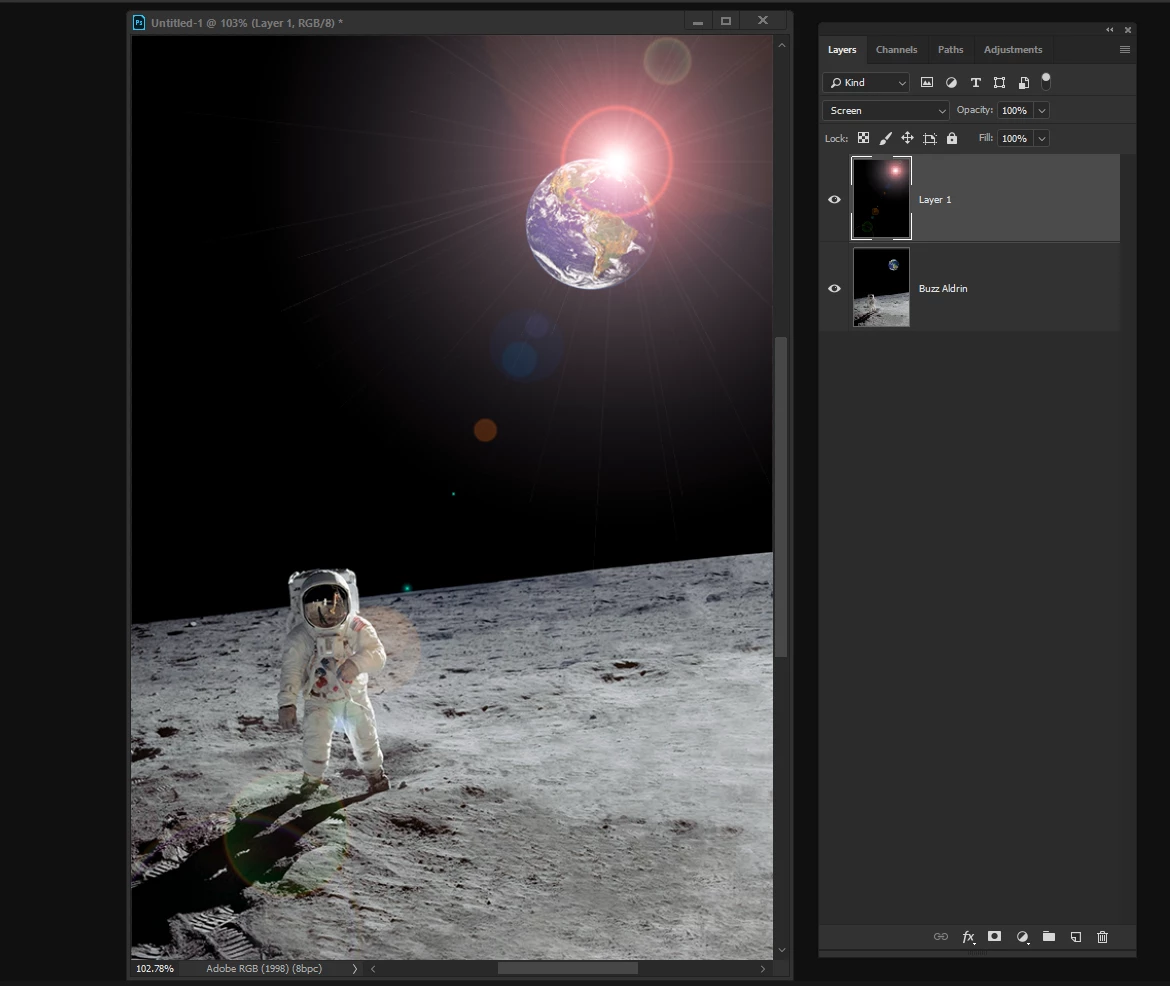
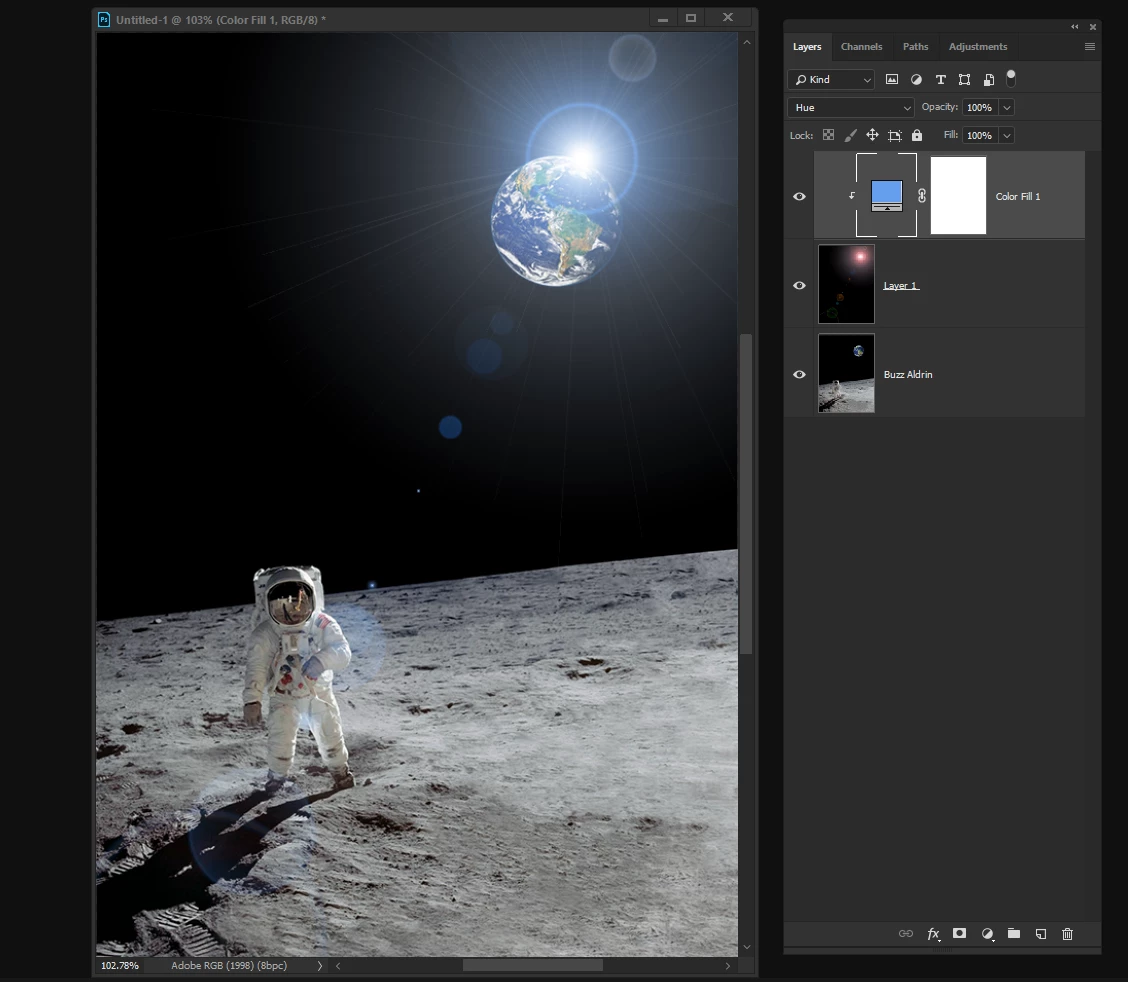
5) Now finally change the 'blend mode' of the layer with the flare on to 'Screen' which will cause the black to vanish. Add a color adjustment layer above the flare layer and clip it to the flare layer so only the flare gets colorized. Change it's blend mode to 'Hue' and finalise the color you want to use. Very easy to do and pretty flexible.
4 replies

Terri Stevens
Terri StevensCorrect answer
Legend
May 8, 2018

I would do this in a slightly different way, but Bettina's method is perfectly sound so this is just an alternative.

1) Duplicate your image (ctrl-j or cmd-j)

2) Call up the Lens flare filter and position the flare

3) Fill the flare layer with Black which destroys the flare effect

4) With the black filled layer still selected go to 'Filter--Lens Flare' note: not the one under 'render'

This will recreate the flare exactly as it was before, but this time it is on an independent layer so you can not only color the flare but also move it around, change it's size etc

5) Now finally change the 'blend mode' of the layer with the flare on to 'Screen' which will cause the black to vanish. Add a color adjustment layer above the flare layer and clip it to the flare layer so only the flare gets colorized. Change it's blend mode to 'Hue' and finalise the color you want to use. Very easy to do and pretty flexible.

May 10, 2018

Thank you!

Martin_Bns
Inspiring
May 8, 2018

Hi there,

Id' like to add something more to the other great people already suggested.
Go to Goole and look for lens flares and you will see that most of them are on a black background.

Save one of them and paste it on top of a photo you like.

You will have one layer with your photo and one layer with the photo of your lens flare.

Change the blending mode of the lens flare layer to screen.

Screen gets rid of the black color and "ahaaaa", there is just the lens flare.

You can move it as you wish,
I find that the lens flare module inside Photoshop needs some update because it's the same for many years but it's still cool.

All my best,
Martin

Bettina Di Virgilio
Participating Frequently
May 8, 2018

If you need to make a colored lens flare:

1. make a new layer and fill it with black

2. add your lens flare effect from Filter/Rendering/Lens flare and press OK

3. make a new fill layer: Layer/New fill layer/Colour. Choose the kind of color you want for your lens flare and press OK

4. in the Panel Layers, select the mask of the new fill layer you've just created at the step before

5. Go to Image/Apply image. In the Apply image window, at the drop down menu Level, choose the level where you created the lens flare effect. Choose as a bending mode "Normal", Opacity = 100% and press OK. This way your lens flare will be applied as a mask to the color fill layer.

6. Turn off or delete your lens flare layer. To change the color you just needed to double click on the thumbnail of the Color fill layer and select a new color.

c.pfaffenbichler
Community Expert
Community Expert
May 8, 2018

You can apply the Lens Flare to a Layer filled with back, set it to Blend Mode Screen and clipping Mask any Adjustment Layer used for colorising to it.