
Participant
June 4, 2021
Answered

Video Timeline: Video Group Copy and Pasting Layers when offset issue

  • June 4, 2021
  • 1 reply
  • 1083 views

I've been using Photoshop for a bit with animation, relying on the video timeline. The workflow has been pretty consistent on the features the software has, but there's quite a problem with the way video groups function when the layer "frames" are offset from the start of the timeline. The issue is copy and pasting the layers in a video group (in place or not) at a specific position in the timeline snaps the layers back to the beginning. This gets pretty tedious constantly trying to move the frames back to its place in the timeline, obviously it does not make animating with the timeline impossible, but rather more time-consuming and annoying.


Surprisingly, I haven't been able to find any sort of community post or video addressing this problem because I feel like working with frames, copying and pasting them at a specific position in the timeline is a pretty important deal with the workflow.


I've attached images below for demonstration, one before, and one after I copy and pasted the layer, is there any sort of way around this?
This topic has been closed for replies.
Correct answer krispykarim

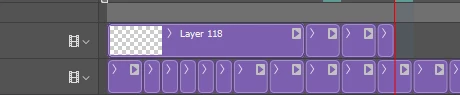
Yeah, the issue still persists today. Totally forgot about this thread, though after posting this, I did find my way around it by just putting an empty layer starting from the beginning to the position of where the desired frames start, to prevent the frames from snapping back to the start of the timeline.  Layer 118 is what I'm talking about in the screenshot below.


But I do wish this wouldn't have to be the case to save a layer, but it's whatever.

1 reply

Participant
August 14, 2024

Wow, so this was already a problem back in 2021, and there are still no replies to this message? Wow adobe. Your adobe cc is not exactly free, or even cheap, you know. And I am having the same problem now. Can't find solutions on the web. 


krispykarimAuthorCorrect answer
Participant
August 14, 2024

Yeah, the issue still persists today. Totally forgot about this thread, though after posting this, I did find my way around it by just putting an empty layer starting from the beginning to the position of where the desired frames start, to prevent the frames from snapping back to the start of the timeline.  Layer 118 is what I'm talking about in the screenshot below.


But I do wish this wouldn't have to be the case to save a layer, but it's whatever.