Inspiring
October 7, 2017
Answered

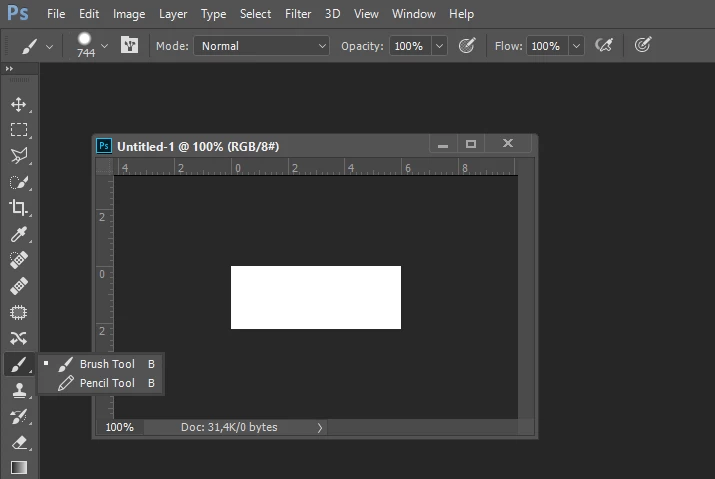
Why Color Replacement tool isn't available?

  • October 7, 2017
  • 2 replies
  • 4683 views

Image Mode = RGB

Workspace = Photography.

Adobe Photoshop Version: 2017.1.1 20170425.r.252 2017/04/25:23:00:00 CL 1113967  x64

Version: 10 or greater
Many thanks.

    This topic has been closed for replies.
    Correct answer c.pfaffenbichler

    Use the »Edit Toolbar«-button (three squares) to raise the dialog and see if the tool has been hidden.

    2 replies

    Bojan Živković11378569
    Community Expert
    Community Expert
    October 7, 2017

    You can go to Edit > Toolbar. In Customize Toolbar dialog drag Color Replacement Tool from the left side (Extra Tools) to the right side (Toolbar) and release mouse button after positioning tool where you want it to appear in your Toolbar on the left side of screen in Photoshop. Lastly, click Done button in the top right corner of Customize Toolbar dialog.

    Inspiring
    October 7, 2017

    thank you!

    c.pfaffenbichler
    Community Expert
    c.pfaffenbichlerCommunity ExpertCorrect answer
    Community Expert
    October 7, 2017

    Use the »Edit Toolbar«-button (three squares) to raise the dialog and see if the tool has been hidden.

    Inspiring
    October 7, 2017

    thank you!

    c.pfaffenbichler
    Community Expert
    Community Expert
    October 7, 2017

    But I’d like to recommend that you look into non-destructive methods of re-coloring images, namely Adjustment Layers (Hue/Saturation, Selective Color, …) and Blend Modes (painting on a Layer set to the Blend Mode »Color« for example).