Examining the image direct from the camera of the child on the beach, using http://regex.info/exif.cgi there is a small embedded thumbnail (with black bars top-and-bottom to letterbox it to the LCD aspect ratio), and a small preview probably used for zooming in on the camera LCD screen, and the fullsize jpg image all contained in the one JPG file. All three of these seem to have identical histograms other than the black-bars causing a dark peak on the thumbnail image, but otherwise the shapes of the histograms and the position of the peaks from light to dark are the same.
In other words the full-size JPG and the embedded preview and thumbnail all seem the same other than size so the darkened version seen in Finder is not coming from the camera. The one issue the above website reports is that the camera JPG has a color-profile tag (name of the profile) but does not actually contain the color profile, itself. All other versions of the image have an actual embedded profile not just the name in a tag. It is possible that this is confusing Finder into assuming a different profile or gamma curve for the image that sRGB warrants, but most all camera images have this issue so I wouldn't expect a Mac to show images from all cameras as too dark.
It is a mystery to me why the Finder preview looks darker, but at least in the one side-by-side provided, it does, and is different-looking than all other representations of the image from what I can see.
At the beginning of this thread you said you were worried the photos coming out of Photoshop were washed out and had bad colors. From my perspective, what comes out of Photoshop looks the same as what comes out of the camera, so only Finder has it wrong. Are you seeing the darker image anywhere else besides Finder (and perhaps iPhoto which we don't have a screenshot of)?
Most importantly does the image you see on screen in Photoshop, while you're making adjustments, look dark like the pre-PS Finder thumbnail or does it look lighter, like the post-PS Finder thumbnail and all the images on DropBox?
If more than just the pre-PS Finder thumbnail is darker then you may have a monitor calibration issue that needs to be addressed, otherwise just ignore the pre-PS Finder thumbnail when evaluating if the image needs any adjustments and assume they are all ligher than the Finder image.
BTW, I tested for a sRGB vs AdobeRGB mismatch, and if an sRGB image is assigned an Adobe profile then the colors become more intense but the whole image does not become darker so that can't explain what is happening.
Hey ssprengel,
Thank you so much for taking the time to go through my images and make sure that nothing was going terribly wrong. What a big relief!!! The darker images that you see may be the originals from the camera that haven't been tweeked or lightened in Photoshop.
I believe I may have discovered the problem.
Click on Photoshop
Preferences
File Handling

Up pops a window that allows certain file saving options. Under image views there are a few boxes to either check or uncheck.
The "Icon" box was checked!!!
So, the preview in finder - the thumbnail - was a watered down low resolution icon rather than an image. That is why the thumbnails in finder looked to washed out and even a little blurry. As you said, the actual images are fine.
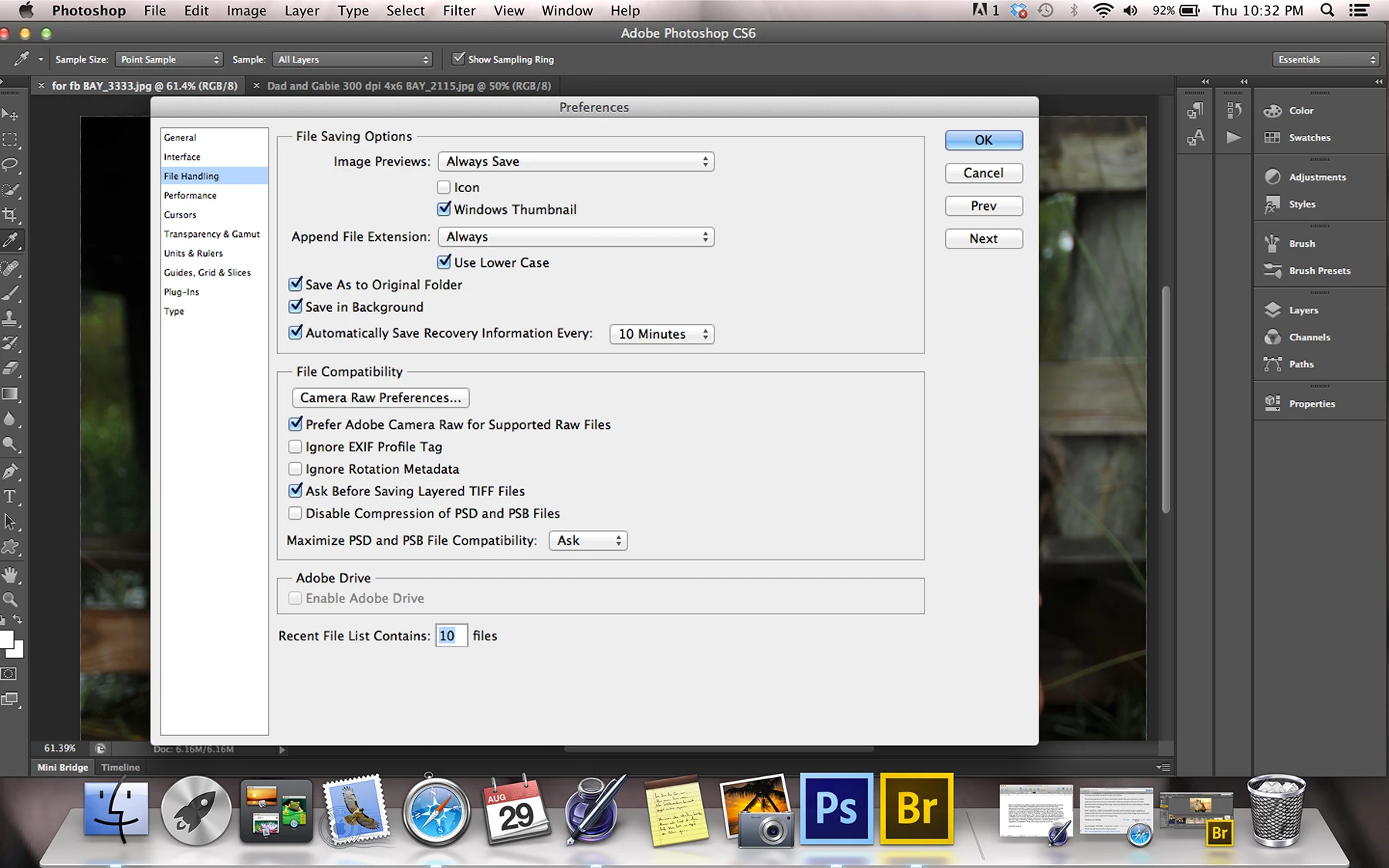
So far, I made this change and the thumbnails in Finder look fine.
I have learned so much. Thank you so much for the collaborative problem solving effort and for the great suggestions. Looking forward to learning even more!



 AdChoices