
Participant
March 5, 2019
Question

Windows ink pen pressure problem with wacom

  • March 5, 2019
  • 3 replies
  • 29995 views

Hey, Recently i had a problem with my Wacom, I want to use the Wacom without windows ink but then the pen prusser doesn't work in photoshop,

So i did a little search on the web and fin that I need to do this:(picture below)
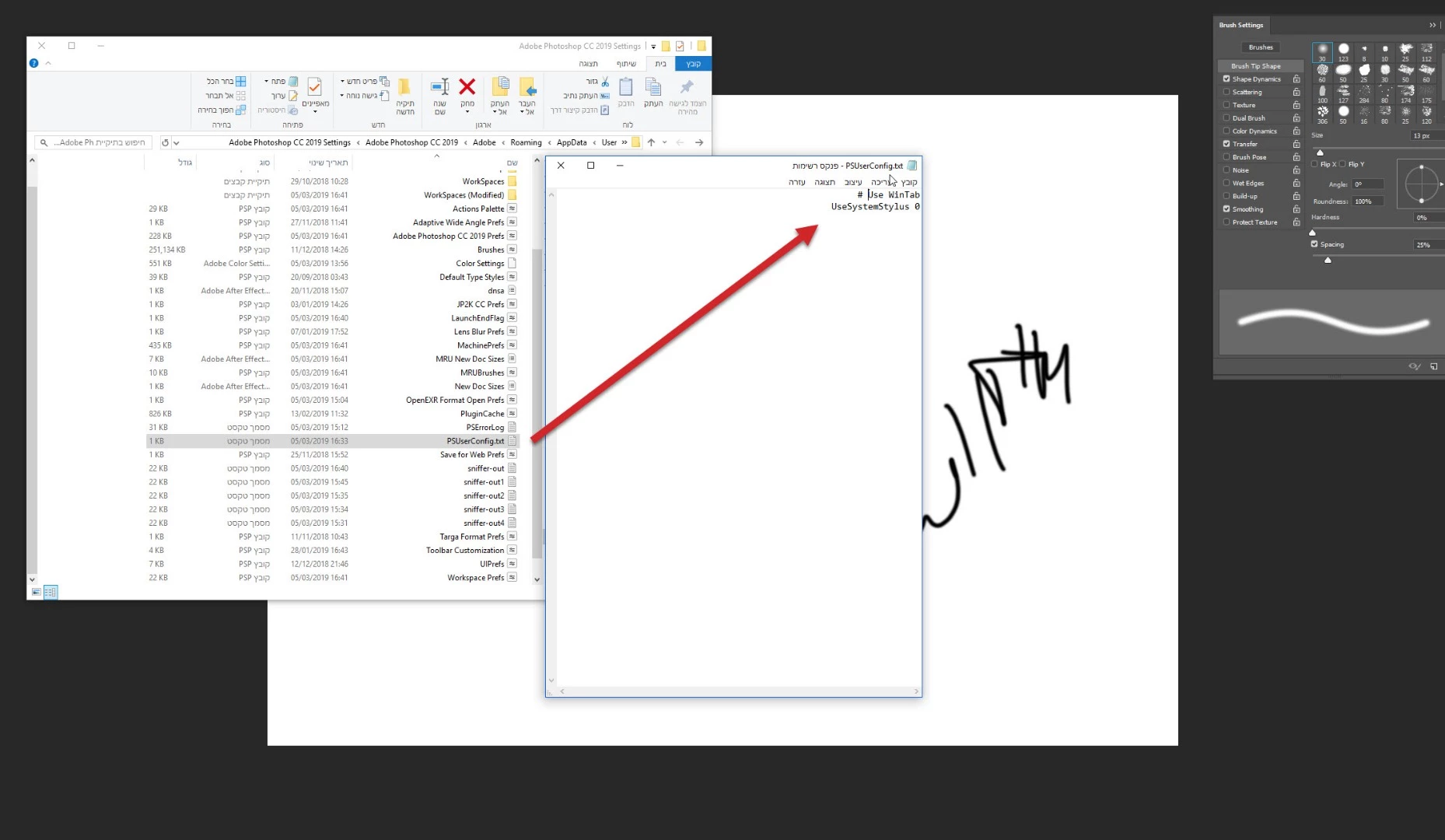
But still, nothing change and I still cannot turn off windows ink and paint with pen pressure at the same time.

hope that maybe i get my answer here..

thanks

This topic has been closed for replies.

3 replies

SCLAPHAM
Known Participant
June 25, 2019

If your running windows 10 1903 build with photoshop current version, you want to enable windows ink under the calibrate tab.  Uptop under applications add photoshop even though it says all.  THEN, open windows ink and enable show cursor.  Should work.

JJMack
Community Expert
Community Expert
June 26, 2019

Is Windows 1903 ready for prime time?  I'll wait till Microsoft updates 1809 to 1903 by default. Right now that seems to be an optional update.

JJMack
Le Bateleur
Participant
March 7, 2019

EDIT:

JJMack​ solution with longer txt file worked for me. Thanks a lot!

Spent 4h trying to solve this...

I have the similar problem with pen pressure in Photoshop on Windows with wacom Cintiq 27HD.

1. The pressure is working on a new photoshop file, but when I open previously saved document it stops working altogether (on the new file and on the previously saved document).

2. When I uncheck and check windows ink in the wacom menu the pressure works for the first stroke but when I lift the pen and paint a new line the pressure sensitivity is gone.

I've already reinstalled the Wacom drivers and tried the solution with PSUserConfig.txt file. Also checked for updates on windows.

Photoshop version is  20.0.3 20190130.r.57 2019/01/30: 1204598  x64

Do you have any solutions for this?

JJMack
Community Expert
Community Expert
March 7, 2019

I have no idea why  pressure would work one some documents and not on other documents.   

One thing that is a must is Photoshop and your Wacon tablet must use the same API to communicate with each other.

If  You set a Wacom Driver Preferences for Photoshop not to use Windows INK it will use Wintab API to communicate with Photoshop.  Old Perpetual versions of Photoshop only support WinTab api they do not  have support to use INK API. No configuration setting can be made to change the API Photoshop will use for Pen support.

New Windows CC version of  Photoshop have support for INK Api and well as WinTab API for Pen support.  I do not know what MAC API  is used on Apple Mac machine.    New window Photoshop CC version default is to use Windows INK api. So if you set you Wacom preferences for Photoshop not to use Windows INK.    For ever CC version of Photoshop you use you must add that PSUserConfig.txt  file to your user ID Photoshop preferences folder to confifure Photoshop to use WiTab Support.  Your user ID  has a different Preferences folder for each version of Photoshop.

If the Photoshop is using INK Api and the Wacom is using Wintab API  Photoshop will not see that you have a pen. There will be a warning triangle on brush pen settings.

You will also see the warning triangle if you have not yet used your pen with the current open Photoshop session like above. Once you use your  pen and both Wacom and Photoshop are using the same API windows INK or WinTAB not different API the warning triangle will be removed and Pen  pressure should be working in Photoshop.

I use WinTab APIs and have Old and New versions of Photoshop installed  Pen Pressure works in all the version  of Photoshop I have installed. CS3, CS6, CC 2014, CC 2018 and CC 2019

JJMack
Participant
December 2, 2022

Hi Mr JJMack ! I have the same issues with my Photoshop 2023 and Wacom Intuos Pro Large


I have an Opacity issues with my Photoshop 2022 and 2023 with Wacom Intuos Pro Large

I uninstall then reinstall both Photoshop software and Wacom drivers


I notice 2 things:

1- Only Brushes with "TRANSFERT" parameter Activated are concerned

2- for "Windows Ink"
a- When activated produce very transparent lines (no Opacity at all)
b- When desactivated produce the same effect as if I use my Mouse for painting (no Opacity at all)


HELP PLEASE !

JJMack
Community Expert
Community Expert
March 5, 2019

In you Wacon preferebces you need to set Pen Mapping to Use Windows INO for all Other applications and for Photoshop you need to un check Use Windows INK

And add that PSUserConfig.txt to you user ID Photoshop Preferences folder.

JJMack
itaym1995Author
Participant
March 6, 2019

Thanks for the fast answer but where I find that user ID Photoshop Preferences folder?..

AxelMatt
Community Expert
Community Expert
March 6, 2019

Take a look here: Enable Optional Extensions | Photoshop CC

Under point 3 you'll find the appropriate locations of the PSUserConfig.txt file

My System: Intel i7-8700K - 64GB RAM - NVidia Geforce RTX 3060 - Windows 11 Pro 25H2 -- LR-Classic 15 - Photoshop 27 - Nik Collection 8 - PureRAW 5 - Topaz Photo