
Participating Frequently
November 24, 2018
Answered

Another question about adding stills

  • November 24, 2018
  • 1 reply
  • 528 views

Just got Premiere Elements 19 along with Photoshop Elements. Years ago, worked with Premier Pro, but when Windows switched over to 10, I didn’t update it.

I’d forgotten how still photos had to be resized. I’m working on a project with photos and some video coming in from a Samsung S9+. After the first disastrous attempt, I went back and searched through the forum and FAQs, focusing on adding still photos.

I’ve tried Process Multiple Photos to 2000, 1090, 720 pixel size. Tried different saves as .JPG and .PSD. Tried different resolutions. I’ve tried changing the Preferences, Default to frame size and the Use Hardware Acceleration. The Project Settings are 1920 x 1080. Tried changing the Interpret Footage settings. I render each time I add the stills.

The photos look fine in Photoshop, but with all the different attempts, when I add them to video, they are terrible. On the small viewing screen, they look okay. But if I go to full screen, they appear jagged and almost out of focus. Did a test burn to a DVD and the same thing on the TV, terrible quality. Basically, they look like garbage, my technical term for it.

I think I am missing something here, perhaps a post I didn’t read. Any help is appreciated. Thanks!
This topic has been closed for replies.
Correct answer Bill Sprague

You're correct, not a lot of options in Photoshop Elements.

I have the resize set to 1920 pixels (I've tried all the other recommended pixel settings), constrain proportions. Resolution is at 150 dpi. Convert files to .PSD

I've also tried going through and testing all the presets when you start a new project to see if those would make a difference.

Also checked how the Samsung S9+ saves videos. Appears the standard setting is 1080p HD video recording at 30 fps or 60 fps. And surprise, adding a video and it too looks crappy.

I do appreciate the help and screenshots are appreciated. Thanks!


LVMike  wrote

You're correct, not a lot of options in Photoshop Elements.

I have the resize set to 1920 pixels (I've tried all the other recommended pixel settings), constrain proportions. Resolution is at 150 dpi. Convert files to .PSD

I've also tried going through and testing all the presets when you start a new project to see if those would make a difference.

Also checked how the Samsung S9+ saves videos. Appears the standard setting is 1080p HD video recording at 30 fps or 60 fps. And surprise, adding a video and it too looks crappy.

I do appreciate the help and screenshots are appreciated. Thanks!

You appear to be doing way too much!

Take a fresh clip from you Samsung S9+.  Open a fresh project, add the clip and put it on the timeline.  Let it make the project settings.  Now add one photo without any editing, resizing, etc.  Output a video.  What's it look like?

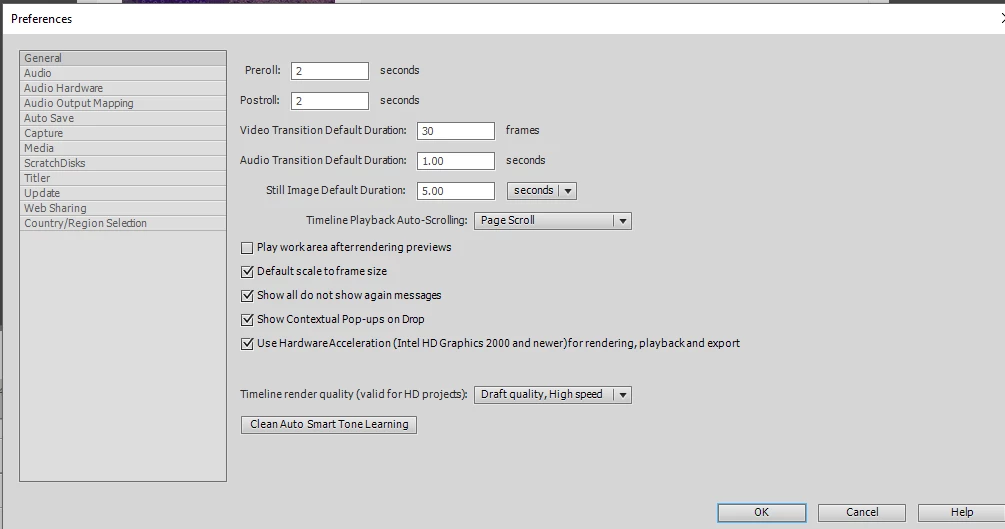
My Preferences page: 

1 reply

Peru Bob
Community Expert
Community Expert
November 24, 2018

What pixel size is the photo, video, and export?

LVMikeAuthor
Participating Frequently
November 24, 2018

The original stills are at 4032 x 1960 pixels and are .JPG. I've tried converting from Photoshop Elements 19 and bringing them in at the recommended sizes I've seen listed. The videos I've brought in seem okay at this point.

LVMikeAuthor
Participating Frequently
December 1, 2018

I am tenacious!

I don't have access to the Samsung at this moment, but I did try some videos and stills from my Motorola Z Force. Similar results.

Following your instructions, and with nothing to lose, added some videos and stills from the original project, untouched or processed. Initially in the timeline, still looked like garbage.

Did do the export, using the computer setting to test it. Low and behold, the darned thing is watchable. Now I'm re-exporting my original project to TV, 1080 and will see how that looks. Just need to dig up a flash drive and hope my TV will play the flash drive.

This is reminding me of when I got my car, three years ago. Wanted to test the sound system, so pulled my MP3 CD out of my other car. The salesman laughed at me, and asked I planned to do. The new car didn't have a CD player. Use a flash drive or my phone via cable or Bluetooth.

Any thoughts on why the DVD looked so bad when I burned it?


Had that pesky business called work this week. Also had to get a large enough flash drive. The video looked great on the TV! Many thanks for the help with this. Lots of new things to learn.