
Inspiring
January 3, 2018
Answered

Auto Smart Tone Slow in Premiere Elements - 15

  • January 3, 2018
  • 4 replies
  • 856 views

Anyone have an idea why Auto Smart Tone in Premiere Elements 15 can take 3 minutes to analyze a 7-second clip in a 6-hour .AVI video?

I have a 3.5 GHz processor, 32 GB RAM, OS (C:) = 200 GB SSD and three 4-TB HDD for video and project files.
    This topic has been closed for replies.
    Correct answer Steve Grisetti

    Hi-def MJPEGs? No wonder the program was struggling with it!

    That said, download Handbrake and select one of your videos as a source. Make sure Output Settings/Container is set to MP4.

    Under the Video tab, set the Video Codec to MP4 and set the Framerate to 30. Then click Start.

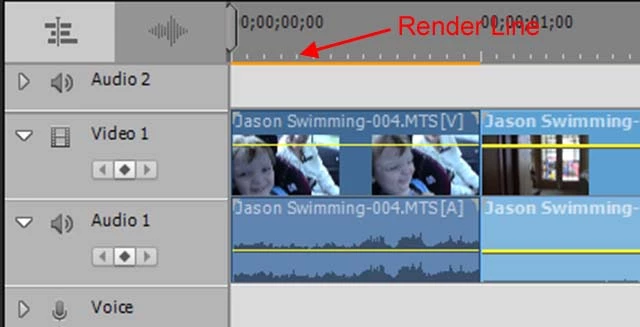
    Open a new Premiere Elements project and drop your new MP4 onto the timeline. Ideally it should appear with no yellow orange "render" line above it (indicating that the program has matched project settings to your video specs) and you should have no performance issues of any kind.

    4 replies

    Legend
    January 4, 2018

    There is no value to keeping them in the MJPEG format. They won't edit well and they won't give you good quality outputs.

    Converting them to MP4s will maximize your workflow.

    ABWayAuthor
    Inspiring
    January 4, 2018

    Thanks for your good advice. I'll try converting them to MP4 on my next project, but for now, I am 3/4 of the way through editing a 6-hour video of these old movies and I don't want to start all over again now since I already had to do that when back-tracking to PrE-15 from PrE-2018 in order to make BDs (I have your recommendation for a BD authoring program to supplement PrE-2018, but it is easier for me to doing everything within a single program such as PrE-15).

    Many thanks again.

    Steve GrisettiCorrect answer
    Legend
    January 4, 2018

    Hi-def MJPEGs? No wonder the program was struggling with it!

    That said, download Handbrake and select one of your videos as a source. Make sure Output Settings/Container is set to MP4.

    Under the Video tab, set the Video Codec to MP4 and set the Framerate to 30. Then click Start.

    Open a new Premiere Elements project and drop your new MP4 onto the timeline. Ideally it should appear with no yellow orange "render" line above it (indicating that the program has matched project settings to your video specs) and you should have no performance issues of any kind.

    ABWayAuthor
    Inspiring
    January 4, 2018

    Steve: Thanks for all the evaluation. Yes, these are high resolution archival files of old home movies. Since PrE-15 seems to handle them ok (except for being slow in AST), I want to keep them in their original format. But, is there a better Editing Mode than DSLR that I should be using for these MJPG files?

    Legend
    January 4, 2018

    That's the problem. Your video is using the MJPEG codec, a very inefficient codec to edit. Your project settings are also way off, which is contributing to the problem.

    I'd recommend you convert your video to a more editable format/codec using Handbrake. I'll give you the specifics how to do that, but first we'll need to find out what exactly your AVI is made up of.

    Open one of your AVIs in the free download MediaInfo. In MediaInfo, set View to Text and then copy and paste the report it generates to this forum.

    ABWayAuthor
    Inspiring
    January 4, 2018

    General
    Complete name                            : D:\My Pictures\Family\Home Movies\Milton's Movies\Way_F4742_R8_1_H.avi
    Format                                   : AVI
    Format/Info                              : Audio Video Interleave
    Format profile                           : OpenDML
    File size                                : 8.45 GiB
    Duration                                 : 26 min 14 s
    Overall bit rate                         : 46.1 Mb/s
    Recorded date                            : 2015-08-12T08:42:23.00333-07:00

    Video
    ID                                       : 0
    Format                                   : JPEG
    Codec ID                                 : MJPG
    Duration                                 : 26 min 14 s
    Bit rate                                 : 46.1 Mb/s
    Width                                    : 1 920 pixels
    Height                                   : 1 080 pixels
    Display aspect ratio                     : 16:9
    Frame rate                               : 30.000 FPS
    Color space                              : YUV
    Chroma subsampling                       : 4:2:2
    Bit depth                                : 8 bits
    Scan type                                : Interlaced
    Scan order                               : Top Field First
    Compression mode                         : Lossy
    Bits/(Pixel*Frame)                       : 0.741
    Time code of first frame                 : 00:00:00:00 / 00:00:00:00
    Time code source                         : Adobe tc_A / Adobe tc_O
    Stream size                              : 8.45 GiB (100%)

    Legend
    January 4, 2018

    Is this AVI a DV-AVI -- That is, is it a video captured from a miniDV camcorder over a FireWire connection?

    If your AVI is coming from another source, it may include codecs that are not compatible with video editors.

    Also, if you look under the Edit menu, what is listed on the General page under Project Settings?

    ABWayAuthor
    Inspiring
    January 4, 2018

    8 mm movie film was digitized to a Blackmagic MJPG (motion JPEG) AVI file brought into Premiere Elements 15: Editing Mode = DSLR; Timebase = 29.97 fps; Video Frame Size = 1920x1080 (black side bars for 4:3 8mm frames); Pixel Aspect Ratio = Square Pixels (1.0); Fields = No Fields (Progressive Scan); Display Format = 30 fps Drop Frame Timecode.

    Auto Smart Tone and all other editing features work, but AST is quite slow.