
Inspiring
June 13, 2018
Answered

Bad Looking 4K footage after render

  • June 13, 2018
  • 3 replies
  • 2482 views

Hello guys, I have this problem:
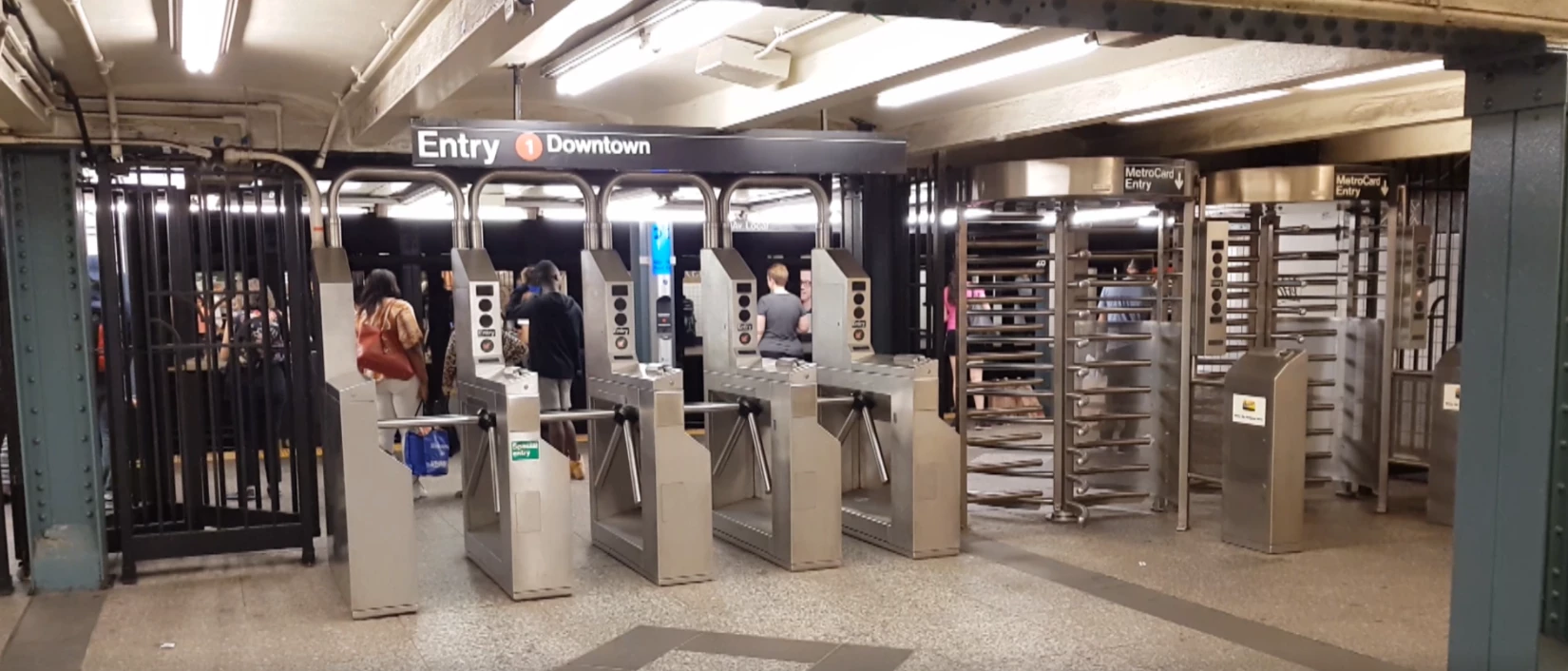
AFTER RENDER (Ultra HD to Computer):
BEFORE RENDER (Original video on Galaxy S8+):
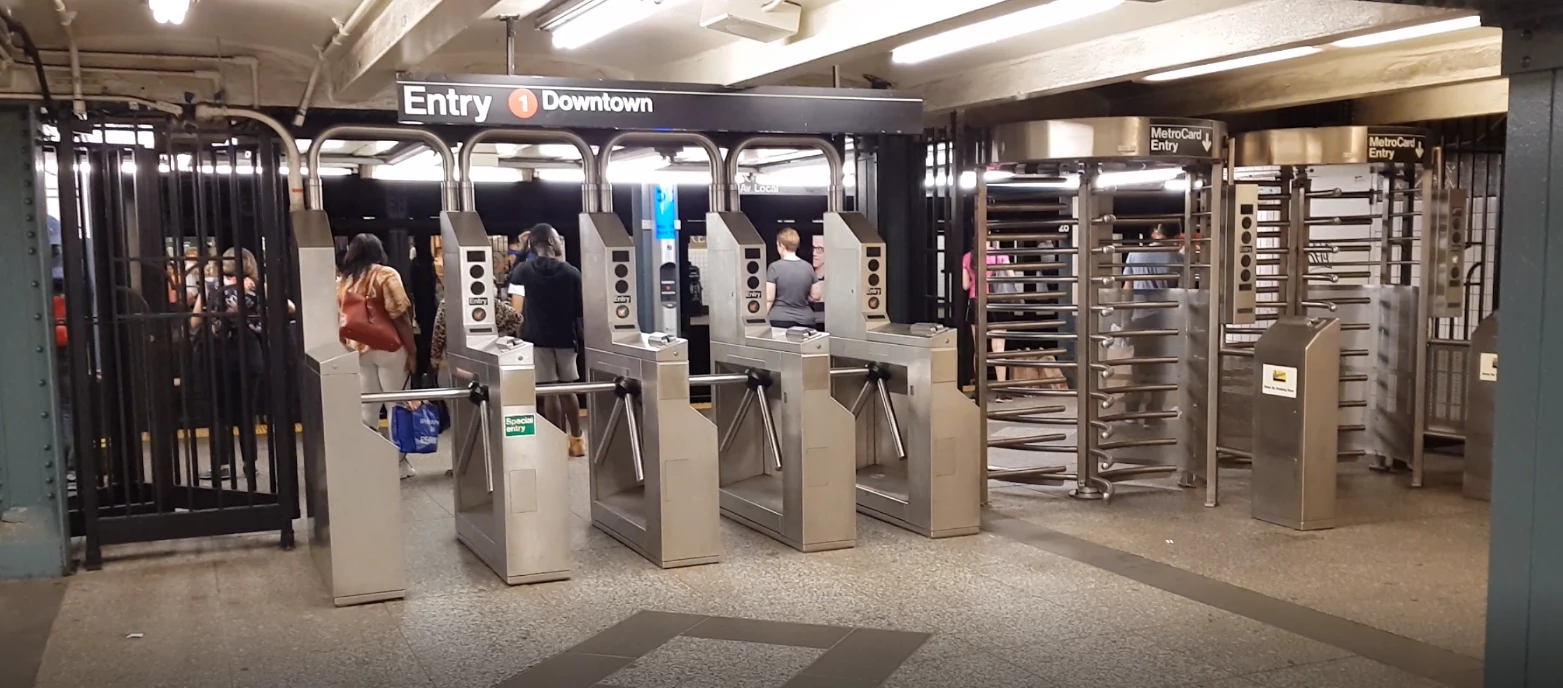
From screenshot it is on as good visible as on the video it self. But the details are very bad looking, I was trying my own render settings with higher bitrate (around 90mbps), nothing helps. Actually it is looking bad also in Premiere Elements it self if I press Enter key for ,,pre-render". It looks actually like 480p, not like a 2160p.

What I am doing wrong? I did not touch any video project settings etc., everything is like I was doing it before with 1080p footage, which I have no problem with it before, also when I was using 1080p60fps settings. But now I have this trash look.

Could anyone help me? (Premiere Elements 2018)
This topic has been closed for replies.
Correct answer Žingy_CZE

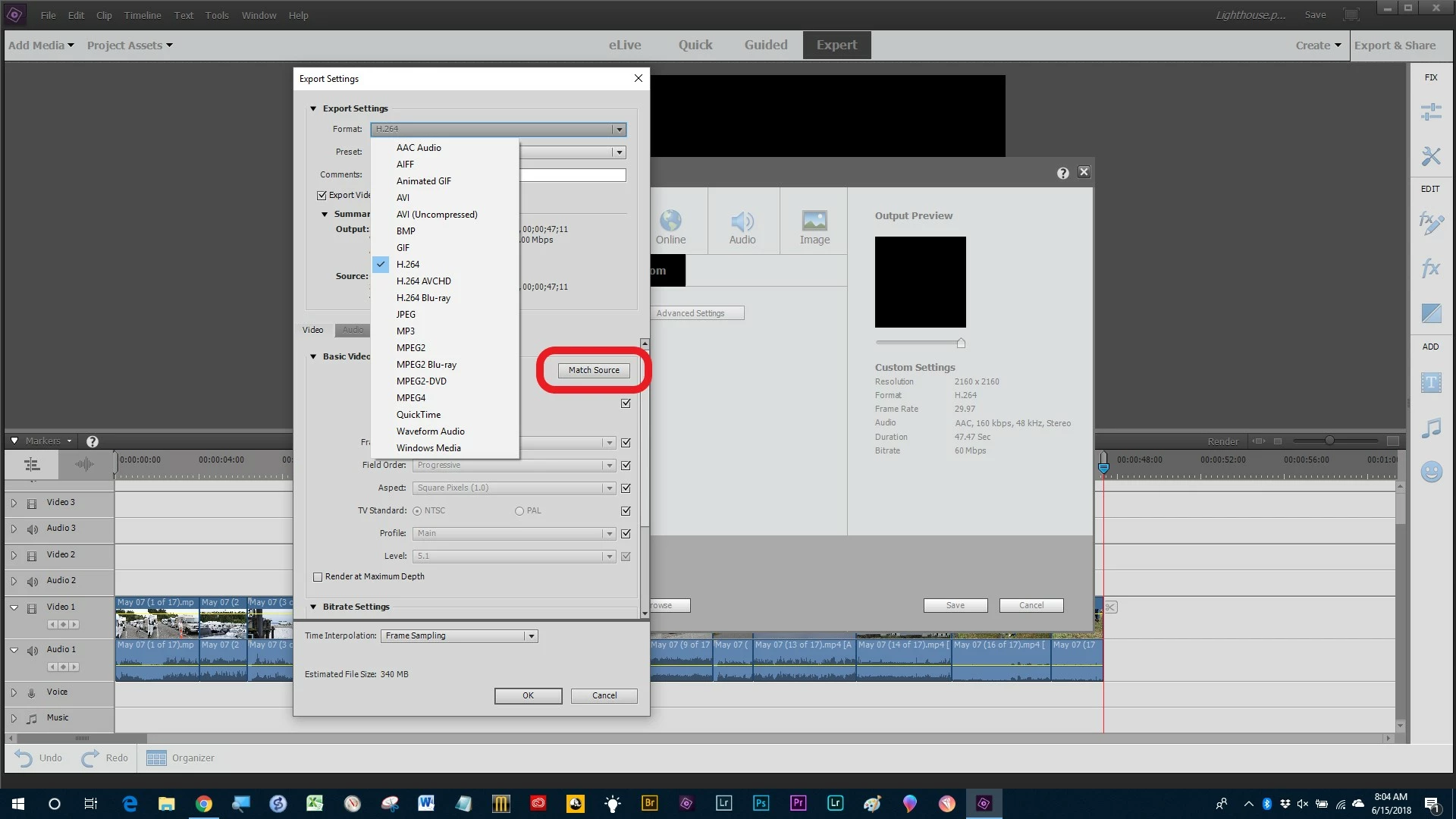
I frequently rely on "Match Source". 


The problem was in the project settings, thank you guys.

3 replies

williebegoode
Participating Frequently
June 15, 2018

Žingy, try this:
1. Render the video at the default settings.

2. Compare the rendered with the original.

3. Increase the quality incrementally until you see rendered results losing quality.

You have a combination of the computer's capacity / settings / and video's format, and you will find an optimized point just before the settings that lose quality.

Inspiring
June 15, 2018

Now I tried another project settings, so..let's see (rendering)

Community Expert
June 15, 2018

I frequently rely on "Match Source". 

Inspiring
June 14, 2018

That is how it is looking, when i pre-rendered it in Premiere it self (in the window in the middle of the Premiere it self, it look horrible)

Community Expert
June 14, 2018

Zingy,

My experience with 4K shooting and editing is very good.  "Bad" and "horrible" are not part of my experience.  Recently I've been learning a professional level editor.  It has more buttons, features and workflow options, but output results are no better when working with 4K footage from my two Panasonic cameras and editing in Premiere Elements.

I do want to help but you are providing so little information that I can only offer guesses.

Preview quality and preview rendering during the editing process has little to do with final output.

If the only thing you've tried is the default Computer > Ultra HD, you are using Adobe's best estimate of a general purpose setting.  There are lots of other options that will effect final quality.  Have you tried any of them?

Footage from smartphones frequently use recording compromises intended for efficient viewing more than efficient editing.  I know nothing of your phone model, but that may be part of the challenge.  With small lenses, small sensors and lower levels of light, video editing systems of any brand may have less quality output than when footage from a "real" camera is used.   

If you want more help, suggestions and trouble shooting.  Please start with what your project setting are and what you are doing to the clips in the editing process.  Then we can review output choices.   Please note that video editing in any software requires that the output must be processed or encoded from the original footage and will never be an exact, 100% perfect match. 

Inspiring
June 15, 2018

I was trying custom output settings, doesn't help. Preview waulity still bad af. I don't know what to do. I am dissapointed :/

Community Expert
June 13, 2018

Would you please describe all of your settings for the project and output?  How did you capture your posted images?

Inspiring
June 14, 2018

I am using:
Project settings - I did not set up anything, just ran the premiere and started my job.
Output settings: To Computer -> Ultra HD

Photos were captured via printscreen from the video player , you will must see the original video as it is and the outputed video as it is, but trust me, that here is a huuuge difference