


- Home
- Premiere Elements
- Discussions
- Re: How do I move the location Premiere stores it'...
- Re: How do I move the location Premiere stores it'...
How do I move the location Premiere stores it's files?

Copy link to clipboard
Copied
I use an SSD so I try to keep data files on a secondary hard drive. I haven't been able to figure out how to move the location it stores it's data files.
I'm a new user of Premiere Elements 2018 (not pro)


 9
Replies
9
9
Replies
9


Copy link to clipboard
Copied
Use the Save As, and at the bottom, you'll see a little window to select you storage location. Use it to save all PRE files for a given project.

Copy link to clipboard
Copied
Willie's suggestion will move your project files, which are actually pretty small. Usually less than 200 kb.
If you're trying to move the project files AND all of the media files linked to your project, that's a different process called Project Archiving.
What exactly are you trying to move.
Copy link to clipboard
Copied
I've learned something since I posted that question. Apparently, it only saves changes to the original video file, then uses the original file to recreate the edited video. If this is correct and the files it saves are small then it's probably not a problem. I did see one file workingset that's a little large but if it never gets much larger then moving all this is not an issue.
Copy link to clipboard
Copied
If my previous reply is correct it has to be able to find the original video file. Does this mean I can't move it? If I can move it - how?
Copy link to clipboard
Copied
If it's just a project file, yes you can move it. But, as I said above, it's a pretty small file. It's your media files that are huge and which you would most benefit from moving.
Copy link to clipboard
Copied
I'm sorry, I wasn't clear.
Apparently the program uses the original file (the one that came from the camera) as its reference and only keeps a list of changes in its own file. I discovered if I move the original file the program can't recreate the video and I can no longer make edits. Is there a way to tell premiere where/how to find the original file after I have moved it to a more convenient storage location?
I hope that's clear.
Copy link to clipboard
Copied
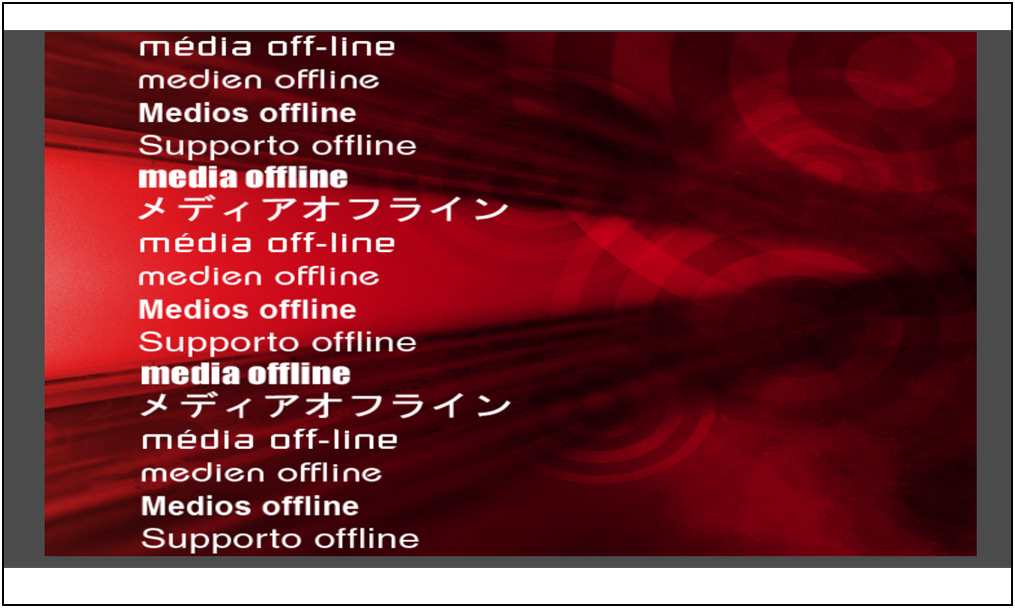
If I move the original file, when I try to load the video in adobe premiere, I get this:


Copy link to clipboard
Copied
Jim,
There are multiple sets of files.
-The source files. They have to remain where they were when you start a project.
-The cache files. They are stored where you select in Preferences.
-The project file. It is where you save it or designate when you first start a project.
-The output, or finished video, files. They are where you put them.
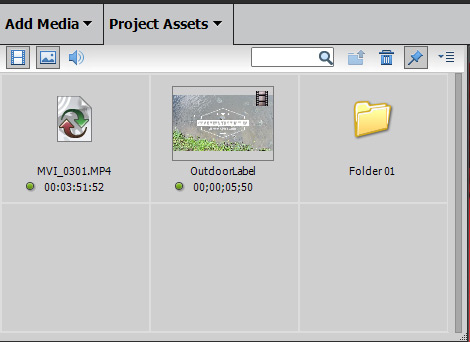
All of them are connected in a "road map" in the project file. If you move the source files you will get the screen you posted because it thinks you have taken the source files away. There is a dialog with in the Project Assets box to reconnect the source files to the project.
Copy link to clipboard
Copied
There is a dialog with in the Project Assets box to reconnect the source files to the project.
Thanks for your reply.
Do you mean somewhere in the Project Assets box there is a way to point to a new location for the source files? If so, I was unable to find it. And, I didn't find what I understand a dialog to be.


Get ready! An upgraded Adobe Community experience is coming in January.
Learn more
 AdChoices