

Media Offline? What You Can Do About It
Have you gotten a Media Offline message? Do your Assets show this screen?
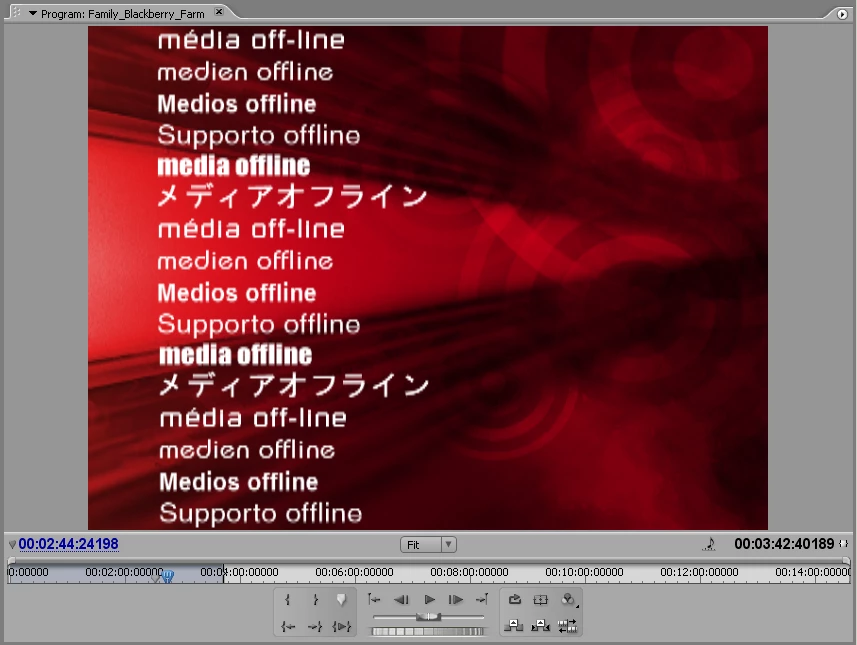
Chances are that when you last did a Save of your Project, the Path to those Assets no longer exists. Has the Path changed in any way? Have you Moved, Renamed, or Deleted any of the Assets? Is there an external, or networked HDD in the mix anywhere, that might now have a different drive letter? The Path in the XML code of the PRPROJ/PREL file links to the Assets is absolute - it must match from the drive letter, to the folder structure, to the file name, and match 100%. Change one thing, and the link via that Path is broken, and must be restored.
When you first Opened your Project, did PrPro/PrE ask, "Where is file ______.avi?" Were you able to use the Find function, to re-establish the link to that, and any other missing files?
Now, most people will ask, “how do I relink my Assets easily and quickly?” The answer to this question is "it depends."
First, it depends on whether you first accepted to Offline the media, and then did a Save, which overwrote your existing PRPROJ/PREL file. If you did do a Save (a Save_As, or a Save_As_a_Copy will be OK, as you would just go back to the original, and Find the missing files - more below). The next consideration is where the files reside, and the folder structure.
If you did NOT Save the Project, overwriting the original PRPROJ/PREL file, I would do things in this order:
- Locate where the files are now, and make note of the full Path.
- Open that Project, and when you get the "Where is file _____?" navigate to the new location, and choose that file. PrPro/PrE are pretty smart, and will look in that folder, linking automatically to all other Assets in that folder. If you have many folders, you will have to repeat for each folder.
If you did Save, overwriting the PRPROJ/PREL file, and have accepted the media being Offline, you will then need to do one of two things:
- Manually relink each of the Offline Assets in the Project Panel
- Go to the last AutoSave PRPROJ/PREL file (note: check the time/date, and do not just rely on the file name, as 003 might be newer than 005), and Open that, following the steps above to let PrPro/PrE relink to the assets. You will loose any editing that you did from the time of that last AutoSave.
Note: PrPro uses the file extension PRPROJ, and PrElements uses the file extension PREL
Good luck,
Hunt
 AdChoices