Participant
November 7, 2014
Answered

PE12 - Rendering for Youtube 1920x1080p, 60 FPS

  • November 7, 2014
  • 1 reply
  • 16171 views

Hey guys,

I was just wondering, since Youtube now implemented the 60 FPS feature, how I could render my videos with Adobe Premiere Elements 12, so that the outputfile has the following speccs:

1920 x 1080p

60 FPS

Youtube-compatible file format, so:


  • MPEG4
  • AVI
  • WMV
  • MPEGPS
  • FLV

I have fine settings for working with 30 FPS or lower, but I can't seem to get them to 60 FPS with PE12 - at least not with usable results that don't need to render for 4 hours straight, or take about 5 Gigs of Space per 15 minute file...

    This topic has been closed for replies.
    Correct answer A_T__Romano

    concreteduck

    There are no presets for 1080p60 upload to YouTube using the Premiere Elements 12 Publish+Share/Social Websites/YouTube feature.

    But, you can export your 1080p60 Timeline content to a  1080p60 file saved to the computer hard drive, and, from there, upload the file to YouTube at the

    You Tube web site. There you can get any extended time if needed by applying for one of YouTube extended time accounts which can be used there but

    not within the Premiere Elements upload to YouTube feature.

    To create your 1080p60...for now I will assume that you need 1920 x 1080 @ 59.94 progressive frames per second....if you need 60 instead,

    then just set for 60 instead of 59.94 in the Export Settings dialog.

    Publish+Share

    Computer

    AVCHD

    with Presets = MP4 - H.264 1920 x 1080p30, and, under the Advanced Button/Video Tab of that preset you are going

    to customized your export settings for 1080p60 (1920 x 1080 @ 59.94 progressive frames per second.

    Check the estimated file size before you hit the Save button.

    The Export Settings customized should look like

    (any problems setting the Frame Width or Frame Height - click on the box to the right of those entries to remove any

    chain link that may be there. My screenshot shows the chain link.....also, any problems in this matter, set the Level and

    Profile, and then enter Frame Width and Frame Height.)
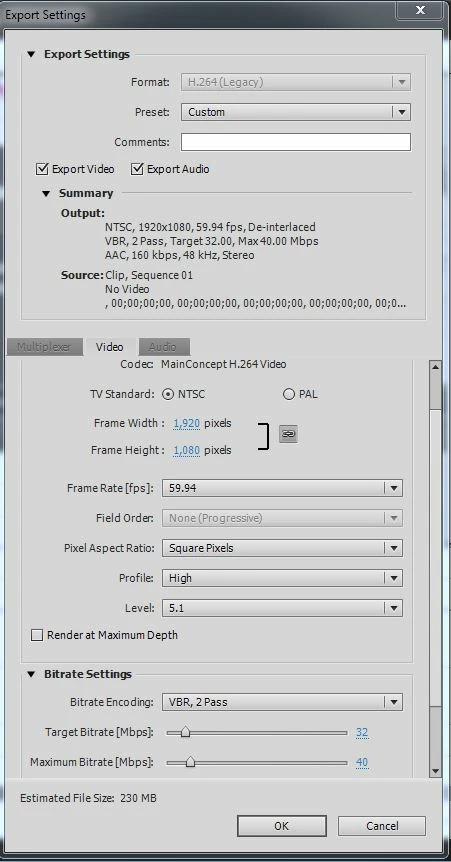
    If your Estimated File Size is larger than wanted, then experiment with lowering the Target Bitrate and Maximum Bitrate

    to try to arrive at a compromise between bitrate, file size, and end product quality.

    Please review and consider, and then let us know if that worked for you.

    Thank you.

    ATR

    1 reply

    A_T__RomanoCorrect answer
    Inspiring
    November 8, 2014

    concreteduck

    There are no presets for 1080p60 upload to YouTube using the Premiere Elements 12 Publish+Share/Social Websites/YouTube feature.

    But, you can export your 1080p60 Timeline content to a  1080p60 file saved to the computer hard drive, and, from there, upload the file to YouTube at the

    You Tube web site. There you can get any extended time if needed by applying for one of YouTube extended time accounts which can be used there but

    not within the Premiere Elements upload to YouTube feature.

    To create your 1080p60...for now I will assume that you need 1920 x 1080 @ 59.94 progressive frames per second....if you need 60 instead,

    then just set for 60 instead of 59.94 in the Export Settings dialog.

    Publish+Share

    Computer

    AVCHD

    with Presets = MP4 - H.264 1920 x 1080p30, and, under the Advanced Button/Video Tab of that preset you are going

    to customized your export settings for 1080p60 (1920 x 1080 @ 59.94 progressive frames per second.

    Check the estimated file size before you hit the Save button.

    The Export Settings customized should look like

    (any problems setting the Frame Width or Frame Height - click on the box to the right of those entries to remove any

    chain link that may be there. My screenshot shows the chain link.....also, any problems in this matter, set the Level and

    Profile, and then enter Frame Width and Frame Height.)

    If your Estimated File Size is larger than wanted, then experiment with lowering the Target Bitrate and Maximum Bitrate

    to try to arrive at a compromise between bitrate, file size, and end product quality.

    Please review and consider, and then let us know if that worked for you.

    Thank you.

    ATR

    Participant
    November 8, 2014

    It basically is a good idea, the output file would be in a decent size and all, but for reasons I don't understand, my Win8, Intel Xeon E3, 16GB Ram Pc does need around 3 hours to render such a file. With my other settings, it need around 15-25 minutes for the same file...

    My old settings looked like this:

    Directupload.net - 3f3pst77.jpg

    Inspiring
    November 8, 2014

    concreteduck

    My understanding of your issue appeared to be that you needed information on how to produce a 1920 x 1080 @60 progressive frames per second video using Premiere Elements 12/12.1. And, you intended to use this export as an upload to YouTube. That is the information that I posted at what Adobe has been using as optimal settings.

    And, my "optimal settings" may be the focus of your concern. The major difference that I am seeing between your old settings and mine is related to bitrate

    Your old settings - target 5.4 Mbps (megabits/second), maximum 5.4 Mbps

    and

    Mine - target 32 Mbps, maximum 40 Mbps

    I can envision a markedly larger file size with the settings that I posted.

    The way to customize an existing preset to obtain the 1080p60 should be OK with you now.

    As for bitrate, you need to find a good compromise between bitrate, file size, and quality.

    I would suggest that you start by

    a. using the details of obtaining the 1080p60 by customizing the MPEG2 - H.264 1920 x 1080p25 preset as detailed previously

    and

    b. in those export setting use your old bitrate settings of 5.4 Mbps Target and 5.4 Mbps Maximum.

    If the export's quality does not match up to your expectations, then start increasing the bitrate from 5.4/5.4 to somewhere in between

    that and my 32/40 to find your compromise.

    Please let us know if that plan works for you.

    Thank you.

    ATR