
Participant
December 8, 2021
Question

Premiere Elements 2022 freezes when editing and playback and won't even close down

  • December 8, 2021
  • 4 replies
  • 2330 views

All I am trying to do is clip a few GoPro videos together along with a few pictures, then narrate my story.  Should be easy, right?


Well, with a more than capable laptop (see below specs) and after a few minutes of adding a clip or trying to, you know, edit and build a project it simply freezes.  It doesn't appear to be stressing the laptop (see below screen shot from the task manager) and it won't even close down unless I use the task manager.  It simply gives the hour glass.  


I've cleared the cache, etc.  Any help?  Or is the new update that bad as I've read on here?


Lapto
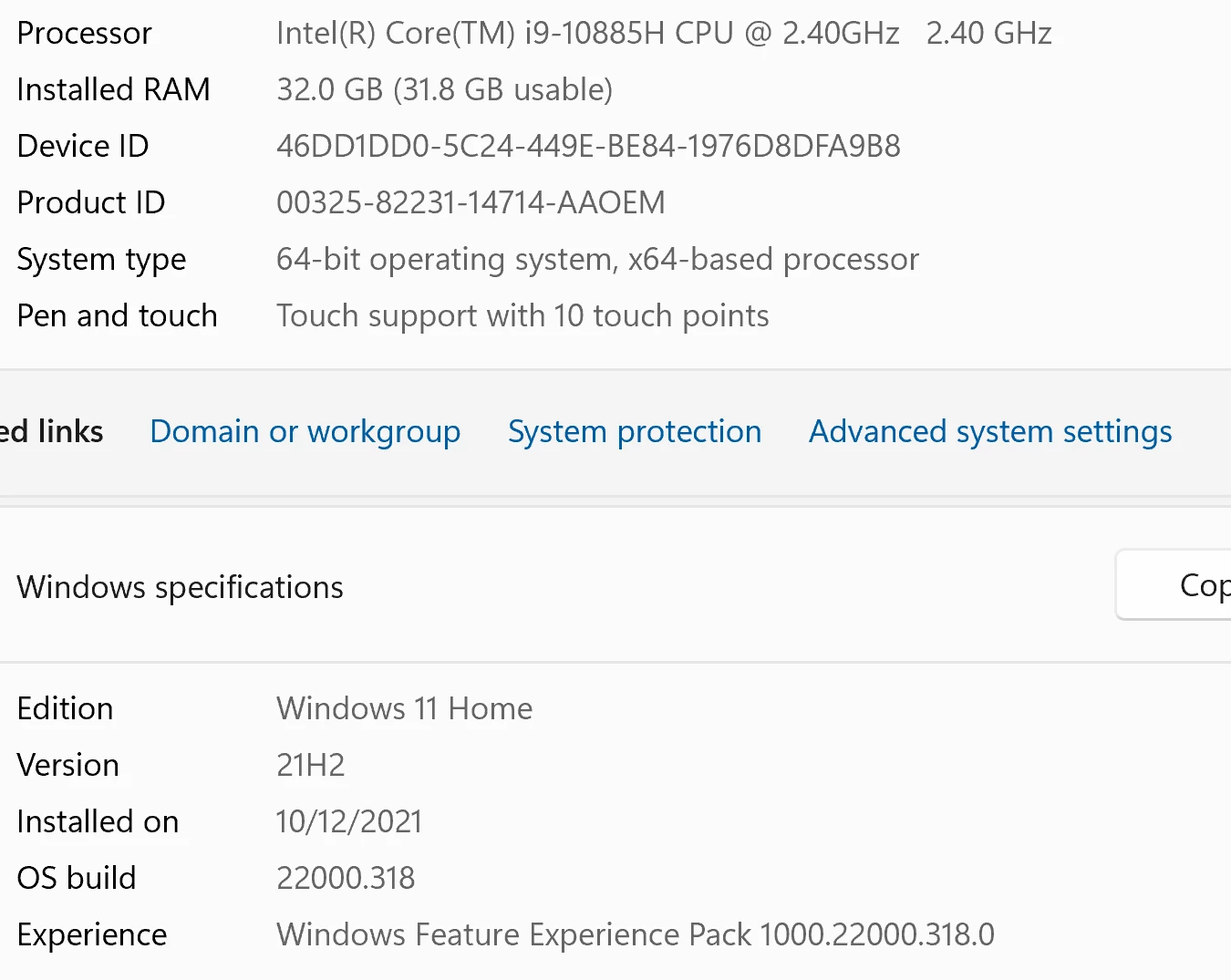
CPU Usage:

 

I am beyond frustrated as it seems this is literally useless.  


Again, any help would be appreciated.

This topic has been closed for replies.

4 replies

Participant
September 25, 2024

Youre not alone. Premiere Elements does the same. Even just importing 4K video to the organiser causes it to slow to a crawl then crash. Cant even get the task manager to run. Have to power off. Its never worked. The ksptop is a Dell Alienware with i7 2.9Ghz, 8 GB RAM.


Other video editing apps run ok it's just this Adobe that crashes. It also does it on my desktop which has a faster processor and 32GB Ram. Given up on it.


Known Participant
September 12, 2024

Is this Fixed ? Its 2024 and if i try to edit an OBS HEVC video premiere elements 2021 and trial 2024 hang both. RTX 4070ti gpu

Participant
January 25, 2022

I am actually having the same issue as well. After editing for about 5 minutes the preview window freezes. Everything else works that I know of, but both preview windows freeze also in the Source Monitor. Also, when I shut down Adobe Premiere everything freezes. It always says (Not Responding), and I have to force close the program and restart. 


I'm not sure if it's the sony footage that's causing this problem, but it doesn't happen when I have Panasonic GH5 Footage.

Community Expert
December 8, 2021

I'm sorry you are frustrated.  I don't know where you see that "the new update that bad as I've read".  It runs well on my laptop.  I think that the vast majority of users never show up here because it runs well on their computers too.  


Usually, when there is trouble, a setting or some other adjustment needs to be changed.  


Send me one of your GoPro clips so I can see if it works on my computer.


Since it is a current version, you can get help from Adobe techs here:  https://helpx.adobe.com/contact.html?rghtup=autoOpen

lisah2586Author
Participant
December 8, 2021

Thank you for the reply, Bill.  And apologies if I am grumpy.  It seems I don't have permission to add a video, so here is a link that you should be able to use.  It is a random sample.  


Below is a .png file I want to clip and then narrate.  I can get about two or three things started before it freezes.  Take narration - I may get one piece done and either want to add it in or delete & redo.  Once I do that, it simply stops.  


Hope this can help.


Again, apologies as before the 2022 update things worked fine.  


lisah2586Author
Participant
December 8, 2021

Please understand that without being in front of your computer, I'm doing some guessing.  


During video editing with any editor, what you see in the monitor is real time generated previews to match the project settings.    It is pretty easy for the computer to "render" the previews for most common images and video files.   But, the GoPros tend toward using uncommon video files to achieve some of their special results. 


Again guessing....  You're starting your project with stills.  Premiere Elements is designed to automatically establish the project settings when you put the first file on the timeline.  So, it is establishing good settings for a "slideshow", not a GoPro video.  


My guess is that Premiere Elements is balking at stuffing the GoPro footage into a project with mismatched project settings.  It is like putting a square peg into a round hole.   Can you look at the project settings page in your project?


My first attempt would be to start a project with a GoPro clip being first on the timeline.   Move it to the right and put your still photos where you want them.  That may work!


Do you know if the HEVC codec is installed your computer?  It costs $.99 at Microsoft.  It does not come with Premiere Elements.


If that doesn't work it might be that your computer is balking at the unique GoPro file format.  GoPro even gives away software specialized for their formats.   If it were me and my first attempt didn't work, I would install the (free) Handbrake conversion program and make new clips with a more standard format.  (The technical explanation is that GoPro uses the H.265/HEVC codec.  It is wonderful for what GoPro is trying to accomplish but more difficult to process.  Handbrake will create an H.264/MPEG-4 AVC video in a MP4 container. )


Excellent advice, Bill - thank you!  I will try your above tips and circle back.  It may be a day or two to follow up from here as I will need to investigate what you've said and then put it into practice.