

Community Manager
February 28, 2020
Question

FAQ: What should I do if Premiere Elements 2020 fails to import HEVC media files in Windows 10?

  • February 28, 2020
  • 21 replies
  • 23574 views

We have been receiving reports that Premiere Elements 2020 gives an error while trying to import HEVC files on Windows 10 computers.
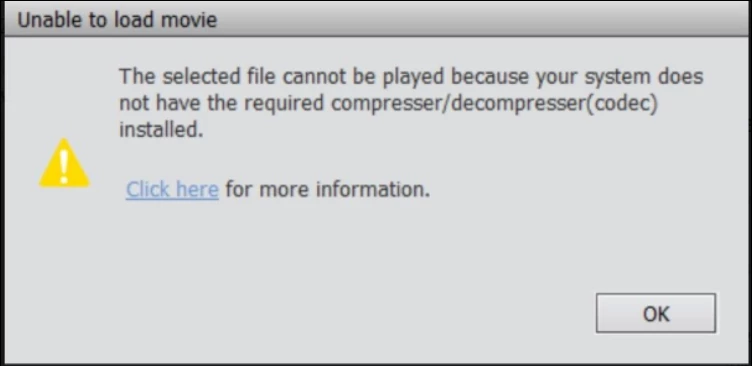


Follow these solutions to fix the problem:

Solution 1:

Install the HEVC video extension on your computer. Follow this article to download the extension, know the system requirements and other important information to enable HEVC decoding on Windows: https://helpx.adobe.com/premiere-elements/using/hevc-decoding-on-windows.html#HEVCvideoextension


If the issue persists, go to Solution 2.


Solution 2:

Fix the permissions for the plug-in folder by following the video given below:


If these solutions don't work, please contact Adobe support here: https://helpx.adobe.com/contact.html

This topic has been closed for replies.

21 replies

Participant
September 27, 2022

Still an issue in Premiere Elements 2022. Followed every bit of advice in this thread and from googling. it's just a broken product. Time to use something else.

Known Participant
April 19, 2023

I had last week a 2 hour reemote desktop connection with support , tried even lates version of premiere elements . It still locks the sw when trying to render the video . He told me some senior will contact me this week for another session and he never did . Premiere Elements cannot import & edit HEVC files !

Participant
April 23, 2023

I too had this issue on 2019 and 2020. I am now running the 2021 version and refuse to upgrade the product. What worked for me was to pay the $1.00 purchase price for the codec through the Microsoft Store. After this it worked across all my computers (desktop, laptop, and Surface Pro). Seems to me to be a licensing issue and will not work otherwise. For me, it has worked ever since. I have grown disenchanted with this product and all the issues people and I have been having. I will continue to use what I have until it no longer works. In the meantime, I have downloaded da Vinci Resolve and have begun to learn this program instead. I feel there are much better options out there other than Adobe and all the issues we put up with. In addition, Resolve has a reasonable purchase price if you decide to use something other than the free version. I am sorry you are having such issues at the moment. They seem to be unresponsive to getting this issue fixed.

Inspiring
July 10, 2022

What's with the video for changing permissions on the WindowsApps folder???

I still can't import a small HEVC video into Premiere Elements 2022 - PRE 2022 crashes.

When will this be fixed???

Community Expert
July 10, 2022
quote

What's with the video for changing permissions on the WindowsApps folder???

I still can't import a small HEVC video into Premiere Elements 2022 - PRE 2022 crashes.

When will this be fixed???


By @billrp

Fixed?  This is a user to user forum, so an answer to that is not likely to come.  As a user I can only suggest that the HEVC (or H.265) codec needed has to come from Microsoft, or Apple if you have a Mac.  Reading suggests that whoever owns the codec requires a license fee.  Adobe can't "fix" that.   


That said, as an owner of a current version you can get online "chat session" support and you will be able to edit HEVC video clips if your computer is strong enough.   HEVC is a complex codec that can choke some computers.  

https://helpx.adobe.com/contact.html?rghtup=autoOpen

Participant
April 4, 2022

I was running the 2018 Elements bundle > updated my mobile to the Galaxy S22 > attempted to import the Galaxy S22 1080P video to Premiere Elements 2018 and only the audio copied over. I then upgraded to the 2022 Elements bundle (I was planning the upgrade anyways) > again attempted to import the Galaxy S22 1080p video to Premiere Elements 2022 > now I get the "Your system needs to be configured to import HEVC or HEIF type of media." >> I have followed this thread to the best of my abilities and with the solutions given, I still get the same error. > can someone please help me in laymen terms? This is getting frustrating since I need to edit these videos quickly. Thanks, Joe

System: Windows 10 (21H2) / AMD Ryzen 7 3700x 8-core / 32 GB
My Sony A7III raw video works fine.

Participant
April 4, 2022

I am running PE2021 after upgrading last year from 2019 version. I also bought a GoPro7 Black and I too hit the HEVC issue. I went ahead and paid the cost through the MS store and bought the CODEC to decode it. I ran through the same crap above and could not get it to work. I have a server in the house and just started off-loading the video files to it and then brought them into the program from there. No issues doing it this way. It is almos like there is a bug trying to import directly into the program from the device that they just can't figure out. Seems like Adobe has had a lot of problems over the past few years with their software. Once I run this one out for a while and it is time to upgrade I am going with a different software. I am so worn out over the bugs that it is no longer worth wasting hours trying to get it to work right. On the flip side, I have an old laptop that I have been working on with Linux Mint. Still getting used to it and I am finding out it is way less buggy than anything I have ever worked with in the past. Once this computer outdates and I get a new one to replace it, I will wipe it and make a full switch to Linux. I want to make sure I can switch all the way and give up MS and Adobe all together without missing a beat.

Participant
March 29, 2022

I have successfully installed HEVC extention to my PC, followed the steps described below (deleted drivers, deleted cache) restarted the program and receive the same error.  Super dissappointed.  I have Adobe Premier Elements 2020

Participant
November 7, 2021

I am having an issue where Premiere will not detect my GPU when I upgraded to Windows 11 and would crash when trying to play HEVC encoded videos. I downgraded by to Windows 10 and I am having the same issues. I updated my NVIDIA drivers but it still will not detect nor play HEVC videos. I have tried the options above and now I am looking for some assistance.


Thank you.

Participating Frequently
November 8, 2021
My problem was I messed with the graphics settings in Windows allowing HDR
resolution this will stop you from being able to use files you record while
using this setting giving you the error.
Participating Frequently
October 2, 2021

I have been using Premiere elements for several years and different versions. I really like the program, and when it works it is for me the best editing software. But I have had so many times the program just stops importing GoPro HEVC files and every time it takes hours to fix. Now I have had the same problem since summer and cant find a solution because these things Adobe tell you to do does not help. I have no problem at all to work with the exact same files on this computer in Shotcut so for now I have now given up using Premiere. 

Participant
July 17, 2021

this did not work for me and still could not open windowsapps

Known Participant
February 13, 2021

I can import files but when i play then in adobe the GPU goes to 100% and the prgram doesnt respond anymore

oneat001
Participating Frequently
January 15, 2021

Here is the latest update to me from Adobe on 01/15/21

I'm sorry for the inconvenience. This is an ongoing issue reported by many users. We have raised this issue to our engineering team and they are investigating a fix. At the moment, we do not have a workaround, but you will share an update via email.

We do not have an ETA yet. This issue was reported to our engineering team 1-2 days ago. I will send you an email once we have an update.

Participant
January 18, 2021

Hi there,


My partner and I have had this happen two times and along with Adobe’s instructions we deleted cache files as well and it is now working - we are able to import HEVC files.


I noticed that once you followed Adobe’s instructions (Solution 2) my current  Adobe Elements project still would not allow me to import a (GoPro) HEVC file, however if I copied that particular GoPro file from my external hard drive (as I normally work from an external hard drive – that’s where I save my raw data/GoPro files) to my C Drive and then import it into a completely new project it could be imported without error.


So this told us that there were some cache files to get rid of first – once you try to import (even if you get an error message) or render, for example, cache files are created and they can be the cause of further problems. Even if you have tried Adobe’s solution there are still those lingering cache files from when you got ‘import’ errors so you have to get rid of them.


This worked for us so I’m really hoping it works for you guys. Fingers crossed. I’m sorry if it doesn’t though, as I know how terribly frustrating these things can be. It feels like an endless fight against technology ☹


Step One: Follow steps outlined in Adobe’s ‘Solution 2’ (how to fix permissions…)


Step Two: Restart PC


Step Three: Delete (all) Cache Files from the following locations:


  1. C:\users\[your user name]\AppData\Roaming\Adobe\SLData\SLCache
  2. C:\users\[your user name]\\AppData\Roaming\Adobe\SLData\SLStore
  3. C:\users\[your user name]\\AppData\Roaming\Adobe\Common\Media Cache
  4. C:\users\[your user name]\\AppData\Roaming\Adobe\Common\Media Cache Files


Note: if you’re unable to delete a cache file (i.e. you receive an error message that it’s currently being used) ensure your project is closed, restart your PC and then try again. This happened to me where a cache file couldn’t be deleted and it happened to be the GoPro file I couldn’t import because of the HEVC import error message. So restarting the computer worked and I was able to then go back in and delete that cache file.


Step Four: Restart PC


Good luck 

Participant
January 18, 2021

Hi again,


Just thought I'd share another interesting bit of info. Sometimes when I import a GoPro file, for whatever reason it can't be rendered. Once I click the 'Render' button it freezes at the first (1) frame. Other times it freezes at a later frame but it's still the same outcome - it freezes and gets stuck. I must have tried a heap of times but the result is always the same - the program freezes and I have to 'Ctrl + Alt + Delete' and shutdown Adobe Elements. 

And there is nothing wrong with the file as it plays perfectly fine when I play it outside of Adobe Elements.


So I actually just copied the file (as in simply selecting the file, right click and then select 'copy') and then I was able to import and render that 'copy' file without any issues. It's so bizarre. Of course I didn't think something that simple would work but it did so it's something to remember.


I hope it works for you too

oneat001
Participating Frequently
December 31, 2020

Do you have a permanent solution yet?

Participant
January 8, 2021

Hi All,

do you have any solution for that issue? I followed the described steps but sill my mov files from my iphone cant be imported.

Does that mean you cant use Elements organizer when you take videos with your Iphone? I quess quite a lot of people are already using and iphone to take videos,


Thanks for any support. 

oneat001
Participating Frequently
January 8, 2021

Nope...none of the steps have worked for me either.   I have a ticket with Adobe and they can't figure it out either...it's moved up a couple of levels and someone is supposed to contact me to see if they can get it to work.  Hopefully they don't just close the ticket.