Participant
July 27, 2019
Answered

Export a frame as jpeg (still image) in Rush

  • July 27, 2019
  • 7 replies
  • 52105 views

Is there a way to export a single frame as an image (ie: JPEG) in Rush? 


Basically, I'm a lightweight user, editing my first footage.  One frame looks great and I'd like to create a photo from it to share with some friends.  How?  Unlikely to license Pro just for this...seems a basic function Rush should be able to do?

Correct answer caroline_edits

Hi ToddNeville!

Unfortunately, Rush is only designed for video work and can't export still images. However, this is a great idea and I'd really appreciate you filing a feature request here: Premiere Rush: Hot (1423 ideas) – Adobe video & audio apps

Our engineers check that page regularly (and I send them my favorite links!) to figure out what our next developments of the product will be.

In the meantime, if I were you, I'd navigate to the frame that you're wanting to isolate and take a screenshot of it. If you're on a phone, the screenshot captures the whole screen, but you can crop the screenshot to only show the frame. If you're on a desktop, you can crop the screenshot as you capture it.

Here's how to take a screenshot on a Mac:

How to take a screenshot on your Mac - Apple Support
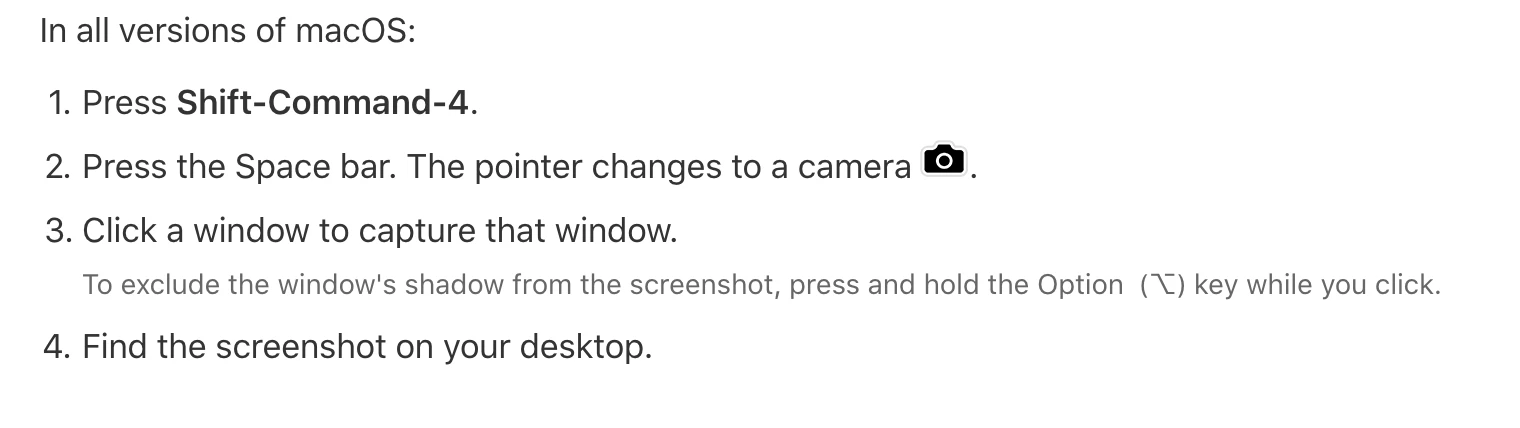
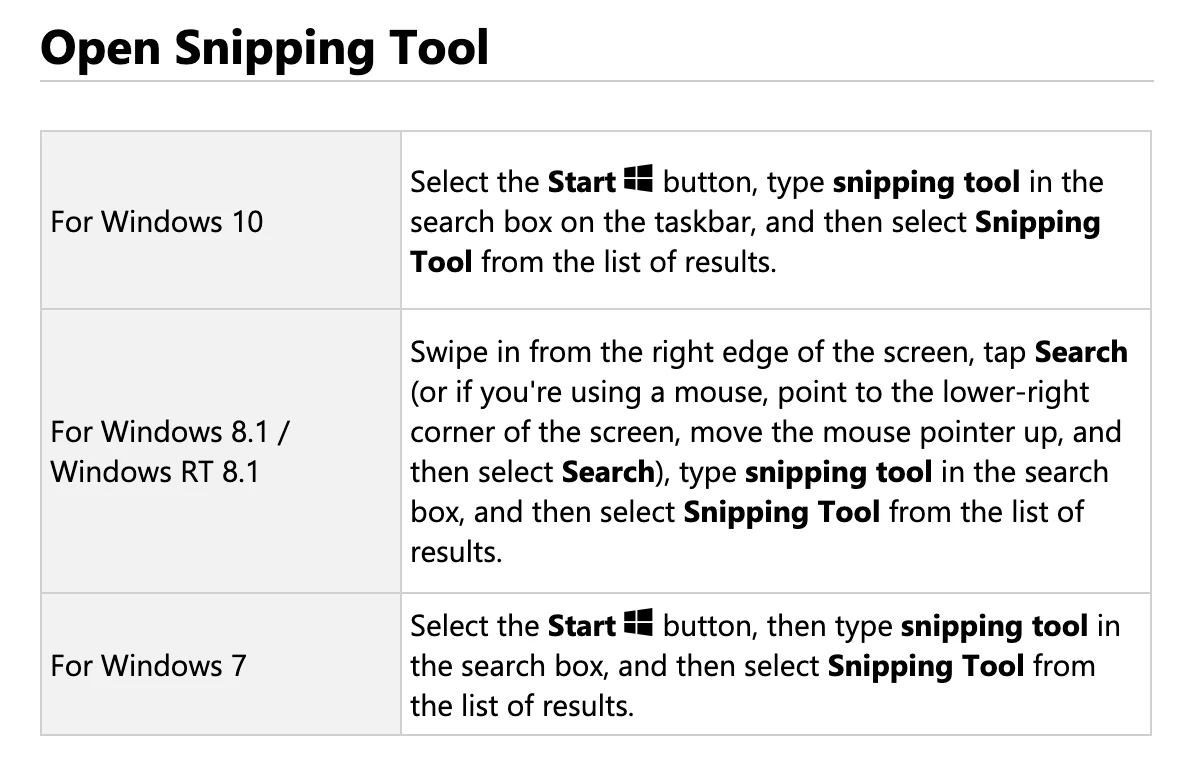
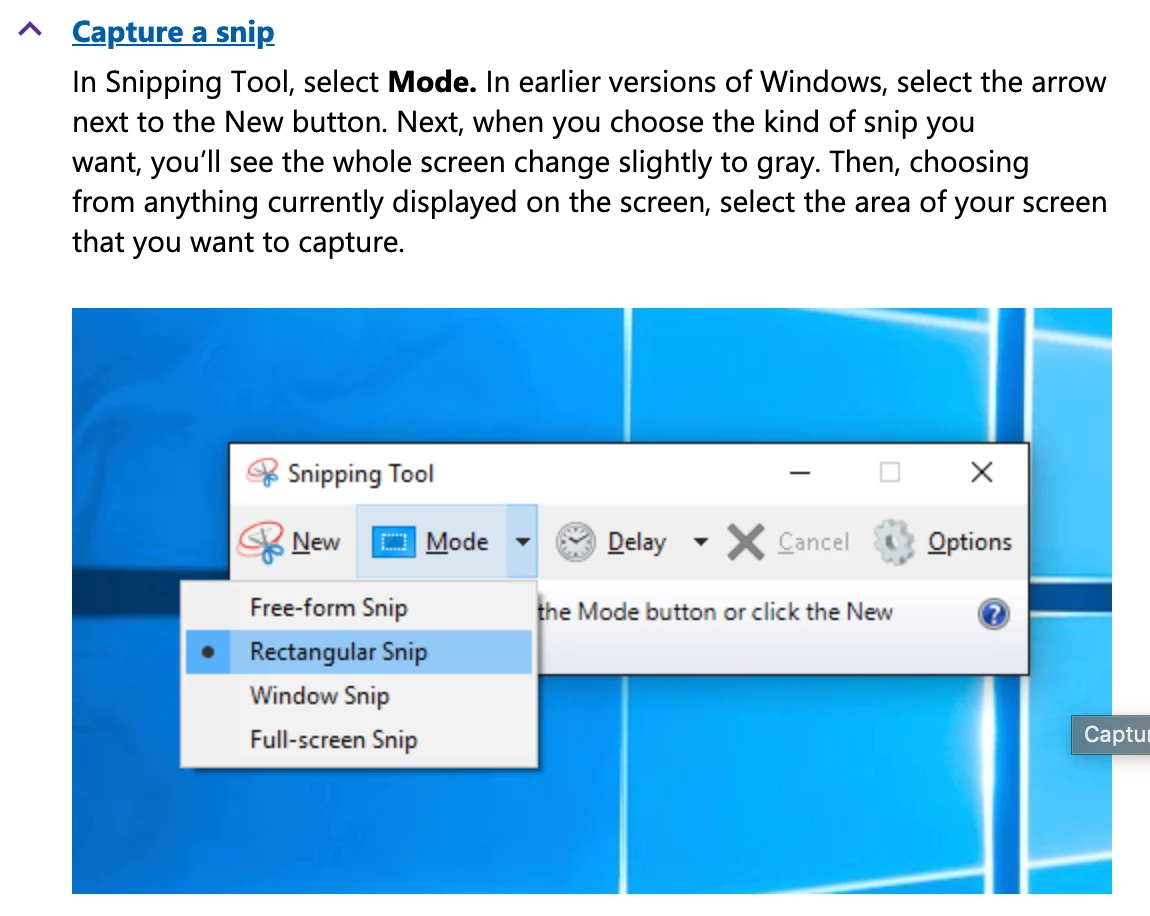
Here's how to take a screenshot on a PC:

https://support.microsoft.com/en-us/help/13776/windows-10-use-snipping-tool-to-capture-screenshots
This should help get your frame!

Let me know if you have any questions.

-Caroline

7 replies

Participant
January 28, 2022

Here's my workaround:


I'm in Win11. I have a tool called ClipChamp. Any clipping program will work. I'm not advocating this particular one. It's just the app that's on my PC. I'm confident I didn't download it, so it must have come standard with Windows or packaged with some other program.

1. I launch Clipchamp. It hides in then background, so don't worry if you don't see it.

2. I play the video in any program. I'm using Windows Media Player.

3. Stop at the frame that I want.

4. Then activate the clipping program with Win-Shift-S.

5. I select the image and it clips it to memory.

6. I'm then able, within the clipping app to do minor edits like crop.

7. Save the jpg down to the folder I select. Easy Peasy.


It took longer to write this than it does to clip the frame. It's insane that Adobe hasn't built something similar inside of Rush.

Participant
July 21, 2022

I can't find this feature. Is this still not possible? 
Saying that it is an app for editing movies, and therefore it can't export images, is simple not serious. 

Participant
December 19, 2021

Hi Todd!

Thank you so much for your question because it directly relates to an issue that would be a disaster for me it there wasn't a workaround. I got the impression from Rush tutorials that inserting other media - stills, graphics, etc - was no problem (inserting isn't a problem, but then . . .) but then when I went to export the workflow, which I've been working with for several weeks and including about 50 stills, none of the stills were visible in the exported mp4. Imagine my panic and shock! I have found a work-around, though, which is that I transferred my workflow to Premiere Pro, and that delivers everything in the final product as expected, so I am tremendously relieved. I hope Adobe's engineers are catching this, because it's a real shortcoming in Rush, and something that I automatically expected in that otherwise very pleasing program. I hope that this helps you, too!

Participant
December 25, 2021

When I "pan and zoom" I really want to be able to stay on the main image for another second or half second. I understand that in other programs like Camtasia that's easy to do you: you "export ping" and then put it into the timeline. But I am not finding a way to do that in Rush. I would use that function a lot if it were available. I like the dynamism of pan and zoom but I also sometimes need a little more focus on the image, especially when I am creating video lectures for teaching.

Participant
April 17, 2021

Upvote from me too!

Known Participant
February 28, 2021

Yes! I would love to be able to do this.  I'd love to be able to make some stills I can hold on for a second or two or three, as backgrounds for titles, credits, etc.   Will try dragging the clips into iMovie--thanks for that suggestion. 

Vanessa5FE9
Known Participant
March 2, 2021

Yes this is very uch needed. I want to use an image in the film for the title and strt of the film. Isn't there a way of copying the clip and then shortening it so that only one frame is left?

caend54660747
Participant
February 9, 2020

This is a feature that I assume many need for exporting thumbnails for YouTube. We need to be able to export stills!


Edit: If you are running Windows 10 you can save stills from the built in video player. Just press the three dots.


jordanh83623934
Participant
February 1, 2020

I am using Rush on my phone and have the same question and desire... I often like to hold and fade out a video with the last frame frozen. Typically this would be done by exporting a frame and then bringing it back in the time line. This would be a great feature to include in Rush...


caroline_edits
Community Manager
caroline_editsCommunity ManagerCorrect answer
Community Manager
July 29, 2019

Hi ToddNeville!

Unfortunately, Rush is only designed for video work and can't export still images. However, this is a great idea and I'd really appreciate you filing a feature request here: Premiere Rush: Hot (1423 ideas) – Adobe video & audio apps

Our engineers check that page regularly (and I send them my favorite links!) to figure out what our next developments of the product will be.

In the meantime, if I were you, I'd navigate to the frame that you're wanting to isolate and take a screenshot of it. If you're on a phone, the screenshot captures the whole screen, but you can crop the screenshot to only show the frame. If you're on a desktop, you can crop the screenshot as you capture it.

Here's how to take a screenshot on a Mac:

How to take a screenshot on your Mac - Apple Support

Here's how to take a screenshot on a PC:

https://support.microsoft.com/en-us/help/13776/windows-10-use-snipping-tool-to-capture-screenshots

This should help get your frame!

Let me know if you have any questions.

-Caroline

Vanessa5FE9
Known Participant
March 2, 2021

I want to use an image in the film for the title and start of the film. Isn't there a way of copying the clip and then shortening it so that only one frame is left? Thanks

Michael at UNCP
Inspiring
September 14, 2023

You can trim a video down to one frame but it will still be in a video file format, not an image. To export an image, you'll need a video player that can export a frame in an image format like JPG or PNG. As others have pointed out, iMovie can do this on a Mac. VLC, a cross-platform (Mac/Windows/Linux) and open-source (free) player, can also do this.