
Participant
March 25, 2019
Answered

Rush Video Quality

  • March 25, 2019
  • 2 replies
  • 20805 views

I originally purchased a subscription for Adobe Premiere Rush because of how easy it made video editing look for a beginner like me. Editing videos of my kids is super easy and the result is what I expected. When I decided to edit some recordings of me demo'ing some software, that's where I noticed the quality of the video was blurry. I've looked through all of the settings in Rush and I can't figure it out. First I was capturing video when Nvidia's built in screen capture, then cropping down my screen selection. The exported video is too blurry to read any of the text on the screen.I gave up on capturing video that way and decided to try Filmora & Snagit. Both of those recorded and played back the video without issue. Quality was exactly the same as what I captured. Meaning, it was sharp and crystal clear.

I thought I could annotate the video in Rush because some of the call outs are very well done and they just look great. But, no matter what I do, as soon as I add the video to my project and simply export it, its blurry again.

I've also hit a few other bugs where it'll run my system out of memory and cause the CPU / GPU to peg at 100%. Those are secondary to the exported video not being usable. Meaning, if I were to share it with anyone, they wouldnt be able to read the characters on the screen due to how blurry it is.

Any ideas on how I could improve the video quality on the export?

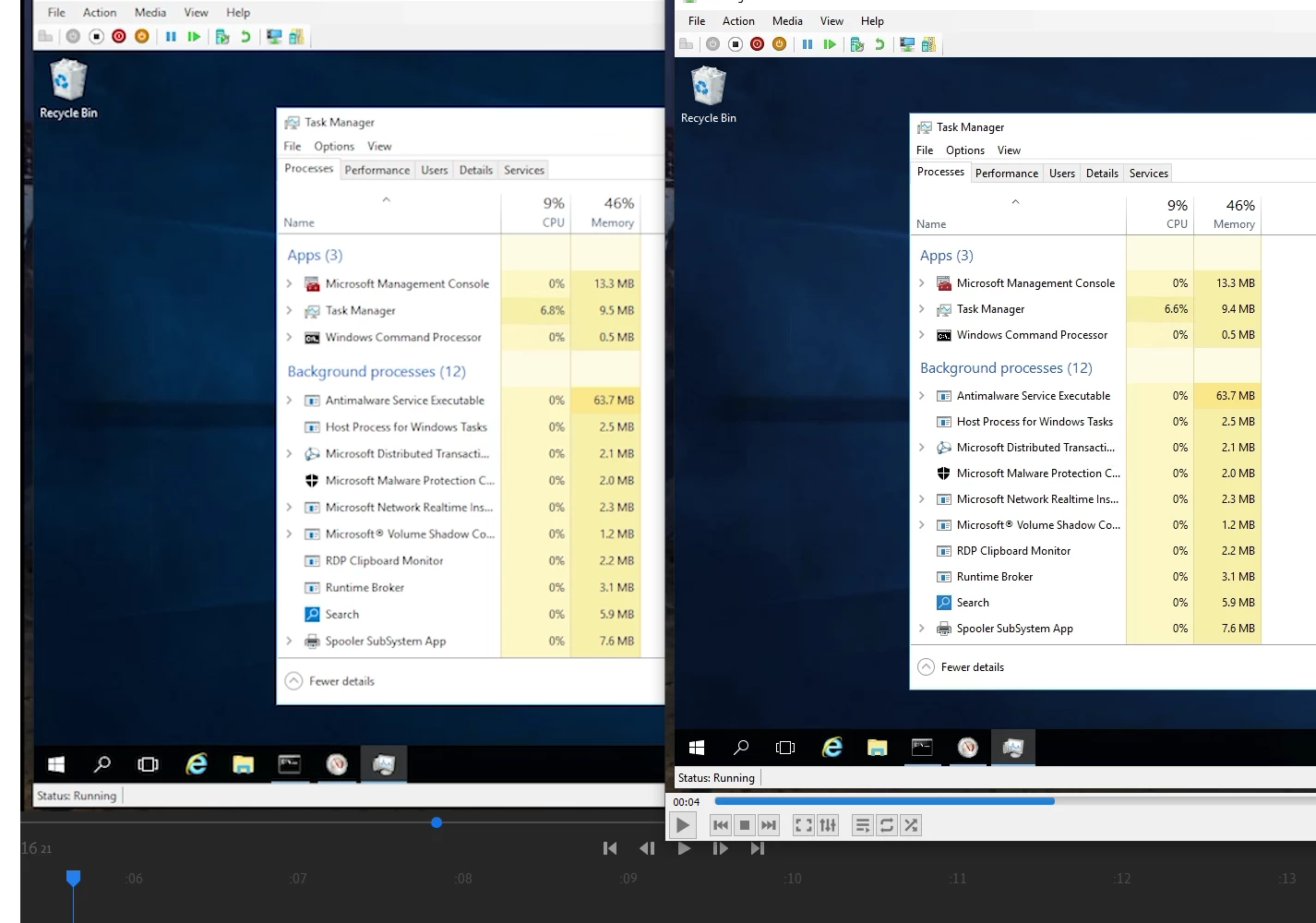
I've attached a screenshot of what the video looks like in Rush and what the original looks like in VLC. You can see how blurry the video is in Rush after the import.
    This topic has been closed for replies.
    Correct answer aow99

    It's a bummer you're having trouble. I just ran a little test on my system and did a screen recording using ScreenFlow and then imported in to Rush and did an export. Everything looked great for me at every step with no reduction in clarity. In your original post, you said: "then cropping down my screen selection." What did you mean by that? Are you increasing the scale to show a smaller portion of your screen capture?


    Hey,

    Nvidia's built in screen capture thingy was capturing the entire screen. My resolution is  3440 x 1440 so I had to "crop" the video to just the selection you see in my screenshot. Maybe crop isn't the right word, but its just what made sense in my head

    Can you see the difference between the 2 task managers I posted? See how one has sharp text and the other is blurry? Anyways, yea I dunno what the issue was. Its all good though. If you would like me to test anything else, let me know.

    Thanks!

    2 replies

    Participant
    August 16, 2020

    hi, i don't understand what you mean by this. 
    if you're able to, do you mind replying to me and telling me each step to do it? 
    'e.g. go to the top right of the screen, and you'll see the 'x' button.' [this isn't related to the app, it was an example of what i meant by 'explaining'. z
    thanks!

    Vinay Dwivedi
    Adobe Employee
    Adobe Employee
    March 25, 2019

    Hi Michael,

    Try not to use automatic preset and then check the quality.

    You can use You tube 1080 P.

    aow99Author
    Participant
    March 25, 2019

    Hello,

    What do you mean exactly? The screenshot is showing you the preview window. All I did was drag the video in. The exported video to the local computer looks the same. Maybe I'm missing a setting somewhere.

    aow99AuthorCorrect answer
    Participant
    April 4, 2019

    It's a bummer you're having trouble. I just ran a little test on my system and did a screen recording using ScreenFlow and then imported in to Rush and did an export. Everything looked great for me at every step with no reduction in clarity. In your original post, you said: "then cropping down my screen selection." What did you mean by that? Are you increasing the scale to show a smaller portion of your screen capture?


    Hey,

    Nvidia's built in screen capture thingy was capturing the entire screen. My resolution is  3440 x 1440 so I had to "crop" the video to just the selection you see in my screenshot. Maybe crop isn't the right word, but its just what made sense in my head

    Can you see the difference between the 2 task managers I posted? See how one has sharp text and the other is blurry? Anyways, yea I dunno what the issue was. Its all good though. If you would like me to test anything else, let me know.

    Thanks!