
Inspiring
November 27, 2022
Answered

How can I put/ blend in some pixels unstretched on top of my material?

  • November 27, 2022
  • 1 reply
  • 473 views

I mean I have one material 32x2048 pixels  and want to put another one 2048x2048 on top of it ?   Is there a node that allows to do it in a simple manner like in Photoshop ?       I am tired to do my own blend nodes  which somehow  always fail  at certain  conditions.    Am I missing something ready made and  simple to use?
This topic has been closed for replies.
Correct answer davescm

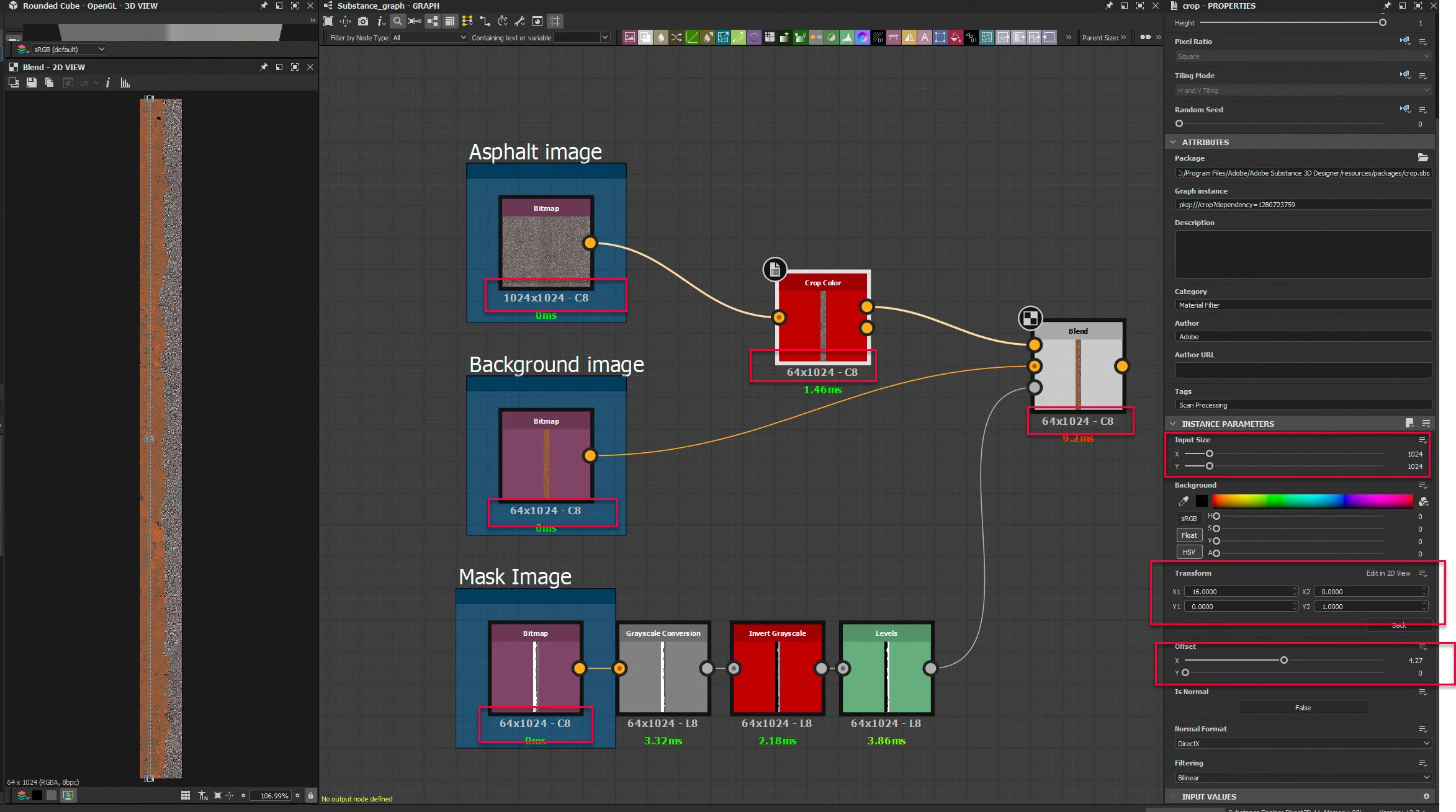
For your use case set your maps up as shown.

In the crop node set the node output size to Absolute 64 x 1024 px.

Set the input size to 1024 x 1024

In the crop node click on Edit Matrix Values and set X1 to 16  (which is 1024/64). Leave X2 at 0 Y1 at 0 and Y2 at 1

Adjust the offset to show the strip that you want overlaid on the background


Dave

1 reply

davescm
Community Expert
Community Expert
November 27, 2022

Can you show an image of what you want to achieve i.e. the two starting images and the result - use Photoshop if you are familiar with it. Then we can show you how to achieve similar in Designer.


Dave

kirkr5689Author
Inspiring
November 27, 2022

  Thanks Dave for your reply.   For example I am working at a dirt edge material  64x1024 pix sized and want  to put existing  regular square asphalt  texture  on top of the edge( on the right side)  as it is in my psd.


I see I have to crop  the asphalt first to 64 wide stripe  similar to  the edge texture. But it's not easy with the default crop node  and it makes the asphalt blurrier , always re -rasterizes it.    Never perfectly 64 pix.    I see  the crop node does have some integer "inputs"  but I never been able to figure out if they do anything. Never saw any difference.


So is there any out of a box  node that could do it ?  or something just same carelessly  easy as in Photoshop?

kirkr5689Author
Inspiring
November 29, 2022

For your use case set your maps up as shown.

In the crop node set the node output size to Absolute 64 x 1024 px.

Set the input size to 1024 x 1024

In the crop node click on Edit Matrix Values and set X1 to 16  (which is 1024/64). Leave X2 at 0 Y1 at 0 and Y2 at 1

Adjust the offset to show the strip that you want overlaid on the background


Dave


Thank you Dave.  My guess I could set up the formula for the transform matrix  that way using #size .