Participant
September 22, 2021
Answered

Image comparison, difference as black/white mask

  • September 22, 2021
  • 1 reply
  • 704 views

Hello,

I'm using Substance 3D Designer and have two Bitmaps. They are almost identical, except some spots have a different color-tint (e.g. greenish vs yellowish). I need these differences as a black/white mask (goal is to use this mask in a game-engine to give a color at runtime).


I tried with blending (subtract/divide) and roughly that works, but has pixel-artifacts - which makes sense because it's not looking for an exact match. So what i'd like to do is compare each pixel in image 1 to the corresponding pixel in image 2 and if they are identical I'd like the output mask to contain black for that pixel, otherwise white. 


Can someone point me in the right direction?

Thanks in advance!
This topic has been closed for replies.
Correct answer Luca Giarrizzo

Hello @rboerdijk,


I can suggest two ways of approaching this: one uses a combination of Difference and Levels nodes while the other uses a custom function in a Pixel Processor node.


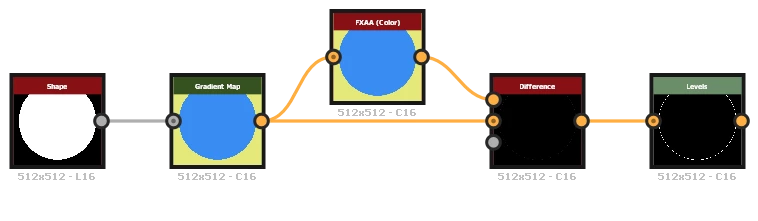
Connect the two RGBA images to a Difference node, then use a Levels node to bring the detected differences up to flat white.


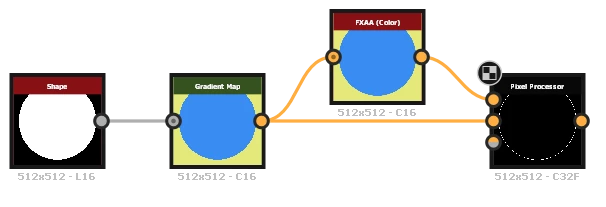
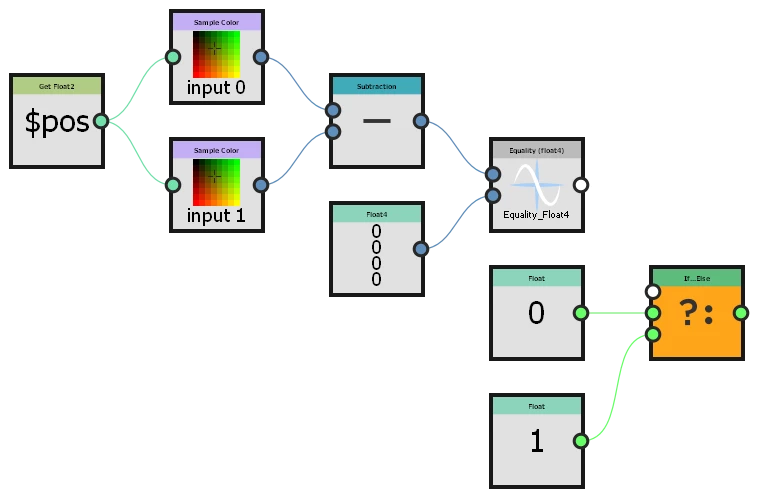
In a Pixel Processor, sample the two RGBA images and subtract one to the other. If the result is zero (no difference), output black (0.0). If there is any difference, output white (1.0).


If you want to set a tolerance for the difference, simply check that the difference is lower than the tolerance value instead of strictly equal to (0, 0, 0, 0).


I hope this is useful!


Best regards.


1 reply

Luca Giarrizzo
Community Manager
Luca GiarrizzoCommunity ManagerCorrect answer
Community Manager
September 23, 2021

Hello @rboerdijk,


I can suggest two ways of approaching this: one uses a combination of Difference and Levels nodes while the other uses a custom function in a Pixel Processor node.


Connect the two RGBA images to a Difference node, then use a Levels node to bring the detected differences up to flat white.


In a Pixel Processor, sample the two RGBA images and subtract one to the other. If the result is zero (no difference), output black (0.0). If there is any difference, output white (1.0).


If you want to set a tolerance for the difference, simply check that the difference is lower than the tolerance value instead of strictly equal to (0, 0, 0, 0).


I hope this is useful!


Best regards.


Luca Giarrizzo | Quality Engineer - Substance 3D Designer | Adobe
rboerdijkAuthor
Participant
September 24, 2021

Thanks, used the pixel processor and it works perfectly!

... and good call suggesting the lower-than tolerance, it indeed needed a bit of a 'fudge' value.


rboerdijkAuthor
Participant
September 24, 2021

Oh, in case anyone is interested, this is what I ended up using. 

Note that I have 3 source images and tried to improve the result a bit by combining those.