
Exit
  • Global community
    • Language:
      • Deutsch
      • English
      • Español
      • Français
      • Português
  • 日本語コミュニティ
  • 한국 커뮤니티
2

Matching Designer viewport closer to Unreal Engine

New Here ,
Dec 13, 2021 Dec 13, 2021

I noticed that Designer has the ACES color management options. I use them in Substance Painter and there was a lot more documentation and helpful videos that directed me to the correct settings. I was wondering if I could get some help doing the same in Designer. I changed my color management to OpenColorIO and the config to ACES 1.0.3. After restart, the brightest whites almost look mid-grey. 


What are the appropriate settings for a Designer to Unreal workflow?
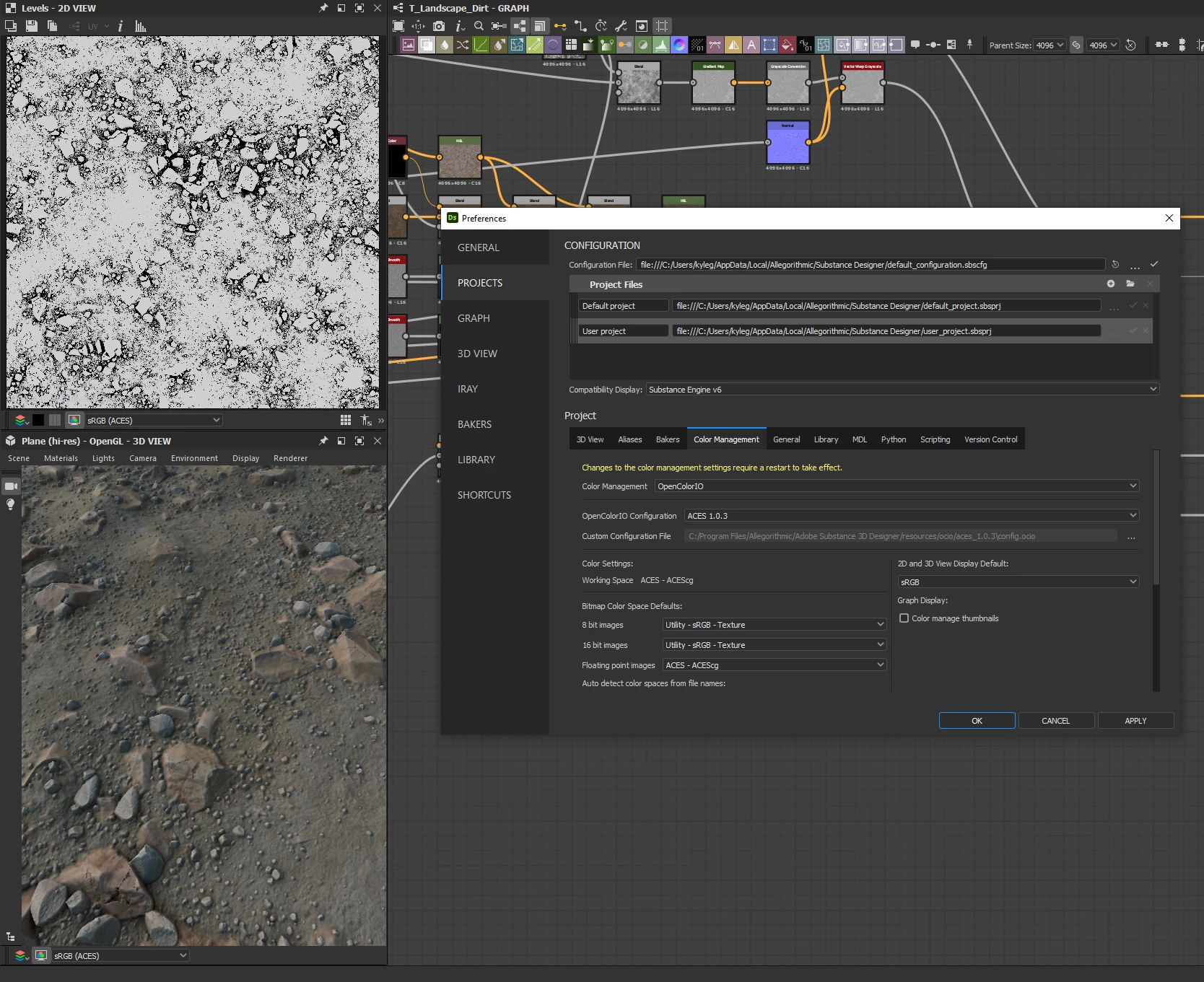
 

Kyle222363179ceu_0-1639450599915.png


Thanks so much,

Kyle

TOPICS
3D View , General , How to
3.0K
Translate
Report
Community guidelines
Be kind and respectful, give credit to the original source of content, and search for duplicates before posting. Learn more
community guidelines

correct answers 1 Correct answer

Adobe Employee , Dec 13, 2021 Dec 13, 2021

Hello Kyle,


ACES color management using OpenColorIO involves a specialised workflow for color matching purposes across an entire pipeline, most commonly used in VFX production. In that mode, a 1.0 grayscale value which would appear white in sRGB will look washed out indeed in ACES Linear sRGB, as it uses a much higher HDR value as white point. Using OCIO in Designer involves using it in Unreal Engine as well.


For general use, Unreal Engine uses an ACES sRGB tonemapper and sRGB color space as

...
Translate
Adobe Employee ,
Dec 13, 2021 Dec 13, 2021

Hello Kyle,


ACES color management using OpenColorIO involves a specialised workflow for color matching purposes across an entire pipeline, most commonly used in VFX production. In that mode, a 1.0 grayscale value which would appear white in sRGB will look washed out indeed in ACES Linear sRGB, as it uses a much higher HDR value as white point. Using OCIO in Designer involves using it in Unreal Engine as well.


For general use, Unreal Engine uses an ACES sRGB tonemapper and sRGB color space as default. This is also available in Designer's 3D View in the bottom bar, and does not require using OCIO color management. You should remain in Legacy mode instead and use the tonemapper in the 3D View for matching Unreal Engine's look.


I hope this is helpful! Feel free to let me know if you have other questions.


Best regards.


Luca Giarrizzo | Quality Engineer, 3D & Immersive | Adobe
Translate
Report
Community guidelines
Be kind and respectful, give credit to the original source of content, and search for duplicates before posting. Learn more
community guidelines
New Here ,
Dec 14, 2021 Dec 14, 2021

Just what I needed. I'm not very informed on the technicalities of it so thanks for explaining it as well. Much appreciated!

Translate
Report
Community guidelines
Be kind and respectful, give credit to the original source of content, and search for duplicates before posting. Learn more
community guidelines
Adobe Employee ,
Dec 17, 2021 Dec 17, 2021
LATEST

Hello again Kyle,


I am glad this was helpful! Color management is indeed a very complex topic that eludes us as soon as we think we have it figured out.


Have fun with the Substance 3D tools!


Best regards.

Luca Giarrizzo | Quality Engineer, 3D & Immersive | Adobe
Translate
Report
Community guidelines
Be kind and respectful, give credit to the original source of content, and search for duplicates before posting. Learn more
community guidelines