

DanHutchinson
Participant
June 8, 2022
Answered

Save Custom Meshes for the 3D-View

  • June 8, 2022
  • 3 replies
  • 1140 views

Hello,

Bit of an odd one this but I'm aware of where to save my fbx's so I can view them by default in the "Scene" list of the 3D View in Substance Designer, see image "Custom Mat Ball".
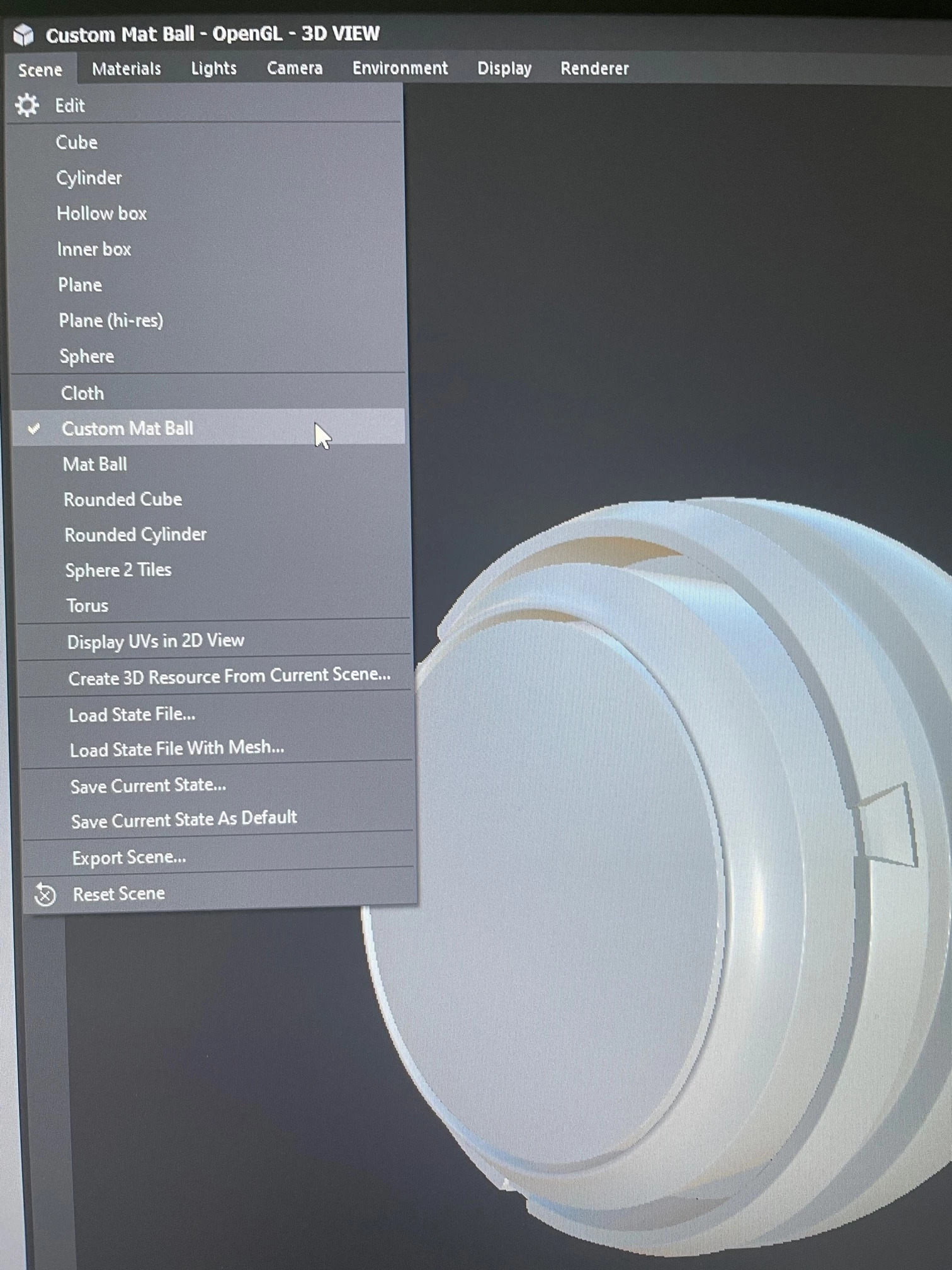
However the issue I seem to have is that whenever Substance Designer automatically updates, it gets rid of any fbx files I've saved to the ProgramFiles/Resources path etc.

So my question is:
Is there somewhere I can save my meshes where they won't get removed following an update?
In the Documents folder for Designer perhaps? How do I go about this, specific naming of folders etc?

Thanks and I hope that is clear enough.

Dan


This topic has been closed for replies.
Correct answer Luca Giarrizzo

Hello Dan,


Updating Designer will indeed clean the installed files and directories in its install location.


You may use scene state files (*.sbsscn) to load preconfigured scenes with custom meshes. The scenes will include meshes, materials, environment, camera settings, etc.

To do this, set up the scene in the 3D View as you wish, then go to 3D View > Scene > Save State File... . Repeat that for any number of meshes and scene configurations you may need. Then, you may go to 3D View > Scene > Load State File with mesh to restore a scene state. These options are listed here.


Additionally, you may set any of these scene state files as the new default for future 3D View scenes. Go to Edit > Preferences > Projects > User project > 3D View. Learn more here.


I hope this is helpful!

Best regards.


3 replies

Inspiring
July 7, 2022

I do it a bit differently and depends on workflow but might be useful, I create a separate sbs file that I have all the meshes I want for my project linked and then just drag and drop whatever mesh I want to use into the viewer, found it a lot easier to manage across multiple projects


also if it's complicated I have a separate sbs with all the linked baked maps I can just drop into whatever graph I'm working on and select the relevant maps easily, takes a little bit of set up but well worth i if it's a longer term more complex project.

then I can just delete it and swap it out for proper inputs when I publish it, saves a lot of messing about but I'd only do it if it was a longer term project as it takes a little bit of fiddling to set up the first time


Once it's set up you can just use open last session and it will reopen all the sbs files you had open last time


Inspiring
July 7, 2022

I also create a custom viewer node that I can just throw on the output that unpacks it to what substance designer expects then you can just right click on that and drag it into the viewer to quickly view the full material output when you swap meshes and again just delete it when I publish.


Luca Giarrizzo
Community Manager
Community Manager
July 7, 2022

Thank you for sharing this solution Mark, this is a nice setup to access a lot of useful information and assets!


Luca Giarrizzo | Quality Engineer - Substance 3D Designer | Adobe
Luca Giarrizzo
Community Manager
Luca GiarrizzoCommunity ManagerCorrect answer
Community Manager
July 7, 2022

Hello Dan,


Updating Designer will indeed clean the installed files and directories in its install location.


You may use scene state files (*.sbsscn) to load preconfigured scenes with custom meshes. The scenes will include meshes, materials, environment, camera settings, etc.

To do this, set up the scene in the 3D View as you wish, then go to 3D View > Scene > Save State File... . Repeat that for any number of meshes and scene configurations you may need. Then, you may go to 3D View > Scene > Load State File with mesh to restore a scene state. These options are listed here.


Additionally, you may set any of these scene state files as the new default for future 3D View scenes. Go to Edit > Preferences > Projects > User project > 3D View. Learn more here.


I hope this is helpful!

Best regards.


Luca Giarrizzo | Quality Engineer - Substance 3D Designer | Adobe
DanHutchinson
Participant
July 26, 2022

Awesome Luca, thank-you!


Luca Giarrizzo
Community Manager
Community Manager
July 27, 2022

Happy to help, Dan!


Best regards.


Luca Giarrizzo | Quality Engineer - Substance 3D Designer | Adobe
DanHutchinson
Participant
June 8, 2022

Just to follow-up... Is something like this along the right lines? Although I'm not doing it right as it doesn't work this way but I'm hoping I've just got some finer details wrong but I'm on the right track, I figured given there is a python folder it could work the same way for 3DView and meshes