
Copy link to clipboard
Copied
Hello,
I feel like I'm missing something basic. I'm drawing a path on a super simple straight surface, and instead of being a straight path, it's bending all over the place. I tried toggling corner/smooth, which does *something*, but certainly doesn't make the path straight:
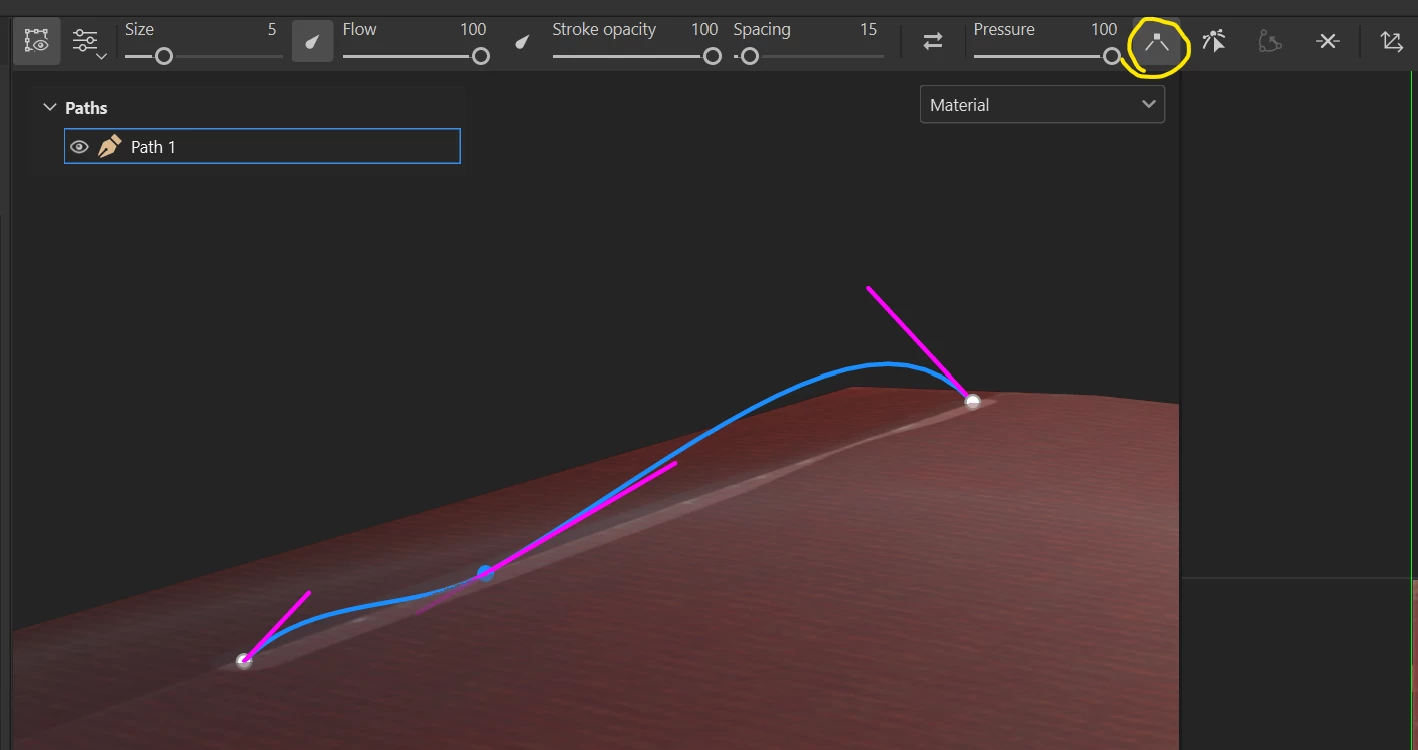
What is happening? How do I create a straight path?
Substance 3D Painter, version 10.1.2
Build 4105 - 5ac1e5465eedb521dd6c13c1a61a8eca1ecc27d0
Copy link to clipboard
Copied
Hello @shakingearthdigital,
Thank you for the message.
From your screenshot, it doesn't look like a perfectly straight surface (but I could be wrong). Our Path system doesn't work like it would in a 2D software and the vertices are really "attached" to the 3D surface. Therefore, a Path can look straight from a point of view, but the tangent is in fact curved.
I advise you to deactivate the custom tangent (the pink handles) and keep the "Corner" mode active.
Best regards,
Copy link to clipboard
Copied
Copy link to clipboard
Copied
I have the same issue. I have a flat plane, I create 2 path points. The path doesn't create a straight line against the plane, it is curved. The path should be a straight line between the 2 points but it isn't
Copy link to clipboard
Copied
You have 3 starting points in the video that have a straight line between them. That is what is not working, I have 2 points, but the line between them is not straight. If there are only 2 points on a flat plane's surface, why does my line curve away from the surface instead of following the path between the points
Copy link to clipboard
Copied
I have this same issue, was there ever a solution for this? Check my screenshot, I have 2 points, but the line between them doesn't go between them correctly it doesnt align to the mesh surface
Copy link to clipboard
Copied
No solution, they ignored my reply when I pointed out that their suggestion didn't work.
As far as I can tell, it's due to the normals on the surface, so one thing you can try is to create a version of the geometry that has cusped normals, and use that to draw lines on.
Get ready! An upgraded Adobe Community experience is coming in January.
Learn more