vonw45762603
New Participant
January 26, 2024
Question

Handpainting both base material and normal map

  • January 26, 2024
  • 1 reply
  • 2696 views

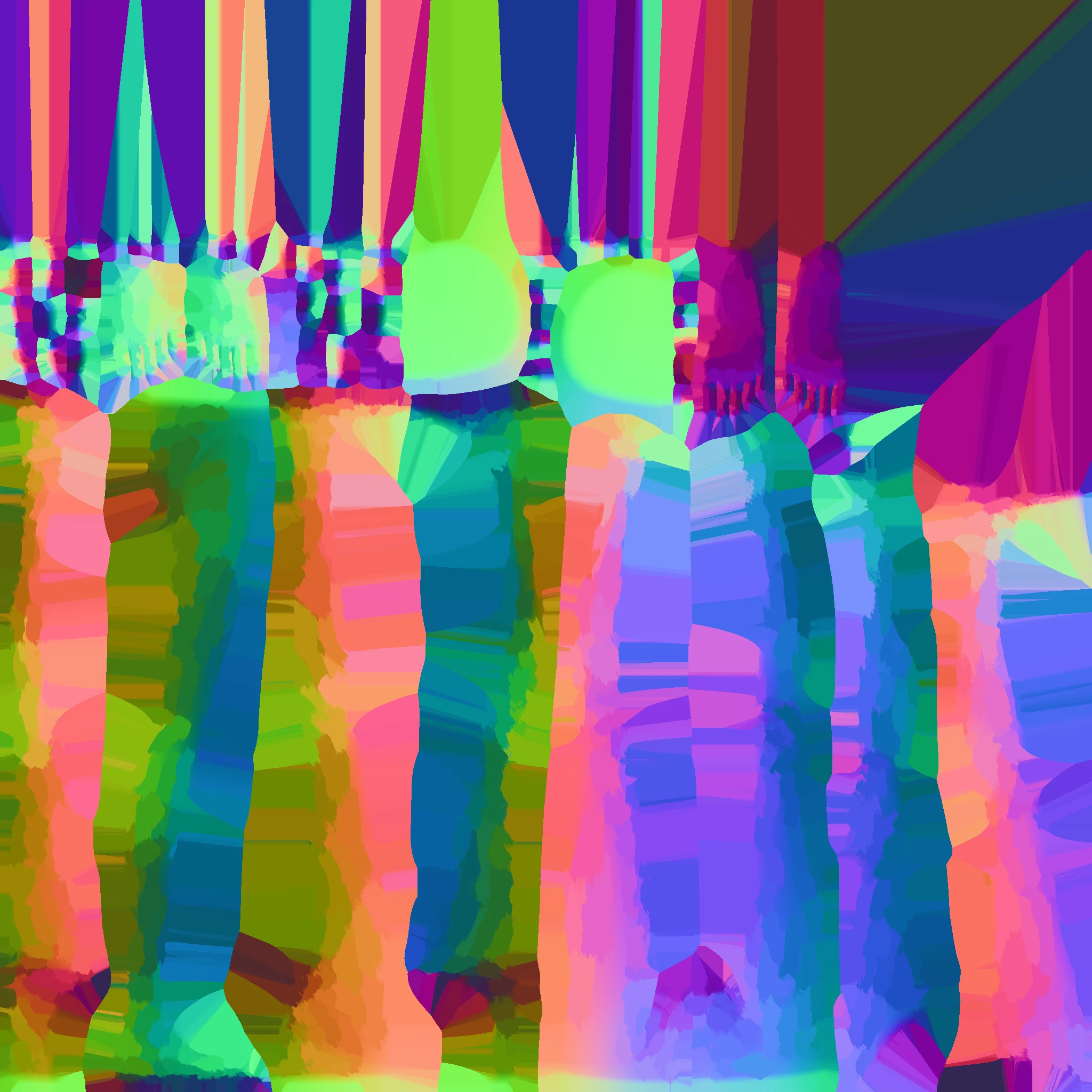
For a "painterly" style project I am currently working on, I am manually painting the normal map in order to give a sort of Brushstrokes effect. 
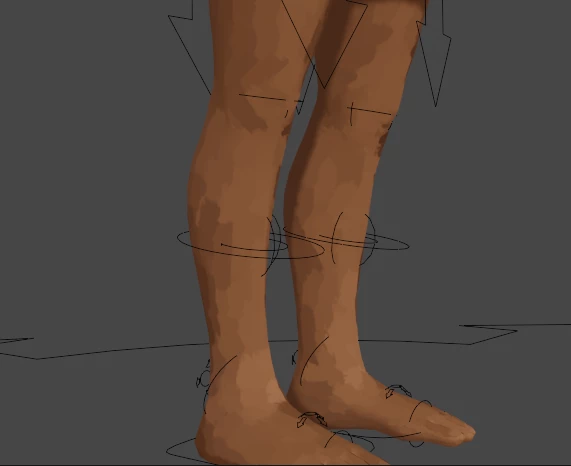
A major difficulty with this strategy, however, is that it requires there to be only one base color with the material. This is due to the fact that if the base color and the normal map patterns do not match up, the painterly effect will no longer work properly. 

Is there any way I can hand paint the normal map and base color simultaneously so that these two textures might match up?

Thank you!

This topic has been closed for replies.

1 reply

Cyril Dellenbach
Community Manager
Community Manager
January 26, 2024

Hello @vonw45762603,


With a Paint Layer, you can edit the color of the Normal and the Base color before every strokes, but it sounds extremely tedious.


Alternatively, you could add an Anchor point to the Normal Layer, create a second layer and place the anchor in the Base Color slot. With Gradient, HSL, color match and others effects, you could build a decent Base Color.


However, I'm also convinced you could make an automatic filter through Substance 3D Designer


On a personnal level, I am curious which Normal map you used? This looks like a World Space Normal, and where do you plug it in the end? The World Space Normal slot or the traditional Normal map?

Regards,

Cyril Dellenbach (Micro) | QA Support Artist | Adobe
pildor77025251
New Participant
July 24, 2024

chek out this tutorial here the artist explain how to.  https://www.youtube.com/watch?v=oYrSmUXWFHw&t=1540s

I saw somethig similar in blender, in this tutorial the artist is doing it in substance painter


New Participant
October 5, 2024

Thank you so much for this, was exactly the tutorial I was looking for.