
How apply material properties to only non-transparent parts in Planar projection
- September 14, 2022
- 2 replies
- 1949 views
I'm using planar projection to place a texture on my model. This is working. The problem is applying material properties to the projected image -- how do I change the rough/metal look of the texture but LIMIT the application of the material (like rough, metal) to just the parts of the projection that are NOT transparent.
My texture has a transparent background. I ahve confirmed this. So for this post, magine the texture to be composed of a check mark pattern.. In this case the projection "box" will be defined by the 4 sides of the chack mark's boarders. So as you can imagine, there is the checkmark "paint" itself, but also transparent background that then fully defines the projection's boarders. When I project this onto the nodel, it works just fine when the projection fill layer is the same material properties as the background... then all I see is the check mark of the projected texture (see pic 1 of an example of a perfect projected paint on background)
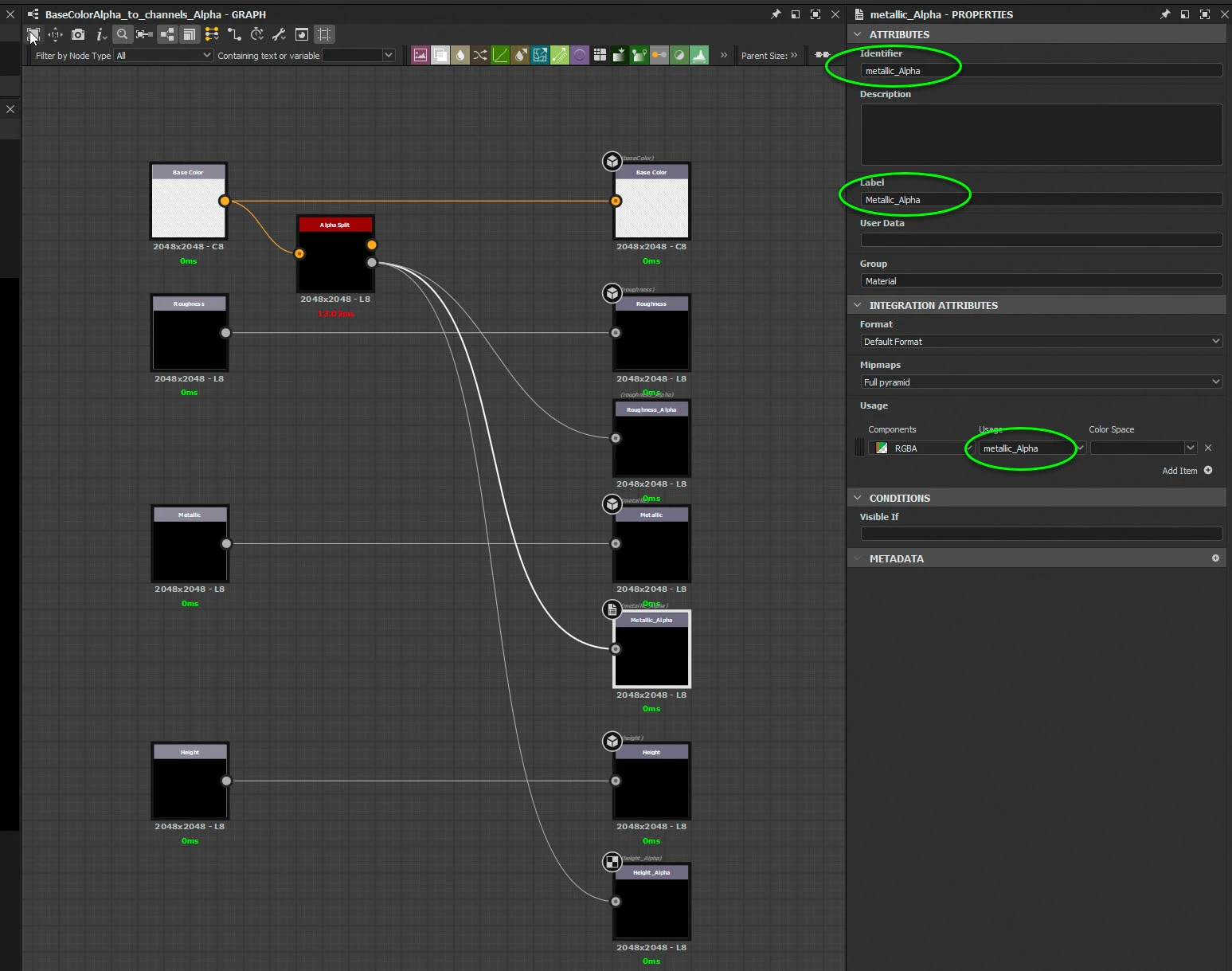
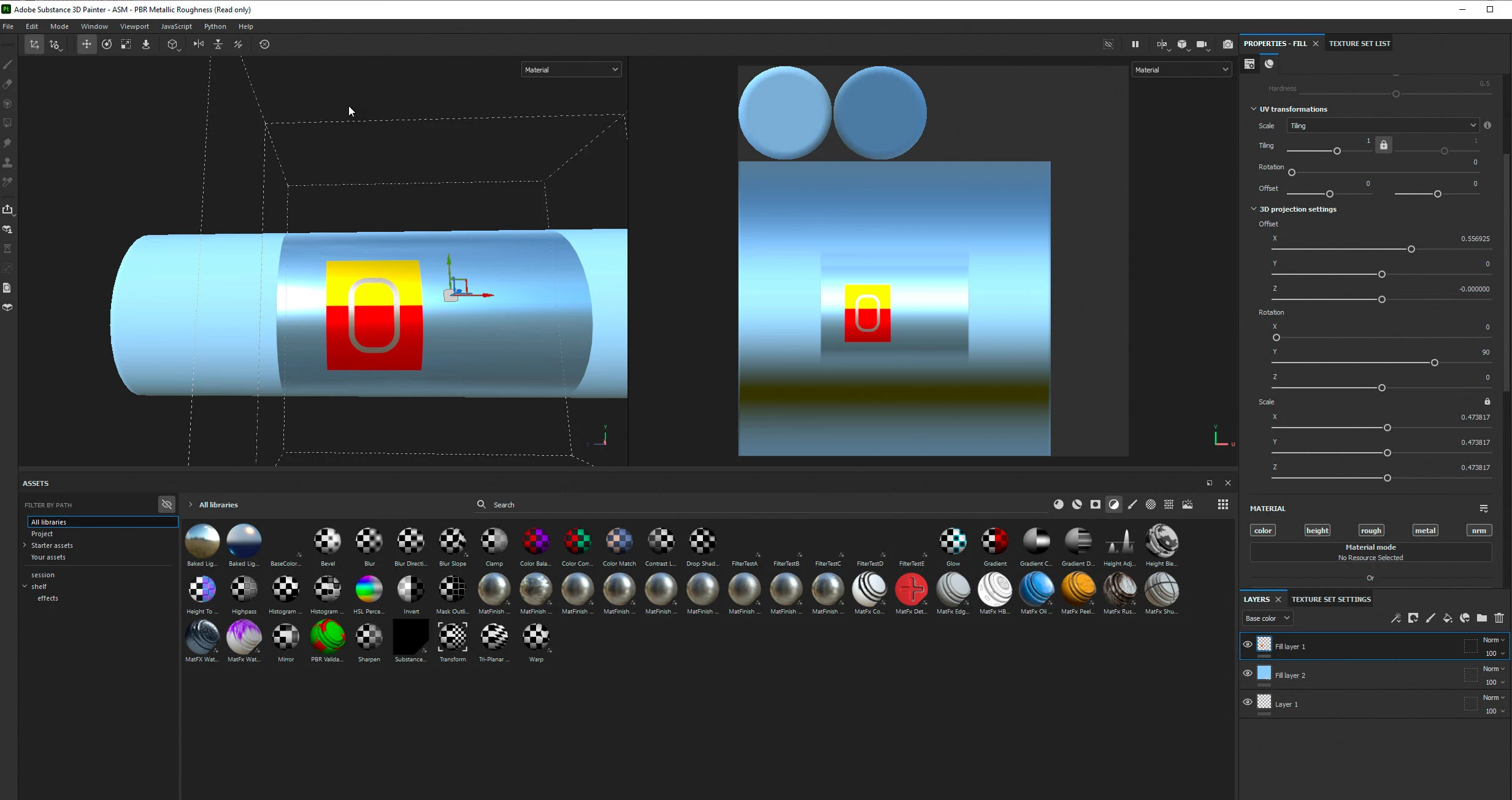
But HERES THE PROBLEM: If I change the metalness of the projection's fill layer, the metalness is now applied to the entire projection box. The result is pic 2.. instead, I'm trying to get the metalness to be applied to just the non-transparent parts (painted parts of the texture). How is that done?
 AdChoices