
Participant
March 20, 2023
Answered

How to get normals to not bleed through from texture to another.

  • March 20, 2023
  • 1 reply
  • 4988 views

Hello I am new to substance painter and I am trying to figure out how to stop the normals of one material that are bleeding through to the other. I have had added a screenshot that hopefully helps show what I am trying to stop.

Correct answer Cyril Dellenbach

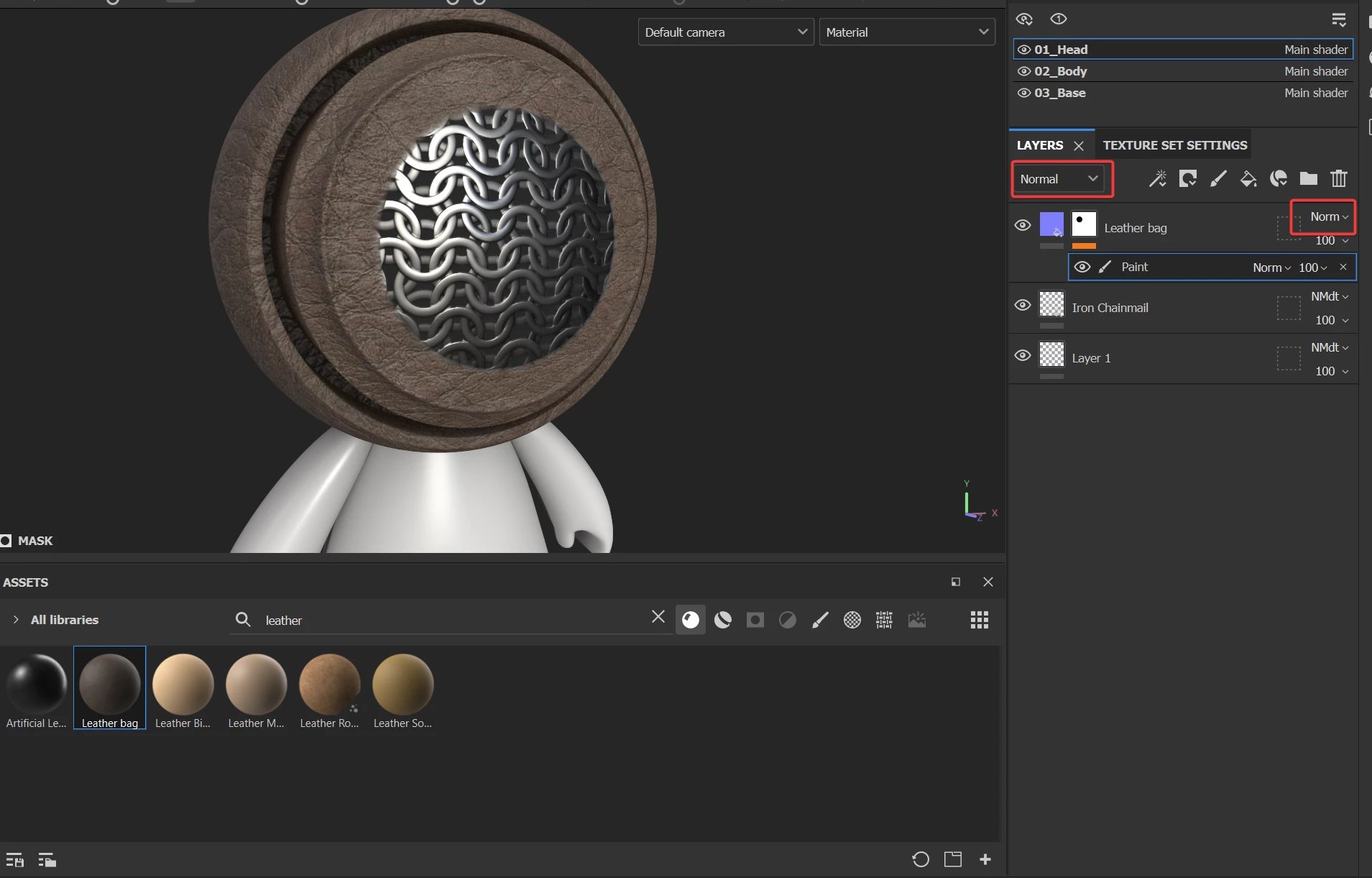
No problems! This is very likely a blending mode issue. Try to turn the top layer (the leather) normal/height blending mode to normal. Make sure you selected the correct channel before switching the blending mode.


Best regards,


1 reply

Cyril Dellenbach
Community Manager
Community Manager
March 21, 2023

Hello Michael,


I am not 100% sure to get the issue, but if you're talking about the normal of two materials mixing, you'll have to switch the blending mode.


Basically, when you add a new material in your layer stack, the blending mode of the normal channel is natively set to Normal map detail, which in your case, is not what you want. Therefore, you'll need to switch the blending mode to Normal, which will simply display the top layer without transformation. Also check the blending mode of the Height channel, the issue will probably be the same.


If you want to learn more about the blending mode inside Substance 3D Painter, you can access to our documentation. It has a quick explanation for each blending mode.


Tell me if it solves your issue and have a nice day.


Cyril Dellenbach (Micro) | QA Support Artist | Adobe
Participant
March 21, 2023

Thank you and sorry I didn't explain my problem better. I'm trying to put leather over chainmail but the normal and height of the chainmail is effecting the leather so it doesn't look like leather. I have been messing with the blending modes and have been unable to achive the desired effect.

Participant
March 17, 2025

Hi Michael, you have to switch the Layer Blend Mode from "Base Color" to "Normal" first, which you can find directly under the tab LAYERS. And then you can change the Blend Mode of the layers in the LAYERS tab from 'Normal' to 'Replace'. This should fix the normals from blending through the layers.


Hi Scodiak, i have the same problem. What you explain doesnt work. You say two times to change the layer mode. There is noch Replace in Layer mode. The problem is how to avoid the mixing of the different shaders. The Normal mode in layer doesnt effects to the normal maps. thx.