Jhonatan19199094iq3u
Participant
December 15, 2022
Answered

Reimport mesh error

  • December 15, 2022
  • 2 replies
  • 14145 views

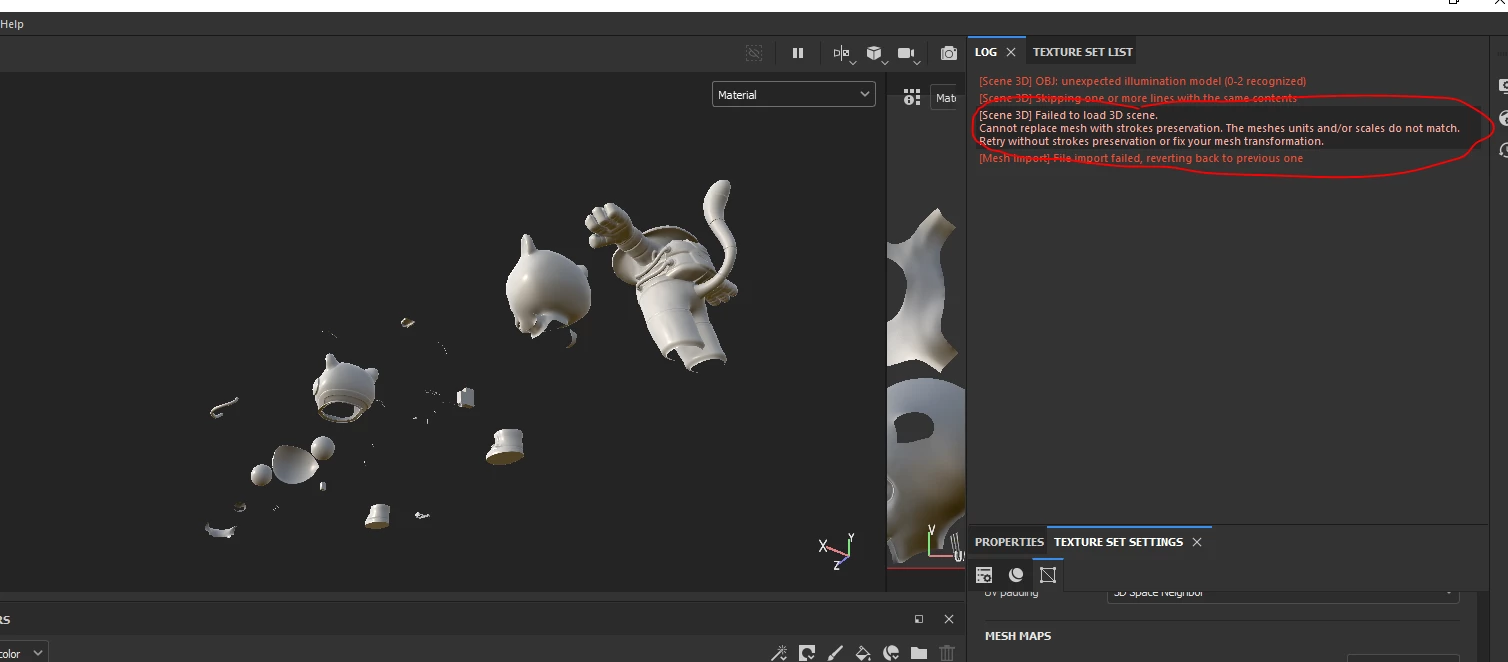
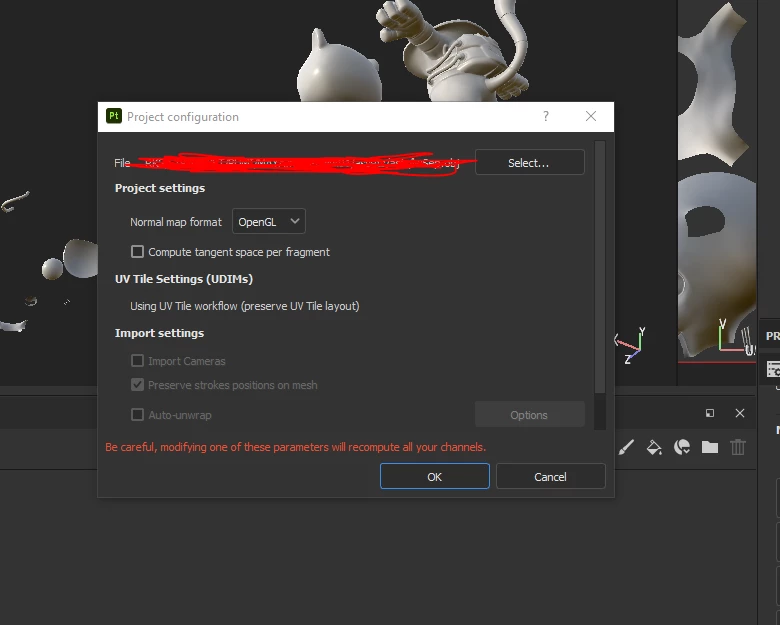
Hello everyone, please  can you help me?, i'm still new in Substance. when i reimport the mesh (edit/ project configuration), there is a message like this: 

[Scene 3D] Failed to load 3D scene.
Cannot replace mesh with strokes preservation. The meshes units and/or scales do not match. Retry without strokes preservation or fix your mesh transformation.

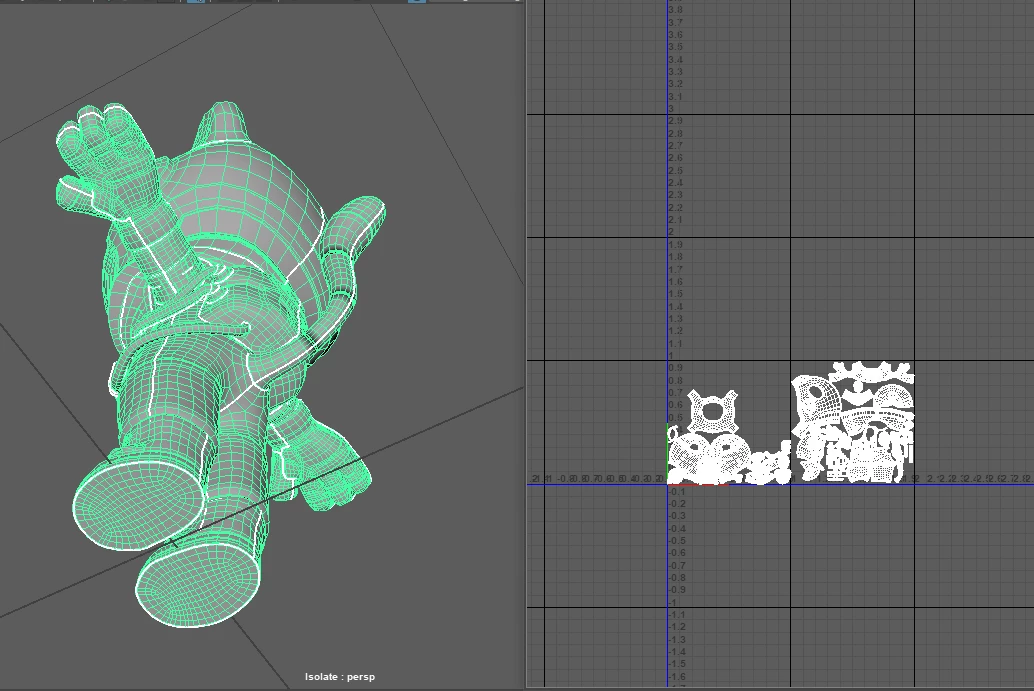
i already do delete history, freeze trasnformation, my scale is fine! i cannot understand this.
 

Basically, i tried to replace separated mesh for combined mesh (Technique avoid artifascts)

i used this method always but in this time, i dont understand. Thanks for your help and greetings from Machu Picchu - Peru
 

Correct answer Cyril Dellenbach

I know (and am sorry) it’s a bit late to answer this message, but for the people who may have searched for this subject:


The UV reprojection won’t work on this kind of changes. Substance 3D Painter uses a 3D reprojection to reapply the layers on a new mesh. Therefore, if your object has been strongly changed (like the one in the picture from @Jhonatan19199094iq3u), either the reprojection won’t be as expected or it won’t work at all.


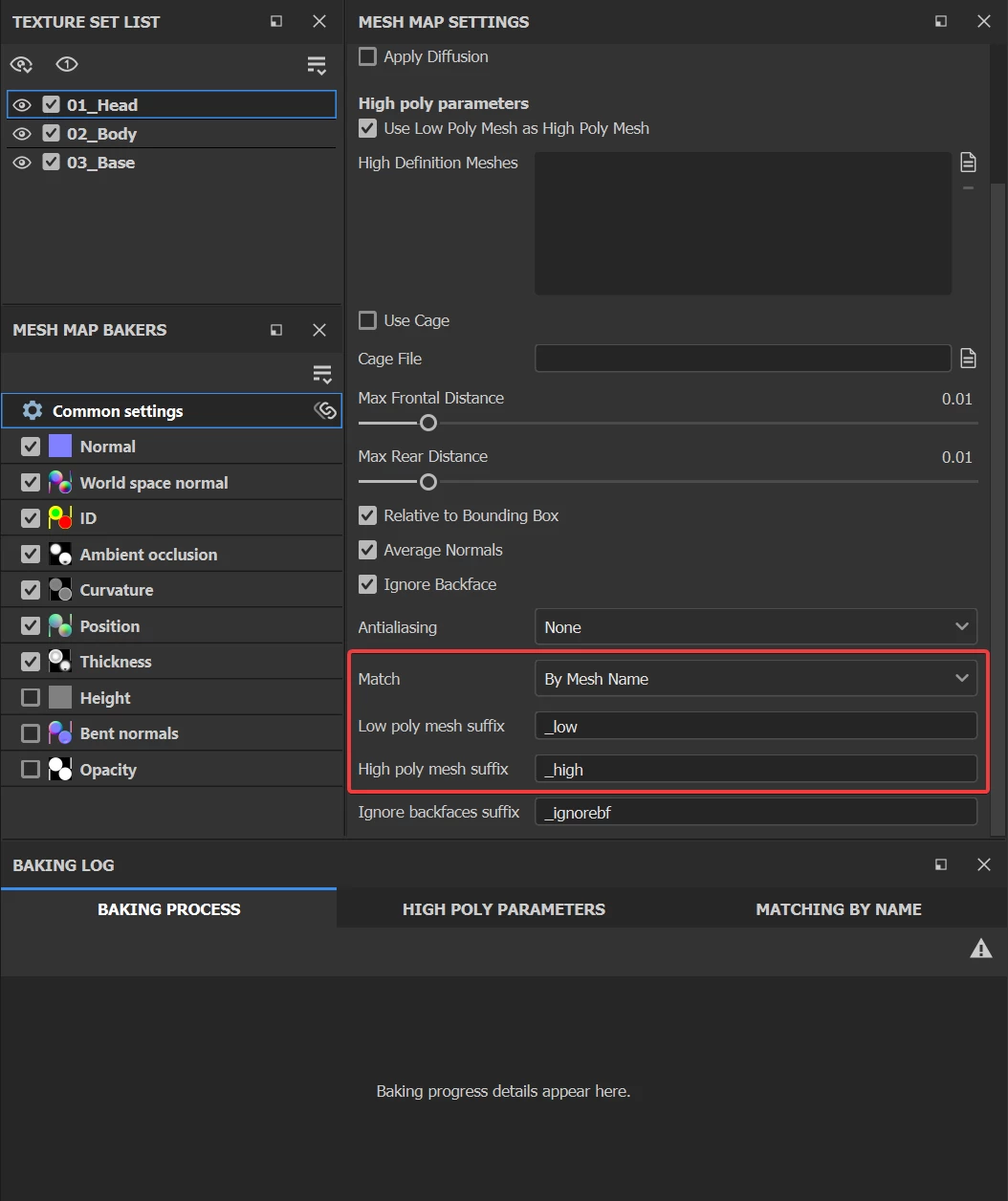
Hopefully, to bake separately certain parts of your object, we have a solution that doesn’t require to explode your mesh. The matching by mesh name option only requires a specific suffix to the geometry names and it will automatically make an exploded baking. This way, no need of having a secondary mesh, so no need to reimport mesh.


Best regards,


2 replies

Cyril Dellenbach
Community Manager
Cyril DellenbachCommunity ManagerCorrect answer
Community Manager
March 20, 2023

I know (and am sorry) it’s a bit late to answer this message, but for the people who may have searched for this subject:


The UV reprojection won’t work on this kind of changes. Substance 3D Painter uses a 3D reprojection to reapply the layers on a new mesh. Therefore, if your object has been strongly changed (like the one in the picture from @Jhonatan19199094iq3u), either the reprojection won’t be as expected or it won’t work at all.


Hopefully, to bake separately certain parts of your object, we have a solution that doesn’t require to explode your mesh. The matching by mesh name option only requires a specific suffix to the geometry names and it will automatically make an exploded baking. This way, no need of having a secondary mesh, so no need to reimport mesh.


Best regards,


Cyril Dellenbach (Micro) | QA Support Artist | Adobe
Participant
January 24, 2024

Hey Cyril,
Greetings!


My question is related to exploding the mesh, i mean if we match by mesh name, the ambient occlusion won't work at all, you would just see white occlusion.  Please put some light on this, would be helpful and appreciated.
Thanks!

Cyril Dellenbach
Community Manager
Community Manager
January 24, 2024

Hi @Render22430031l6ag,


The AO will indeed not be affected by other mesh names, but it probably won't be a fully white map either (it depends on the 3D model).


That being said, nothing prevents you to bake the maps in two steps. One with the "Match by mesh name" enabled, and the second for the AO only without the "match by mesh name" enabled.


Regards,

Cyril Dellenbach (Micro) | QA Support Artist | Adobe
Participant
March 19, 2023

Попробуй выключить "Preserve strokes positions on mesh"


Participant
August 24, 2024

Thanks worked for me, ur life saver