
Known Participant
February 13, 2017
Answered

Which Disk Drive the bottleneck in this scenario?

  • February 13, 2017
  • 3 replies
  • 1591 views

Let's say you have four physical hard drives on your system:

C:, the System Drive, has CC installed on it

😧 has your project files and footage/Source Audio and resources (like scores and audio samples)

E: is your Scratch Drive

F: is your render drive

1. If you were to export a sequence from a project on E: to a folder on F:, which drive would have the highest level of usage during the render? (Assuming they were all identical drives?)

2. If you were playing your sequence inside Premiere Pro CC, which drive would have the highest level of usage during the playback on the sequence? (Assuming they were all identical drives?)

[Moderator note: moved to best forum]
    This topic has been closed for replies.
    Correct answer Bill Gehrke

    Get modern and start using SSD's. 

    Hard disk drives have read/write rates from 200 MB/second to 50 MB/second.

    SATA III SSD's have read write rates from 550 MB/second to 400MB/second.

    USB 3 portable SSD's like the Samsung T3 have read/write rates of 440 MB/second to 400 MB/second.

    M.2 PCIe Gen 3 x4 SSD like a Samsung 960 Pro has read write rates of 3500 MB/second to 2000 MB/second

    With these much higher read/write rates it is no longer necessary to have 4-5 hard disk drives.

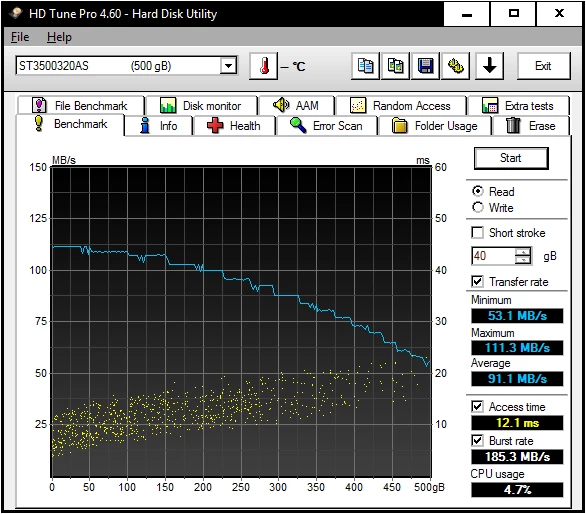
    Test your disk drives with something like HDTune and see how they slow down versus amount of data on the drive, here is an example with a small slightly older (500 GB) drive.  SSD's do not slow down as they fill up

    3 replies

    Bill Gehrke
    Bill GehrkeCorrect answer
    Inspiring
    February 14, 2017

    Get modern and start using SSD's. 

    Hard disk drives have read/write rates from 200 MB/second to 50 MB/second.

    SATA III SSD's have read write rates from 550 MB/second to 400MB/second.

    USB 3 portable SSD's like the Samsung T3 have read/write rates of 440 MB/second to 400 MB/second.

    M.2 PCIe Gen 3 x4 SSD like a Samsung 960 Pro has read write rates of 3500 MB/second to 2000 MB/second

    With these much higher read/write rates it is no longer necessary to have 4-5 hard disk drives.

    Test your disk drives with something like HDTune and see how they slow down versus amount of data on the drive, here is an example with a small slightly older (500 GB) drive.  SSD's do not slow down as they fill up

    Known Participant
    February 14, 2017

    I purchased an SSD for my boot drive a couple years ago. I just bought another 1TB SSD to use as a scratch Drive. But, I'm trying to decide if it's better utilized for when I render out files instead.

    On my current setup:
    My E is RAID 1 with Projects/Footage to safeguard the projects and footage (7200 RPM Cavair Black 4TB each)

    F: is currently Scratch and where I render to and is 2x2TB Caviar Blacks RAID 0 for a total of 4 TB storage

    But, since I got another SSD, I'm trying to decide the best strategy.

    Thanks again, for any advice

    Inspiring
    February 14, 2017

    .....you are behind the times......read what Bill wrote about  the current SSDs vs. traditional spinning, mechanical hard drives.

    for much better performance do NOT use ANY spinning hard drives in any active video editing,or, rendering......they can BEST be used as backup drives,or, archive drives.

    Bill's tests have shown that you would want to have OS,programs, and Windows page file ONLY on your SSD boot drive. However, Bill's tests ALSO show that the "media cache" and "cache" files may stay on the boot drive, ( their default location), without any penalty in performance.

    ALL other files : ( i.e. media, project files, previews, exports,etc.) would go on a second quality SSD....like a Samsung 850 Pro.

    For BEST performance, that second SSD would be the Samsung 960 Pro PCI NVMe SSD. Again, the spinners would just be for backing  up files,or, archiving projects and media,etc., they are just TOO SLOW  for today's editing, especially with the more demanding 4K footage.

    R Neil Haugen
    Legend
    February 14, 2017

    The heaviest sustained read/write work (according to all tests done by the Guru of such, Bill Gehrke ) shows the highest demands for read/write are typically the cache files (media cache, media cache database) and the project files, then the program file, then the  media.

    Until now, separating all those on separate storage media was pretty much required, though now with the vastly higher sustained read/write of some (not all!) NVMe and m.2 drives, then most newer internal SSD's, and then the Samsung T3 external SSD via a USB3 connection, his recommendations for number/types of storage media are changing rapidly.

    Neil

    Everyone's mileage always varies ...
    Legend
    February 13, 2017

    1.  D: would need the highest throughput to accommodate the video.  (This is why I advocate for a fifth Media drive holding only camera media.  Make it large, make it fast.)

    2. Still D: because that's where the media is.

    Known Participant
    February 14, 2017

    I'm sorry ... about C: and D:, I was trying to point out there are no programs nor documents on the Project/Footage and Scratch  and Resource Media drives.. Was trying to get an opinion about which drive, between E, F and G ... in this scenario, might get hit the most.