Participating Frequently
November 29, 2018
Answered

Having trouble blending 3 images in photoshop

  • November 29, 2018
  • 1 reply
  • 1425 views

Hello,

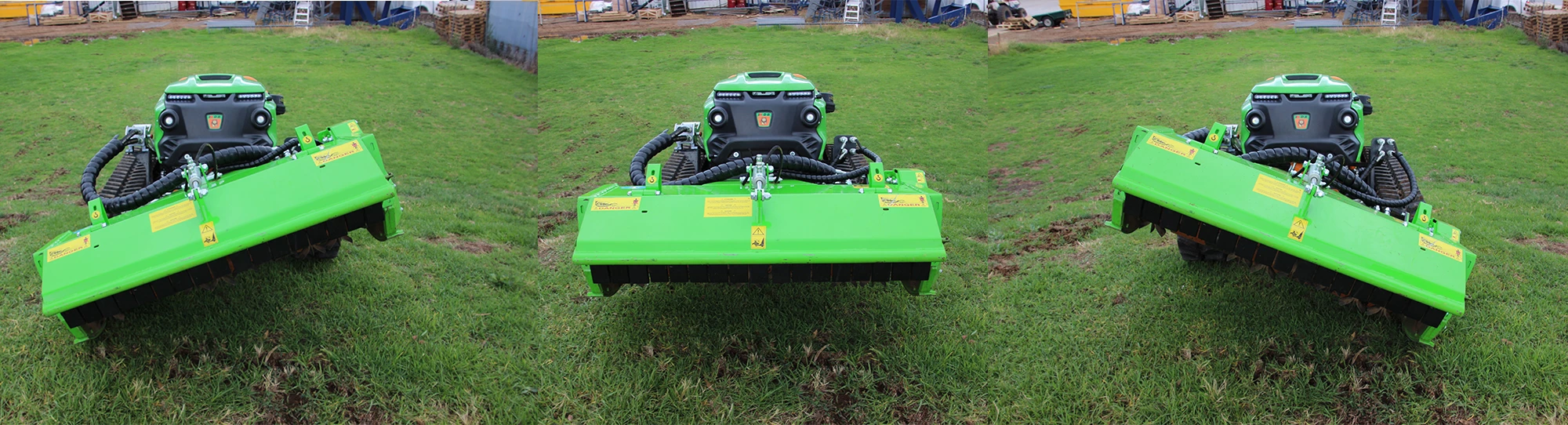
I am having trouble blending 3 of basically the same image in photoshop. I'm aware this is probably a simple solution and I'm just not aware of the right tool! but I've tried a few things but haven't been able to achieve what i want. I want the image in the middle to be the main image with the other two images faded behind to show how the flail can tilt.

Is this possible??? Please help!! I'm using CS6.

This topic has been closed for replies.
Correct answer Trevor.Dennis

My manager isn't happy with it!

Is there a way I can make the main image the top layer, so the other images with the flail moved are less visible?

Do I need to cut out the top image or something?


I think you are making it too complicated.  This is very quick and dirty, because the image size is too small to make a decent selection, but even if you want to keep the background. select just the extended bit from each side, and copy to layers _below_ the central object.  Then reduce opacity to  get the desired effect, which seems to be to demonstrate the movable front section.
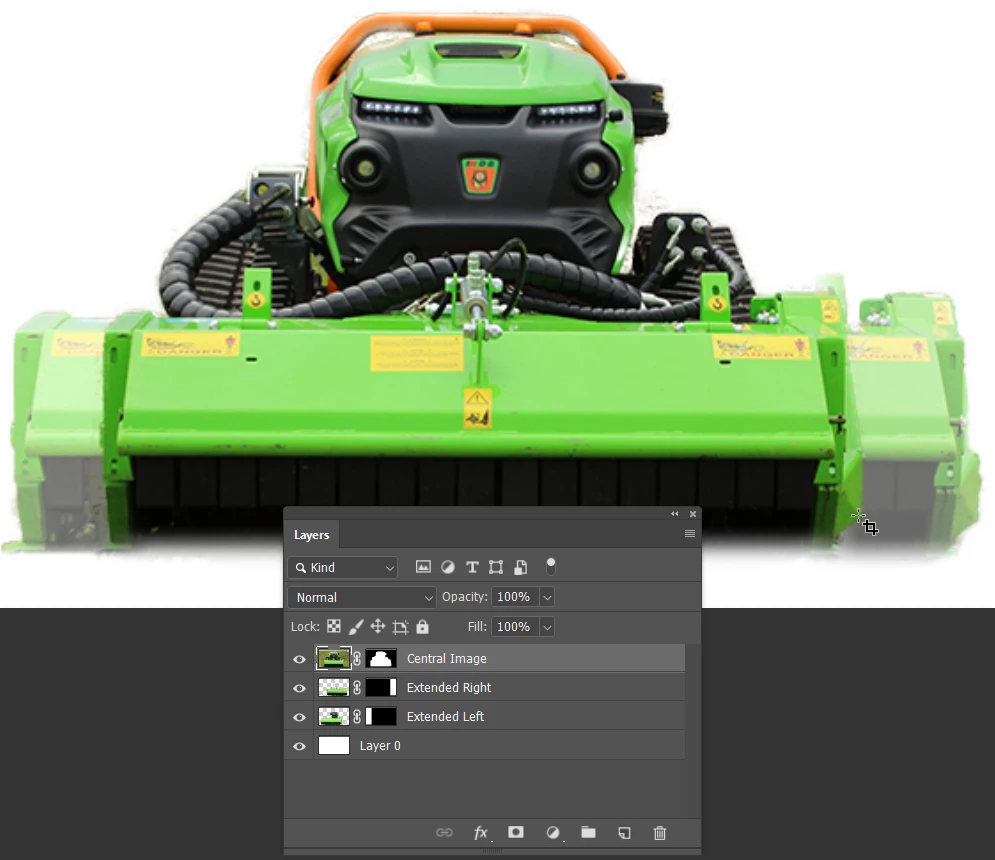
It pains me to see you struggle with this, and I especially hate to see a fellow graphics person getting grief from their manager, so if you are really having trouble getting it exactly right, upload the individual images at a decent resolution (or email - my email address is easy to find), and either myself, or someone else will fix it for you, and you can tell the boss that you did it.

1 reply

Benjamin Root
Legend
November 29, 2018

Do you mean something like this?

If so:

First of all, have each image as a separate layer. Align the layers manually or Edit > Auto Align Layers. Now you can do a lot of creative things.

The first example is the simplest, and perhaps the best approach of the two shown. Move the level tiller layer to the bottom, so the tilt layers are both above. Set the tilt layers to 50% opacity.

The second example has a mask over the middle third of the tilted tiller layers, with a bit of feather added to the mask. The first tilt layer is at 100% opacity; the second at 50%. The level tiller layer was duplicated and brought to the top, then set to 25% opacity.

The mask can be made by using the Rectangular Marquee (any selection by any select tool can be used to make a mask) then clicking the mask button:

Participating Frequently
November 29, 2018

Hello Benjamin,

That first one is great! Exactly what I was thinking. I have another lot and I've tried to do what you said - but this looks like a ghost image!

Benjamin Root
Legend
November 29, 2018

What you may want to do would be select the tiller head/attachment in the centered position with the Quick Select or Pen Tool (YouTube if unfamiliar). Make an inverted mask (invert the layer mask so previously selected area is black rather than white) of the selection on the two offset layers. This will let the centered attachment show at full opacity, while the two offset layers show opaque. I’d give you another screenshot, but I’m not at my workstation.

P.S. That’s a pretty neat machine. I’ve never seen one before - new product? What’s it called?