Participating Frequently
March 18, 2020
Answered

updated photoshop NOW my whites are yellow

  • March 18, 2020
  • 6 replies
  • 30649 views

prior to the  update NO issues with WHITE.

suggestions?

Thanks

Gregg

Correct answer D Fosse

Yes, this is very likely a broken monitor profile, distributed through Windows Update (but coming from the monitor/laptop manufacturer). That's the update causing it, not the Photoshop update.


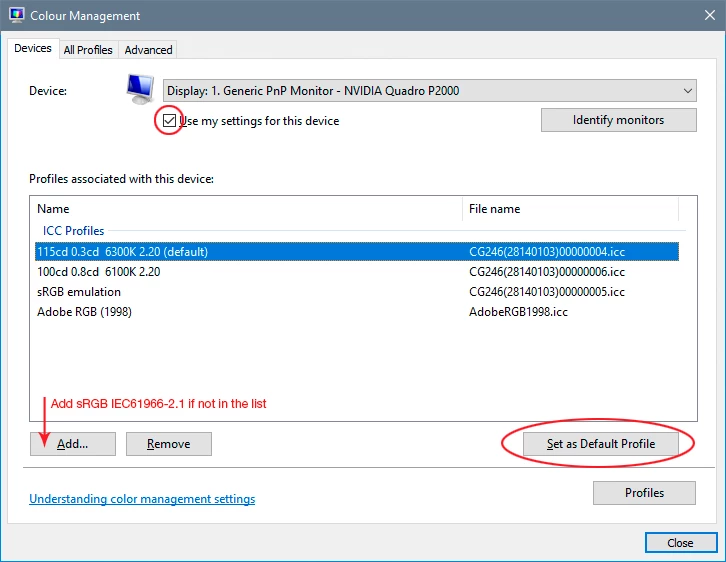
If you don't have a calibrator to make a new profile, use sRGB until you do. It won't be entirely accurate, but better than a broken profile. Relaunch Photoshop to load the new profile when done:
6 replies

QbitStudios
Participant
March 1, 2022

A little more specific reply, following on from Dave and Fosse's fix. It seems that when the updates install the montor profile sometimes resets to adobe RGB1998 rather than the monitor profile that you previously had set. That would be first port of call to check. Go to Edit>Assign Profile and make sure that your montior profile is not set to Adobe RGB 1998. If it is set to your monitor profile then switch to working rgb on that panel. This will tell you if the profile is corrupted (as seen by photoshop). Make sure preview is ticked on as you will be able to see the effect immediately. If the monitor profile is still broken then working RGB is good enough for most web work, until you can get the profuile rebuilt.


Win 10 automatically pulls the monitor profile from windows update so if you have upgraded from win 7 or win 8 and have this issue you dont have to worry about tracking down the profile. Just make sure you have all the available hardware updates installed. You will get a prompt under windows update for optional hardware updates. 

D Fosse
Community Expert
Community Expert
March 1, 2022

This is still where you properly check the monitor profile:


Better not mix Photoshop's color settings into it - that might make people think you should use your monitor profile there. That's already a very common misunderstanding and big enough problem as it is.


Yes, a lot of corrupt monitor profiles are distributed through Windows Update. These profiles don't come from Microsoft, but from the monitor/laptop manufacturers, few of whom seem to be able to get this right.


The Windows default is not Adobe RGB (1998). It's sRGB IEC61966-2.1, and this profile is hard-wired into Windows. If the monitor profile is so bad that Windows can't even load it, then it's thrown out, and sRGB substituted.


All of which is why the only real answer to this is to buy a calibrator. Every advanced Photoshop user will have one.


Participant
February 3, 2022

Settings> Display > USE HDR ( OFF )

Participant
December 6, 2021

I have this issue too, but it only happens when I OPEN a file in Photoshop (no other apps). Therefor a total screen calibrator feels a bit over the top. Sureley there is some other tweak in some settings that can fix this? For a long time I have had an older version of Photoshop on my computer (as well as the latest) because of this issue. Unfortunately on the latest upgrade, Adobe deleted my old 2018 version that worked flawlessly on my monitor. Thanks Adobe! Would you now mind explaining how I can fix this bug? No clear answers above

TheDigitalDog
Inspiring
December 6, 2021
quote

I have this issue too, but it only happens when I OPEN a file in Photoshop (no other apps).

What about Lightroom? What OS are you on? There are many color managed applications on the Mac, they should all match Photoshop, assuming this isn't a GPU or display profile issue.

Author “Color Management for Photographers" & "Photoshop CC Color Management/pluralsight"
Participant
December 6, 2021

Files look fine in Lightroom. Working on a PC - Windows 10.

Participant
September 21, 2021

After trying the ideas below without success, I found a solution. Turn on hardware-accelerated GPU scheduling in the Windows 10 graphics settings.


Notes:

  • My Dell XPS15 laptop monitor was showing colors correctly. It was only my Asus PB278Q external monitor that had the yellow problem.
  • I tried both display port and hdmi connections.
  • The problem appeared in Adobe programs like Acrobat and Photoshop and Windows Photos.
  • I have been using the same color profile download from the Asus website for several years; no updates.
  • The discoloration problem started in the last year or two.
  • OS is Windows 10 Enterprise 64-bit
D Fosse
Community Expert
Community Expert
September 21, 2021

BenQ is notorious for monitor profile problems. They just can't seem to get it right. This is most likely a BenQ bug, not an Adobe bug. 


The fix is to use a calibrator. Which is what you should do in any case, the monitor profile is such an essential component in the Photoshop environment that you need to have full control of it.

Participating Frequently
March 18, 2020

Everytime I used PS, 4 times week BEFORE the latest PS update, whites were white. AFTER PS UPDATE, whites are yellow.

TheDigitalDog
Inspiring
March 18, 2020

Try trashing your Photoshop preferences. Press and hold Alt+Control+Shift (Windows) or Option+Command+Shift (Mac OS) immediately after launching Photoshop. You will be prompted to delete the current settings.


(Mac OS only) Open the Preferences folder in the Library folder, and drag the Adobe Photoshop CS Settings folder to the Trash.


This action only affects the items found in the preferences dialog box. Numerous program settings are stored in the Adobe Photoshop Preferences file, including general display options, file-saving options, performance options, cursor options, transparency options, type options, and options for plug‑ins and scratch disks. Brushes (and lots of other setting) are not affected by the above instructions for deleting preferences. You may wish to make a screen capture of the settings in the Preferences dialog to reset them prior to deleting of this file. 


And indeed, this really could be a display profile issue so do as Dave suggests!

Author “Color Management for Photographers" & "Photoshop CC Color Management/pluralsight"
Participating Frequently
March 19, 2020

Thanks, did as you suggested and the image below is what I pulled up:


davescm
Community Expert
Community Expert
March 18, 2020

Check your operating system has the correct profile set for your monitor (off colour whites in Photoshop are a classic symptom of a broken/incorrect monitor profile)


Dave