Participating Frequently
September 9, 2021
Answered

weird character spacing issue
  • September 9, 2021
  • 1 reply
  • 373 views


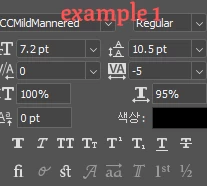
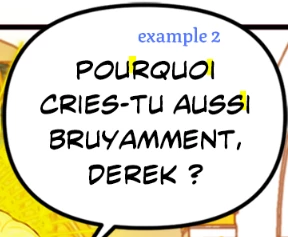
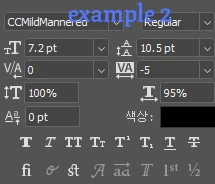
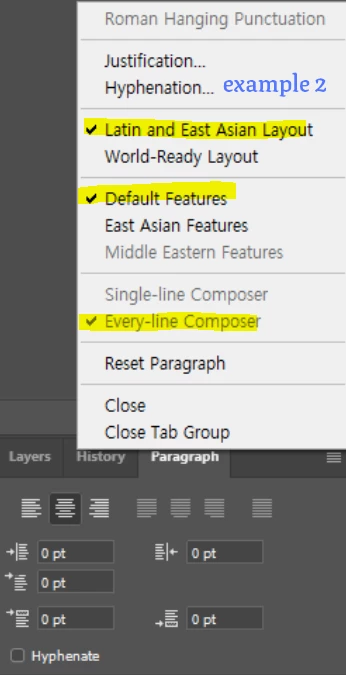
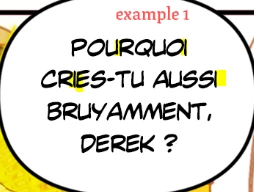
Hi, I'm trying to figure out why the text layers from example 1 and 2 have different spacing when they have the same settings. Example 2 is the correct look of the text.

I'm not the initial person who creates text layers in the beginning of work process, and when I get the text layers they have the issues like the first example. 
I tried "reset paragraph" from the paragraph menu and applied the same character setting with actions to correct the first example. 


Is there any other way to handle this issue other than resetting the whole text layers?

Thank you in advance,

Suyeon


This topic has been closed for replies.
Correct answer ktaki
Hi Suyeon, Thank you for posting the issue.
 
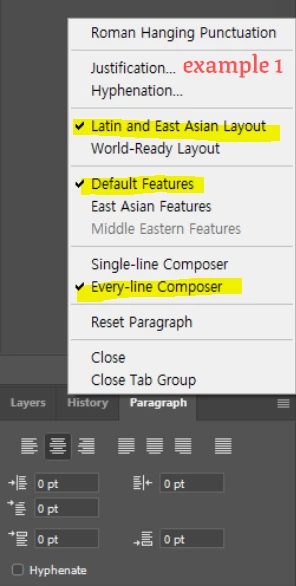
It looks like "tsume" was applied to the text in order to make the width of the layer a little smaller, or to make text loook a little tighter. The tsume UI is hidden in Character panel unless East Asian Features (EAF) is selected in the Paragraph panel menu.
 
As you can see, "East Asian Features" is available in the middle of the Paragraph panel menu. Select it, and open the Character panel. In the middle of the panel, you will see "あ" icon with small double arrows facing each other below it. Select text and adjust the percentage. You can manipulate the character spacing this way without affecting the appearance of each character. Setting it to 0% will give you a normal spacing.
 
I hope this helps.

1 reply

ktakiCorrect answer
Adobe Employee
October 13, 2021
Hi Suyeon, Thank you for posting the issue.
 
It looks like "tsume" was applied to the text in order to make the width of the layer a little smaller, or to make text loook a little tighter. The tsume UI is hidden in Character panel unless East Asian Features (EAF) is selected in the Paragraph panel menu.
 
As you can see, "East Asian Features" is available in the middle of the Paragraph panel menu. Select it, and open the Character panel. In the middle of the panel, you will see "あ" icon with small double arrows facing each other below it. Select text and adjust the percentage. You can manipulate the character spacing this way without affecting the appearance of each character. Setting it to 0% will give you a normal spacing.
 
I hope this helps.
San_KAuthor
Participating Frequently
May 23, 2022

thank you for your reply!!