It might be better to use a different tool. The best thing about the Object Selection tool is sometimes the worst thing: It’s trained with AI. It’s trained to pick out common subjects in photos like a person standing in front of buildings or a house in front of trees, and it’s often very good at that. But I’m not sure how much it’s trained to recognize things like a hand drawing; if it isn’t trained for that then it might just go for the whole sheet of paper.
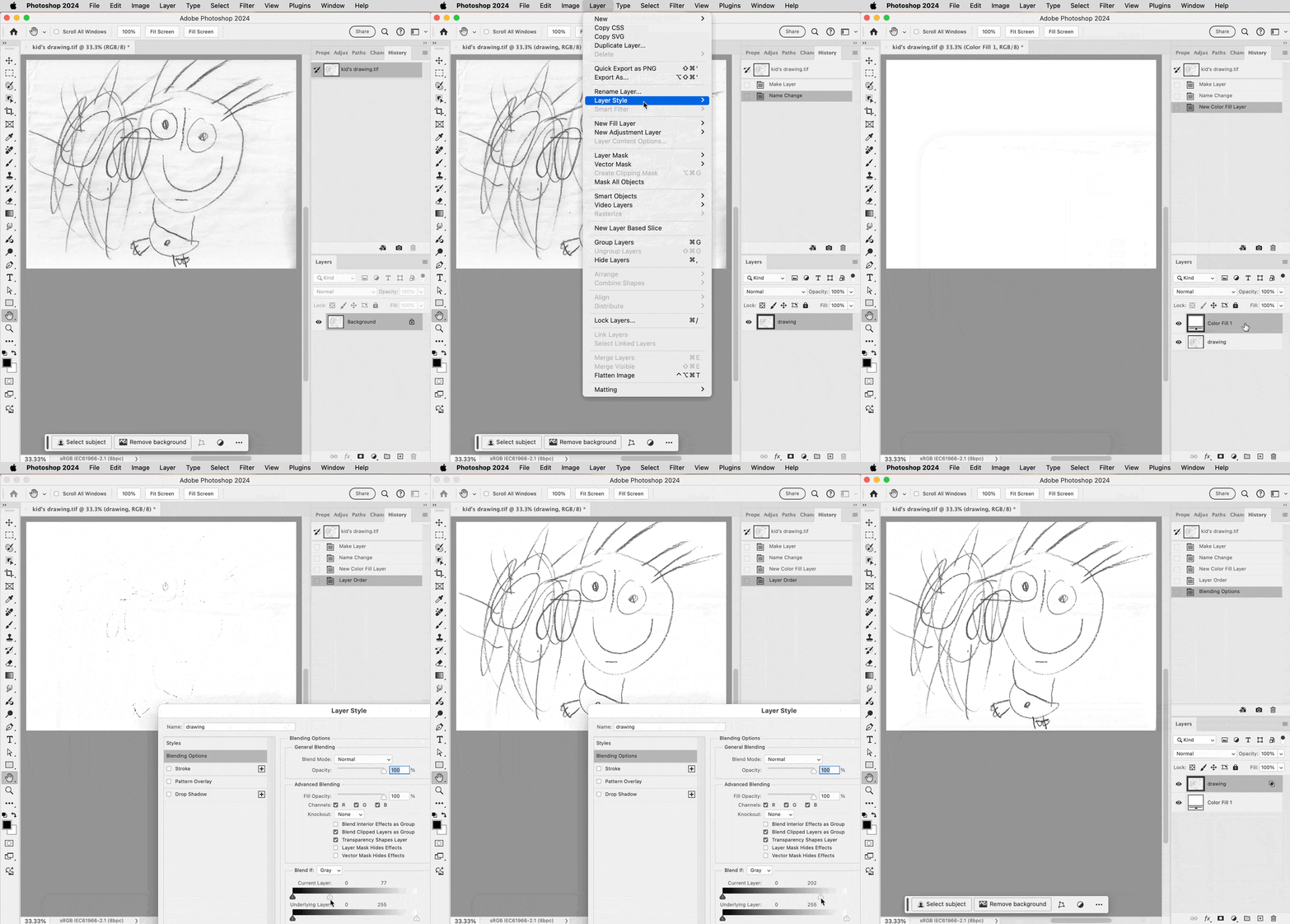
For a drawing, it might be better to select by tone. For example, use Select > Color Range to create a luminosity selection that excludes paper white, and convert that selection to a layer mask. Or, make the drawing a layer over a white Color Fill layer, and use the Blend If options to drop out the lightest tones, shown in the demo below. The steps in the demo are:
1. If the drawing is a Background layer, convert it to a normal layer; I did that by clicking the lock icon.
2. Create a new Color Fill layer. I set mine to white.
3. Drag the drawing layer so that it’s on top of the Color Fill layer.
4. Double-click the drawing layer (not its thumbnail preview) to open the Layer Style dialog box.
5. For Current Layer, drag the white slider to the left until the drawing background is solid white. If you need to feather the effect, you can split a Blend If slider by Option-dragging one half of a slider.

 AdChoices