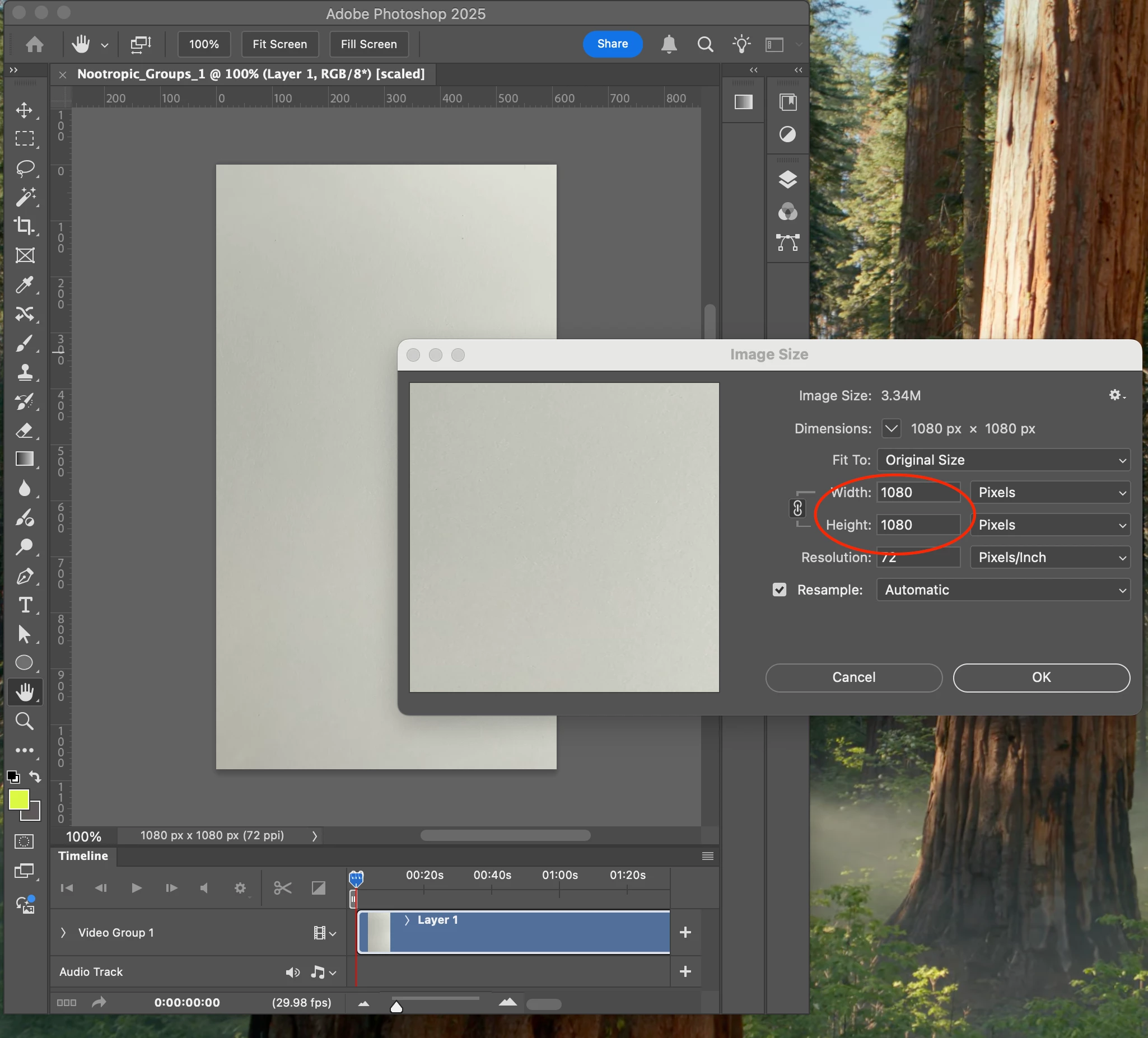
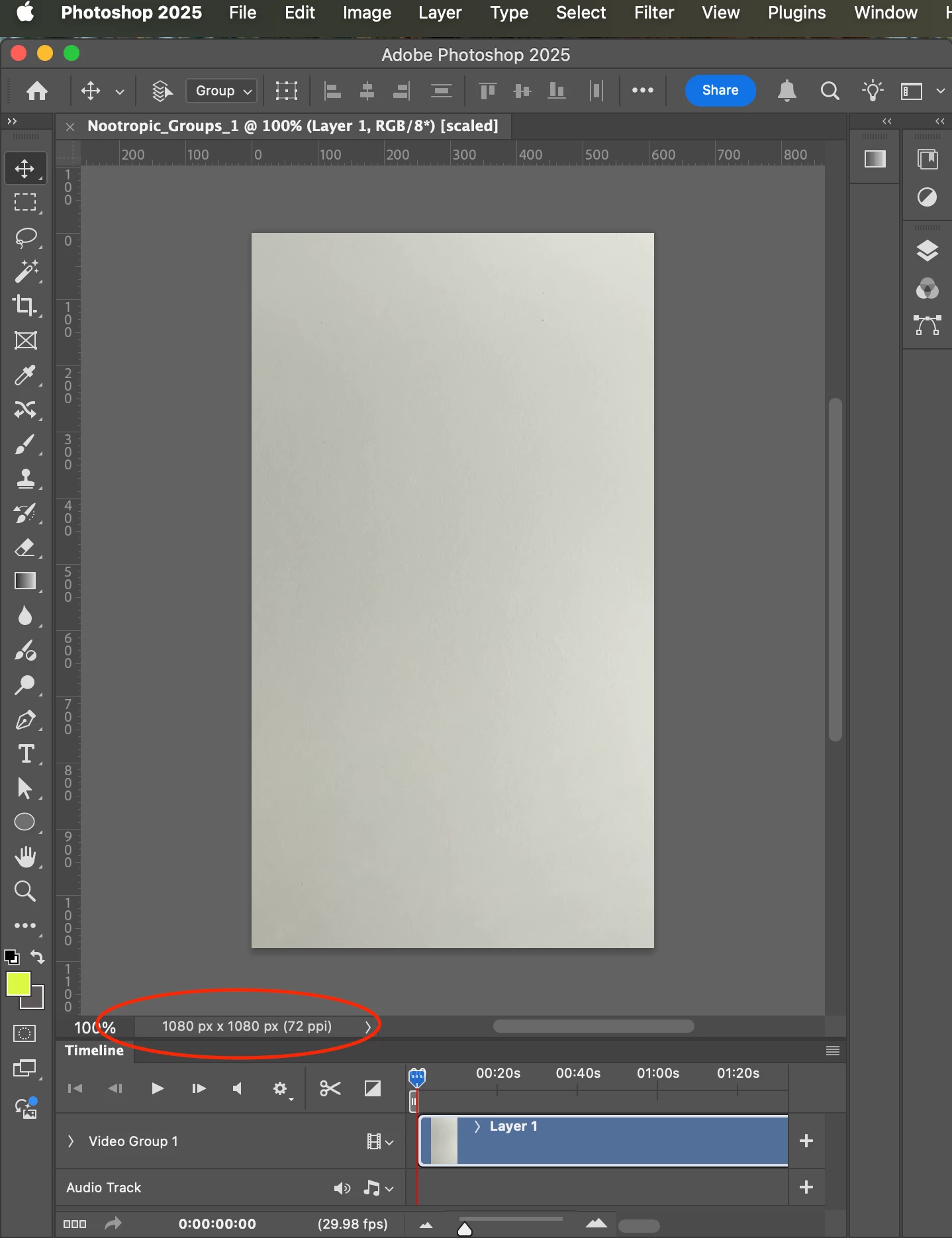
If Image Size and other dimensions readouts say it’s 1080 x 1080 px, then that is what the dimensions are. I know that sounds weird because those are square dimensions and the canvas looks tall, but it’s true. To solve this mystery, there are some missing pieces to fill in.
A major clue is that in your screen shot, the document tab includes the word “[scaled]”. That appears when the command View > Pixel Aspect Ratio correction is scaling the aspect ratio of the view (not the canvas, just the view of it), so we know that is happening. It’s scaling the view according to the value selected in the View > Pixel Aspect Ratio submenu. I had to make up a custom Pixel Aspect Ratio of 0.56 to make 1080 x 1080 px look like a tall rectangle, so you might have a different value selected in that submenu.
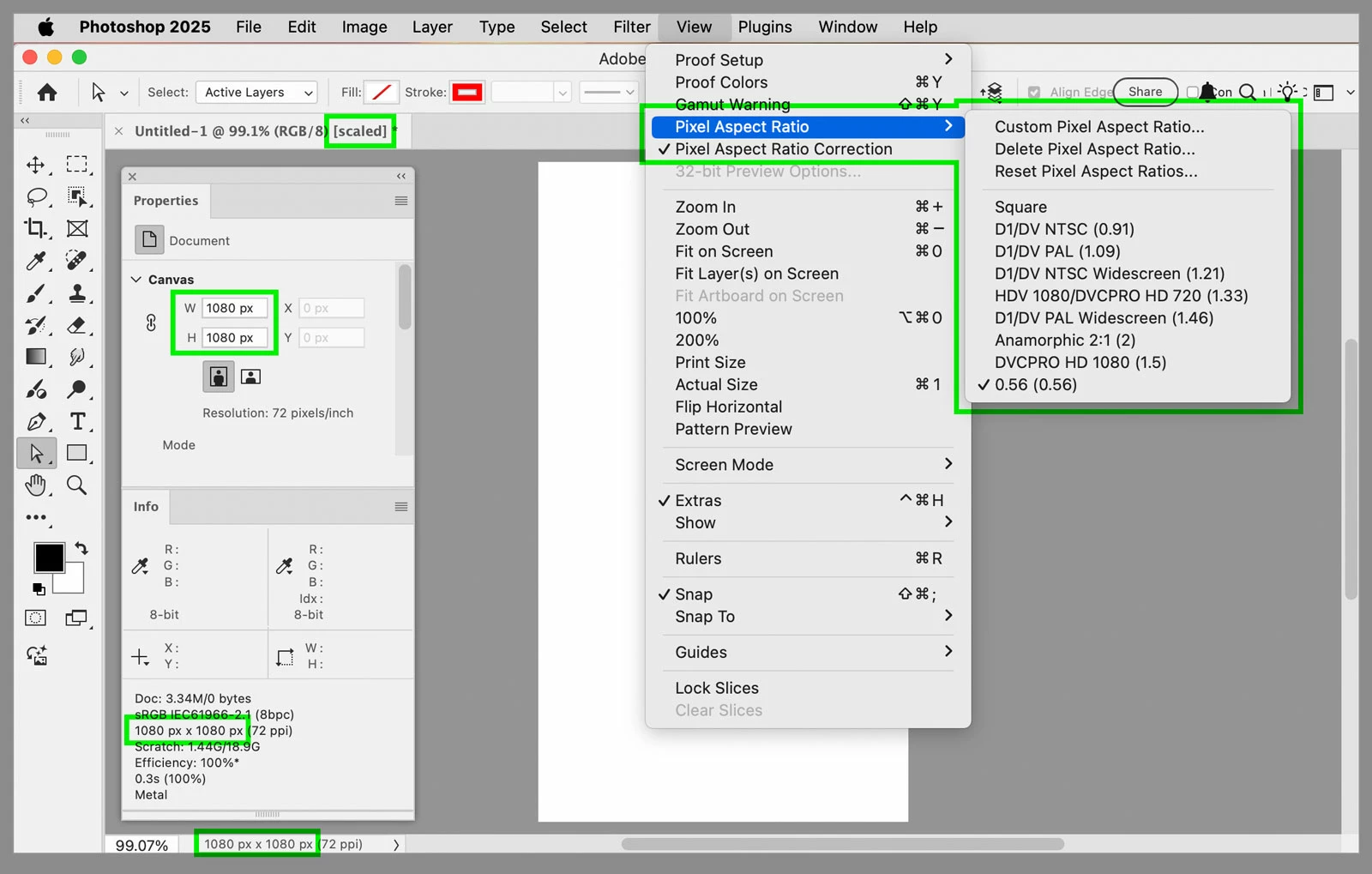
I can’t exactly figure out how you got the view you have. I’m going to guess that the original video was recorded in a format that uses non-square pixels, because that’s why pixel aspect ratio correction exists in Photoshop. To be more certain, we have to ask the question:
What was the original format of the video you brought into Photoshop? It probably wasn’t one of the current standards like HD or 4K because those use square pixels. Was it digitized from an old format such as HDV, miniDV, or DVD? Those used rectangular pixels. Maybe a pixel aspect ratio correction was done at some point before Photoshop, such as by the hardware or software that digitized the old video. Some combination of conversions before or in Photoshop could end up with a canvas that looks like a 9:16 video but with a width to height ratio of 1:1 in pixel count.
The way to confirm that would be to look at the original video in an app like Adobe Premiere Pro or MediaInfo that can provide a detailed report on the format and specs. If it reports a pixel aspect ratio of anything other than 1.0 or 1:1, then that is what caused it to show up wrong in Photoshop.
Without knowing the original specs of the video and what was done to it before or in Photoshop, I’m not sure exactly how to resolve it, but it’s going to have something to do with correcting the pixel aspect ratio to square, and then correcting the frame aspect ratio to 9:16 (1080 x 1920 px). But maybe the steps below will help you figure it out.
If you inspect the original video (before opening it in Photoshop) and it says it’s 1080 x 1920 px, I think the way to fix it is:
1. Open it in Photoshop.
2. Choose View > Pixel Aspect Ratio > Square.
3. Disable the command View > Pixel Aspect Ratio Correction.
Then take the screen shot.
If you inspect the original video (before opening it in Photoshop) and it says it’s 1080 x 1080 px, this might work:
1. Open it in Photoshop.
2. Assign a pixel aspect ratio of 1.0, and disable the command View > Pixel Aspect Ratio Correction . The canvas will look square, but don’t worry about that.
3. In Image > Image Size, disable Constrain Aspect Ratio (the link icon), enable Resample, and enter 1080 pixels by 1920 pixels.
If neither works, it’s something along those lines: Do whatever steps will convert the pixel aspect ratio to square, and the frame aspect ratio to 9:16.


 AdChoices