
Participant
February 7, 2025
Answered

Help with correct printing procedure

  • February 7, 2025
  • 1 reply
  • 496 views

Can anyone help me with proper printing procedure through photoshop?


I have an Epson 5370 printer and plan to print on premium lustre 260 paper. I'm getting confused with color settings and profiles in photoshop. Should I set both of those to my paper type? Is the purpose of those settings only so I will be able to preview what the print on that paper will look like or do they have an effect the print output? 


I'm going to use the "Epson print layout" automation. As long as I use the correct ICC profile in the color settings section, will that override any color settings I set in photoshop?


Lastly, I have been looking for a tutorial on printing from Photoshop but none of them mention the color settings at all. 


Thanks 
Correct answer Per Berntsen

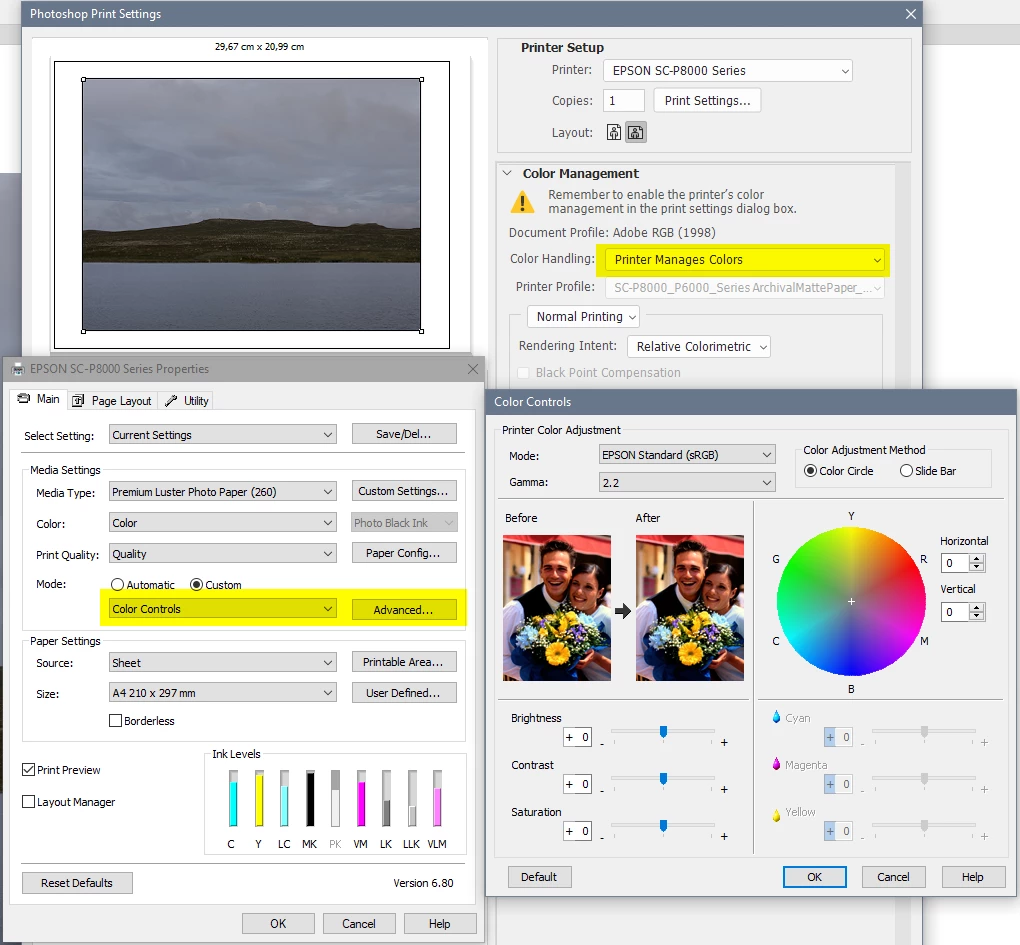
Having Photoshop manage colors will produce very accurate colors in print if your monitor has been calibrated with a hardware calibrator – which also creates and installs a custom monitor profile that contains an accurate description of your monitor's color response.


If the prints are too dark, your monitor is too bright. If they have low saturation, it's probably because you have an inaccurate or defective monitor profile.

This is all about color management. When you open an image in Photoshop, the colors are converted from the document profile (for instance Adobe RGB) to the monitor profile.

When you print the image using Photoshop manages colors, the colors are converted from the document profile to the printer profile.


If you don't have a calibrator, you can let the printer manage colors instead.

The Color controls option allows you to do some basic adjustments to the image, but you might be in for a lot of trial and error.

The best solution is to work with a hardware calibrated monitor, and let Photoshop manage colors.

I have done this for many years, and my prints are always a close match to the image I see on screen.


1 reply

Per Berntsen
Community Expert
Community Expert
February 7, 2025

First of all, leave the image in its existing color space.

The colors will be automatically converted to the printer profile in the printer driver.

In the PS Print dialog, set Color handling to Photoshop Manages Colors.

Then select the correct printer profile from the dropdown list.

Color management must be set to Off (No color adjustment) in the Epson driver, if not, you will get "double profiling" and wrong colors.


I am not familiar with Epson print layout, but I imagine that it has a way to turn off color management.


Participant
February 8, 2025

OK thanks for your help. What if my prints seem dark and less saturated? Do I adjust the image before printing or is there a way to adjust in the paper settings?

Per Berntsen
Community Expert
Per BerntsenCommunity ExpertCorrect answer
Community Expert
February 8, 2025

Having Photoshop manage colors will produce very accurate colors in print if your monitor has been calibrated with a hardware calibrator – which also creates and installs a custom monitor profile that contains an accurate description of your monitor's color response.


If the prints are too dark, your monitor is too bright. If they have low saturation, it's probably because you have an inaccurate or defective monitor profile.

This is all about color management. When you open an image in Photoshop, the colors are converted from the document profile (for instance Adobe RGB) to the monitor profile.

When you print the image using Photoshop manages colors, the colors are converted from the document profile to the printer profile.


If you don't have a calibrator, you can let the printer manage colors instead.

The Color controls option allows you to do some basic adjustments to the image, but you might be in for a lot of trial and error.

The best solution is to work with a hardware calibrated monitor, and let Photoshop manage colors.

I have done this for many years, and my prints are always a close match to the image I see on screen.