PierreDaniel
Known Participant
July 6, 2025
Answered

Photoshop action "save as JPG" with overwriting existing JPG

  • July 6, 2025
  • 1 reply
  • 305 views

I'm having a folder with loads of pictures freshly out of the camera (one RAW and one JPG of each picture).
I open up a bunch of RAW files in Camera RAW, do some corrections and open them up in Photoshop. So now I have a whole bunch of tabs with all the RAW images open.

What I'd like to do: Create an action to save them one by one as JPG, while overwriting the existing JPG that came out of the camera.

Problem 1: When recording the action, I get a "_copy" added to the file name since Photoshop does not allow you to save as JPG without creating a copy anymore. And the existing JPG from the camera is not overwritten.

Problem 2: When removing "_copy" in the "save as" dialogue, the existing JPG gets overwritten (which is what I want), but then when I use the action for a second picture, it overwrites the first one, since the file name is the same in the recorded action... 

Thanks so much if someone could hint me in the right direction! 

Correct answer jazz-y
Hi!
First, you can return Photoshop to the old behavior when saving files by enabling the 'Enable legacy save as' and 'Do not append copy to filename' options in the settings

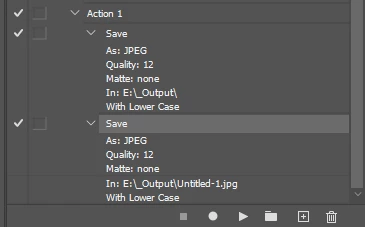
Second, expand the recorded "save" commands and pay attention to the 'in' variable - the save as command can be recorded either with only the directory to save to, or with the full file name.
This depends on whether you made changes to the file name during the saving process. Rewrite the action command so that you only have the path to the directory, without the file name.

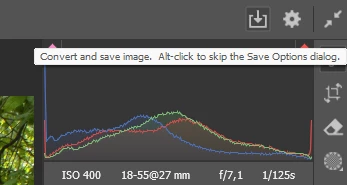
The raw editor window allows you to perform batch saving without having to open files in Photoshop as tabs - to do this, just select several raw files and click the file conversion icon (though in this case, if the names match, an index will be added to the files, I prefer to delete unnecessary jpg from the folder in advance)


1 reply

jazz-yCorrect answer
Legend
July 6, 2025
Hi!
First, you can return Photoshop to the old behavior when saving files by enabling the 'Enable legacy save as' and 'Do not append copy to filename' options in the settings

Second, expand the recorded "save" commands and pay attention to the 'in' variable - the save as command can be recorded either with only the directory to save to, or with the full file name.
This depends on whether you made changes to the file name during the saving process. Rewrite the action command so that you only have the path to the directory, without the file name.

The raw editor window allows you to perform batch saving without having to open files in Photoshop as tabs - to do this, just select several raw files and click the file conversion icon (though in this case, if the names match, an index will be added to the files, I prefer to delete unnecessary jpg from the folder in advance)


PierreDaniel
Known Participant
July 6, 2025

Thank you so much for your answer.

Returing to the legacy "Save as" did the trick – but first,  I'd have to check the "Do not append..."  box FIRST, and THEN "Enable legacy save as"... Otherwise, I'd still get a "_copy" after the file name.


Thank you so much!

Stephen Marsh
Community Expert
Community Expert
July 6, 2025

As @jazz-y recommended, one can save JPEG versions from multple raw camera files is directly from within Adobe Camera Raw, without rendering them to open documents in Photoshop, which then require actions or batch actions. Here's a screenshot from an earlier discusson where resized JPEG files were desired from raw camera files.