
Participant
August 16, 2025
Answered

Eye dropper tool not working with option key

  • August 16, 2025
  • 1 reply
  • 296 views

While using the brush tool in Photoshop I hold the option key to activate the eye dropper tool, but when I select the color I want to use it is putting it as the bottom color vs the top. So in order to use the color I need to flip the colors. It never used to do this. I am in v 26.9 of PS. Does anyone know how to fix this?
Correct answer jane-e


Does anyone know how to fix this?

By @dob design


The fix is easy, but not at all intuitive.


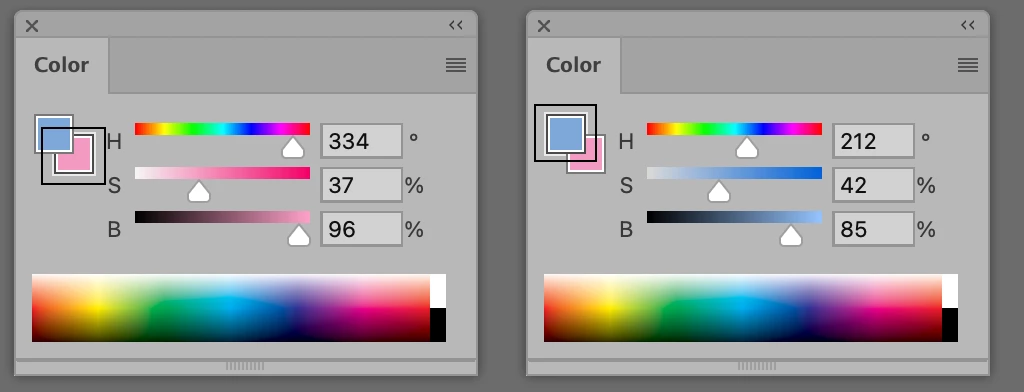
Open the Color panel (Window menu). Your swatches look like the ones on the left in this screenshot. The Background Swatch is active and shows a thin border. Simply activate the Foreground Swatch and it will show as on the right.


You should be able to simply click to activate, but occassionally I need to Command + Click.

Jane


1 reply

kglad
Community Expert
Community Expert
August 16, 2025

in the future, to find the best place to post your message, use the list here, https://community.adobe.com/

p.s. i don't think the adobe website, and forums in particular, are easy to navigate, so don't spend a lot of time searching that forum list. do your best and we'll move the post (like this one has already been moved) if it helps you get responses.


<"moved from cc desktop bugs">
jane-e
Community Expert
jane-eCommunity ExpertCorrect answer
Community Expert
August 16, 2025


Does anyone know how to fix this?

By @dob design


The fix is easy, but not at all intuitive.


Open the Color panel (Window menu). Your swatches look like the ones on the left in this screenshot. The Background Swatch is active and shows a thin border. Simply activate the Foreground Swatch and it will show as on the right.


You should be able to simply click to activate, but occassionally I need to Command + Click.

Jane


Participant
August 17, 2025

Thanks so much you save me so much aggrevation!