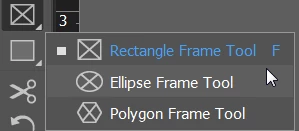
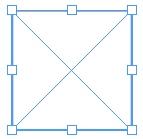
Use the Rectangular Frame tool to draw a square. Hold down Shift as you drag to create that square; that will constrain the proportions so that you get an equal-sided square.
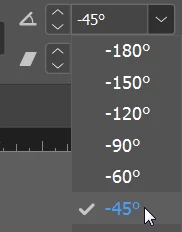
In the Control panel, rotate to 45 degrees.
With the frame selected, choose File > Place.
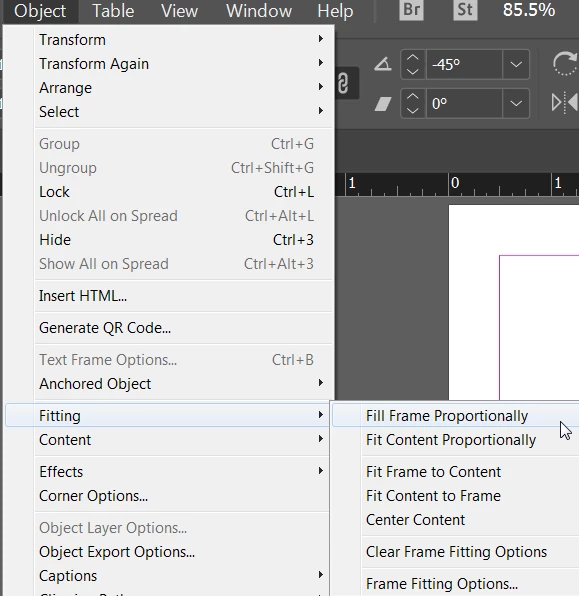
Use Object > Fitting Options to position the picture within the frame.
Use the Rectangular Frame tool to draw a square. Hold down Shift as you drag to create that square; that will constrain the proportions so that you get an equal-sided square.
In the Control panel, rotate to 45 degrees.
With the frame selected, choose File > Place.
Use Object > Fitting Options to position the picture within the frame.
If you select the rectangle (square) with the Direct Selection Tool ( that's the "White Arrow Tool" ) and then rotate by 45° or -45° the placed image will not be rotated as well.
Preparing the frame with fitting options. Fill frame proportionally:
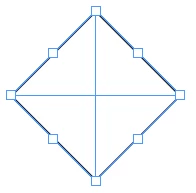
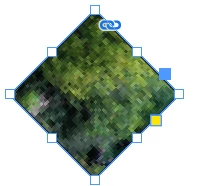
Select the frame with the Direct Selection Tool. See how the 8 handle widgets are changing to 4. Now the 4 path points of the square are selected:
Now rotate to 45° or -45° ( it will make no difference ):





 AdChoices