4t92524178
Participant
January 11, 2018
Answered

閲覧モードで起動したい

  • January 11, 2018
  • 1 reply
  • 10522 views

お世話になっております。

先日、Win7 SP1 x86 環境にインストールしているAcrobat Reader DC を、2018.009.20050にアップデートいたしました。

環境設定>文書>「各文書のツールパネルウインドウを開く」の設定がなくなっておりました。

元々、pdfファイルを開く際の規定のプログラムにしており、閲覧モードでpdfファイルを確認するのが主な使用法だったのですが、

毎回ツールパネルウィンドウが開くようになってしまい、不便を感じております。

これまでのように、ツールパネルウィンドウなしで開く方法はありませんでしょうか。

    This topic has been closed for replies.
    Correct answer Meenakshi_Negi

    Hi there,

    In the latest Adobe Acrobat Reader DC, the option "Open the tool panel window for each document" replaced by "Remember current state of Tools pane".

    If I understand you correctly, you are trying to hide the tools pane at right by default for each document you open.

    If that is the case, you need to close the tools pane manually when you open a file in Adobe Acrobat Reader DC.

    To close the tools pane manually, click on the tilted triangle marked with the red box in the screenshot below:
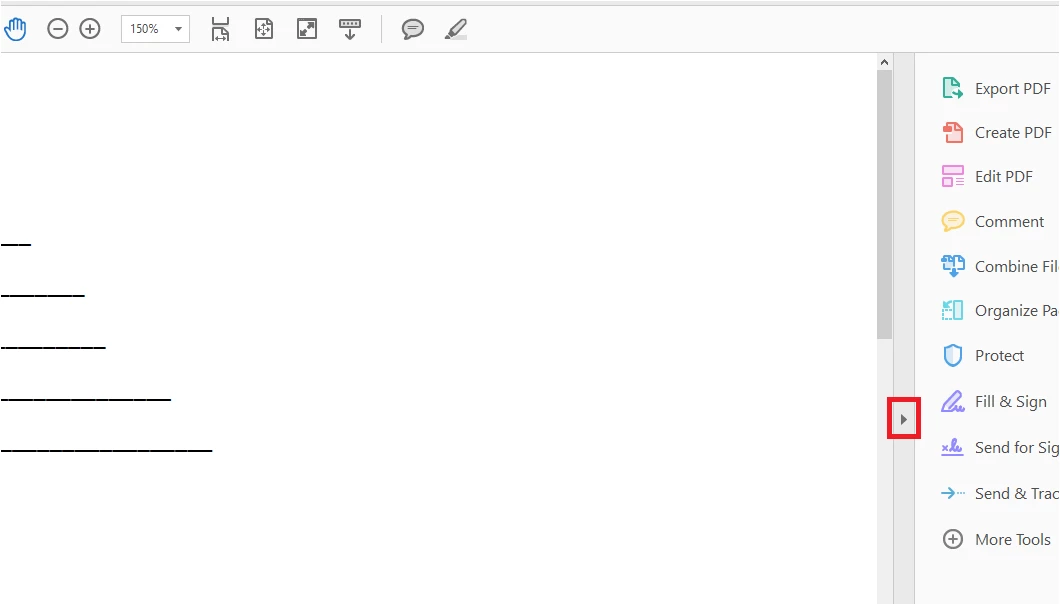
    Then go to Edit menu > Preferences > Documents. At right check the box for "Remember current state of Tools pane".

    Then click OK at the bottom of the preferences window to save the settings.

    Now relaunch the application and open a file.

    Check if that works for you.

    Let us know how it goes.

    Regards,

    Meenakshi

    1 reply

    Meenakshi_Negi
    Meenakshi_NegiCorrect answer
    Legend
    January 19, 2018

    Hi there,

    In the latest Adobe Acrobat Reader DC, the option "Open the tool panel window for each document" replaced by "Remember current state of Tools pane".

    If I understand you correctly, you are trying to hide the tools pane at right by default for each document you open.

    If that is the case, you need to close the tools pane manually when you open a file in Adobe Acrobat Reader DC.

    To close the tools pane manually, click on the tilted triangle marked with the red box in the screenshot below:

    Then go to Edit menu > Preferences > Documents. At right check the box for "Remember current state of Tools pane".

    Then click OK at the bottom of the preferences window to save the settings.

    Now relaunch the application and open a file.

    Check if that works for you.

    Let us know how it goes.

    Regards,

    Meenakshi