



Copy Agreement in Acrobat Sign: Skip the Setup on Renewals, Corrections, and Recurring Sends
An insurance agent sends Acme Corp a renewal agreement every year. Last year, she uploaded four documents, configured recipient authentication, set reminders, and placed every signature field by hand. Every year, only the policy document changes, and yet she's staring at a new Request Signature flow again, rebuilding a transaction she's already built a dozen times.
That's the setup loop: every send starts from zero, even when 90% of the configuration is identical to a previous one. It’s slow, and every piece of data you enter and every form field you place again create another opportunity for error.
The efficiency case
Many teams that repeatedly send the same or similar agreements, such as onboarding packets, license renewals, and vendor contracts, aren't just losing time. They're also losing consistency. Each manual rebuild is a chance for a recipient's email to be mistyped, a field to be placed incorrectly, or a setting to be missed.
One enterprise customer put it plainly: rebuilding near-identical amendments from scratch, re-entering the same internal and external signers, the same manufacturer details, every time, was cutting their team's productivity in half.
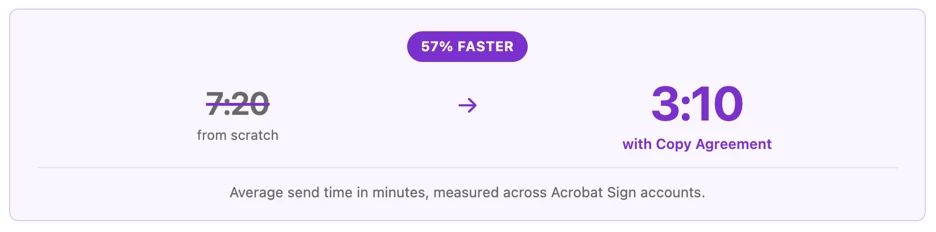
Copy Agreement is built to close that inefficiency. Our goal is to reduce the average send time and make it as seamless as possible to send your agreements. At 10 sends a week, that's an hour reclaimed. For agreements with dozens of fields, multiple recipients, or custom routing, the savings are easily double or triple that.
What actually carries over
Select an agreement, then click Copy. Acrobat Sign then opens a new Compose page that isn't a blank slate: it's a working replica of the original, ready for you to adjust.
- Attached files, with form fields, positions, validation rules, and recipient assignments already in place
- The agreement name and message
- Every recipient: name, email, role, delivery method, signing order, authentication method, and private messages
- CC list, reminder frequency, signature type, language, and access restrictions
- Your User Management Group selection, if your org uses one
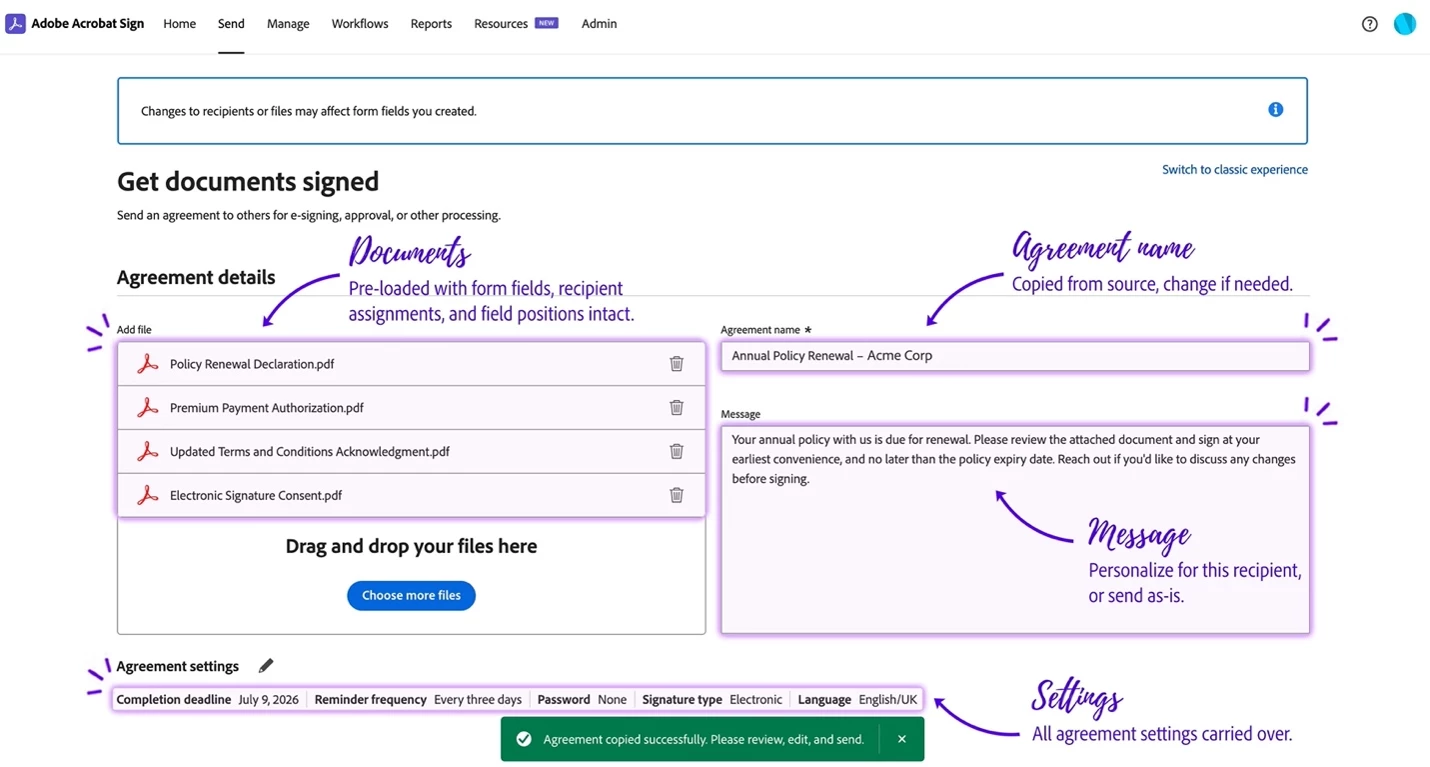
In practice, that means the only work left is the work that's actually different this time: a new document version, a swapped-in recipient, a corrected email address. Everything else, the parts that don't change, stays exactly as you configured it.
How it works
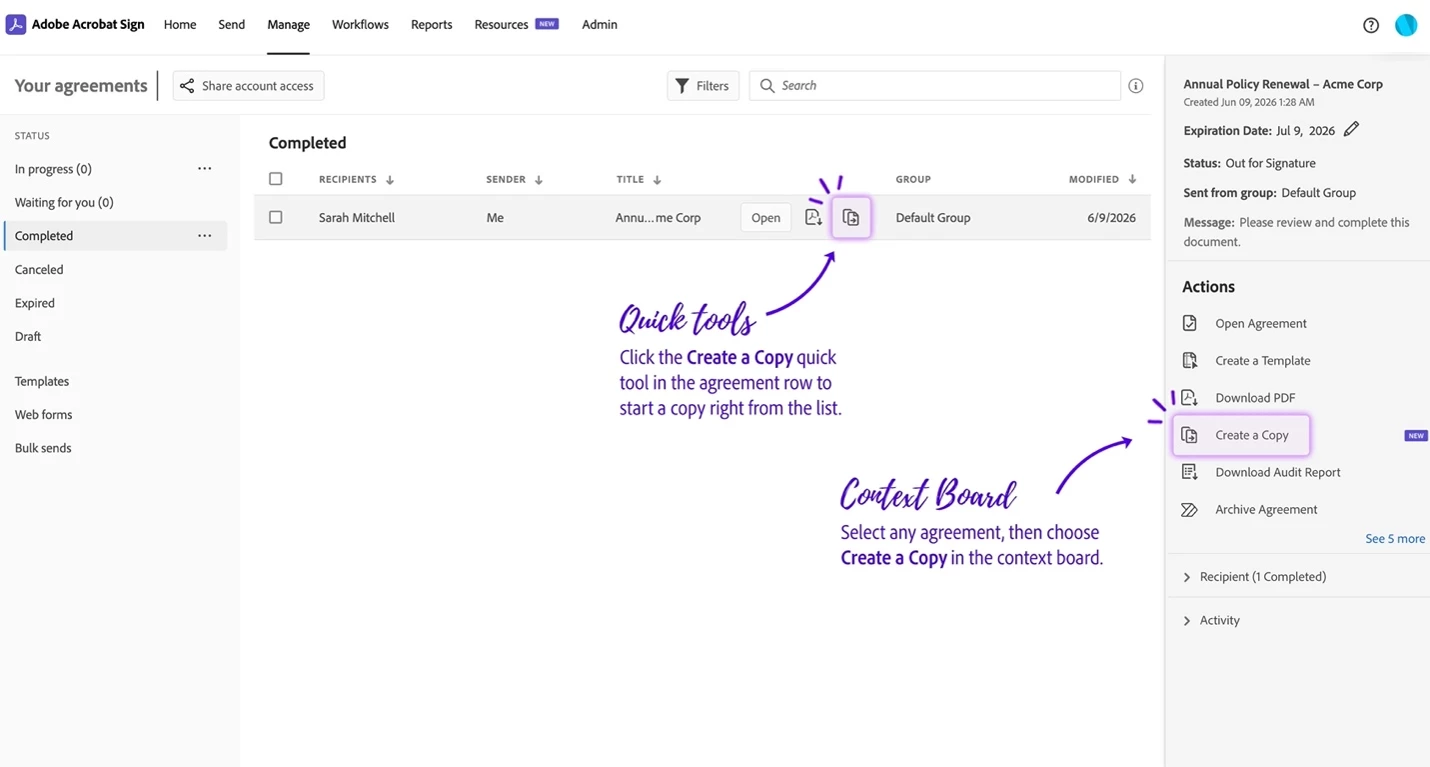
Copy is available to all users in enterprise-tier accounts. There's no setup, template, or admin configuration required. You can access it from two places on the Manage page: select an agreement and look for Create a Copy in the context panel or hover over any row in the list view for the same shortcut. Either way, you land on a pre-filled Compose page, ready to edit.
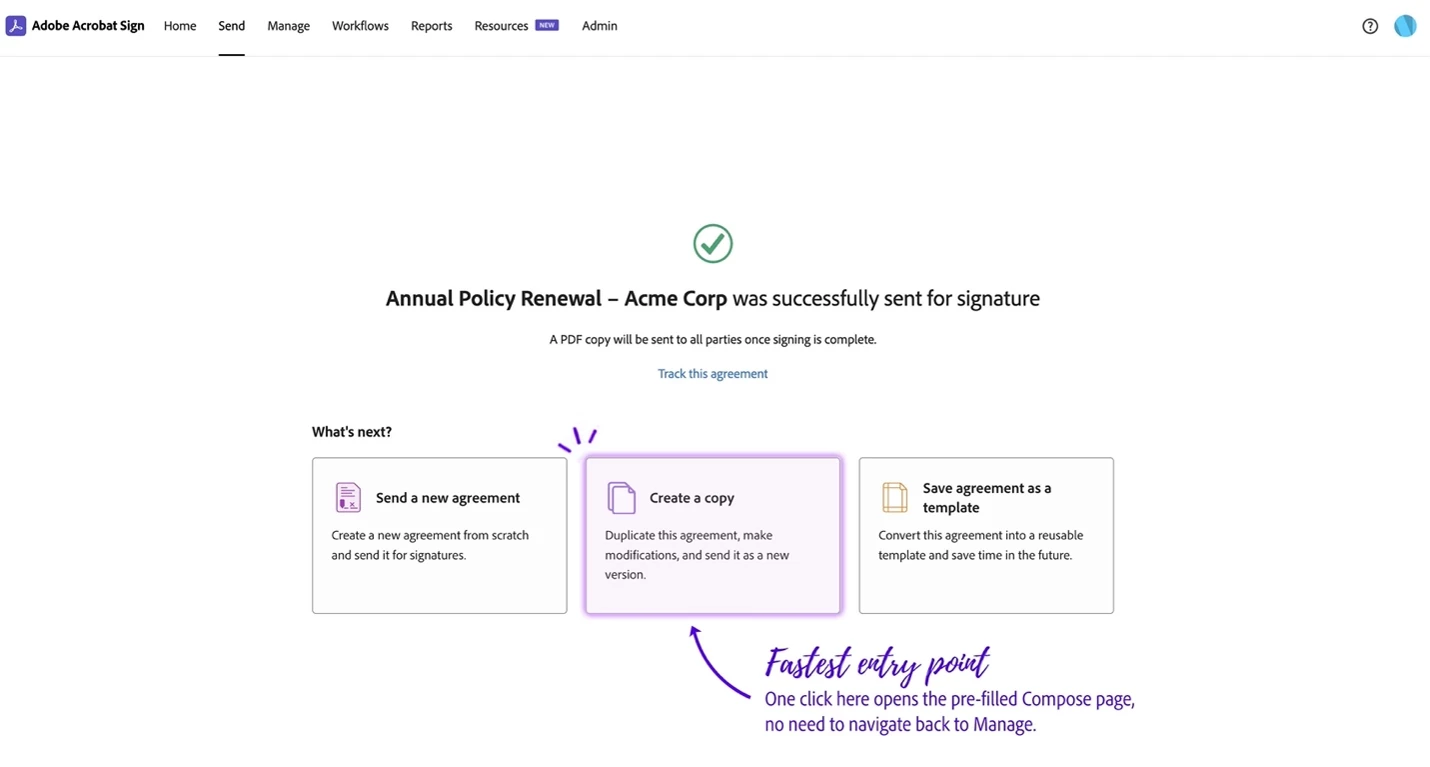
And if you just sent an agreement that needs to be replicated and sent again, we've also added it right after sending.
Sending similar agreements to several people in a row? The “Create a copy” tile on the post-send confirmation page lets you start from what you just sent, adjust it for the next recipient, and send again.
From the Home page
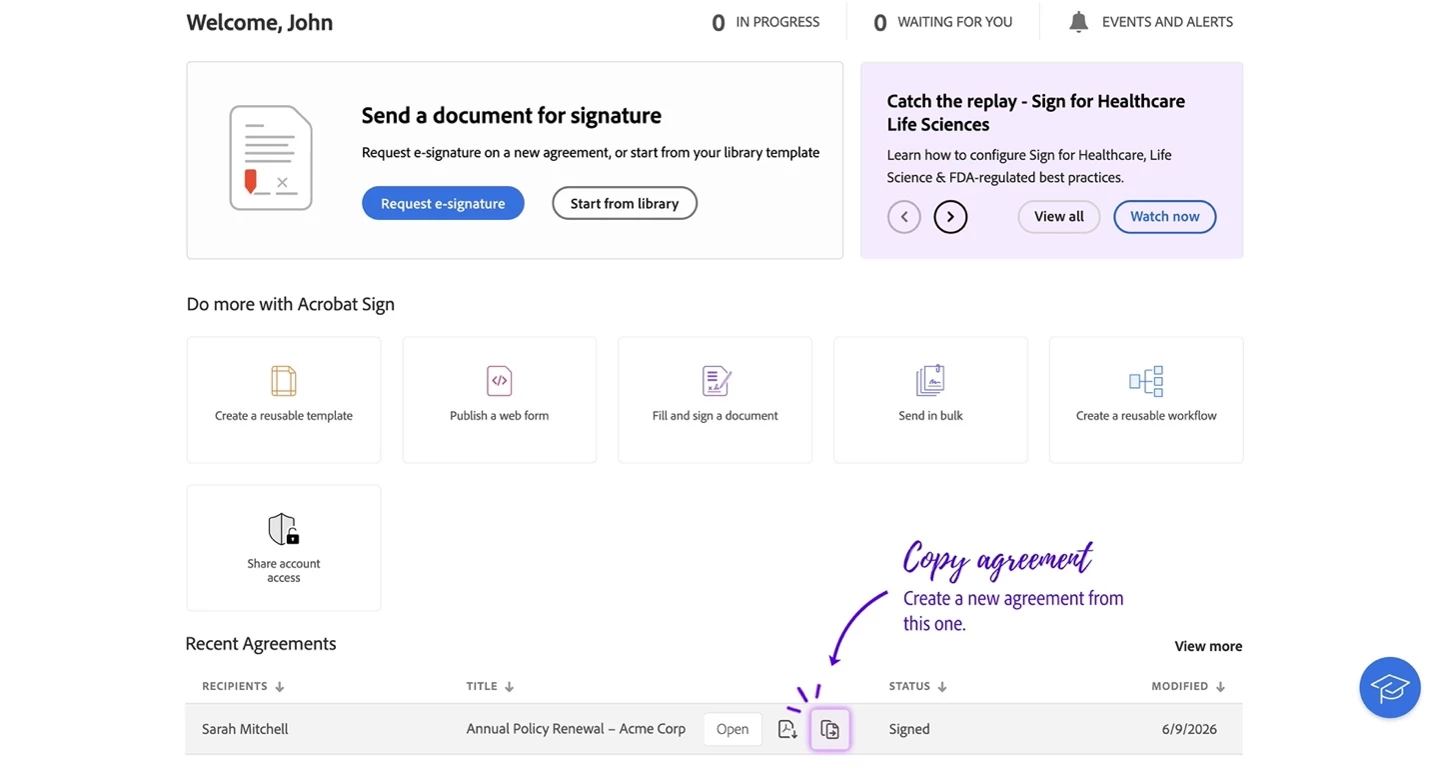
The copy action also appears in the new Recent Agreements section on the Home page. Hover over an agreement row, click the “Copy” quick tool, and you're in a pre-filled Compose page without a detour through Manage.
Where this saves the most time
Annual policy renewals: Back to our insurance agent. The recipient, authentication method, and reminder schedule don't change year over year; only the policy document does. She copies last year's completed agreement, swaps in the new policy, and sends. No re-entry, no re-checking her own work. The same pattern shows up anywhere the paperwork is repetitive, but the relationship is stable: a real estate broker renewing leases with identical terms and signature blocks each season, or a procurement team sending the same vendor agreement to new suppliers under unchanged payment terms.
Correcting a cancelled or expired agreement: Typo in a recipient's email, right after you hit send? You can always correct the email address, but what if the agreement already expired? Or what if it was rejected by the person who accidentally received it? Instead of rebuilding the agreement from scratch, just copy it, fix the one field that was wrong, and resend, with signing order, authentication, and document fields intact.
Same agreement, new recipient: When the agreement itself rarely changes, such as a standard partner license agreement, but the recipient does, Copy Agreement turns “rebuild from scratch” into “swap one recipient and send.”
Try it on your next recurring send
The next time you feel the setup loop starting, skip it. Open a similar agreement you’ve already sent, copy it, make the necessary adjustments, and send it again. You can then devote the time you saved to work that actually needs it.
Available now
Copy Agreement is available to enterprise-tier accounts. It was introduced in Release 17.0, with additional access points, including the Home page quick action, added in Release 17.1.
For integrations, Copy Agreement is also available through the REST API:
POST /agreements/{agreementId}/copy
Full documentation is available here.


 AdChoices