



Sign it here and now: In-person signing in Adobe Acrobat Sign
Close deals on the spot. Host a signing session on a shared device, so each signer can sign in the room, with no email link and no printouts.
A customer is standing at your counter, ready to sign. They may not have connectivity, or they may not have their phone, or access to a working email address. Until now, that meant paper, or a second visit.
In-person signing in Adobe Acrobat Sign removes that gap. A designated host opens the agreement on a shared device, hands it to the signer, and guides them through it. The signer reviews, signs and hands the device back. The whole process happens in one place, in one sitting, within minutes.
What is in-person signing?
In-person signing is a host-controlled signing workflow. The sender assigns the in-person signer role to a recipient and names a host, who must be an internal user in the sender’s Acrobat Sign account. The sender then sends the agreement. When it is time to sign, the host starts the session from their own device. The host passes the device to the signer to perform the signing.
Because the host controls access from start to finish, the signer does not need to receive an email, install anything or log in. The audit report records the hosted signing activity, including when the session started and when it was completed.
Where it helps
In-person signing fits any moment when the signer and your team are in the same place, and connectivity, email or a personal device is a barrier.
| Branch, counter and front desk | Customers who walk in without their phone, or without an email address, can still sign on the spot with a team member beside them. |
| Patient and client intake | Clinics and service offices can hand a tablet to a patient or client at check-in and finish consent and intake forms during the same visit. |
| Hospice and retirement homes | Nurses and staff can get electronic signatures from patients who may not have an email address or a smart phone. |
| Day-one onboarding | New hires who do not have company email yet can complete their paperwork with an HR host guiding them. |
| Field and site visits | A representative can bring the agreement to the customer, host the session on their own device, and close it before leaving. |
| Government service counters | In-person signing is supported in Acrobat Sign for Government, so public-facing teams can assist people at the counter. |
How it works
1. The sender sets it up
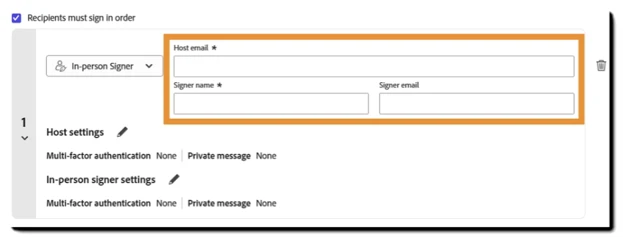
When composing the agreement, the sender selects in-person signer as the recipient’s role and provides the host's email address and the signer's name. The host may be the sender, or any other internal user in the same account. The signer’s name is required, and email address is optional. If the sender adds the signer's email address, it is used to deliver a copy of the completed agreement afterwards.
2. The host starts the session
- Open the Manage page and find the agreement in the “Waiting for you” view. Its status is “Waiting for hosting”.
- Open the agreement in the host’s browser, and complete any authentication required for the host.
- Select Pass control.
3. The signer completes the agreement
- The host hands the device to the signer.
- The signer selects Review and Sign, reviews the agreement, completes the required fields and applies their signature.
- The host takes the device back. The agreement moves to the next step or is completed, depending on the workflow.
Why Customers like it
- Removes friction and delays. No email or device required. The signer can sign without an inbox, a phone or a login.
- The host stays in control. The signer cannot open the agreement independently, and the host decides when the session starts and ends.
- Stronger access control for the host. Senders can apply authentication to the host, so access starts from a verified user.
- A clear record. The audit report captures hosted signing activity for traceability.
- Flexible for groups. A single agreement can include more than one in-person signer.
For administrators: a setting your organization controls
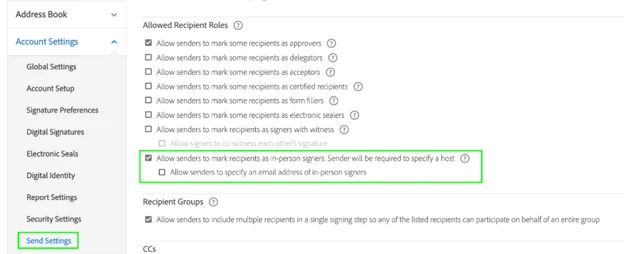
In-person signing is disabled by default. Until an administrator turns it on, the in-person signer role does not appear when senders compose an agreement. You can enable it at the account level or for specific groups who need assisted signing, such as branch staff or front-desk teams, so you decide who can host in-person sessions.
Go to Send Settings > Allowed recipient roles and choose from two controls:
- Allow senders to mark recipients as in-person signers. Adds the in-person signer role to the recipient roles available when composing.
- Allow senders to specify an email address of in-person signers. Let senders enter the signer's email while composing. Signers can also enter an email address during the session, before applying their signature.
Our recommendations: enable it only for groups that need assisted signing, turn on signer email entry when you need to deliver completed agreements or keep signer records, and apply authentication to the host when you need stronger access control.
Tips for hosts
- Verify the signer's identity before handing over the device. The host is responsible for this step.
- Stay present for the whole session.
- If signer’s email address was not provided, hand the signer a copy of the signed agreements.
- Finish or close each session, and clear the browser session, before starting the next one on the same device.
Get started
Ask your Acrobat Sign administrator to enable in-person signing for your group, then send your first agreement with an in-person signer. These guides walk through each step:
- Configure in-person signing in Acrobat Sign
- Compose an agreement with in-person signing
- Host an in-person signing agreement
- Recipient roles in Acrobat Sign
Good to know before you start. In-person signing is available in Acrobat Sign Solutions for Business and Enterprise customers.
 AdChoices