




Explore Precision Flow (Beta) for Smarter Image Editing

Precision Flow (beta) makes refining your image edits easier and more intuitive than ever. With a simple slider, you can generate multiple variations in one go; there's no need to rewrite prompts or start from scratch.
Want to adjust the mood or atmosphere? Just slide along a smooth gradient (like warm → cool) to instantly explore different tones, lighting, or even weather effects.
It’s a seamless way to preview, fine-tune, and land on the exact look you’re aiming for all within a single workflow.
Generate Images with Precision
Generate a new image and head to the Edit tab, or upload your own and select Precision Flow (beta) from the left toolbar.
To control where your edits apply, choose from these options above the prompt bar:
• Entire Image – Apply changes across the whole image
• Select – Target specific areas or layers by hovering and choosing what to edit
• Brush – Manually paint over areas to apply precise adjustments
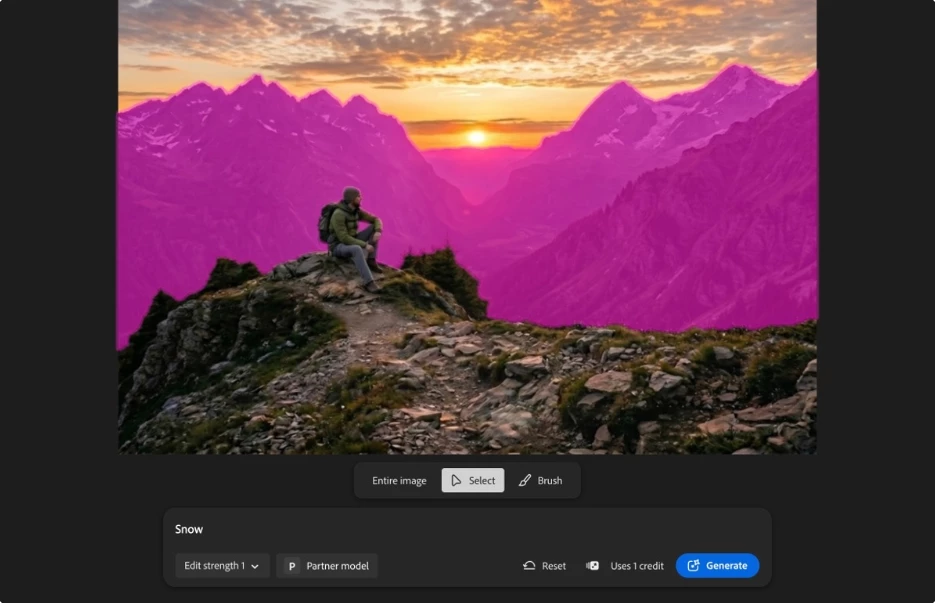
Apply visual overlays with the Select or Brush option to guide where generative edits will be applied.
In the prompt field, simply describe how you want to transform the look and feel of your image. Keep it short and focused for the best results.
Use the Edit Strength dropdown to control how subtle or dramatic the changes should be—adjust anywhere from 0.1 to 1 depending on your needs.
When you're ready, hit Generate to instantly create multiple variations and explore the results.
It’s a quick, flexible way to experiment and dial in the perfect edit.
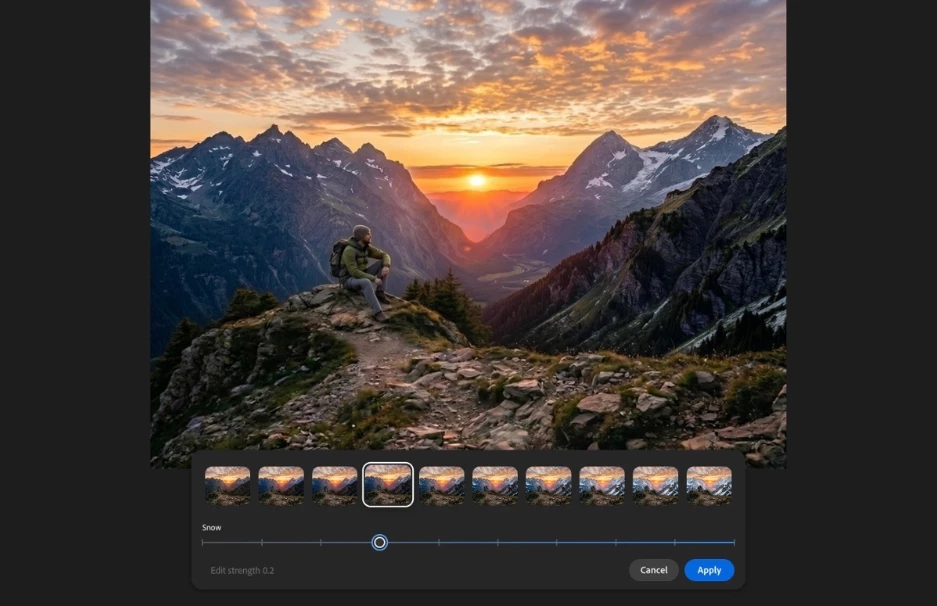
Select from a variety of generations to apply subtle or dramatic effects without reworking the entire edit.
Once your images are generated, you’ll see a filmstrip of variations to explore.
Browse through the previews or use the slider to move across the range—from subtle tweaks to more dramatic transformations.
When you find the version that fits your vision, simply select Apply to finalize your edit.
Note: Credit consumption varies by model. To see how many generative credits each generation will use, hover the credit consumption indicator next to the Generate button.
Share Your Feedback
We encourage you to try the new feature in Firefly and share your feedback with the community. If you have questions or suggestions, please reply to this post or create a new post for any issues.
If you found this announcement helpful, click 👍 Like.
Use ⭐ Subscribe to stay informed about future updates.
You may also share this post with others who might benefit from these enhancements.
 AdChoices