




Firefly Generations: Explore List and Grid Views and Find Your Generation History
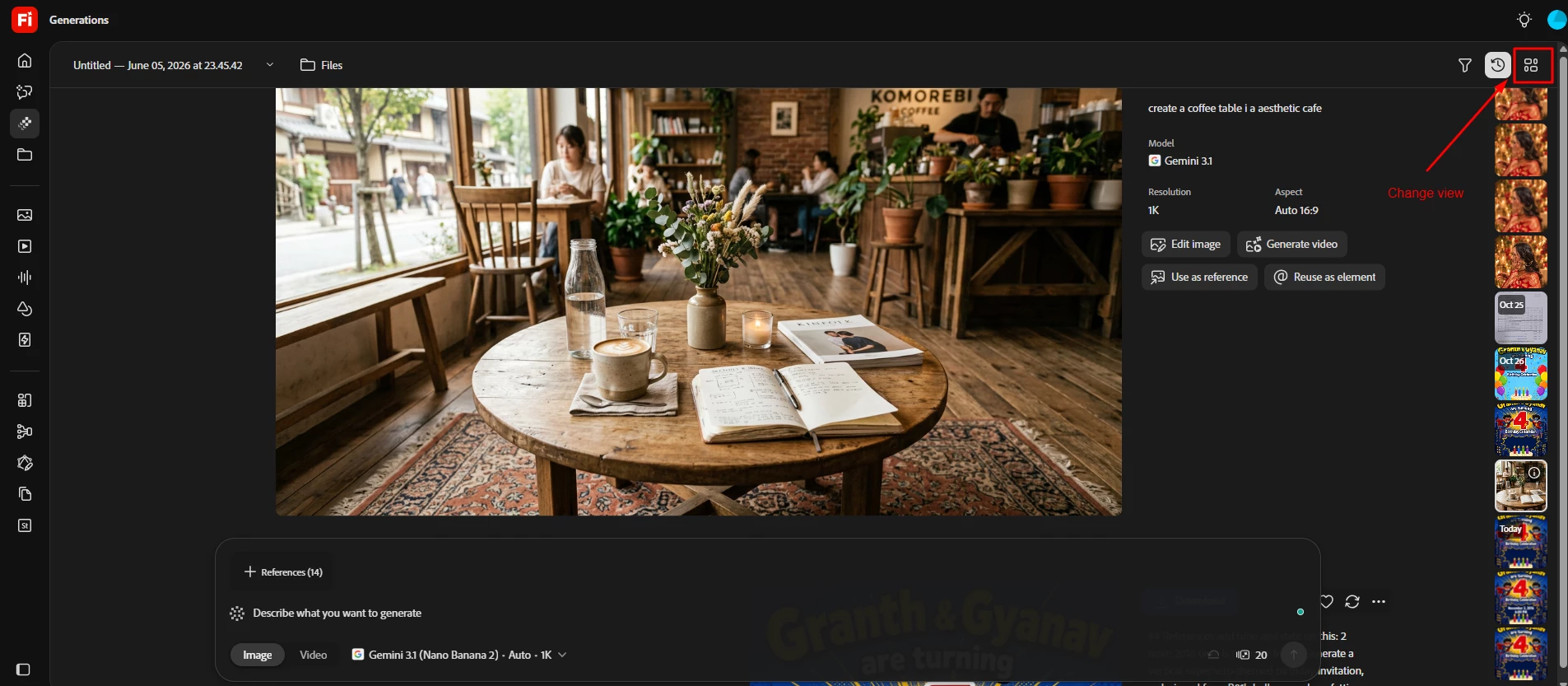
We’ve noticed some comments here about the images appearing small on the right side in Generations, but you can switch to grid view to see them in a larger size.
Generations
The new generation and editing workspace shows your generation history alongside the generation and editing tools, so you can browse and reuse previous results without leaving your work.
Open the workspace
- On the left navigation bar, select Generations.
- The workspace opens with the last project you were working on.
Switch between List and Grid views
Use the view control in the upper-right corner of the workspace to switch between List and Grid view.
Firefly saves every image, audio file and video you generate in the Generation history tab under Files. This post shows where to find it.
Open your generation history
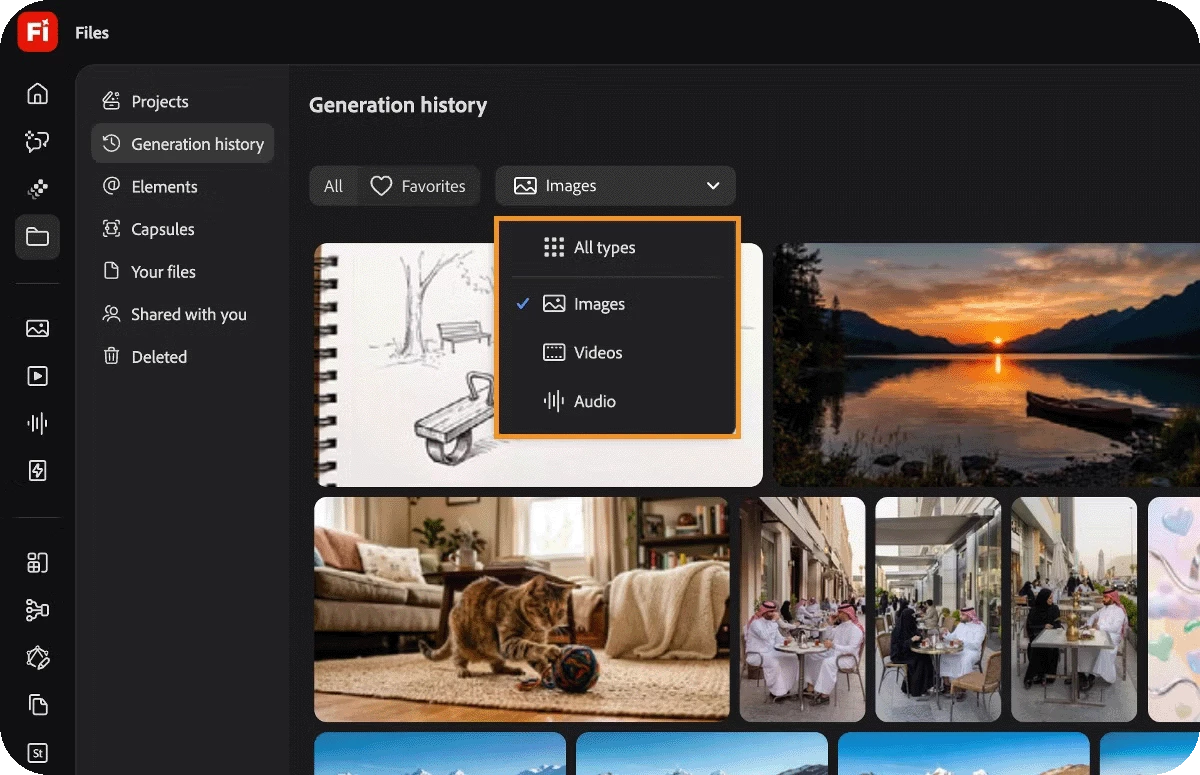
- On the Firefly homepage, select Files in the left panel.
- Select the Generation history tab. It lists all your previously generated content.
- Use the dropdown menu to show only images, videos, audio, or all generated content.
Actions for each generation
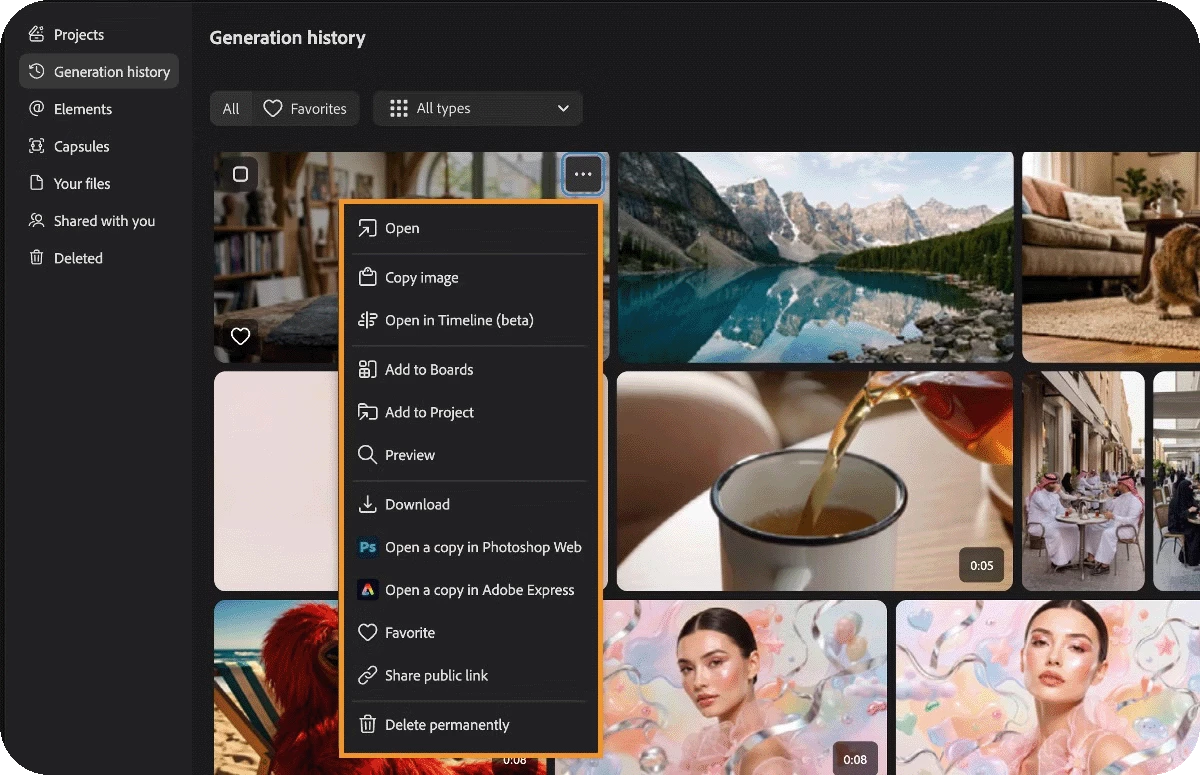
Hover over an item, then right-click it or select the three dots to open the context menu.
Storage
Your Generations are saved in your Adobe cloud storage and uses your allocated storage space, like any other file saved in the cloud.
👍 Like if you found this helpful · ⭐ Subscribe to catch future Firefly updates as they land · 📣 Share with someone who'd want to try this out!
 AdChoices