




Apply Substance 3D Materials to 3D Text and Shapes in After Effects ✨

Give your 3D text a real surface (and a different one on every face) in After Effects 27.0✨
Until now, 3D text and shapes only got default legacy materials. In After Effects 27.0, you can use Substance 3D materials (.sbsar files) like wood, stone, or brushed metal, and set a different one on the front, side, back, and bevel. Your text and shapes stay editable.
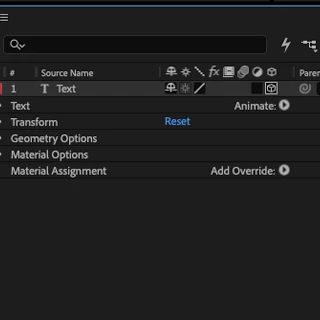
| 1. Turn your text or shape into a 3D layer
| 
|
| 2. Add an override for each surface
Surfaces you haven’t overridden keep their default material. | 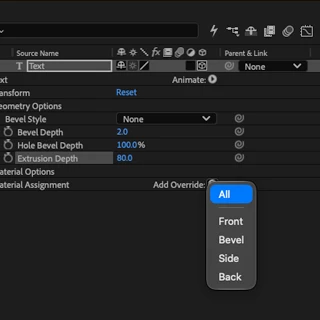 |
| 3. Open Material Assignment Select your 3D text or shape layer. In the Timeline panel, expand Material Assignment. In the Properties panel, you can filter the list with Show Substance 3D materials, Show precompositions, or Show footage. | 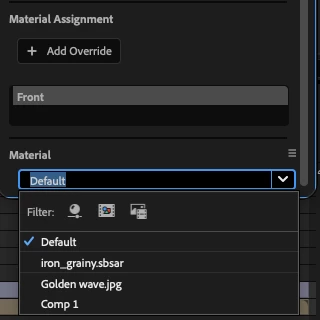 |
| 4. Pick a material for each surface Heads up: the list only shows .sbsar files already in your project, plus layers if you’ve enabled layers as material sources. | 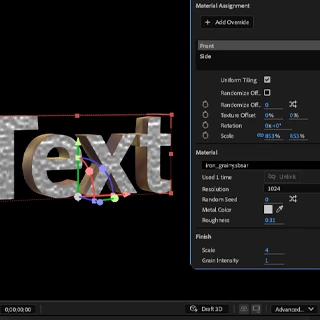 |
| 5. Fine-tune each material Adjust placement, scale, rotation, tiling, and randomize offset. Then tweak the material’s color, roughness, metallic value, and pattern settings. | 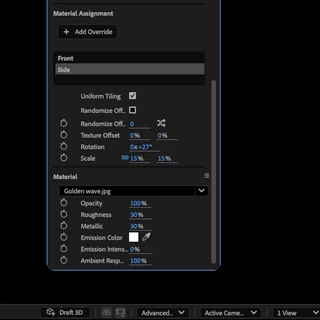 |
| 6. Go dynamic with layers as material sources This feature also supports layers as material sources. Animated precomps, solids, images, and video can all become the surface of your text and shapes. Check out our post on Use layers as material sources |  |
Challenge: Build a 3D title with three different surfaces
Make a 3D text layer and give it a different material on each surface.
- Success looks like: Front, Side, and Bevel visibly use different materials, and the text is still editable.
- Beginner: apply one Substance 3D material.
- Stretch: use different materials on Front, Side, and Bevel, then put an animated precomp on the Front.
Your turn: Post your output as a GIF in the comments. Take the challenge and share a short clip! 🎬
 AdChoices