



After Effects Guides Update: A Practical Guide to Responsive Layouts
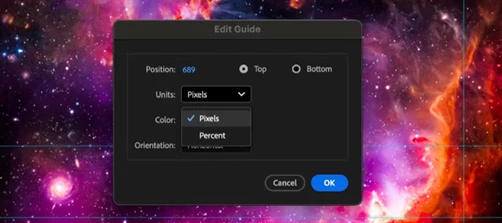
Guides are a foundational tool for responsive, reusable layouts and simplifying design decisions. We're bringing new features to After Effects guides that make them closer in line with Premiere Pro, so guides behave more consistently when you move between apps. Here's how to get the most out of the new functionality.
What's New in After Effects Guides
- Percentage‑based guides Position guides relative to the composition or view, not just absolute pixels, making them resilient to resolution and aspect‑ratio changes.
- Pinned guides Pin guides to the bottom or right edge (in addition to top/left) so layouts stay stable as dimensions change.
- Per‑guide color control Assign colors to individual guides for better visibility and organization.
- Improved guide editing Right‑click a guide to open the Edit Guide dialog, where you can adjust Position, Unit (pixels or percent), Pinning (origin or opposite edge), and Color.
- Guide import and export After Effects and Premiere Pro use the same
.guidesformat, so guide presets move between apps with full parity - percentage positioning, pinning behavior, and per-guide colors are all preserved. - Guide editing power-ups - keyboard shortcuts for faster layout work We've added quick modifier-key shortcuts to speed up guide placement and tweaking. While dragging a guide, tap Alt / Option to switch between pixel and percentage units, and Ctrl / Command to toggle between pinned or unpinned states.
Your input helps shape the future of this feature, please share your thoughts.
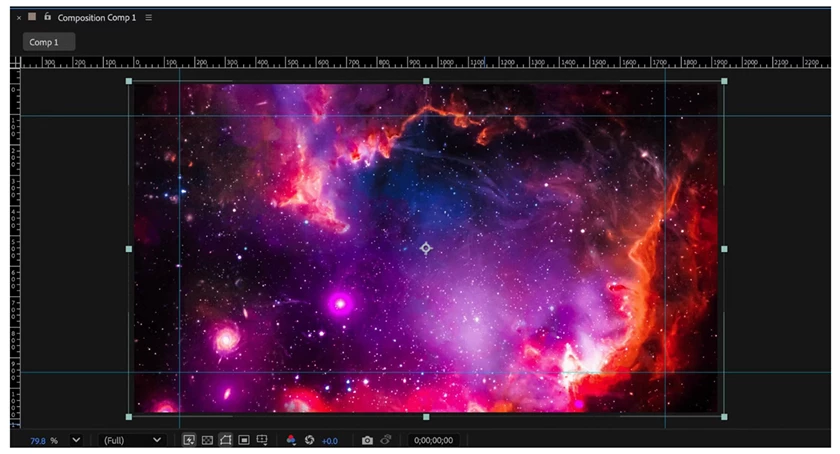
Pixels vs. Percentage: Which Should You Use?
Choosing between pixel-based and percentage-based guides depends on your workflow and deliverables. Here's how to think about it:
Use Pixels When:
- Creating fixed, precise layouts - Logo placement at exactly 50px from the top-left corner
- Working in a single, fixed resolution - Broadcast-specific formats (1920×1080)
- Aligning to exact frame dimensions - Title-safe zones at specific pixel distances
- Matching pixel-perfect designs - When your design comp or style guide specifies exact pixel values
Use Percentage When:
- Creating responsive layouts - Content that adapts across multiple aspect ratios (Instagram Story at 9:16, YouTube at 16:9, broadcast at 4:3)
- Building reusable guide templates - Grids you'll use across different project sizes
- Scaling compositions frequently - Working with proxies or different resolution tiers
- Collaborating across teams - Guides that scale intelligently when shared between projects
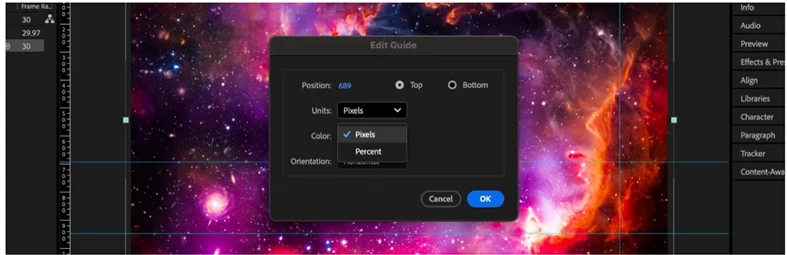
Real-World Workflow Scenarios
Scenario 1: Multi-Format Social Media Content
You're creating a promotional video that needs to deliver to Instagram (1080×1350), YouTube (1920×1080), and TikTok (1080×1920).
With percentage-based guides:
- Create a master composition at 1920×1080
- Set guides at 10% from each edge (safe margin for text and graphics)
- Add guides at 50% vertical and horizontal (center alignment for logos)
- Export these guides as a
.guidesfile - Duplicate the comp to 1080×1350 (Instagram)
- Import the same
.guidesfile—guides automatically position at 10% and 50%, adapting to the new aspect ratio - Repeat for TikTok at 1080×1920
Result: All three versions maintain consistent safe zones and alignment without manual adjustment.
Scenario 2: Broadcast with Action-Safe and Title-Safe Zones
You're delivering to multiple broadcast standards: HD (1920×1080) and DCI (2048×1080).
Using pinned guides:
- Create guides pinned to the top at 10% (action-safe top margin)
- Create guides pinned to the bottom at 10% (action-safe bottom margin)
- Create guides pinned to the left at 5% and right at 5% (action-safe side margins)
- When you resize the composition or create a new one, these guides maintain their proportional distance from their pinned edges
Result: As broadcast specs change, your action-safe and title-safe zones scale proportionally without recalculation.
Scenario 3: Organizing Complex Motion Graphics
You're building a complex lower-third with multiple animated elements. You want to use different guide colors to organize your layout.
With per-guide color control:
- Create blue guides for alignment zones (where graphics snap together)
- Create red guides for text-safe areas
- Create green guides for animation boundaries
- Right-click each guide to assign its color
- Team members instantly understand the layout logic by glancing at the guide colors
Result: Complex layouts become self-documenting and easier for teams to collaborate on.
Quick Tips: Keyboard Shortcuts for Guide Power Users
These shortcuts make guide editing faster—especially when you're setting up responsive layouts:
While dragging a guide:
- Tap Alt (Windows) / Option (macOS) to instantly switch between pixel and percentage units
- Tap Ctrl (Windows) / Command (macOS) to toggle a guide between pinned and unpinned
Example workflow:
- Drag a guide to position it visually
- While dragging, tap Alt/Option to see the percentage value in real-time
- Drop it when the percentage looks right
- If needed, tap Ctrl/Command to toggle whether it uses the default position edge or is “pinned” to the opposite edge
This is much faster than right-clicking to open the Edit Guide dialog every time.
What Hasn't Changed
After Effects continues to support per-view guides, meaning guides can exist independently in:
- Composition views - Guides for aligning content in your main composition
- Footage views - Guides for aligning within source footage
- Layer views - Guides for aligning elements within a specific layer
Guides remain relative to the view they're created in, and existing snapping behavior continues to work as always.
Ruler Display: A Note on Current Capabilities
Currently, the composition rulers in After Effects display measurements in pixels only. While your guides can be defined as percentages, the rulers themselves don't show percentage markings (unlike Photoshop, Illustrator, and InDesign).
Workaround: When working with percentages, the position values are always clearly displayed when you right-click a guide or drag it (you'll see "50%" on screen). This makes it easy to set precise percentage-based guides even without percentage rulers.
Premiere Pro Compatibility
After Effects and Premiere Pro use the same .guides file format, so guide presets move between the apps with full fidelity. When you export percentage-based guides, pinned guides, or guides with custom colors from After Effects to a .guides file, Premiere Pro preserves all of those properties. The same is true in reverse, guide presets created in Premiere Pro keep their percentage positioning, pinning, and colors when imported into After Effects.
The one difference: Premiere Pro's Guides panel can export multiple named guide templates in a single .guides file. After Effects applies the first template and ignores any additional ones. If you maintain a shared preset file with multiple template sets, make sure the set you want After Effects to use is listed first in the file.
Troubleshooting: Common Questions
Q: I upgraded to the new version. What happened to my old pixel-based guides?
A: Your existing guides remain unchanged and continue to work as pixels. New guides you create can use either pixels or percentages. You can mix both pixel and percentage guides in the same composition—right-click any guide to change its unit at any time.
Q: I imported a Premiere Pro .guides file and only some of my guides showed up. Why?
A: That file probably contained more than one named template. After Effects applies the first template and ignores the rest. If you want a different template to be used, re-order the file so the set you want is first, or export just that template set as its own file.
Q: Can I convert all my pixel-based guides to percentage-based?
A: You can, but it requires manual math. Right-click each guide, select Edit Guide, and use the position hottext field to calculate the percentage: original position ÷ comp dimension. For example, a guide at 960 px in a 1920 px wide composition is 960 ÷ 1920 * 100 = 50%. Then set the Unit dropdown to Percent.
Q: Can I share guide presets with my team in Premiere Pro?
A: Yes. Export a .guides file and share it—percentage positioning, pinning behavior, and colors are all preserved in both directions. Your team can use the presets in Premiere Pro exactly as you created them in After Effects.
Q: Do guide colors affect rendering or output?
A: No. Guide colors are for your workspace only and never appear in previews, renders, or final output.
Advanced: Understanding the .guides File Format
When you export guides, After Effects (and Premiere Pro) writes a plain-text JSON file with a .guides extension. Because both apps share the same format, guide presets move between them with full fidelity—positions, units, pinning, and colors are all preserved. If you build extensions, automation, or version-control your presets, use the schema below to see how guide data is stored in a .guides file.
A .guides file is a list of named guide templates, each containing a list of guides:
{
  "version": 1,
  "guideTemplates": [
    {
      "name": "template 1",
      "guides": [
        {
          "orientationType": 0,
          "positionType": 1,
          "position": 50,
          "color:red": 1,
          "color:green": 0,
          "color:blue": 0,
          "pinToOpposite": false
        },
        {
          "orientationType": 1,
          "positionType": 0,
          "position": 100,
          "color:red": 0,
          "color:green": 1,
          "color:blue": 0,
          "pinToOpposite": true
        }
      ]
    }
  ]
}
The two guides above are: a horizontal guide at 50% in red, unpinned (referencing the top edge), and a vertical guide at 100 px in green, pinned (referencing the opposite right edge).
Field Reference (per guide)
| Key | Type | Meaning |
orientationType | integer | 0 = horizontal, 1 = vertical |
positionType | integer | 0 = pixels, 1 = percentage |
position | number | Distance in the unit set by positionType. Full precision is preserved (e.g. 1500.6951904296875). |
color:red / color:green / color:blue | number 0.0–1.0 | Per-guide color channels (not a hex string). 1, 0, 0 = red; 0, 1, 0 = green; 0, 0, 1 = blue. |
pinToOpposite | boolean | false = pinned to the top/left origin; true = pinned to the opposite edge (bottom for horizontal guides, right for vertical guides). |
Wrapper Fields
| Key | Type | Meaning |
version | integer | Format version (currently 1). |
guideTemplates | array | One or more named templates. |
name | string | Template name. May be empty ("") for a single unnamed export from After Effects. |
guides | array | The guides belonging to that template. |
Note — multiple templates: A .guides file can contain several named templates (for example, a file exported from Premiere Pro's Guides panel). After Effects does not have a multi-template guides manager, so on import it applies the first template and ignores any additional ones. If you maintain a shared preset file with more than one set, put the set you want After Effects to use first.
Note — mixed units within a template: positionType is set per guide, not per file or per template. A single template can freely mix percentage and pixel guides (the example above does exactly that).
Tip — automation: The same orientation / position / unit / color / pinning model is exposed to scripting, so anything you can store in a .guides file you can also create or read programmatically. See the [Guide Scripting Accessors] [link to be sent when ready] in the After Effects Scripting guides.
Learn More
- Grids & Guides helpx Documentation
- Scripting
- Original Accessors added in After Effects 16.1
- Newly Added Accessors in After Effects (Beta) (may not be live at time of post publishing)
Your Feedback
Please share your feedback:
- How guide import/export works in your workflows
- Whether percentage‑based guides meet your expectations
- Any scripting or automation scenarios you rely on for guides
- Features you'd like to see in future releases
Your input is much appreciated!
The After Effects Team
 AdChoices