



Introducing Quick Apply — Now in Public Beta
Quick Apply was released in After Effects 26.2. Ongoing improvements will be posted here as they are made available in the Beta builds.
Hi all!
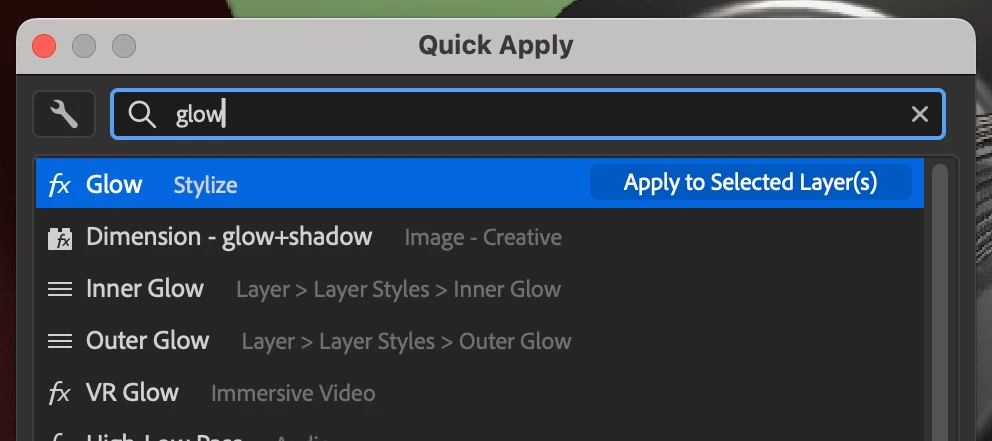
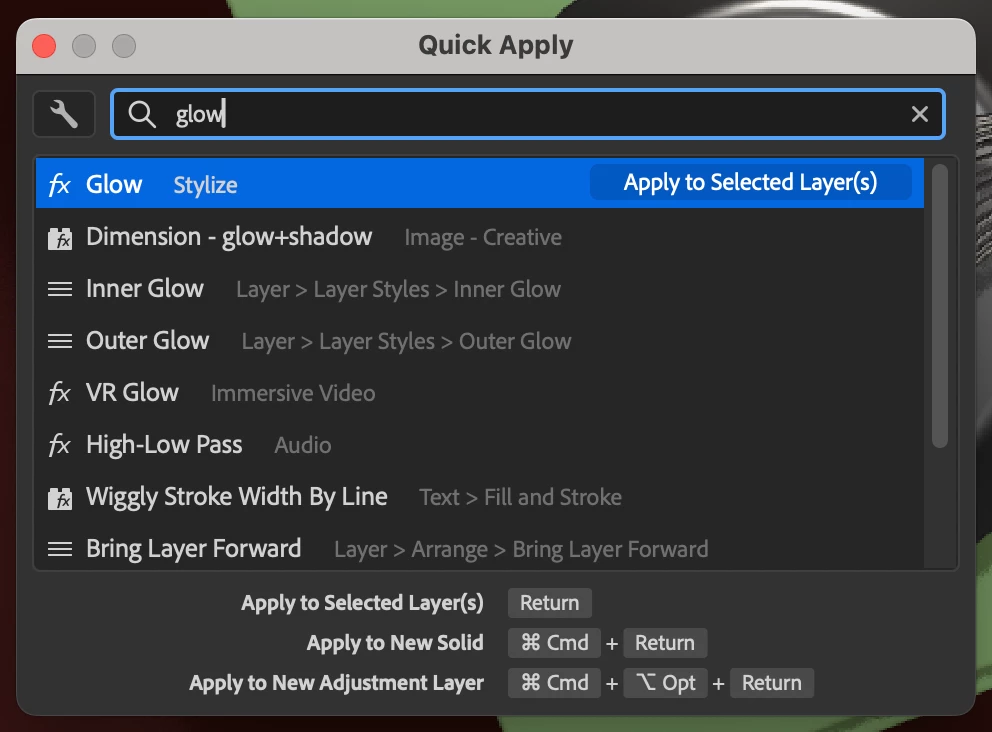
We are very excited to unveil Quick Apply in After Effects (Beta) 26.2.0.30 or higher. Quick Apply is a search box that puts every effect, animation preset, and menu command right at your fingertips. Type a few characters, pick what you want, and apply or run it. It’s that simple.
- Effects — Search by name or category and apply to the selected layer, or create a new Solid or Adjustment layer with the effect already applied.
- Animation Presets — Search and apply text presets and other animation presets to the selected layer, or to a new layer or adjustment layer.
- Menu Commands — Search and run any top-level menu command, including access to blending modes, installed scripts, and preferences.
To open the Quick Apply dialog
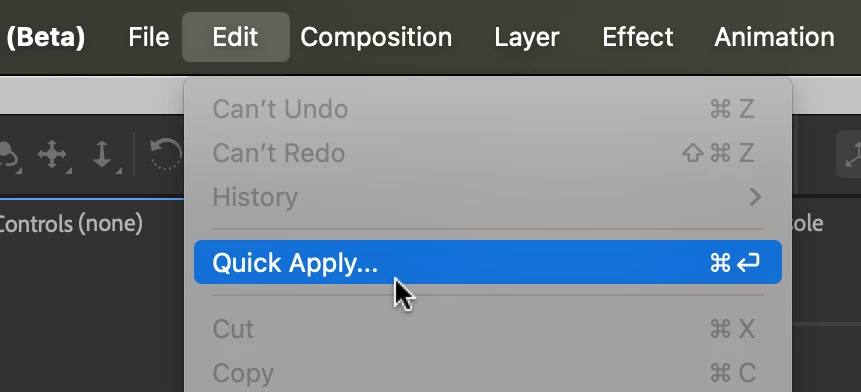
- Edit menu > Quick Apply
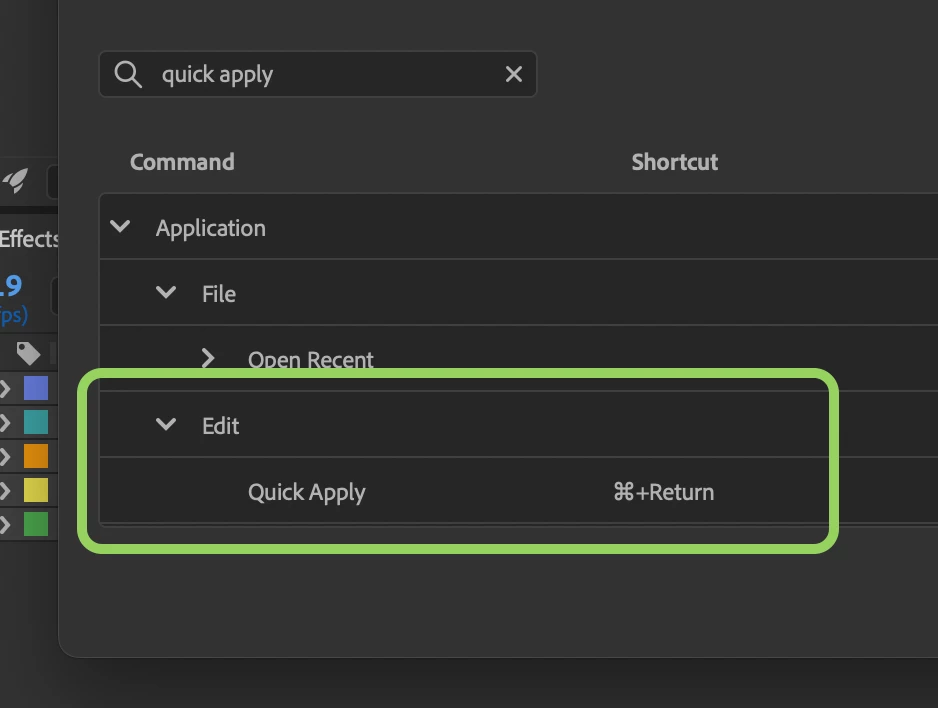
- Ctrl+Enter (Windows) / Cmd+Return (macOS) — the shortcut can also customized.
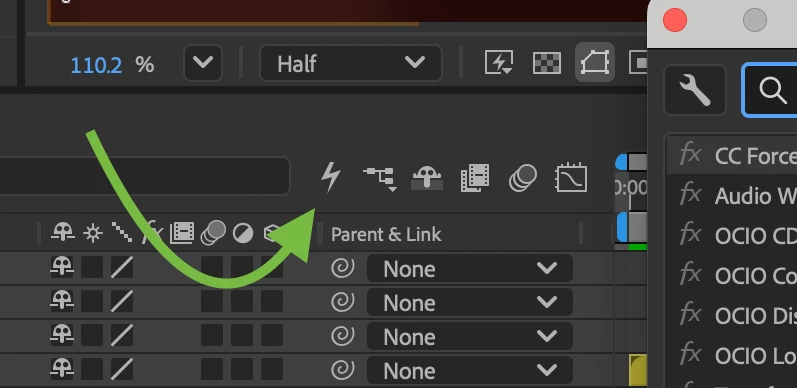
- The Quick Apply button in the Timeline (between the search field and the mini-flowchart button).
The search box will be focused when the dialog opens, so you can start typing your search right away.
| In the Edit Menu | Keyboard Shortcut | In the Timeline |
|---|---|---|
| 
| 
|
Search, Apply, & Modifier Keys
- Search for items by their name, menu, or category. Results update as you type. Searching is fuzzy and sorts results by the closest match.
- Select an item in the list, then apply or run it by pressing Enter, clicking Apply/Run, or double-clicking. You can use the up ↑ and down ↓ arrows to change selection in the list, but left ← and right → arrows allow you to keep editing your text if needed.
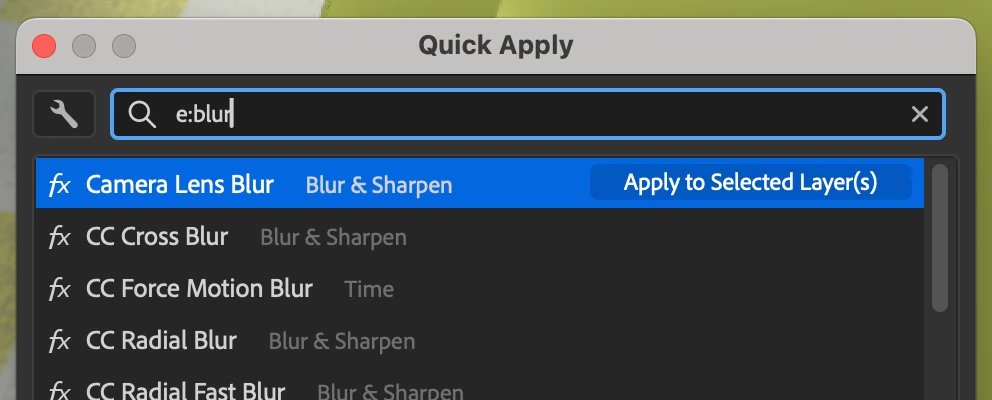
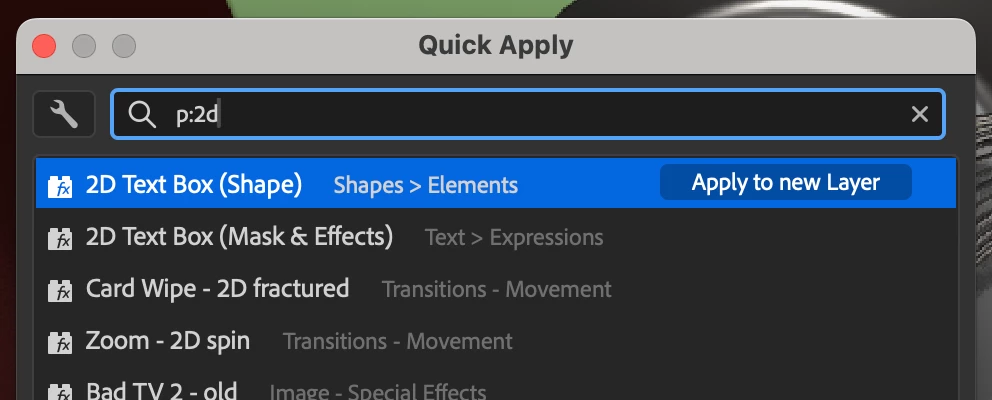
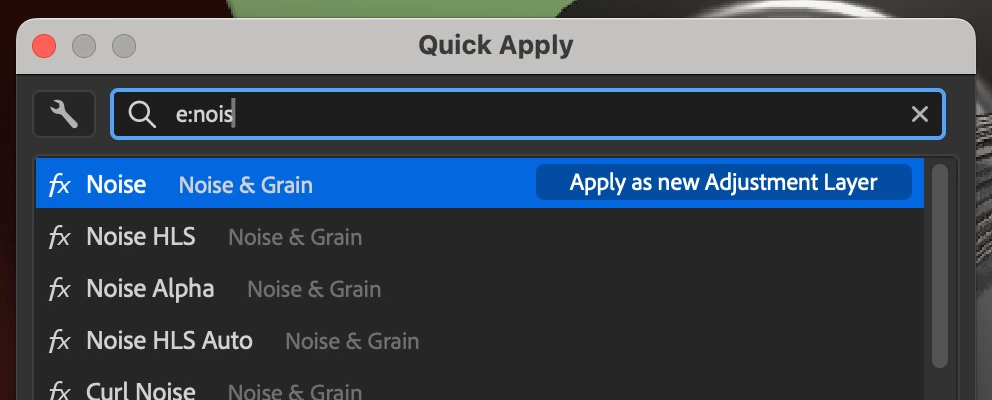
- Modifiers (Effects and Presets): Hold Ctrl (Windows) / Cmd (macOS) and press Enter to create a new solid or layer with the effect or preset applied. Hold Ctrl+Alt (Windows) / Cmd+Option (macOS) and press Enter to create a new adjustment layer. The hint area at the bottom of the dialog shows these options when you have an effect or preset selected.
| Apply to the selected layer(s) | Create new layer | Add as adjustment layer |
|---|---|---|
| 
| 
|
Settings & Filters
Use the Settings (the wrench icon) menu in the dialog to select the categories of results you want shown in your search.
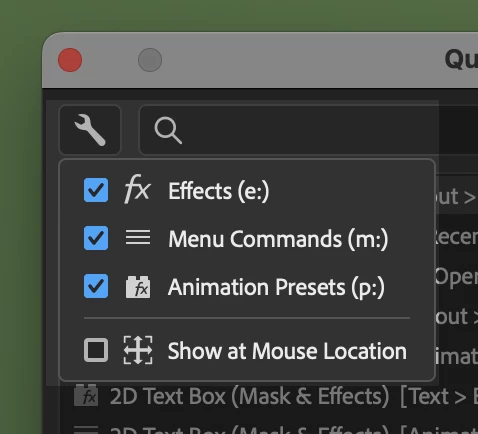
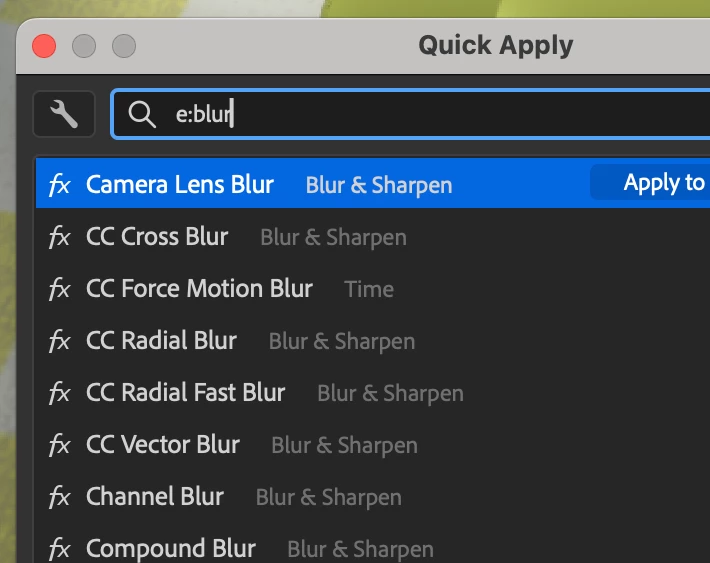
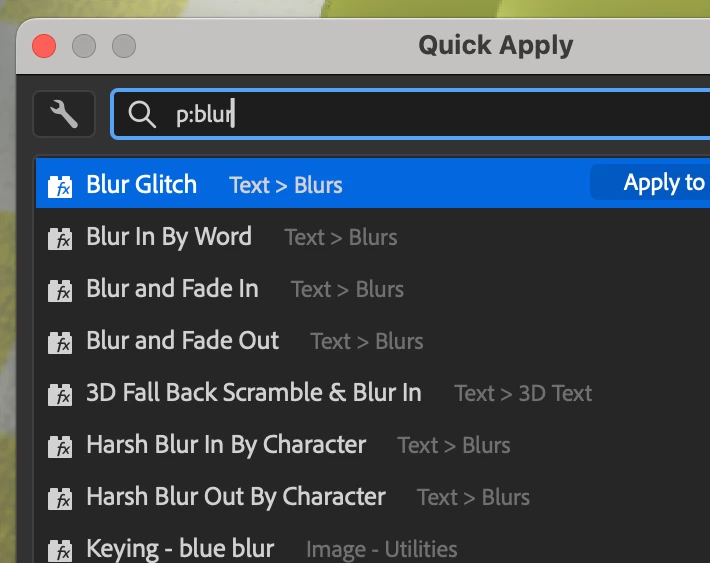
You can also type e:, p:, or m: at the start of your search to limit the result to only effects, presets, or menu commands.
| Start search with e: for only effects | Start search with p: for only presets |
|---|---|
| 
|
Select where the Quick Apply dialog will appear when you open it—either in the most recent location (default) or next to your mouse (enable "Show at Mouse Location").
We want your feedback
Quick Apply is in Public Beta because we want to make it great with your input. Try it out—apply effects, drop in presets, run commands—and let us know what works, what doesn’t, and what would make it even more useful. Your feedback will directly shape how Quick Apply evolves.
Thank you for being a part of After Effects (Beta),
- John, After Effects Engineering Team


 AdChoices