
JohnColombo17100380
Community Manager
Community Manager
February 23, 2026
News

Introducing Quick Apply — Now in Public Beta
  • February 23, 2026
  • 18 replies
  • 2604 views
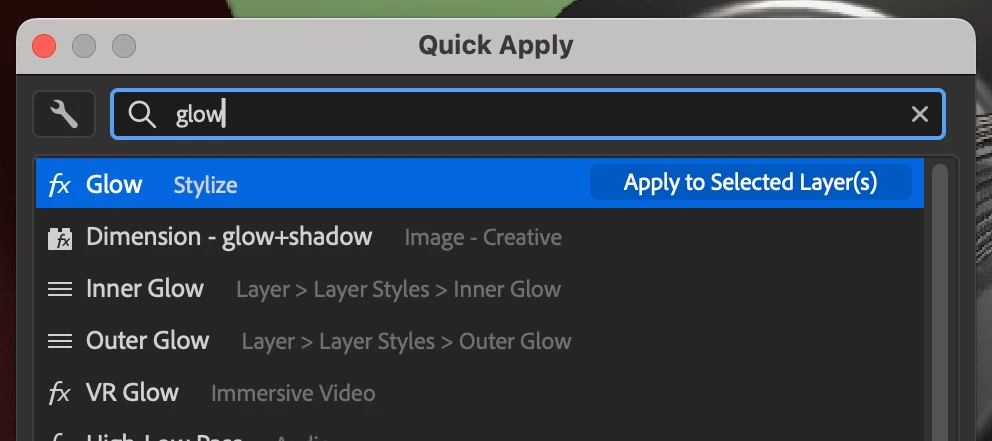
Quick Apply dialog in After Effects

Quick Apply was released in After Effects 26.2. Ongoing improvements will be posted here as they are made available in the Beta builds.


Hi all!

We are very excited to unveil Quick Apply in After Effects (Beta) 26.2.0.30 or higher. Quick Apply is a search box that puts every effect, animation preset, and menu command right at your fingertips. Type a few characters, pick what you want, and apply or run it. It’s that simple.

  • Effects — Search by name or category and apply to the selected layer, or create a new Solid or Adjustment layer with the effect already applied.
  • Animation Presets — Search and apply text presets and other animation presets to the selected layer, or to a new layer or adjustment layer.
  • Menu Commands — Search and run any top-level menu command, including access to blending modes, installed scripts, and preferences.
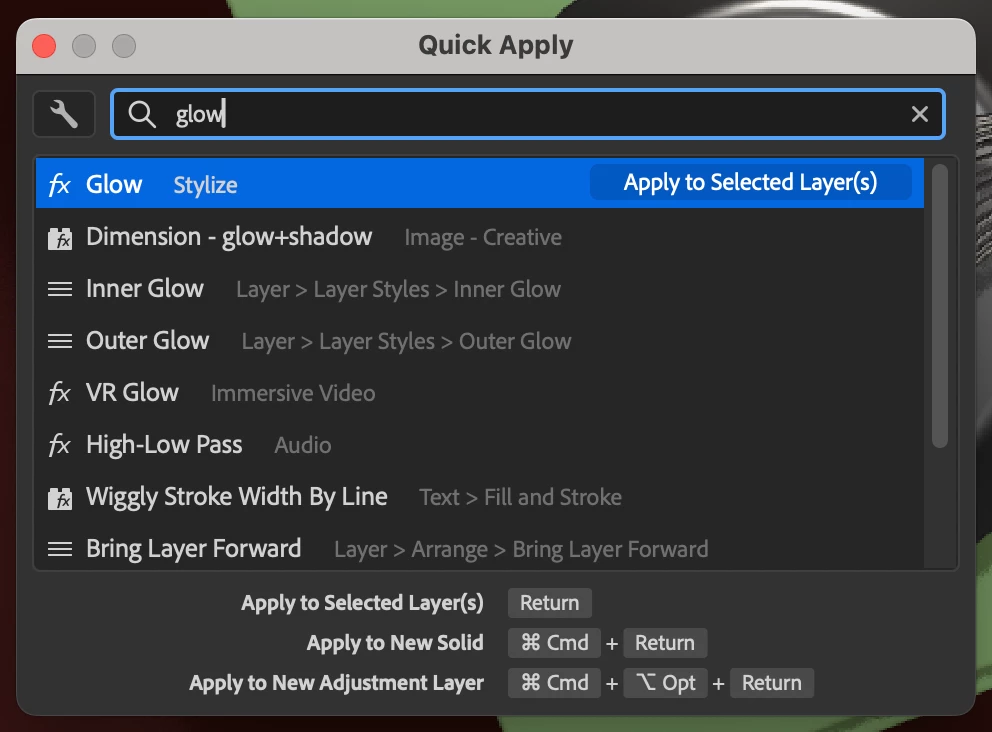
Showing result for “glow” in Quick Apply

To open the Quick Apply dialog

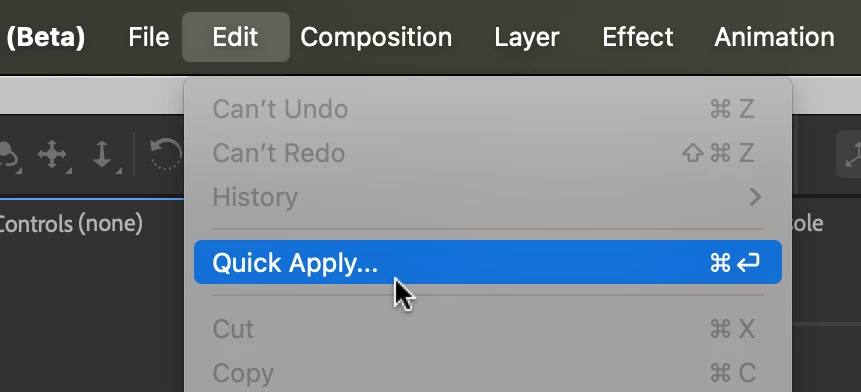
  • Edit menu > Quick Apply
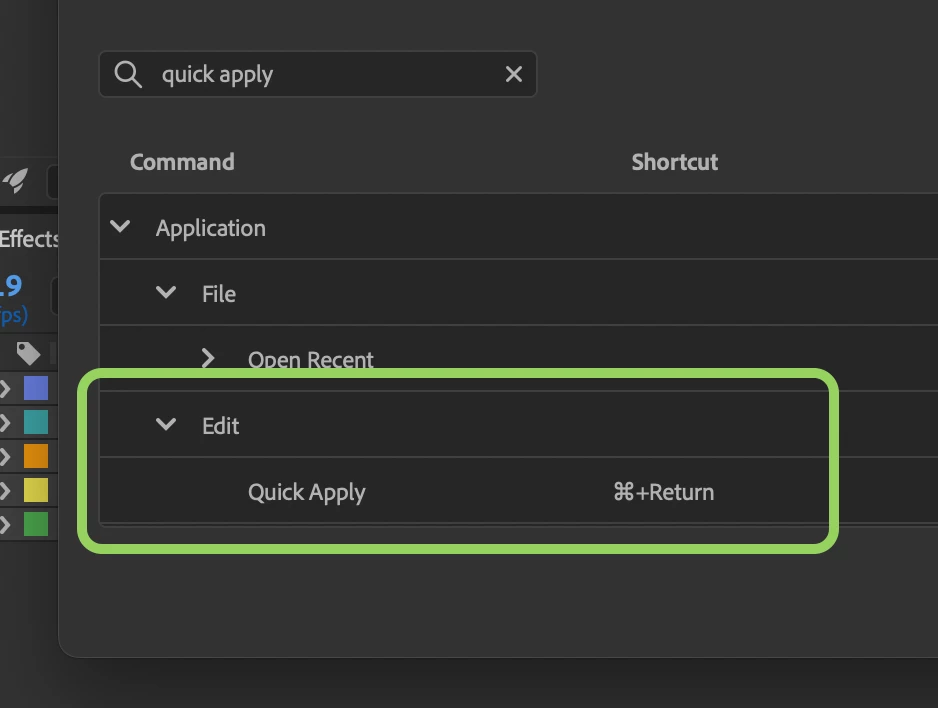
  • Ctrl+Enter (Windows) / Cmd+Return (macOS) — the shortcut can also customized.
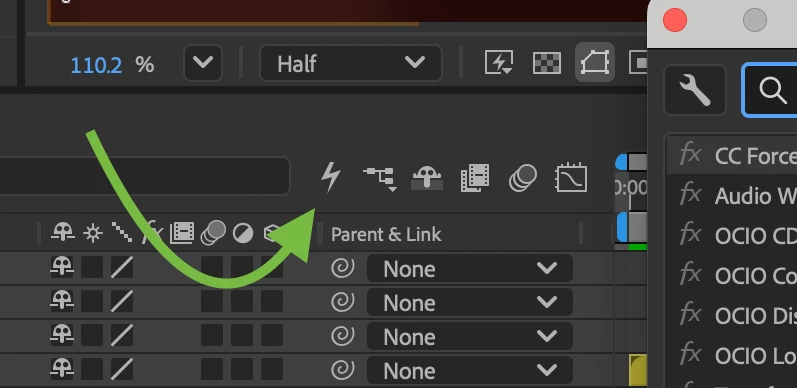
  • The Quick Apply button in the Timeline (between the search field and the mini-flowchart button).

The search box will be focused when the dialog opens, so you can start typing your search right away.

In the Edit Menu Keyboard Shortcut In the Timeline


Search, Apply, & Modifier Keys

  • Search for items by their name, menu, or category. Results update as you type. Searching is fuzzy and sorts results by the closest match.
  • Select an item in the list, then apply or run it by pressing Enter, clicking Apply/Run, or double-clicking. You can use the up ↑ and down ↓ arrows to change selection in the list, but left ← and right → arrows allow you to keep editing your text if needed.
  • Modifiers (Effects and Presets): Hold Ctrl (Windows) / Cmd (macOS) and press Enter to create a new solid or layer with the effect or preset applied. Hold Ctrl+Alt (Windows) / Cmd+Option (macOS) and press Enter to create a new adjustment layer. The hint area at the bottom of the dialog shows these options when you have an effect or preset selected.
Apply to the selected layer(s) Create new layer Add as adjustment layer


Settings & Filters

Use the Settings (the wrench icon) menu in the dialog to select the categories of results you want shown in your search.
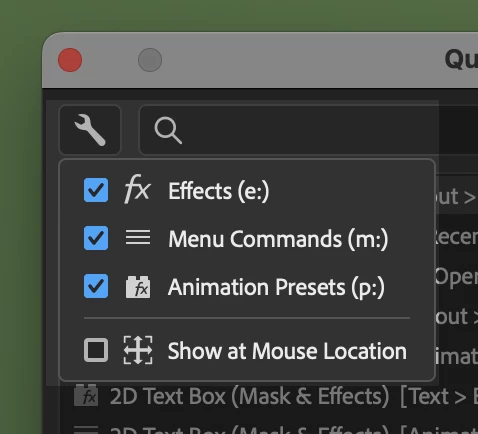
Settings menu in Quick Apply


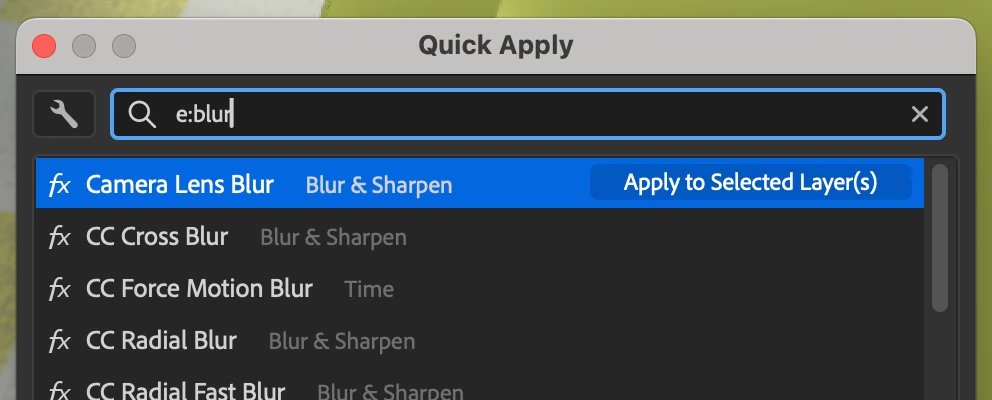
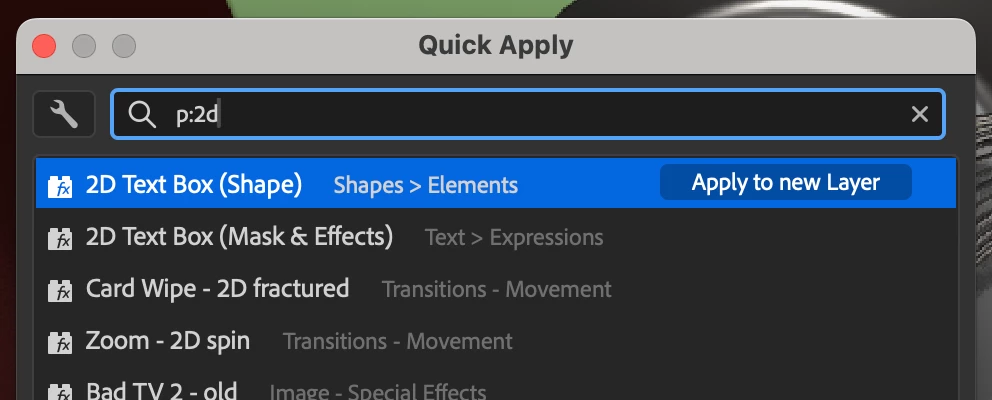
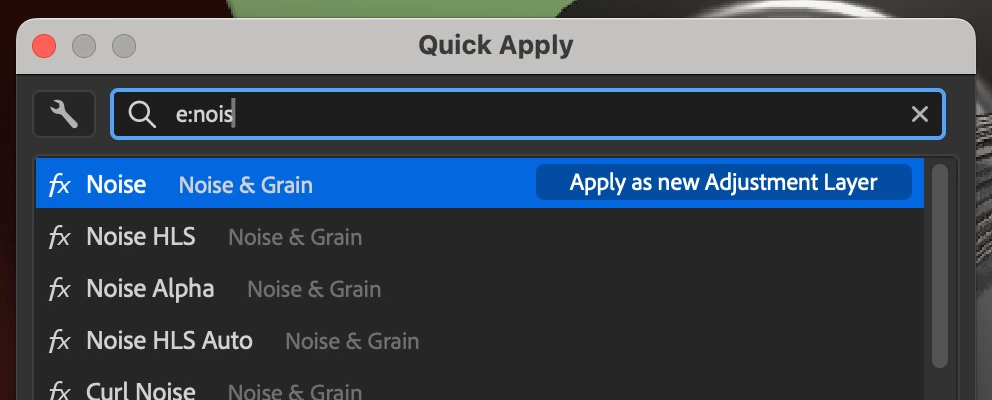
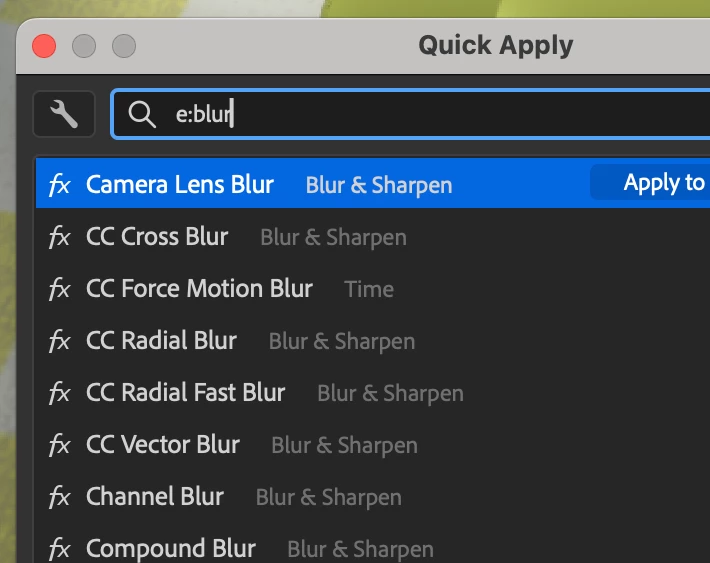
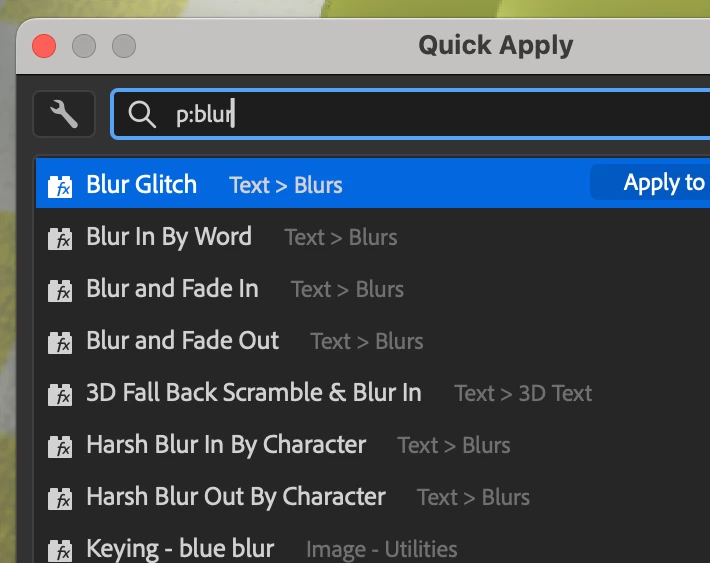
You can also type e:, p:, or m: at the start of your search to limit the result to only effects, presets, or menu commands.

Start search with e: for only effects Start search with p: for only presets


Select where the Quick Apply dialog will appear when you open it—either in the most recent location (default) or next to your mouse (enable "Show at Mouse Location").


We want your feedback

Quick Apply is in Public Beta because we want to make it great with your input. Try it out—apply effects, drop in presets, run commands—and let us know what works, what doesn’t, and what would make it even more useful. Your feedback will directly shape how Quick Apply evolves.

Thank you for being a part of After Effects (Beta),

  • John, After Effects Engineering Team 

    18 replies

    JohnColombo17100380
    Community Manager
    Community Manager
    April 16, 2026

    Hi all! As you may have seen, Quick Apply is now available in the release version of After Effects version 26.2. While we weren’t able to incorporate all the feedback and requests made into this first release of the feature, we are continuing to iterate and improve Quick Apply, so keep an eye on the Beta builds for further improvements. Thank you all again for your valuable feedback and input.


    Based on feedback received, a new feature is now available in the latest Beta builds of After Effects: 

    This will allow you to quickly copy the current frame to your clipboard for quick pasting into other applications (or saving to disk if you paste into Photoshop or Preview on macOS).


    The latest Beta builds also contain a fix for searching using Japanese, Chinese, and Korean characters; the search now works for partial matches when using characters from those languages, rather than requiring a full match.


    Cheers,

    • John, After Effects Engineering Team
    RobBarrett
    Community Expert
    Community Expert
    April 13, 2026

    When opening the panel, before typing anything, it’d be great to see the last 5 or so actions taken with Quick Apply, so you can easily repeat them.

    Example: I use Quick Apply to apply a Fill effect to a layer. The next time I open up Quick Apply, Fill is already selected (as the most-recently used action at the top of the list), so to re-apply it, I just need to press Return.

    josh_fish
    Participant
    April 15, 2026

    +1 for this! Projects often use the same set of effects so quick access when the panel opens would be a great addition

    JohnColombo17100380
    Community Manager
    Community Manager
    April 16, 2026

    Thank you both! This is a great request and very much on our radar.

    RobBarrett
    Community Expert
    Community Expert
    April 9, 2026

    I finally have some time to check this out, and it’s looking great so far!

    Given that open comps are included in the list of results, it would be helpful to be able to type a c: or t: filter (for “Comps” or “Timeline”) to speed up selecting those.

    JohnColombo17100380
    Community Manager
    Community Manager
    April 16, 2026

    Thank you, ​@RobBarrett! This is also another great request that I’ll make sure we make a note of. These are currently coming in via the Window menu, so if you type “timeline” or “tili”, you should see them, but having a dedicated filter would be handy and easier to remember.

    Shebbe
    Community Expert
    Community Expert
    April 9, 2026

    Following up on a post I made on the new ECP design, it would be welcome to be able to see more information in the listings, namely the bit depth the effects are supporting. I think it's important to see and realize whenever you are applying lower depth effects than the project working depth before committing, without relying on the clunky warning mechanism that is currently in place.

    JohnColombo17100380
    Community Manager
    Community Manager
    April 16, 2026

    Thank you, ​@Shebbe! I could definitely see how having those would be useful. 

    Crayoness
    March 25, 2026

    Can you add an option to sort by type? I’d like all of my .aex (effects) to be prioritized at the top.

    (Attached image is from Google. Can’t use FX Console at the moment because it doesn’t support After Effects 2026.)

    Inspiring
    March 25, 2026

    “doesn’t support After Effects 2026”

    well, no? We all use it with Ae2026? 

    Crayoness
    March 25, 2026

    Hmm, then it might just be my problem because it’s crashing my After Effects (26.0) on startup. Thanks for the clarify.

    Edit: I’ve tried a lot of After Effects version before and it works, last time I use 25.6 FX Console still works perfectly. I don’t know what happen with 26.0 or it could just be my Windows 11 acting weird.

    JohnColombo17100380
    Community Manager
    Community Manager
    March 10, 2026

    Thank you all for your feedback! It has all been very informative and we are happy to report that there are now improvements available in the latest After Effects (Beta) 26.3.0.5.

    We hugely appreciate the feedback and input so far. To directly address the screenshot functionality requests: at this point, we don’t plan to add this to the Quick Apply dialog in order to keep it focused on in-app search-and-apply. However, we do hear the need for improved screenshot handling loud and clear. Improvements in that area are now a part of our internal conversations moving forward.

    Updates

    • Updated UI (see updated screenshot in the post above)
      • Cleaner visual hierarchy and selection highlighting
      • Clearer action text for the selected item
      • Improved display of shortcuts below the list of items
    • Without a layer selection, the default action (Return/Enter) for effects & presets will also create a named layer for them, just like Cmd/Ctrl+Enter does.
    • ScriptUI panels in the Window menu are now included in the search.

    Bug Fixes

    • If a custom shortcut to launch Quick Apply typed a character, those characters are no longer typed in the search field.
    • Effects & presets are no longer shown in the list if there is no active composition.
    • The toggled state of the different categories in the 🔧 menu is now remembered between AE launches.
    • The text in the search box is no longer vertically offset on macOS.
    • Attempting to apply effects/presets to layers that don’t support them (e.g. Cameras, Lights, 3D Models) now shows a warning.


    Please give the latest AE (Beta) build a try and let us know how Quick Apply is working for you.

    Cheers,

    - John, After Effects Engineering Team 

    Shebbe
    Community Expert
    Community Expert
    March 12, 2026

    I think these changes are really nice!


    • I'm curious why BCC+ effects are listed up top on initial launch. Could it be sorting by some background identifier they gave them?
    • Still would love to see a favorite item mechanism to force items to top, e.g. CTRL+Enter → L → Enter to add Lumetri Color effect if made favorite.
       
    • Keyboard functionality is awkward in the context of striking it again to close the dialog.
      1. CTRL+Enter → causes the current entry to be applied due to the Add to New… mechanism
      2. CTRL+Space → creates a space in the search box first, then on second press it closes the window.
      3. CTRL+Tab → doesn't do anything while it's open.
      4. SHIFT+Tab → impossible to assign as keyboard shortcut.
      5. CTRL+, → doesn't do anything while it's open.
      6. CTRL+ALT+D → creates ð character in the searchbox

      I'm sure some can't really be avoided like nr 6 but maybe there is room for improvement.
    JohnColombo17100380
    Community Manager
    Community Manager
    April 16, 2026

    This is also great feedback, thanks again!

    • We will validate against the BCC effects to see why that might be happening.
    • Favorites are high on the list for future improvements, as they’ve been requested a lot.
    • Esc is the quickest way to close the dialog from the keyboard, but clicking outside the dialog will also dismiss it (noting that might not be obvious).
    Manaus
    Inspiring
    March 5, 2026

    Congrats to the team, that’s an awesome new feature!

    The community is giving awesome feedbacks as well, looking forward to this one.

    Inspiring
    March 5, 2026
    For the german part of the world: I hope this is not the final title of this feature. It gives me chills.


    Known Participant
    March 3, 2026

    Impressive replace of aged FX console.. One think… The CTRL+ENTER hotkey degrade its purpose - which is, I guess, save time.. It is really not possible to press it by one hand.. And that you need to left your mouse on the table, press enter and return back is a bit annoying.. I know you can modify the shortcut, but.. I wish there will be much friendly default hotkey as this tends to be one of the most used hotkey ever.

    what about ctrl+space like FX console have? If you decide to change this “octopusfriendly” hotkey to something more convenient to normal people, I also suggest to choose something what does not change if you change national keyboard layout (like mess with layer inpoint set etc when use german/czech/polish/-- whatever different than US)::

    And..could quick apply work with multiple layers at once? Because FX console does not.. And I miss it.. Often apply something to multiple layers and then need to use KBar or menu instead of FX consloe.


    Participant
    March 4, 2026

    You can go into shortcuts and replace it. I’m using Ctrl+space.

    Known Participant
    March 4, 2026

    I know, I wrote it.. But.. I am changing workstations in studio often and there is not recommended to change any default values 

    Participant
    March 3, 2026

    Excelent update. A couple of suggestions:
    I think the select command functionalities could be greatly expanded.
    select 1,4-8 - to select those layers
    select text/shapes/precomps - to select that kind of layers.
    select red - to select layers with that label color.
    Select parent/childs - select parent/childs of the currently selected layer.

    parent to nº - all selected layers will be parent to nº  

    I would love a button to capture the frame and easily export a png. That way it would completely replace Fx console in my workflow.
    and favorites! 

    JohnColombo17100380
    Community Manager
    Community Manager
    March 10, 2026

    This is great feedback and a very cool suggestion, thank you! Regarding the frame capture, please see my response above.

    Thanks again,

    • John