


Community Manager
August 6, 2026

New in After Effects Beta: After Effects AI Assistant

Hello everyone!


The rumors are true: we’ve brought a native AI Assistant to After Effects and it’s now here in beta! Update to the latest beta build (7 or above), restart After Effects, and open the panel from the icon in the header bar or via “Window” > “Assistant.”
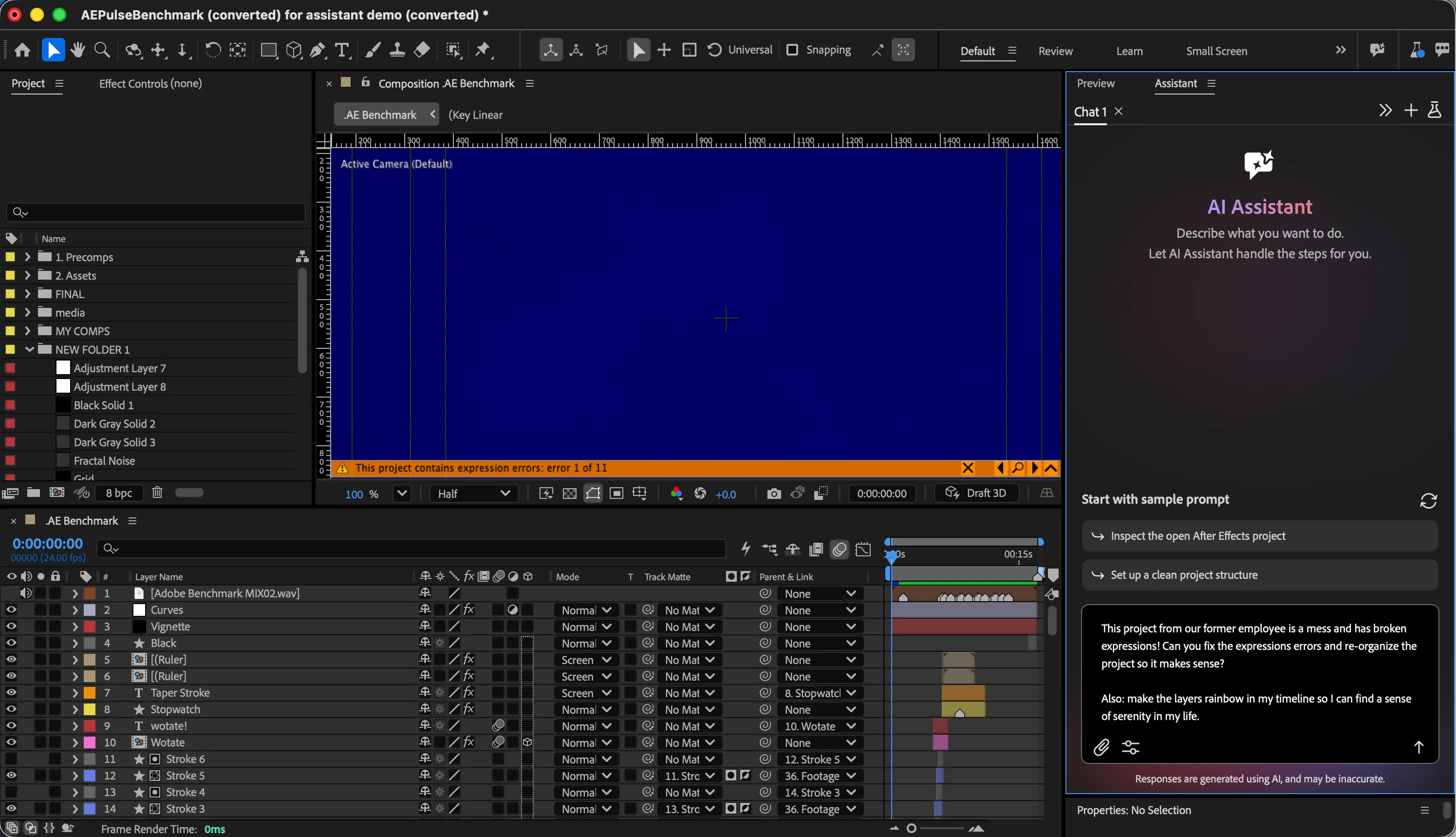
 

Exhibit A: a disaster project file.


First, what this is and isn't. The Assistant is not here to replace you as the artist. Our north star for the Assistant is for it to do the tedious work that takes away from the joy of creating (think expression troubleshooting, reorganizing a project you inherited from a contractor who didn't follow your team's project organization guide, manually checking the spelling in your text layers...)


So while you can point the Assistant at a wide range of workflows and get varying success rates, we've deliberately made it best at two things right now: project organization and expressions.


Ask it to explain, restructure, rename, and color-code your project: handy for anything that's gotten away from you, whether it's a legacy file or work you've inherited. And give it your expressions: have it read one back to you, write a new one from a plain-language description, or track down why one's throwing an error. These two workflows are where we've spent the most engineering time, so they're where it'll feel most polished right away.


People have also been pushing the Assistant well beyond project organization and expressions, and it's worth trying:

  • Give it a whirl with spell checking or even translating your text layers.
  • Hand it a plain-language ask and it'll build an entire expressions rig, not just fix a broken line.
  • We've also had some success generating multiple aspect-ratio versions of a comp.
  • You can also generate images and video directly from Firefly (and its supported models) in the Assistant. Generation won't consume credits for now – we’ll let you know when that changes.

Tooling and skills are landing in almost every new build, so expect rapid improvement over the next few weeks. I (or a member of our team) will make regular updates here as new functionality comes online!
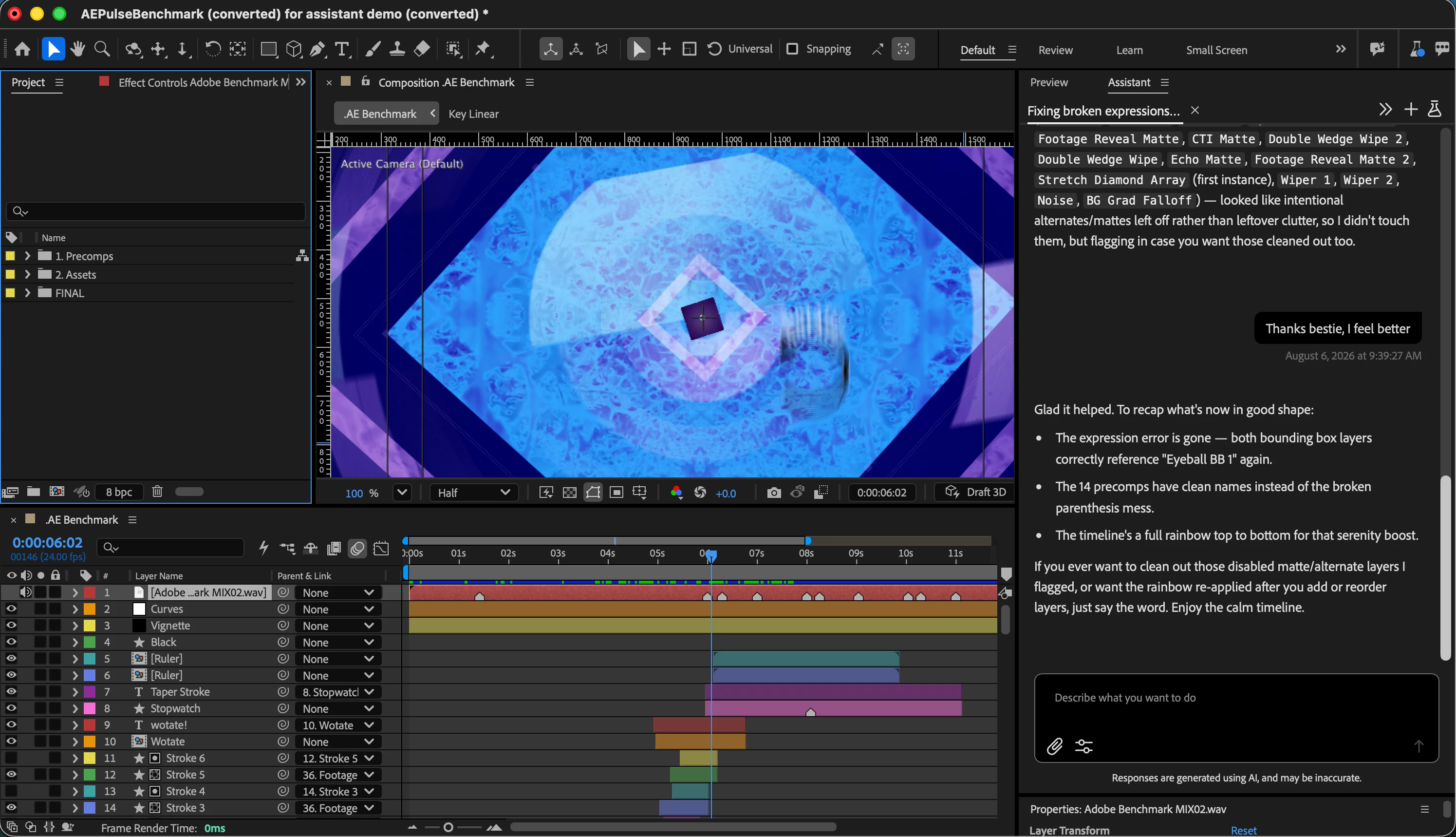
 

Serenity now.


A Couple of Answers to FAQs

We do not train on your content. Any information we collect is used for analytics only, so we can make informed decisions about the product roadmap. We follow Adobe's published privacy and data collection policies. Chat content is held only temporarily for bug investigation.

For those working under NDA: the Assistant includes a project vision tool, but it can only see a single screenshot of a single frame, so it can understand what's in your comp window. It's only used when needed by the Assistant, not during every conversation. Please use your own discretion when you consider whether using the Assistant is appropriate for NDA work. 

On pricing: the beta is free, including Firefly generations. There is a daily limit you may hit, along with a separate weekly threshold. We'll share news on a pricing plan for the full release as soon as we have it.


Known issues right now

  • (RESOLVED) 8/11/2026: We have discovered an issue where the Assistant was able to view folders outside of the project directory. This is not expected behavior and we are modifying tooling to prevent this.
  • (RESOLVED) The Assistant works best in English at this current moment. You can converse with the Assistant in any language, but we encountered an issue with other languages when it tries to use its tools.  We have a fix for this already in the pipeline, so I’ll let you know when it lands -- likely next week.
  • (RESOLVED) Speed. We are still in the process of optimizing tooling/processing efficiency. We expect this to improve on a regular basis and will post updates here as they come.
  • (RESOLVED) Reference uploads aren't fully online yet. The Assistant will accept JPG and PNG references, but broader support (including implementing the references into context) is still coming online. 
  • (RESOLVED) Scripting requests and some project-panel actions (renaming project items, toggling proxies) are still being tuned — the Assistant can be overly cautious and decline things it should just do. Tell us when you hit that by marking the interaction with a thumbs-down.
    • The Assistant should be able to generate scripts for you but not execute them. Please let us know how the script generation experience is going as you try it out.
  • Everything the Assistant does lands in the standard undo stack, though undo currently runs one action at a time rather than grouping a whole request.
  • We've heard some early requests for voice input/prompting -- let us know if this is something you'd like to see and how you'd ideally want to experience it.
  • The panel is opt-in instead of opt-out: how do you feel about that. Do you want it in a default workspace in the future?

Feedback and bug reports are always welcome — use the thumbs up/down “Provide Feedback” link, or this form: https://forms.office.com/r/Jr6kyrssHb. This is a much earlier beta than we’ve historically done: we wanted you to give your feedback at the exact stage where you can shape what gets built next. 

    30 replies

    Participant
    October 19, 2026

    Hi Catie and the After Effects Beta team!

    First, thank you for bringing AI Assistant to After Effects. I've been actively testing it to automate repetitive motion graphics tasks, particularly Korean handwriting animations using masks and Stroke effects.


    The results have been promising, and I'd love to continue testing and providing feedback.

    However, I've run into an issue with the usage limits.


    Recently, my AI Assistant session was interrupted during a Creative Cloud error. I retried the same task approximately twice, and shortly afterward, I received the message:

    **"You've reached your weekly usage limit."**


    I understand that the beta has daily and weekly limits, but interruptions and repeated tool calls make it difficult to continue testing within my production schedule.

    I have a few questions:


    1. Do interrupted or failed sessions still count toward the weekly usage limit?

    2. Is it possible to restore usage consumed by interrupted sessions?

    3. Is there a way to check the remaining usage allowance and the exact reset time?

    4. Are there plans to provide more flexible limits for users actively testing complex workflows?


    I'm genuinely interested in using AI Assistant for real production automation, and I'd be happy to share more detailed feedback from my tests.

    Thank you for your time and for the team's work on this beta!

    Translate
    Marc Schmitt
    Participant
    October 16, 2026

    Absolutely impressive work so far! However, a couple of feature requests immediately came to mind:

    • the ability to configure 'Skills' on a project-wide basis only and keep them contained beside or within the AEP
    • and to automatically save them together with the chats in the project file
    Translate
    Community Manager
    October 14, 2026

    Hey all! A quick update from our end: we’ve changed how the skills folder works, so the instructions in the original announcement for user-provided skills have been updated. Your skills folder will now arrive empty, so please feel free to save the below Readme, Template, and sample skills to your folder manually.


    We will be saving these skills to Help pages soon for future reference/access.

    Readme:

    ​
    # After Effects skills

    Starter skills for the After Effects Assistant. A skill is a small set of instructions that shapes how the Assistant works when you call it with `/skill-name`. It applies only to that skill's task — other skills are unaffected.

    You don't need coding experience to use these files. Each skill includes default settings you can use without changes, plus a clearly marked place to make it your own. Open a `SKILL.md` and tell the Assistant your preferences, standards, and boundaries in plain language.

    ## How a skill is organized

    Each skill lives in its own folder with one required file, `SKILL.md`:

    ```text
    skills/
    |-- preflight/
    |   `-- SKILL.md
    |-- spellcheck/
    |   `-- SKILL.md
    `-- my-skill/
        `-- SKILL.md
    ```

    The folder name, the `name` in the file settings at the beginning of `SKILL.md`, and the `/skill-name` command all match. For a folder named `my-skill`:

    ```yaml
    ---
    name: my-skill
    description: Improve something in a clear, reusable way.
    ---
    ```

    - **`name`** is the command you type after `/`.
    - **`description`** helps the Assistant recognize when a request belongs to the skill. Write it the way you'd naturally ask for the task, rather than in technical terms.

    ## Included skills

    - `/preflight` — check a project before rendering or delivery
    - `/spellcheck` — proofread and correct text in After Effects

    ## Customize a skill

    Every skill has two layers:

    - **Default behavior** — what the skill does before you customize it.
    - **Your preferences** — the rules you add to fit your workflow. When the two conflict, your preferences win.

    To customize, open a skill's `SKILL.md` and find the section marked **"Customize this skill here."** Add short, specific rules, for example:

    - "Use Canadian English."
    - "Prefer subtle overshoot."
    - "Never delete original layers automatically."
    - "Keep our approved layer prefixes."

    Each skill includes a few example preferences to show what works well — replace them with your own. You don't need to rewrite the whole file; start by editing the examples.

    Skills are written in plain language on purpose: they describe the result you want and the choices the Assistant should make, not the mechanics of operating After Effects. The Assistant already knows how to use After Effects, so "always leave a 24 fps master" or "never rename my control layers" belongs in a skill; step-by-step panel instructions do not.

    When you're ready for more, you can edit beyond the preferences. The sections used in these skills — What it does, Customize, Default behavior, Approach, Boundaries, Verify, Report — are a starting point, not a rule. Add, remove, or reorder sections to fit. A short, clear skill works better than a long, vague one.

    ## Create a skill

    Start from `SKILL-TEMPLATE.md`, or copy an existing skill folder:

    1. Create a folder for the skill.
    2. Add `SKILL.md` inside it.
    3. Set `name` in the file settings at the beginning of `SKILL.md` to match the folder name. This becomes the `/` command.
    4. Write a `description` covering what the skill does and the requests that should trigger it.
    5. Add your preferences in the Customize section.
    6. Keep the defaults, boundaries, and examples that fit; remove the rest.

    ## Keep skills focused

    A skill works best with one clear job. A project-organizing skill should describe how you want projects organized, not also try to be a general animation or troubleshooting skill. Keep unrelated tasks in their own skills.

    Skills Template:

    Skill Template:

    <!– HOW TO USE THIS TEMPLATE

    A skill lives in its own folder, and the instruction file must be named SKILL.md.

    my-skill/
    `-- SKILL.md

    Keep three things the same:

    the folder name (my-skill)
    the frontmatter “name” (name: my-skill)
    the slash command (/my-skill)
    This template is written as a small, complete example skill you can copy and change. Replace the parts that describe the example with your own task. –>

    name: my-skill description: Describe what this skill does and the kinds of requests that should use it. Write it the way a user would ask for the task, not in terms of After Effects internals.
    My Skill
    One sentence describing the result this skill should achieve.

    Customize this skill here
    This is where you make the skill your own. Add your preferences, rules, standards, or exceptions below. The Assistant follows these when the skill runs, and everything under “Default behavior” is what happens if you leave this empty. When your preferences conflict with the defaults, your preferences win.

    <!– Good preferences are short and specific. You can add a preference, a rule, a standard, or an exception. You do not need to rewrite the rest of the skill.

    Replace the examples below with your own. –>

    Prefer subtle results over dramatic ones.
    Never change anything I did not ask about.
    Ask before changing more than one composition.
    Default behavior
    Describe what the skill does when the user has not added preferences of their own. Keep it to the choices you want the Assistant to make, not the mechanics of how After Effects does the work.

    Approach
    Understand what the user is asking for.
    Inspect the relevant part of the project before changing anything.
    Make the smallest useful change.
    Check the result.
    Boundaries
    Preserve unrelated work. Do not make broad changes unless the request calls for them. When the request is unclear, make the narrowest reasonable choice or ask.

    <!– Use this section for limits and exceptions: what should never be changed, what needs extra care, or when the skill should stop and ask. –>

    Verify
    Confirm the requested change happened and that unrelated work still behaves as before.

    Report
    Say what changed and mention anything that could not be done as requested.

    <!– You can add, remove, or rename any section in this file. These sections are a useful default shape, not a required one. A short, clear skill beats a long, vague one. –>

    ​

    Preflight: Check your projects for problems before render, export, sharing, handoff, etc.

    ---
    name: preflight
    description: Check an After Effects project for problems before rendering, exporting, sharing, or handing it off. Use when the user asks to preflight, check, audit, review, verify, or fix issues before delivery.
    ---

    # Preflight

    Check whether an After Effects project is ready for its intended use. Find
    meaningful problems, surface important unusual states, and help resolve clear
    issues instead of stopping at a report.

    ## Customize this skill here

    > **This is where you make the skill your own.** Add the checks and standards
    > that matter for your workflow below. The Assistant follows these alongside
    > the default checks, and the "Default behavior" section is what happens if you
    > leave this empty. When your preferences conflict with the defaults, your
    > preferences win.

    <!--
    Add checks, preferred delivery settings, naming standards, audio expectations,
    or other project rules. For rules that apply to many items, be specific about
    what should count.
    -->

    - Deliver at 24 fps unless a comp is clearly meant to be different.
    - Expect audio in any comp named with "VO" or "MIX."
    - Flag any text still containing "PLACEHOLDER" or "TBD."

    ## Default behavior

    Inspect the whole project, classify each finding as a Top issue or an Item of
    note, and report only meaningful findings — never normal conditions or the
    inspection process. Fix clear issues only when the user asks for fixes, and
    verify every change before reporting it as fixed. When a finding depends on the
    user's intent, ask rather than assume.

    ## Approach

    1. Understand the intended delivery when it is clear.
    2. Inspect the full project for checks that require project-wide coverage.
    3. Classify each finding using the rules below.
    4. Fix clear issues only when the user asks. Do not make silent changes.
    5. Verify every change before reporting it as fixed.

    When a finding depends on intent or delivery, ask the smallest useful question
    rather than assuming it is wrong. Do the other checks first rather than waiting.
    A required Top issue can stay in the Top issues table with a "Needs review"
    status while you wait for an answer.

    ## What to check

    **Every composition (project-wide).** Review composition-level settings across
    all comps, not just the active or selected one: frame rate, duration,
    dimensions and pixel aspect ratio, color depth, and other delivery-relevant
    settings. For frame rate, check both whether a rate is unusual on its own and
    whether it is inconsistent with other comps or the intended delivery.

    **Media and dependencies (project-wide).** Look for missing or unavailable
    footage, broken dependencies, broken expressions, missing or substituted fonts
    when detectable, placeholder or unfinished content, and unusual source
    properties. When checking source frame rates, include video, animated image
    files, and image-sequence footage.

    **Timeline.** For relevant comps, look for soloed layers, layers disabled or
    hidden in a way that could affect the result, layers lasting only a few frames
    in a much longer comp, layers starting or ending at surprising times, and other
    unusual states. A very short layer may be an intentional flash or transition —
    surface it for review rather than calling it wrong.

    **Audio, when expected.** Check for muted or disabled audio and missing audio
    that would cause expected sound not to be heard. When it is unclear whether
    audio is required, ask.

    Do not report normal or expected conditions: that footage is present, that
    fonts are fine, that dependencies are healthy, or that layers are intentionally
    disabled as part of a variant, matte, or asset-library pattern.

    ## How to classify findings

    **Top issues** are required, high-priority findings that deserve prominent
    attention:

    - comps containing soloed layers
    - broken expressions
    - completely empty comps
    - unusual or materially mismatched comp frame rates
    - unusual or materially mismatched footage frame rates, including image-sequence footage
    - comp settings that clearly conflict with an established project or delivery standard
    - other conditions that clearly threaten the intended result

    A required Top issue stays in Top issues even when it may be intentional. Mark
    it "Needs review" or "May be intentional" rather than moving it to Items of
    note.

    **Items of note** are meaningful but lower-priority findings worth the user's
    attention that do not meet a Top issue rule.

    **Normal conditions are not findings.** Do not report things checked and found
    normal, and do not narrate the inspection.

    ## Report

    Report findings, not the inspection process. Keep findings concise but
    informative so the report is easy to scan. Use this structure and order:

    # Issues found from running the preflight

    ## Items of note

    Include this table only when there are items of note.

    | Item | Finding | Why it was noted |
    |---|---|---|
    | Promo Comp | 12 fps | May be intentional; review if needed |

    ## Top issues found

    Include this table only when at least one Top issue was detected. Every
    required Top issue must appear here.

    | Item | Issue | Why it matters | Status |
    |---|---|---|---|
    | Main Comp | Broken expression | Can stop intended animation | Needs attention |
    | Logo Comp | 12 fps | Unusual for this project | Needs review |

    Use **Status** to distinguish clear action from uncertainty: "Needs attention,"
    "Needs review," or "Fixed and verified." Do not create empty tables and do not
    report normal checks. After any requested fix, update the row with the verified
    status — never claim a fix without rechecking the project.

    The **final line** contains only the counts, in this form, with nothing after
    it:

    **Top issues found: 2 · Items of note: 3**

    ## Boundaries and completeness

    Project-wide claims require project-wide evidence. Do not say a category passed
    unless the relevant comps, footage, or layers were actually covered. If the
    available project information cannot establish complete coverage, say so instead
    of implying uninspected items are fine.

    When you cannot tell whether a finding is intentional or what the correct
    setting should be, ask rather than guessing.

    ## Verify

    Before reporting, confirm the result reflects the current project state, not an
    earlier snapshot. After any change, re-inspect the affected area and confirm
    the intended result before marking a finding "Fixed and verified."

    ## Examples

    "Is this ready to render?" Run the general preflight and use the required report
    structure. Keep normal conditions out.

    "Check this before client delivery and fix anything obvious." Run the preflight,
    fix only clearly justified issues, verify those fixes, and ask about anything
    that depends on the client's intended delivery.

    "This comp is 30 seconds long, but this layer is only 2 frames." Flag the short
    layer for review when its purpose is unclear. Do not call it wrong merely
    because it is short.


    Spell Check: Check or correct text in your AE project. State your desired dialect (US, Canadian, British English, etc.) in text in the skill
     

    ---
    name: spellcheck
    description: Check or correct text in an After Effects project. Use when the user asks to spellcheck, proofread, correct, clean up, or review wording in text layers.
    ---

    # Spellcheck

    Proofread text without rewriting the user's creative voice unless asked.

    ## Customize this skill here

    > **This is where you make the skill your own.** Add your writing preferences
    > below. The Assistant follows these when checking text, and the "Default
    > behavior" section is what happens if you leave this empty. When your
    > preferences conflict with the defaults, your preferences win.

    <!--
    Replace the examples below with your own language variant, approved terms,
    style, or how aggressively wording suggestions should be made.
    -->

    - Use American English.
    - Keep the voice casual; do not formalize contractions or slang.
    - Treat these as correct, not errors: our product and brand names.
    - Report wording suggestions separately; do not apply them automatically.

    ## Default behavior

    Correct clear errors when the user asked for corrections; otherwise report them
    without changing the project. Always separate definite corrections from
    suggestions or uncertain choices, and leave intentional creative language
    alone.

    ## Approach

    1. Identify the text the user wants checked.
    2. Review it for clear errors and likely accidental wording problems.
    3. Correct clear errors when correction was requested; otherwise report them without changing the project.
    4. Separate definite corrections from suggestions or uncertain choices.

    ## What to catch and what to leave alone

    Catch clear, likely-accidental problems:

    - spelling mistakes
    - grammar and punctuation errors
    - obvious typos
    - inconsistent capitalization
    - awkward or unclear wording when it is clearly accidental

    Leave intentional language alone. Do not "correct" names, brands, product
    names, places, slang, invented words, deliberate stylization, or unusual
    capitalization when they appear intentional. Do not change wording simply
    because another style would be possible. When a correction is uncertain, flag
    it rather than silently changing it.

    ## Boundaries

    Change only the text the user asked about. When correction was not requested,
    report findings without modifying the project.

    ## Verify

    After corrections, check the affected text again and confirm the intended
    wording is still present.

    ## Report

    List clear corrections separately from suggestions. If you changed the project,
    say what changed; if you only reviewed, report findings without implying any
    change was made.

    ## Examples

    "Spellcheck this." Check the relevant text and report clear errors without
    changing the project unless correction was requested.

    "Fix the copy in these titles." Correct clear errors in the specified text
    layers and report what changed.

    "Proofread this, but keep the voice casual." Correct clear errors while
    preserving the user's style and intentional informal language.


    Translate
    Roland Kahlenberg
    Legend
    October 14, 2026

    Apparently, I am unskilled - my skills folder is empty. 
    Are you certain this feature is available in the public beta for all or a select few? I am on - v27.1.0 Build 13

    Translate
    Very Advanced After Effects Training | Adaptive &amp; Responsive Toolkits | Intelligent Design Assets (IDAs) | MoGraph Design System DEV
    Community Manager
    October 14, 2026

    You are not unskilled! Engineering made a change since Friday that didn’t get communicated to me in time. I’m going to update the instructions above, but in the meantime you can view the raw text of each file below. Feel free to copy/paste them into a .md for your own use. These templates will also be hosted on our HelpX pages soon. :) 

    Readme:

    ​
    # After Effects skills

    Starter skills for the After Effects Assistant. A skill is a small set of instructions that shapes how the Assistant works when you call it with `/skill-name`. It applies only to that skill's task — other skills are unaffected.

    You don't need coding experience to use these files. Each skill includes default settings you can use without changes, plus a clearly marked place to make it your own. Open a `SKILL.md` and tell the Assistant your preferences, standards, and boundaries in plain language.

    ## How a skill is organized

    Each skill lives in its own folder with one required file, `SKILL.md`:

    ```text
    skills/
    |-- preflight/
    |   `-- SKILL.md
    |-- spellcheck/
    |   `-- SKILL.md
    `-- my-skill/
        `-- SKILL.md
    ```

    The folder name, the `name` in the file settings at the beginning of `SKILL.md`, and the `/skill-name` command all match. For a folder named `my-skill`:

    ```yaml
    ---
    name: my-skill
    description: Improve something in a clear, reusable way.
    ---
    ```

    - **`name`** is the command you type after `/`.
    - **`description`** helps the Assistant recognize when a request belongs to the skill. Write it the way you'd naturally ask for the task, rather than in technical terms.

    ## Included skills

    - `/preflight` — check a project before rendering or delivery
    - `/spellcheck` — proofread and correct text in After Effects

    ## Customize a skill

    Every skill has two layers:

    - **Default behavior** — what the skill does before you customize it.
    - **Your preferences** — the rules you add to fit your workflow. When the two conflict, your preferences win.

    To customize, open a skill's `SKILL.md` and find the section marked **"Customize this skill here."** Add short, specific rules, for example:

    - "Use Canadian English."
    - "Prefer subtle overshoot."
    - "Never delete original layers automatically."
    - "Keep our approved layer prefixes."

    Each skill includes a few example preferences to show what works well — replace them with your own. You don't need to rewrite the whole file; start by editing the examples.

    Skills are written in plain language on purpose: they describe the result you want and the choices the Assistant should make, not the mechanics of operating After Effects. The Assistant already knows how to use After Effects, so "always leave a 24 fps master" or "never rename my control layers" belongs in a skill; step-by-step panel instructions do not.

    When you're ready for more, you can edit beyond the preferences. The sections used in these skills — What it does, Customize, Default behavior, Approach, Boundaries, Verify, Report — are a starting point, not a rule. Add, remove, or reorder sections to fit. A short, clear skill works better than a long, vague one.

    ## Create a skill

    Start from `SKILL-TEMPLATE.md`, or copy an existing skill folder:

    1. Create a folder for the skill.
    2. Add `SKILL.md` inside it.
    3. Set `name` in the file settings at the beginning of `SKILL.md` to match the folder name. This becomes the `/` command.
    4. Write a `description` covering what the skill does and the requests that should trigger it.
    5. Add your preferences in the Customize section.
    6. Keep the defaults, boundaries, and examples that fit; remove the rest.

    ## Keep skills focused

    A skill works best with one clear job. A project-organizing skill should describe how you want projects organized, not also try to be a general animation or troubleshooting skill. Keep unrelated tasks in their own skills.

    Template:

    Skill Template:

    <!– HOW TO USE THIS TEMPLATE

    A skill lives in its own folder, and the instruction file must be named SKILL.md.

    my-skill/
    `-- SKILL.md

    Keep three things the same:

    the folder name (my-skill)
    the frontmatter “name” (name: my-skill)
    the slash command (/my-skill)
    This template is written as a small, complete example skill you can copy and change. Replace the parts that describe the example with your own task. –>

    name: my-skill description: Describe what this skill does and the kinds of requests that should use it. Write it the way a user would ask for the task, not in terms of After Effects internals.
    My Skill
    One sentence describing the result this skill should achieve.

    Customize this skill here
    This is where you make the skill your own. Add your preferences, rules, standards, or exceptions below. The Assistant follows these when the skill runs, and everything under “Default behavior” is what happens if you leave this empty. When your preferences conflict with the defaults, your preferences win.

    <!– Good preferences are short and specific. You can add a preference, a rule, a standard, or an exception. You do not need to rewrite the rest of the skill.

    Replace the examples below with your own. –>

    Prefer subtle results over dramatic ones.
    Never change anything I did not ask about.
    Ask before changing more than one composition.
    Default behavior
    Describe what the skill does when the user has not added preferences of their own. Keep it to the choices you want the Assistant to make, not the mechanics of how After Effects does the work.

    Approach
    Understand what the user is asking for.
    Inspect the relevant part of the project before changing anything.
    Make the smallest useful change.
    Check the result.
    Boundaries
    Preserve unrelated work. Do not make broad changes unless the request calls for them. When the request is unclear, make the narrowest reasonable choice or ask.

    <!– Use this section for limits and exceptions: what should never be changed, what needs extra care, or when the skill should stop and ask. –>

    Verify
    Confirm the requested change happened and that unrelated work still behaves as before.

    Report
    Say what changed and mention anything that could not be done as requested.

    <!– You can add, remove, or rename any section in this file. These sections are a useful default shape, not a required one. A short, clear skill beats a long, vague one. –>

    ​


    Translate
    Community Manager
    October 9, 2026

    Hello friends! I have returned and have a whopper of an update for you with what we’ve added since late August! Get ready.

    First -- user-provided skills are available in beta build 27.1 x8 (so, today’s build!) and onward.

    Skills are reusable instructions that tell the Assistant how you want a particular task handled. You can use them to define your project organization standards, your approach to troubleshooting, your preferences for animation work, or creating reusable instructions for tasks the Assistant already supports. You don’t need coding experience! Write your preferences and boundaries in plain language.

    To get started, open the three-dot menu in the Assistant panel, choose Skills, and click “Open Skills folder.” 

    To create your own skill, use the template below. Give the folder and the “name” field at the top of SKILL.md the same name. A skill named “my-skill” is called by typing /my-skill in the Assistant.Keep each skill focused on one job. A project-organizing skill should describe how you want projects organized; animation and troubleshooting preferences belong in separate skills. A skill’s instructions apply to its task, not to every interaction with the Assistant.

    Skills Readme:

    ​
    # After Effects skills

    Starter skills for the After Effects Assistant. A skill is a small set of instructions that shapes how the Assistant works when you call it with `/skill-name`. It applies only to that skill's task — other skills are unaffected.

    You don't need coding experience to use these files. Each skill includes default settings you can use without changes, plus a clearly marked place to make it your own. Open a `SKILL.md` and tell the Assistant your preferences, standards, and boundaries in plain language.

    ## How a skill is organized

    Each skill lives in its own folder with one required file, `SKILL.md`:

    ```text
    skills/
    |-- preflight/
    |   `-- SKILL.md
    |-- spellcheck/
    |   `-- SKILL.md
    `-- my-skill/
        `-- SKILL.md
    ```

    The folder name, the `name` in the file settings at the beginning of `SKILL.md`, and the `/skill-name` command all match. For a folder named `my-skill`:

    ```yaml
    ---
    name: my-skill
    description: Improve something in a clear, reusable way.
    ---
    ```

    - **`name`** is the command you type after `/`.
    - **`description`** helps the Assistant recognize when a request belongs to the skill. Write it the way you'd naturally ask for the task, rather than in technical terms.

    ## Included skills

    - `/preflight` — check a project before rendering or delivery
    - `/spellcheck` — proofread and correct text in After Effects

    ## Customize a skill

    Every skill has two layers:

    - **Default behavior** — what the skill does before you customize it.
    - **Your preferences** — the rules you add to fit your workflow. When the two conflict, your preferences win.

    To customize, open a skill's `SKILL.md` and find the section marked **"Customize this skill here."** Add short, specific rules, for example:

    - "Use Canadian English."
    - "Prefer subtle overshoot."
    - "Never delete original layers automatically."
    - "Keep our approved layer prefixes."

    Each skill includes a few example preferences to show what works well — replace them with your own. You don't need to rewrite the whole file; start by editing the examples.

    Skills are written in plain language on purpose: they describe the result you want and the choices the Assistant should make, not the mechanics of operating After Effects. The Assistant already knows how to use After Effects, so "always leave a 24 fps master" or "never rename my control layers" belongs in a skill; step-by-step panel instructions do not.

    When you're ready for more, you can edit beyond the preferences. The sections used in these skills — What it does, Customize, Default behavior, Approach, Boundaries, Verify, Report — are a starting point, not a rule. Add, remove, or reorder sections to fit. A short, clear skill works better than a long, vague one.

    ## Create a skill

    Start from `SKILL-TEMPLATE.md`, or copy an existing skill folder:

    1. Create a folder for the skill.
    2. Add `SKILL.md` inside it.
    3. Set `name` in the file settings at the beginning of `SKILL.md` to match the folder name. This becomes the `/` command.
    4. Write a `description` covering what the skill does and the requests that should trigger it.
    5. Add your preferences in the Customize section.
    6. Keep the defaults, boundaries, and examples that fit; remove the rest.

    ## Keep skills focused

    A skill works best with one clear job. A project-organizing skill should describe how you want projects organized, not also try to be a general animation or troubleshooting skill. Keep unrelated tasks in their own skills.


    Skill Template:

    <!--
    HOW TO USE THIS TEMPLATE

    A skill lives in its own folder, and the instruction file must be named SKILL.md.

    my-skill/
    `-- SKILL.md

    Keep three things the same:
    - the folder name (my-skill)
    - the frontmatter "name" (name: my-skill)
    - the slash command (/my-skill)

    This template is written as a small, complete example skill you can copy and
    change. Replace the parts that describe the example with your own task.
    -->

    ---
    name: my-skill
    description: Describe what this skill does and the kinds of requests that should use it. Write it the way a user would ask for the task, not in terms of After Effects internals.
    ---

    # My Skill

    One sentence describing the result this skill should achieve.

    ## Customize this skill here

    > **This is where you make the skill your own.** Add your preferences, rules,
    > standards, or exceptions below. The Assistant follows these when the skill
    > runs, and everything under "Default behavior" is what happens if you leave
    > this empty. When your preferences conflict with the defaults, your
    > preferences win.

    <!--
    Good preferences are short and specific. You can add a preference, a rule, a
    standard, or an exception. You do not need to rewrite the rest of the skill.

    Replace the examples below with your own.
    -->

    - Prefer subtle results over dramatic ones.
    - Never change anything I did not ask about.
    - Ask before changing more than one composition.

    ## Default behavior

    Describe what the skill does when the user has not added preferences of their
    own. Keep it to the choices you want the Assistant to make, not the mechanics
    of how After Effects does the work.

    ## Approach

    1. Understand what the user is asking for.
    2. Inspect the relevant part of the project before changing anything.
    3. Make the smallest useful change.
    4. Check the result.

    ## Boundaries

    Preserve unrelated work. Do not make broad changes unless the request calls
    for them. When the request is unclear, make the narrowest reasonable choice or
    ask.

    <!--
    Use this section for limits and exceptions: what should never be changed, what
    needs extra care, or when the skill should stop and ask.
    -->

    ## Verify

    Confirm the requested change happened and that unrelated work still behaves as
    before.

    ## Report

    Say what changed and mention anything that could not be done as requested.

    <!--
    You can add, remove, or rename any section in this file. These sections are a
    useful default shape, not a required one. A short, clear skill beats a long,
    vague one.
    -->


    Other Assistant updates since August

    • Speed: we turned on the afterburners! You should now see a considerable decrease in the time it takes for the Assistant to complete a response to your prompt. Hit thumbs up/down on your response and give us feedback on how the new speed feels.

    • Composition management: the Assistant can now open compositions and is instructed to open newly created compositions automatically instead of leaving them unopened in the Project panel.

    • Text editing: the Assistant can edit a specific range within a text layer rather than replacing all of its text.

    • Motion Graphics templates and Essential Graphics: expanded support for inspecting Essential Graphics settings, exposing properties and media, renaming controls, exporting MOGRTs, and working with Essential Properties.

    • Shape layers: expanded support for adding, deleting, renaming, reordering, and enabling shape operators, plus editing stroke dashes.

    • Expressions and animation: renaming layers, project items, or effects through the Assistant now updates expressions that reference them. We’ve also expanded keyframe interpolation support and improved checkbox expressions.

    • Project organization: improved support for organizing project items, including moving items back to the project root.

    • Render output: when you don’t specify an output path, the Assistant uses a default render location. On Windows: save your project first, or the Assistant won’t be able to set that default render location. If you haven’t saved your project on Mac, the default render location will be the desktop.


    We’ve also updated the Assistant’s guidance to use reasonable defaults, resolve references from the current project, ask fewer unnecessary questions, and report the concrete changes it made in your project.


    Please continue providing feedback! Tell us which instructions worked, where the Assistant didn’t follow them, and what you expected instead -- best path for reporting specific workflow issues is to thumbs up or down the Assistant’s prompt response and provide comments on your experience. That feedback will go straight to us and we can action it ASAP, even if you won’t hear back from us directly.

    Translate
    Participant
    October 6, 2026

    So the AI Assistant has a daily usage limit? Any way to increase that limit?

    Translate
    Community Manager
    October 9, 2026

    Hey there! Apologies for the delay; I’m getting caught back up after time off.

    Usage limit is temporary -- once we’re in GA you’ll be able to work with the Assistant to your heart’s content (with the option to add additional credits to your account if necessary). In the meantime, we’re taking a look at what we can do to increase the beta usage limits, so will keep you updated! 

    Translate
    motiondesigndotgraphics
    Participant
    September 18, 2026

    I gave it some physics simulation work using shapes it worked with circles after a number of failures and revisions but with other shapes it fixes one error you point out and simultaneously creates another, maths is where I thought AI in AE would be most useful.

    Translate
    Community Manager
    October 9, 2026

    Hey there! I’d love to hear more about your experience here. Where specifically did you hit an error in your workflow? Was it an expressions error that was created, or something else? 

    Next time you have issues, could you click “thumbs down” on the response and give us a brief writeup of what happened? We’ll be able to track down where the error was based on our metrics.

    Translate
    Inspiring
    September 15, 2026

    Will the AI Assistant support custom or third-party MCP servers?

    As an extension developer, I’m interested in whether it will eventually be possible to expose functionality from third-party extensions to the AI Assistant through MCP.

    Is support for custom MCP servers planned or being considered?

    Translate
    VictoriaNece
    Community Manager
    Community Manager
    September 17, 2026

    Hi Erik! Missed you at IBC this year. We’re looking at ways for third parties to provide information to the AI Assistant so it can understand and work with the tools you build. What’s your ideal workflow for that? 

    Translate
    Inspiring
    September 17, 2026

    Sorry I missed you at IBC, it would have been nice to catch up! 

    One possible workflow I can imagine: After Effects extensions could optionally expose their own tools to the AI Assistant through MCP. A small manifest included with the extension could tell the Assistant how to connect to its MCP server. On startup, the Assistant could discover these manifests, connect to the servers and discover the available tools through MCP.

    That way, installing an extension would automatically make its extension-specific capabilities available to the Assistant, without every extension needing its own prompt UI or users having to manually configure MCP servers.

    Ideally, the Assistant could already work with all extensions at the After Effects level, while MCP would allow an Extension to expose capabilities the Assistant couldn’t otherwise know about.

    I’ve built an MCP proof of concept for an After Effects extension that retrieves external data and passes it into the extension, and this is roughly how I’d ideally like it to work. For now it has its own prompt UI, mainly as a way to experiment with the workflow. Interesting times for extension developers!

    Translate
    RobBarrett
    Community Expert
    Community Expert
    September 10, 2026

    Does this run a proprietary model, or a third-party one? If it’s proprietary, could you please share what the training material for the model is, and where that comes from?

    Also, if the AI panel is closed, is this feature 100% disabled?

    Translate
    Community Manager
    October 9, 2026

    Hey Rob! Sincere apologies for the delay. Getting caught back up after an extended time out of office/doing customer visits.
     

    AI Assistant draws on a range of tools and AI models across our creative ecosystem, including our Firefly family of models and partner models, to deliver the best possible creative outcome. You can see which tools and AI models it used in its reasoning and tool calls. 

    We’re never training any models on the work you do with the Assistant, and you can opt out of sharing prompt data with us. If you opt in to prompt data sharing, that data is only used to help us diagnose customer issues or understand in an aggregate level where we should focus our efforts next in terms of building out tooling for the Assistant. You can opt out of data sharing here: https://account.adobe.com/privacy (it’s the “Content Analysis for Product Improvement” section).

    The AI panel is an opt-in feature, which means it’s not open by default. If you don’t have the panel open the feature is 100% disabled. You can choose to open the panel by going to Window > Assistant. 

    Translate
    Community Manager
    August 20, 2026

    Hi all! Quick check in before I head out of office for a few weeks. I wanted to give an update on some bug fixes, speed improvements, and new capabilities since my last post.
     

    Bug Fixes:

    • The Assistant no longer scans or enumerates files outside your project to resolve a path — it stays scoped to the task at hand. Big thanks to ​@Shebbe  (and ​@Roland Kahlenberg ) for bringing the issue to our attention.
    • Tools no longer drop out mid-session
    • Fixed the Assistant failing to connect if the panel was open at startup
    • Panel loads reliably, and is now fully localized (AKA you can use any language you want when working with the Assistant)

    New capabilities:

    • Text manipulation — edit and drive text layers directly through the Assistant
    • Open Comp — the Assistant can open the comp it's working in
    • Generates and imports files directly instead of just linking you to help docs

    Better results on real work:

    • Renaming a layer no longer breaks expressions that reference it — the Assistant auto-fixes the references
    • Correct 3D renderer is now chosen for parametric/mesh scenes
    • Better handling of shape-layer hierarchies — selection awareness, nested groups, and driving the right content property (e.g. Rectangle Path → Size instead of Scale)
    • Checkbox-driven expressions now include the required .value
    • Fewer incorrect "that's out of scope" responses
    Translate